
Allow Users to Override Time Condition on Operator Panel
No user can change the active time condition from the Operator Panel out of the box. A time condition decides which call routing the system uses at a given moment: for example, Business Hours routing while the office is open and off-hours or Holiday routing when it is closed. Letting a manager override it means they can flip the system between open and closed on demand (such as closing early for a staff event) without editing the schedule. If you want specific staff to be able to do this themselves, you assign that permission to the appropriate extension group managers, as described below.
What can be overridden
Section titled “What can be overridden”From the Operator Panel, users can only override the time condition for Business Hours that are set in the system’s default time zone. Business Hours configured in any other time zone cannot be switched this way.
Grant the permission
Section titled “Grant the permission”The override permission is available only to extension group managers. Follow these steps to enable it for a group’s managers.
-
Sign in to the PBX (Private Branch Exchange) web portal and open Extension and Trunk > Extension Group.
-
Locate the extension group you want to update and click the edit icon.

-
On the Extension Group page, open the Group Permissions tab.
-
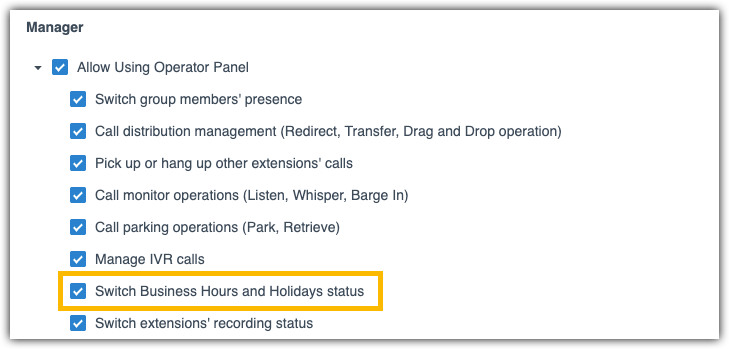
Under Permission Configuration, tick Switch Business Hours and Holidays status.
-
Click Save, then Apply.
Result
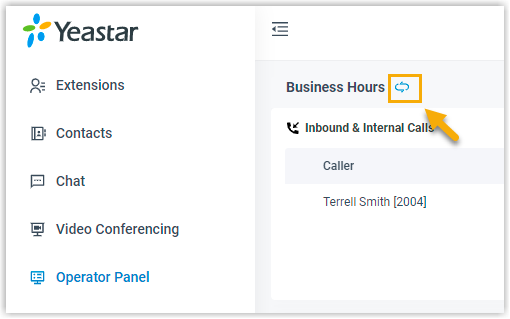
Section titled “Result”Any user in the group whose user type is Manager now sees a switch-time control on the Operator Panel and can use it to override the time condition for Business Hours set in the system’s default time zone.

Question about this page?
Ask the AI assistant. It starts from this page, then searches the rest of the docs.
Ask Cloud Voice AI
Answers are AI-generated from the docs and may contain mistakes. Verify with the linked pages.