
Start a Messaging Session with a Customer (Web and Desktop App)
When you need to message a customer before they message you, such as sending an appointment reminder, a service notification, or a marketing campaign, you can open a messaging session yourself from the Cloud Voice App on web or desktop.
Requirements
Section titled “Requirements”Before you start, confirm the following.
Ask your system administrator to verify the phone system:
- Runs version
84.23.0.24or later. - Has at least one SMS or WhatsApp messaging channel configured.
- Grants your account permission to create sessions in that channel.
- For WhatsApp, has the templates you want already synchronized. A WhatsApp session can only be opened with a WhatsApp-approved message template.
If you use the desktop app, it must be one of these versions:
- Windows: 1.7.3 or later.
- macOS: 1.7.3 or later.
Start a session over an SMS channel
Section titled “Start a session over an SMS channel”-
In the Cloud Voice App (web or desktop), go to Chat > External Chat.
-
Click the add icon (
 ) to begin a new session.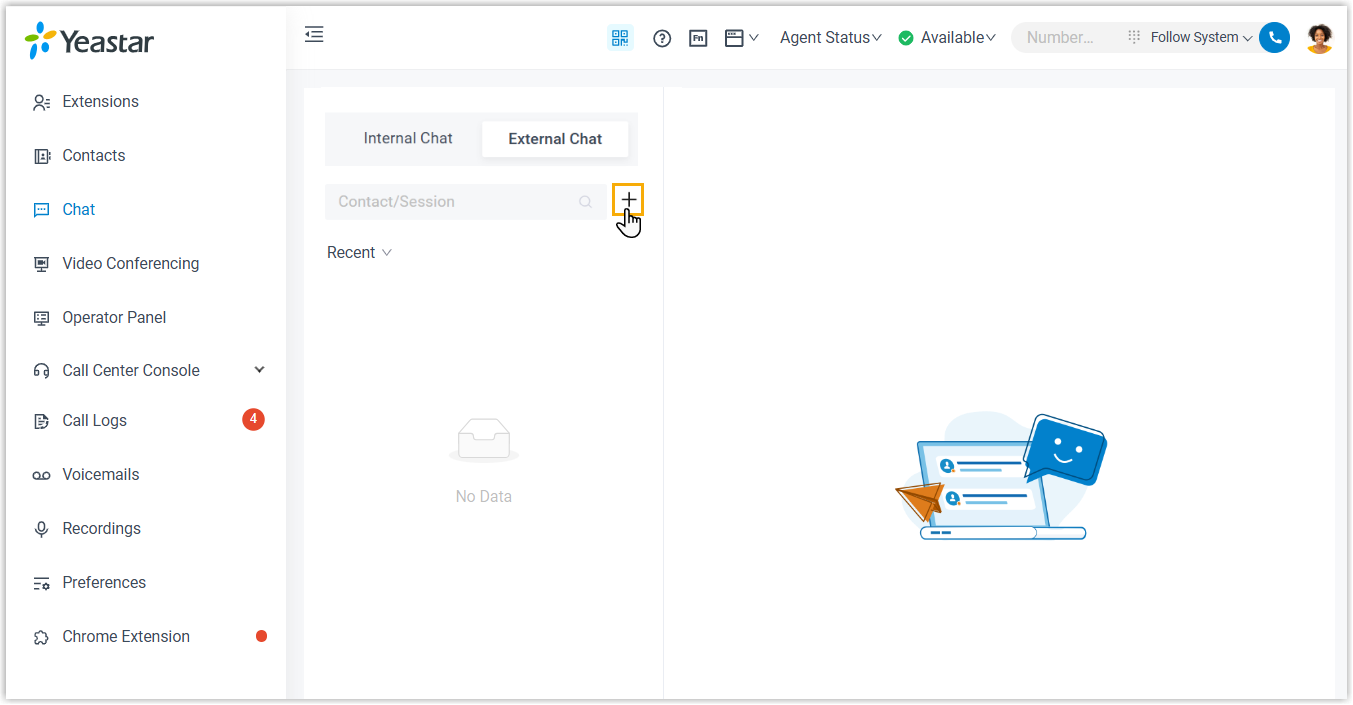
-
In the dialog that opens, enter the session details:
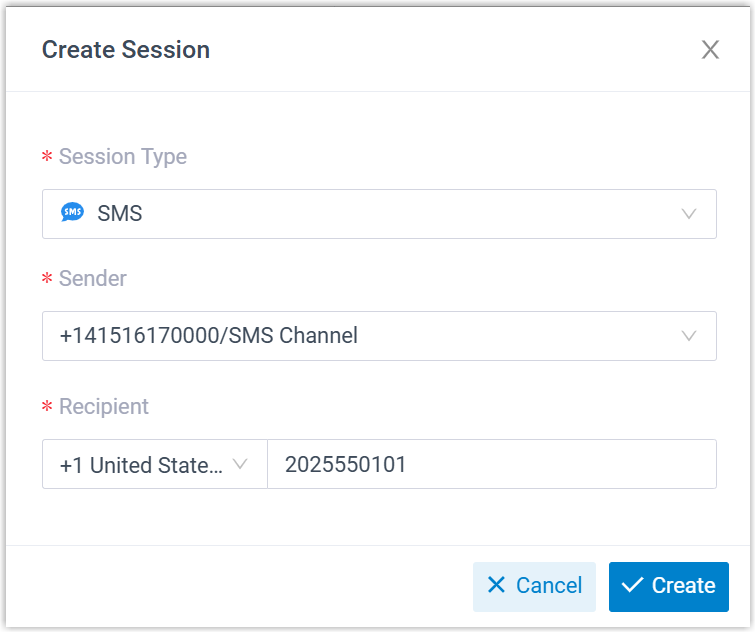
- Session Type: Select SMS.
- Sender: Select the channel number the message will be sent from.
- Recipient: Select a country/region code, then type the recipient’s number.
-
Click Create.
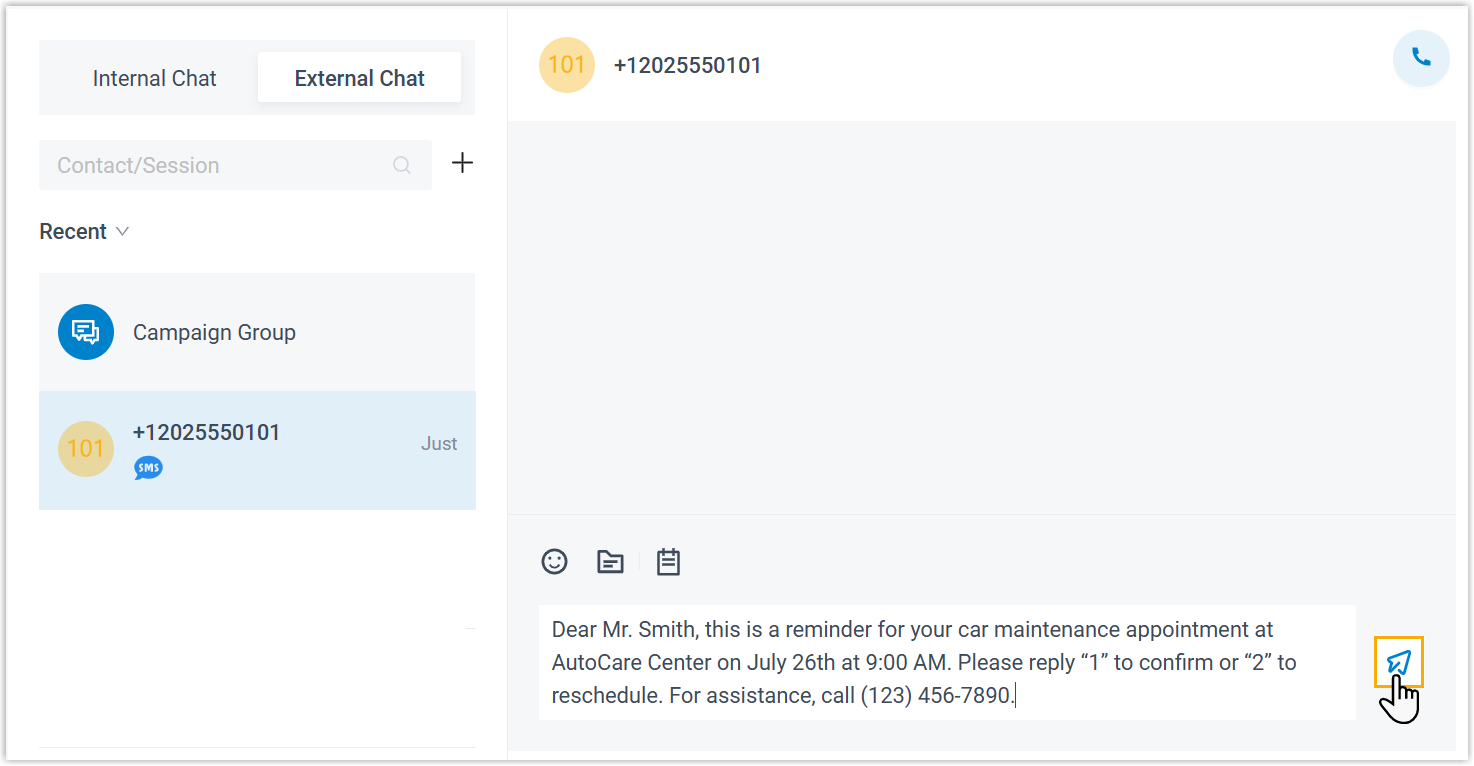
The SMS session is created, and you can start messaging your customer.
Start a session over a WhatsApp channel
Section titled “Start a session over a WhatsApp channel”-
In the Cloud Voice App (web or desktop), go to Chat > External Chat.
-
Click the add icon (
) to begin a new session. -
In the dialog that opens, enter the session details:
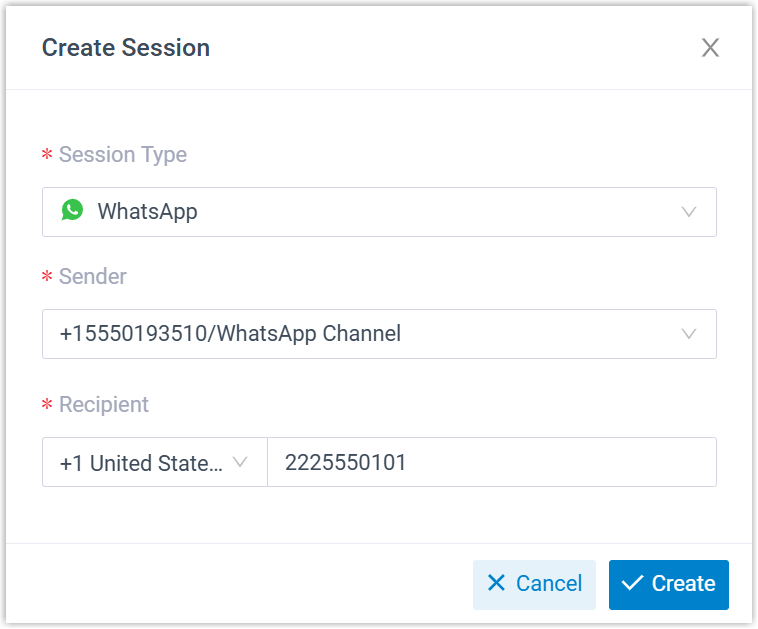
- Session Type: Select WhatsApp.
- Sender: Select the phone number associated with the channel.
- Recipient: Select a country/region code, then type the recipient’s number.
-
Click Create.
The WhatsApp session is created. What happens next depends on the session:
- If you took over an existing session that is still inside its 24-hour service window, you can message the customer right away.
- If this is a brand-new session, or the 24-hour window of the session you took over has closed, you must send a message template first. Continue with Step 5.
-
Send a message template to open the conversation:
-
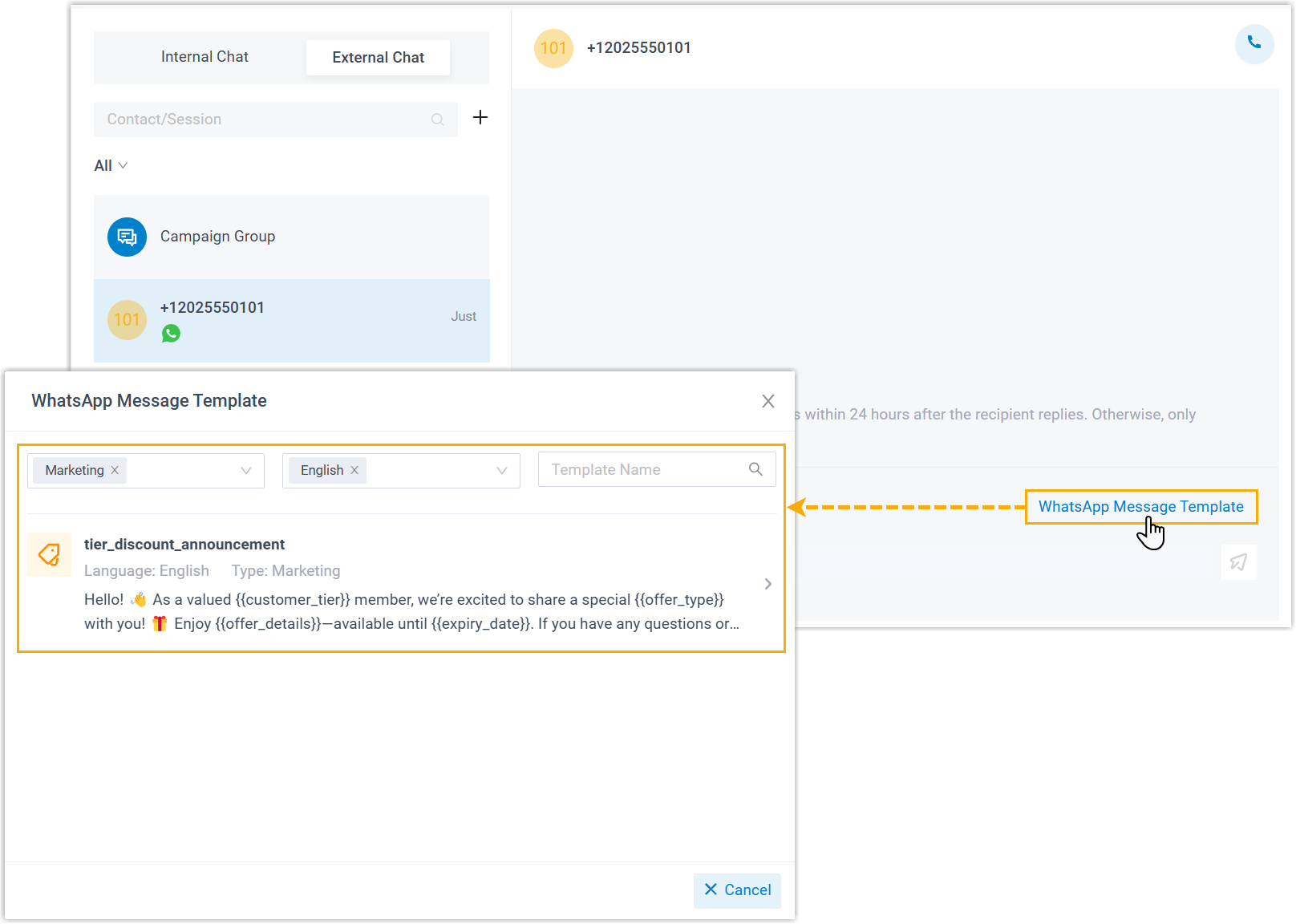
Click WhatsApp Message Template, then search for and select the template you want.
-
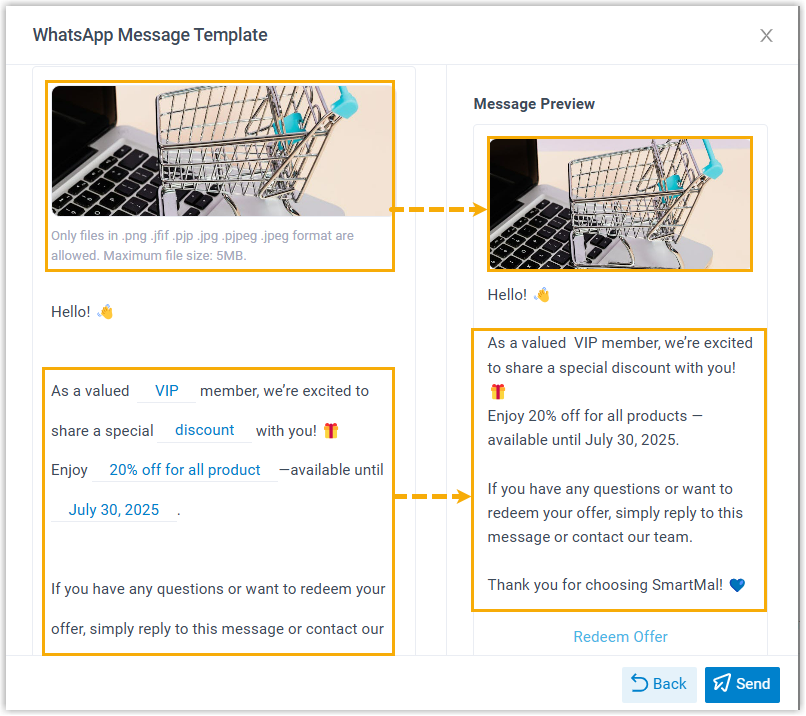
If the template contains media or variable placeholders, upload the required files and enter a value for every variable.
-
Click Send.
-
Question about this page?
Ask the AI assistant. It starts from this page, then searches the rest of the docs.
Ask Cloud Voice AI
Answers are AI-generated from the docs and may contain mistakes. Verify with the linked pages.