
Customize CDR Download Settings
A call detail record (CDR) is the log entry the system writes for every call, listing who called, who answered, when, and for how long. When you download CDR by hand from the Cloud Voice portal, the record list is exported as a CSV (comma-separated values) file unless you tell the system otherwise.
Download Settings let you decide, one time, exactly how much detail to include, which file type to produce, how call durations are shown, and which columns end up in the file. You would set these when the default CSV export does not give you the layout or detail you need, for example when you want a printable PDF or only a few columns.
Adjust your download preferences
Section titled “Adjust your download preferences”-
Sign in to the Cloud Voice portal and open Reports and Recordings > CDR.
-
Open the CDR (Advanced) tab, click the Download CDR drop-down, and choose Download Settings.
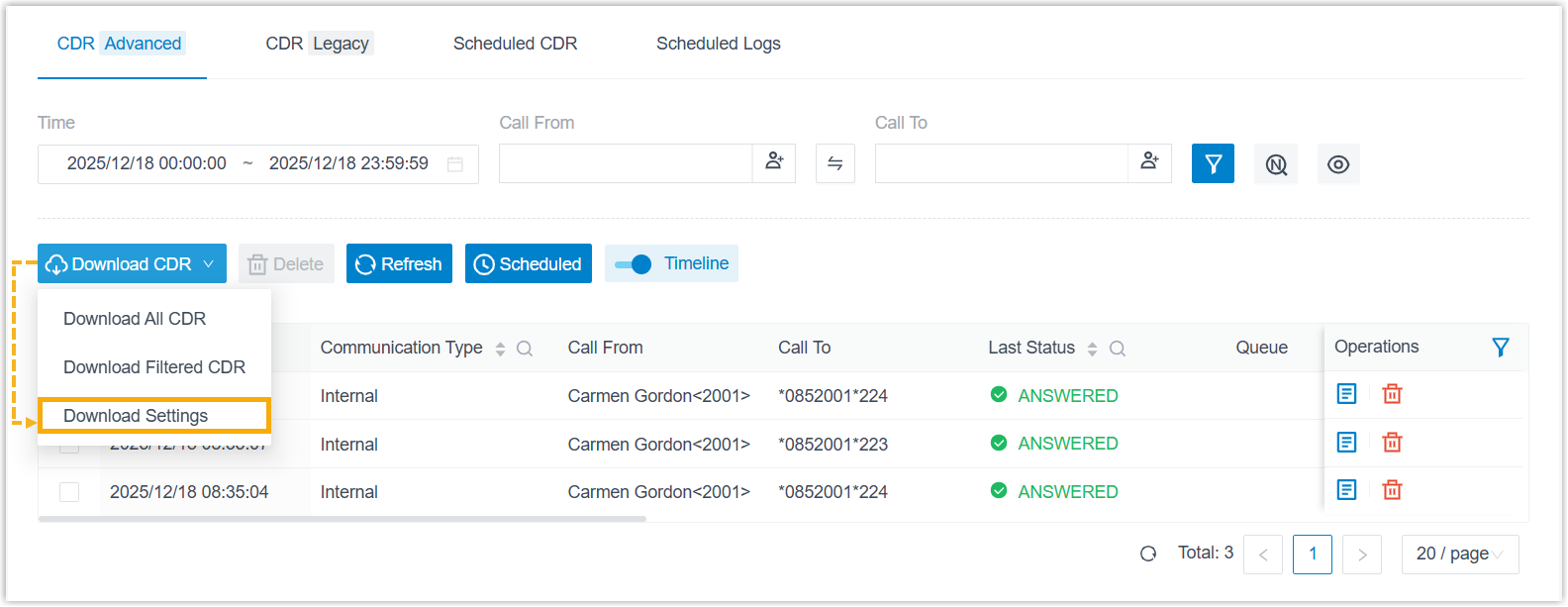
-
In the dialog that appears, set your preferences.
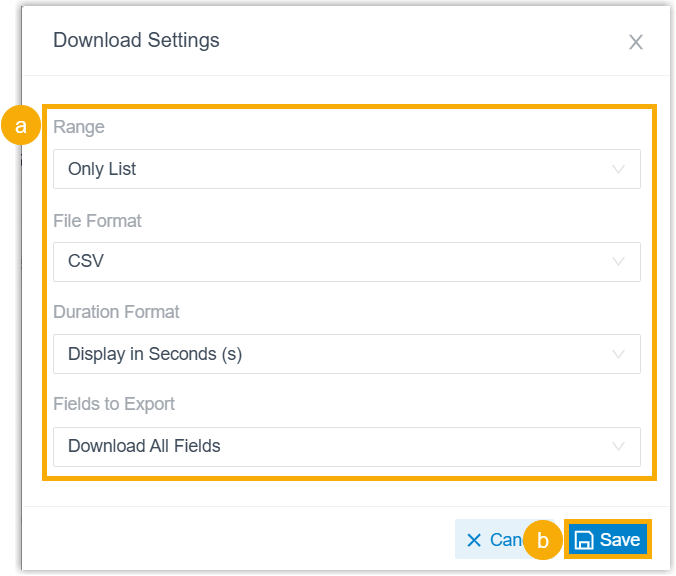
Each option controls a different part of the export:
Setting What it does Range Chooses how much of the record data to include: Only List, Only Call Leg Data, List & Call Legs Data, or List, Call Legs, and Timeline Data. File Format Sets the file type produced by the download: CSV, XLS, PDF, or HTML. Duration Format Sets how every duration field is displayed, either Display in Second (s) or Display as HH:MM:SS (hours, minutes, seconds). Fields to Export Determines the columns included: Download All Fields, or Download Selected Fields to pick specific columns. -
Click Save.
Your choices are saved and applied to every future manual download until you change them here again.
Next step
Section titled “Next step”Question about this page?
Ask the AI assistant. It starts from this page, then searches the rest of the docs.
Ask Cloud Voice AI
Answers are AI-generated from the docs and may contain mistakes. Verify with the linked pages.