
Customize the Email Template for Scheduled Call Reports
A scheduled call report is a call-activity summary that Cloud Voice generates on a recurring schedule and emails to the recipients you choose. When Cloud Voice sends one of these emails, it uses a standard, built-in message unless you provide your own. This page shows you how to swap in a custom subject and body so the notifications match your organization’s wording.
How the default email works
Section titled “How the default email works”Out of the box, scheduled report emails are built from the default template and sent in whatever notification language you have configured under System > Email > Email Templates > Notification Email Language.
That default message gives recipients:
- A link to download the call report.
- How long that download link stays valid before it expires.
- System details, namely the PBX name and PBX serial number.
If those defaults don’t fit your needs, follow the steps below to write your own.
Replace the template
Section titled “Replace the template”-
Sign in to the PBX web portal and open Reports and Recordings > Call Reports.
-
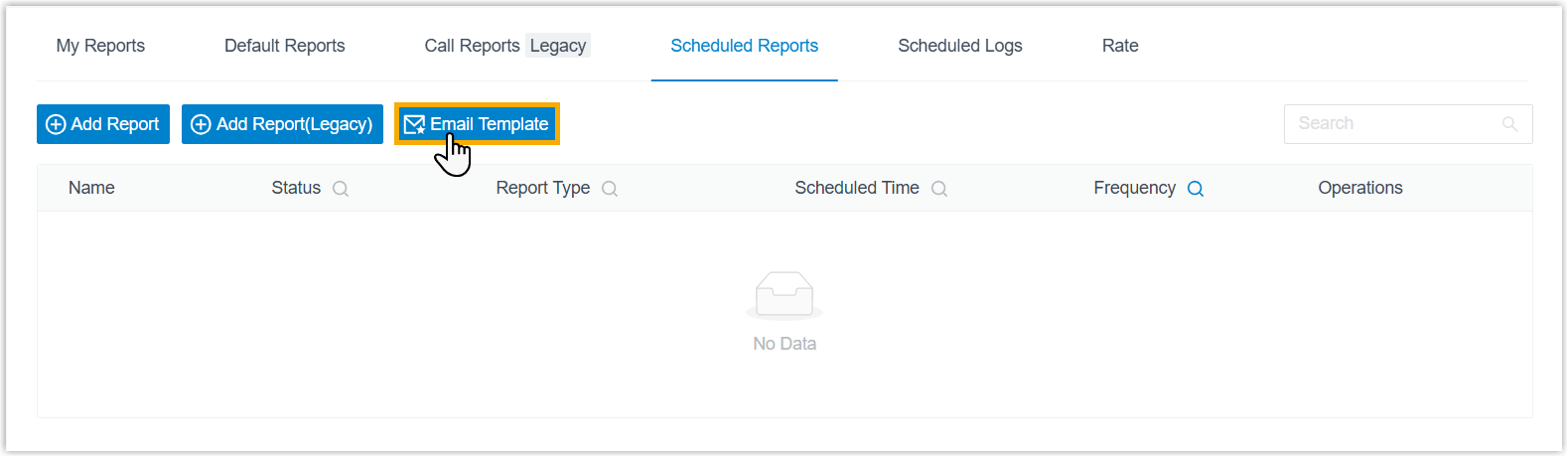
On the Scheduled Reports tab, select Email Template.
-
Set up your custom message:
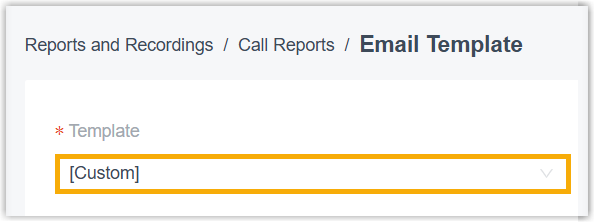
a. Open the Template drop-down and choose Custom. This unlocks the subject and body fields for editing.
b. Enter the email subject and body you want to use.
c. Select Save.
Once saved, every scheduled call report goes out using your custom template instead of the default one.
Question about this page?
Ask the AI assistant. It starts from this page, then searches the rest of the docs.
Ask Cloud Voice AI
Answers are AI-generated from the docs and may contain mistakes. Verify with the linked pages.