
Call Recording Overview
Recording calls lets you preserve important conversations, coach staff, review performance, and give agents concrete feedback. This page explains how recording behaves in Cloud Voice, what you can record, how to prompt callers for consent, and how recording files are managed over time.

How recording works
Section titled “How recording works”Once a call connects, Cloud Voice begins recording the conversation on its own. While a recording is in progress, the person on the call can pause it and resume it again later, which is useful for keeping sensitive details out of the file. When the call finishes, the system saves the conversation as an audio file and applies a digital signature to it.
For calls that need more detailed post-processing, Cloud Voice can record the receive track (RX) and transmit track (TX) of a one-to-one call as separate left and right channels, producing a stereo file. Splitting the two parties across channels makes each voice easy to isolate and speeds up later analysis. You can also pick whether recordings download as .wav or .mp3. See Enable Stereo-separated Recording for setup details.
What you can record
Section titled “What you can record”Recording is configured independently for each of the following, so you can be as broad or as targeted as you need.
- Extensions: Captures every call on the chosen extensions, both internal and external.
- Trunks: Captures every call on the chosen trunks, inbound and outbound alike. For example, if a team handles customer issues over one dedicated trunk, you can record only the calls that pass through it.
- Pagings/Intercoms: Captures the conversation between everyone taking part in a paging or intercom call.
- Conferences: Captures the conversation of everyone who joins the selected conference rooms.
- Queues: Captures calls for the queues you select. For instance, if an agent is logged in to both a Service queue and a Support queue and recording is enabled only for Service, the system records Service calls but leaves Support calls untouched.
- IVRs (Interactive Voice Response, the automated menu that callers navigate with their keypad): Captures calls for the IVRs you select.
Consent prompts
Section titled “Consent prompts”Out of the box, Cloud Voice plays nothing to indicate that a call is being recorded.
To keep recordings compliant and make sure callers have agreed to be recorded, you can add your own recording prompt for internal calls, inbound calls, and outbound calls independently. When configured, the prompt plays before recording starts.
Managing recordings
Section titled “Managing recordings”- Users can view and toggle the recording status of their calls from IP phones and the Cloud Voice App.
- Administrators can manage the stored recording files and grant access to them to other users.
Automatic cleanup
Section titled “Automatic cleanup”Each time a recording is produced, Cloud Voice writes a log entry for it and keeps the audio file in PBX local storage (storage on the PBX, or Private Branch Exchange, which is the phone system itself).
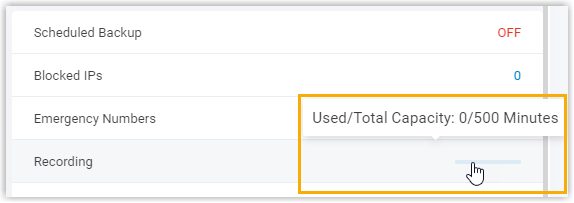
By default, once recording logs reach 1,000,000 entries, or once the total recording minutes are exhausted, the system starts removing the oldest logs or files first. You can raise or lower these limits, or switch to cleanup based on a retention period instead.
For the full set of options, see Recording Auto Cleanup.
Question about this page?
Ask the AI assistant. It starts from this page, then searches the rest of the docs.
Ask Cloud Voice AI
Answers are AI-generated from the docs and may contain mistakes. Verify with the linked pages.