
Handle Queue Calls on the Cloud Voice App (Mobile)
As a queue agent, you can take and manage queue calls directly from the Cloud Voice App on your phone. This page walks through the in-call actions available to you: answering, recording, holding and resuming, transferring, adding notes, and hanging up.
Before you start
Section titled “Before you start”Make sure the following are in place:
- You are signed in to the Cloud Voice App on your phone and logged in to your call queue.
- The mobile app is selected as a ring destination in your ring strategy. To check, go to Account > Presence, open the more-options menu, and review Ring Strategy.
- Call Waiting is turned on, under Account > Settings > Advanced > Call Waiting.
Answer a call
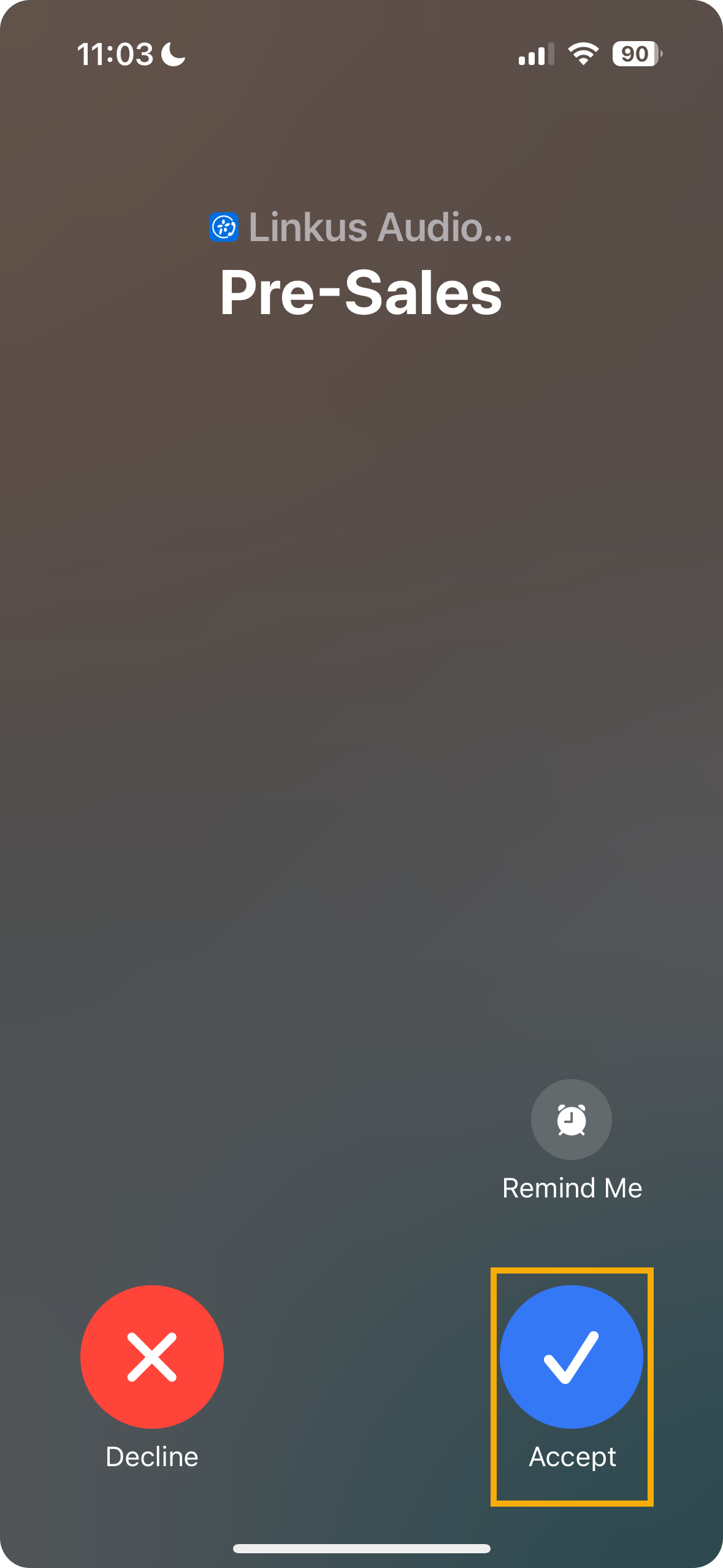
Section titled “Answer a call”When a queue call is routed to your extension while you are using the app, an incoming-call notification appears on your phone.
Tap Accept on iOS, or Answer on Android, to take the call.
Record a call
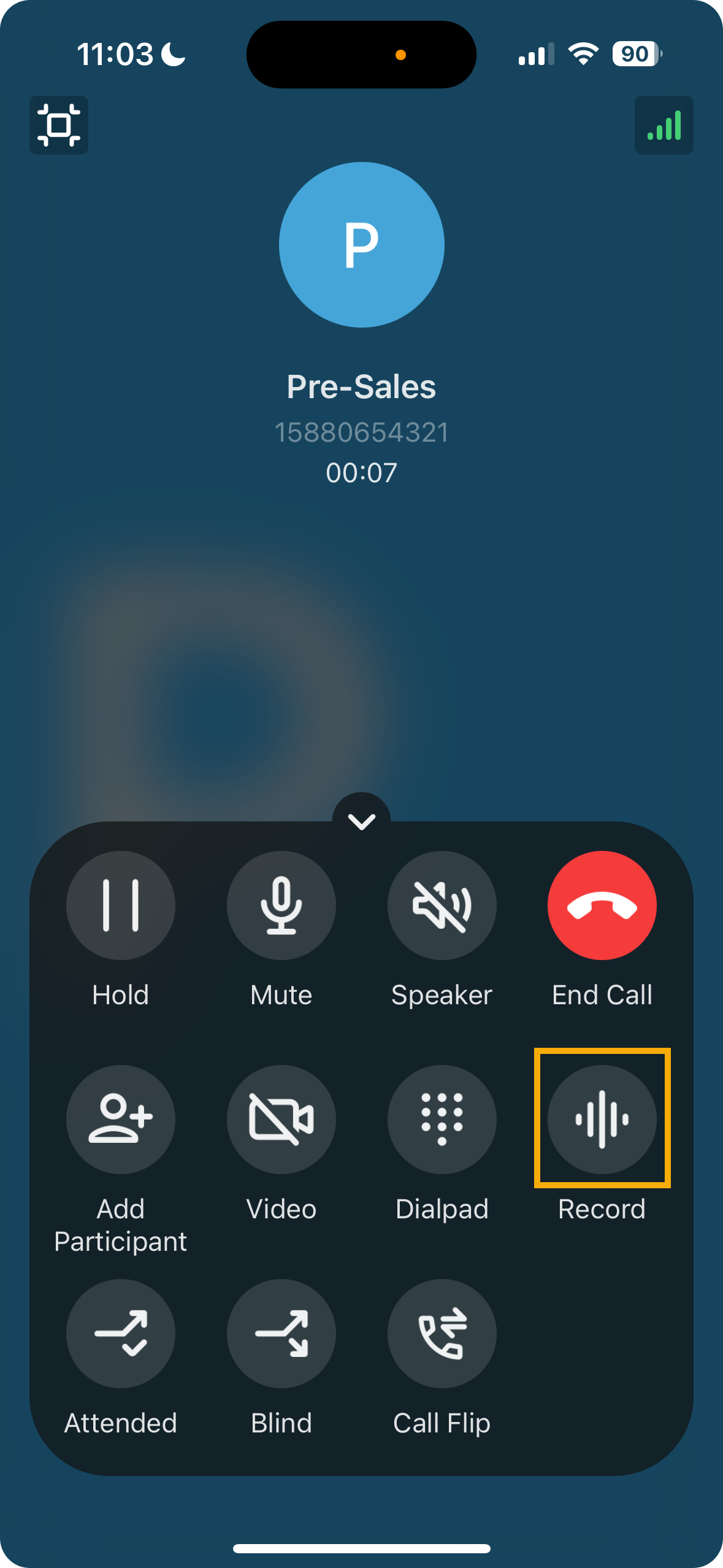
Section titled “Record a call”While a call is active, tap the Record control on the call screen to begin recording.
Hold and resume a call
Section titled “Hold and resume a call”Placing a call on hold lets you pause briefly, look something up, or check with a colleague, then pick the conversation back up when you are ready.
-
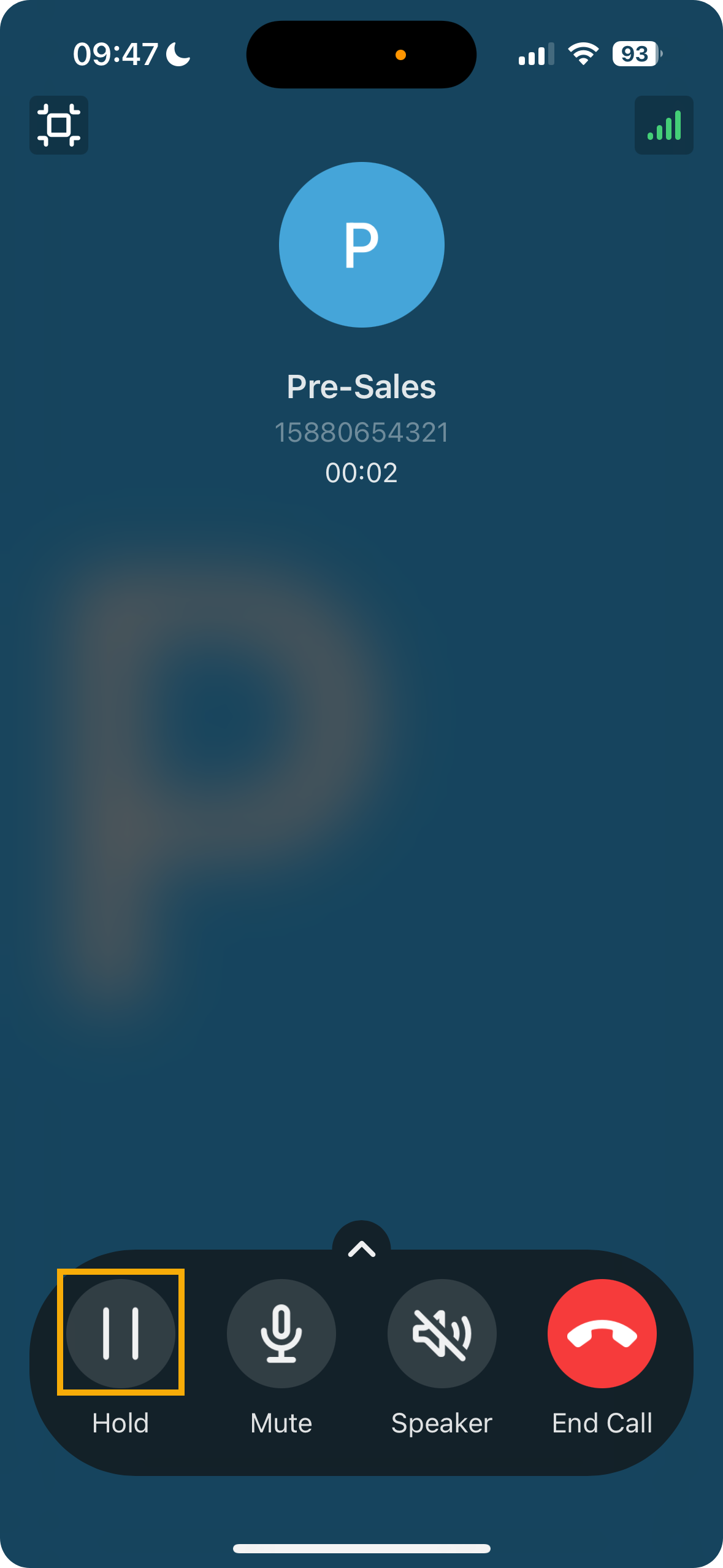
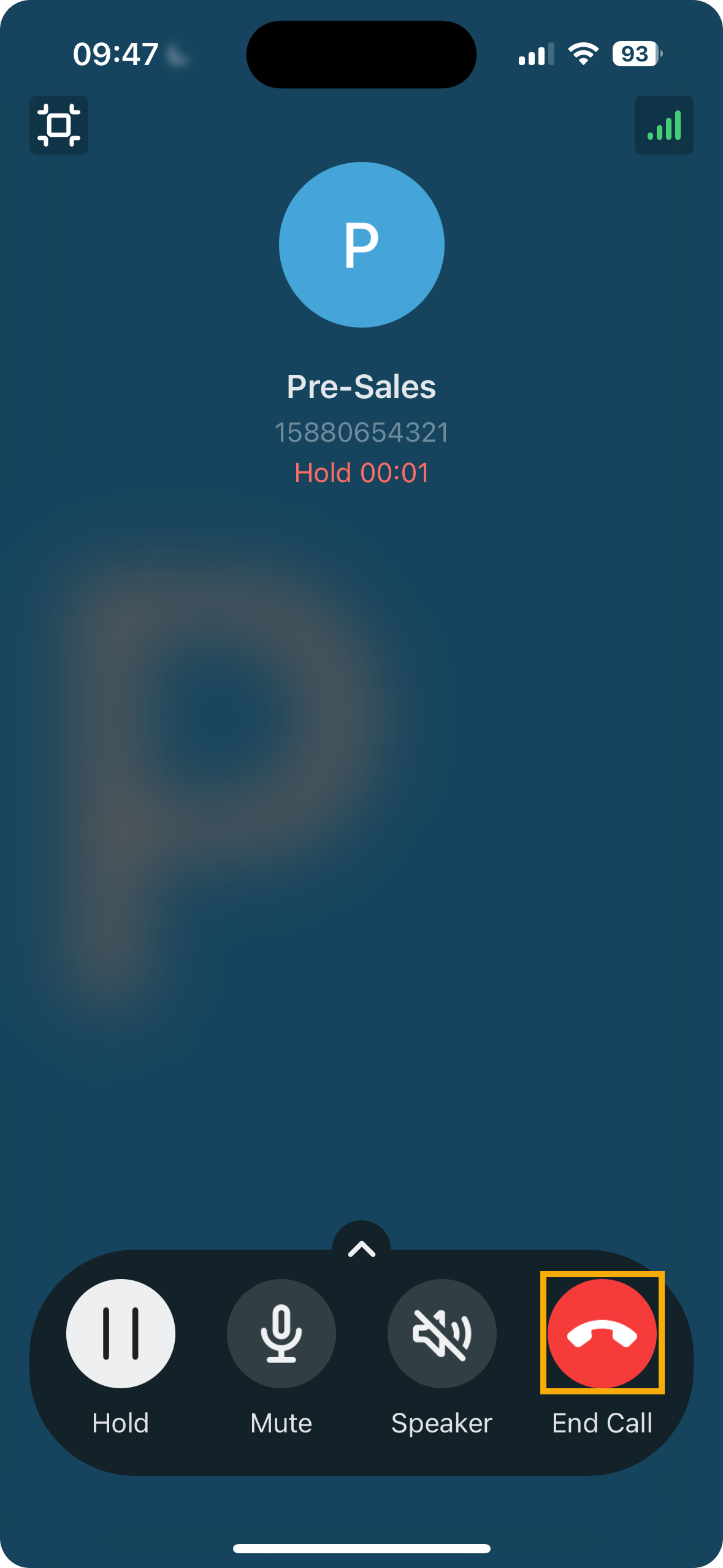
To hold the call, tap Hold on the call screen while the call is active. The caller can no longer hear you, and a hold announcement plays to them while they wait.
-
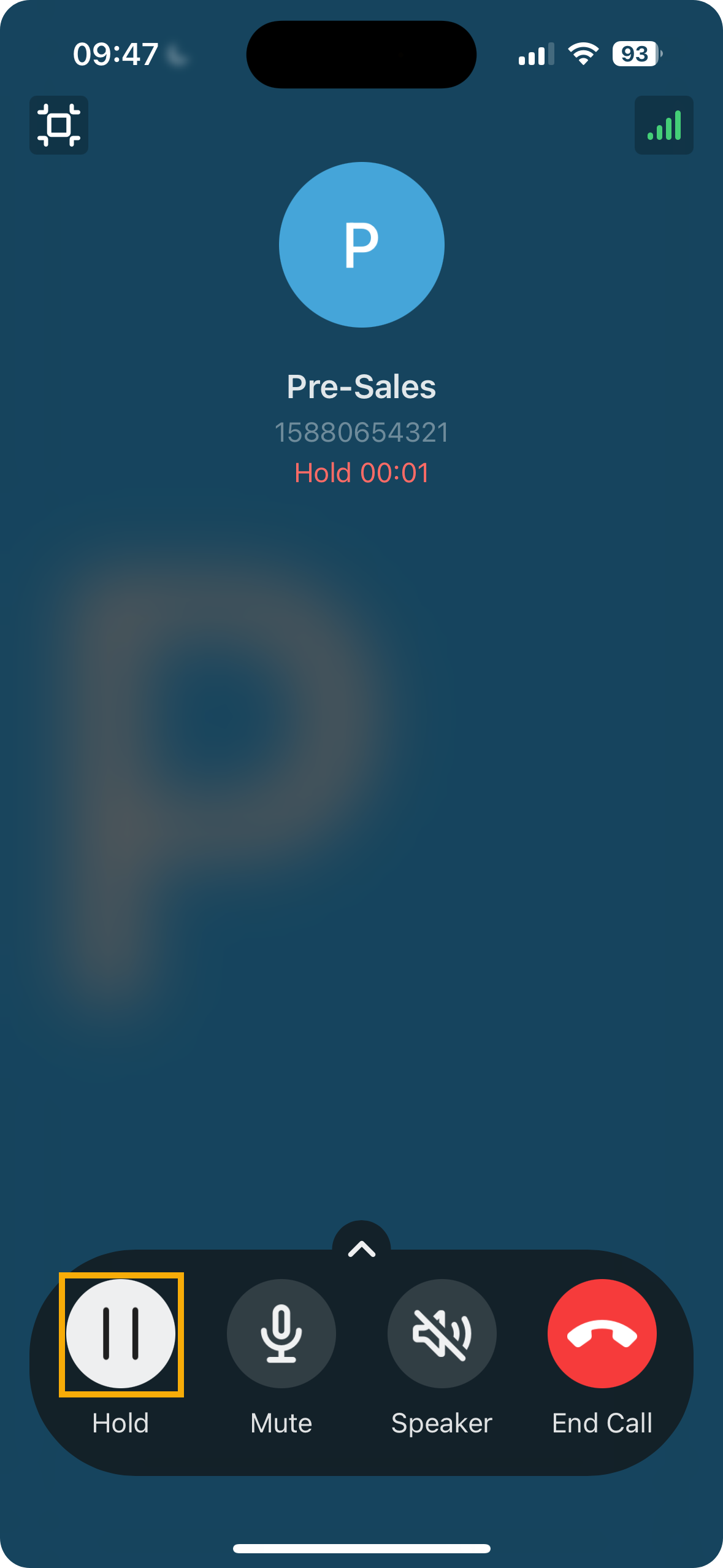
To bring the caller back, tap Hold again. You and the caller can speak to each other once more.
Transfer a call
Section titled “Transfer a call”If you cannot resolve a caller’s request yourself, you can hand the call off to another department or colleague. There are two ways to do this:
- Blind transfer: sends the call straight to the other party without speaking to them first.
- Attended transfer: puts the caller on hold while you reach the other party, brief them, and confirm they will take the call before you connect them.
Perform a blind transfer
Section titled “Perform a blind transfer”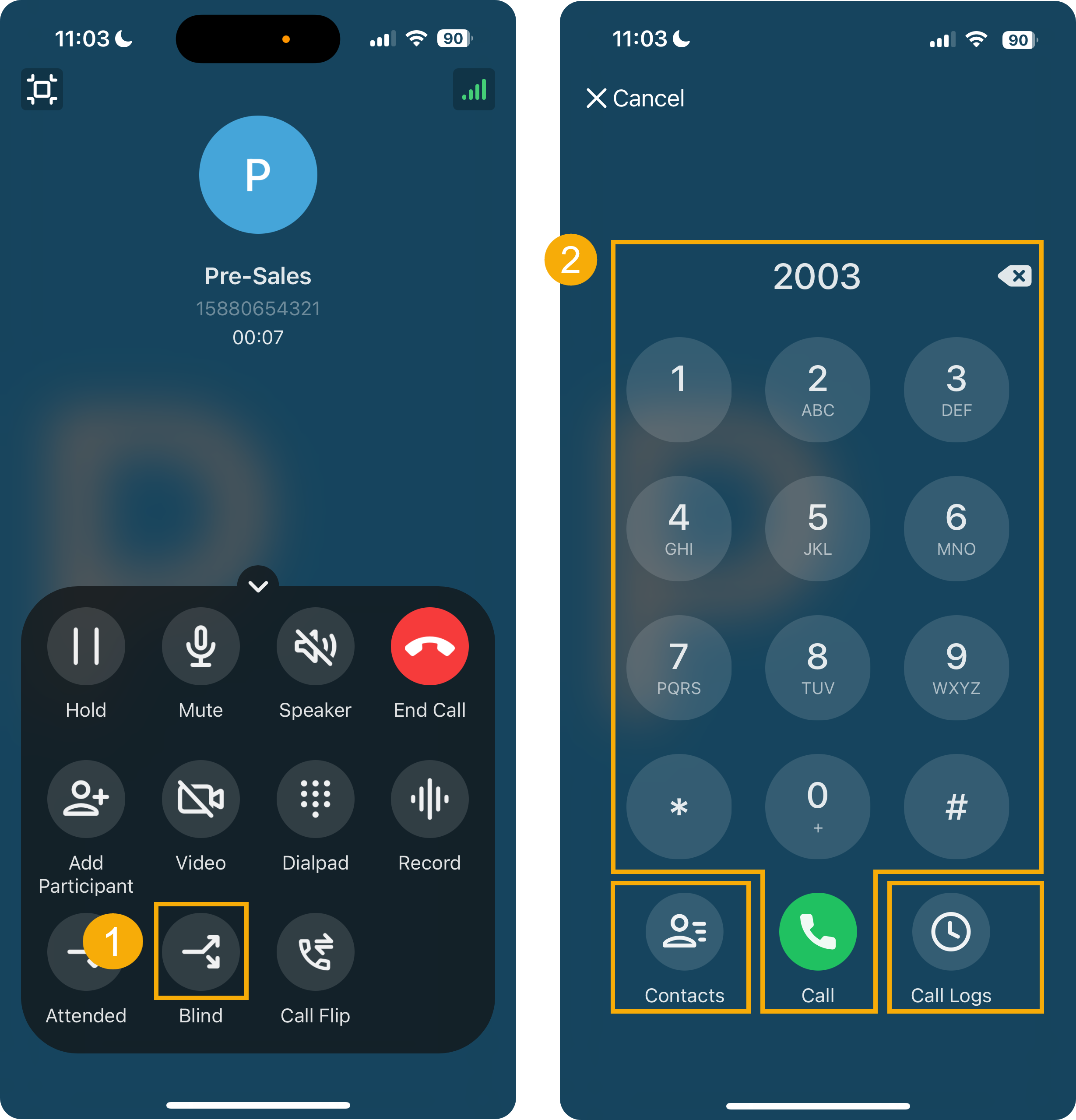
-
During the active call, tap Blind on the call screen. The call is placed on hold.
-
Choose who to send the call to, using any of these methods:
- Contacts: pick someone from your Cloud Voice App directory.
- Dialpad: key in the number, then tap the call button.
- Call Logs: choose a recent contact from your call history.
Your call ends and the destination rings. Once they answer, the caller and the destination are connected.
Perform an attended transfer
Section titled “Perform an attended transfer”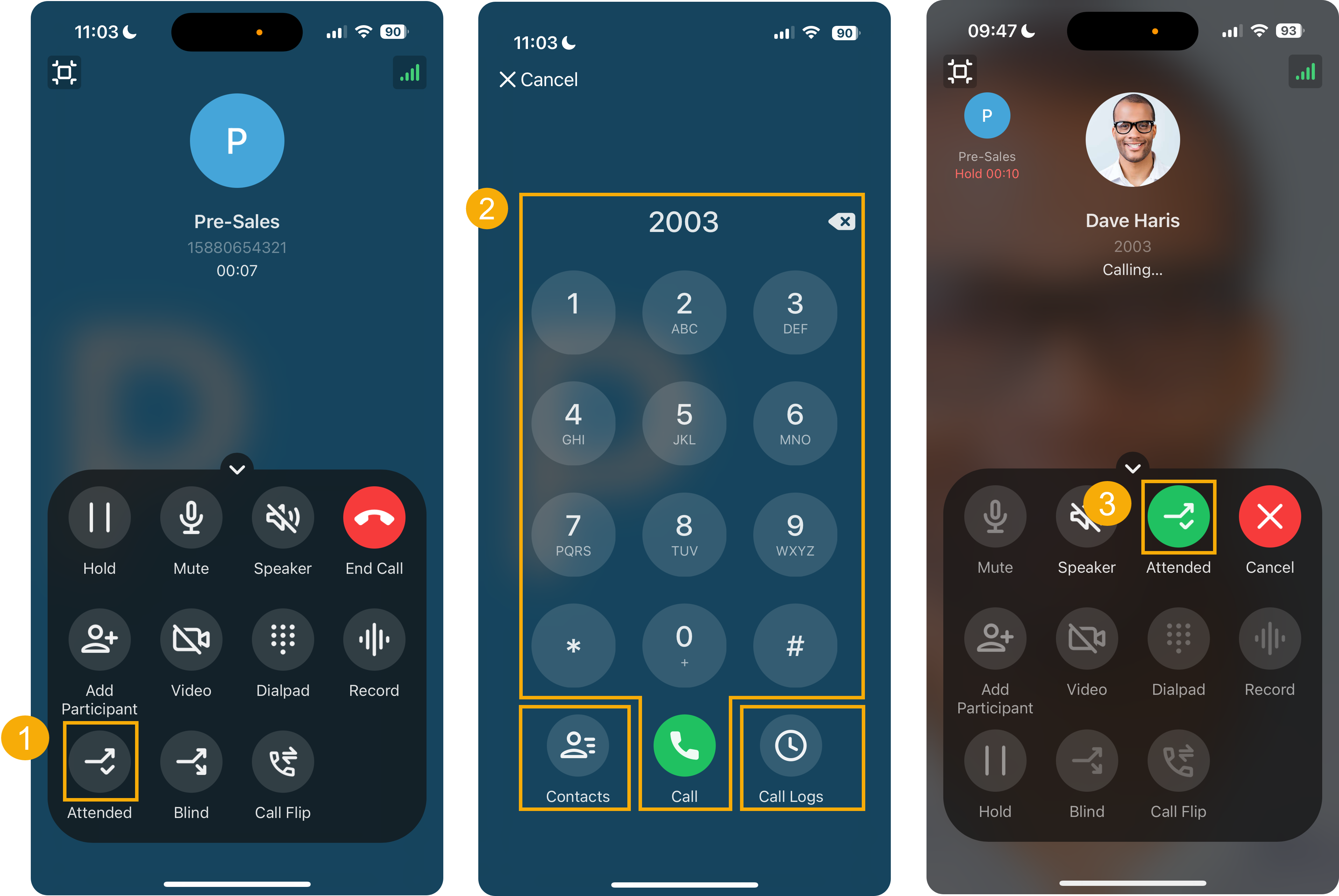
-
During the active call, tap Attended on the call screen. The call is placed on hold.
-
Choose who to reach, using any of these methods:
- Contacts: pick someone from your Cloud Voice App directory.
- Dialpad: key in the number, then tap the call button.
- Call Logs: choose a recent contact from your call history.
The destination extension or contact begins ringing.
-
When they answer, brief them on the caller and the reason for the call, then tap Attended. Your call ends and the caller is connected to the destination.
Add notes to a call
Section titled “Add notes to a call”You can capture notes about a queue call either during the conversation or afterward, during wrap-up time.
Add notes during the call
Section titled “Add notes during the call”Adding notes mid-call lets you record key details or decisions as they come up.
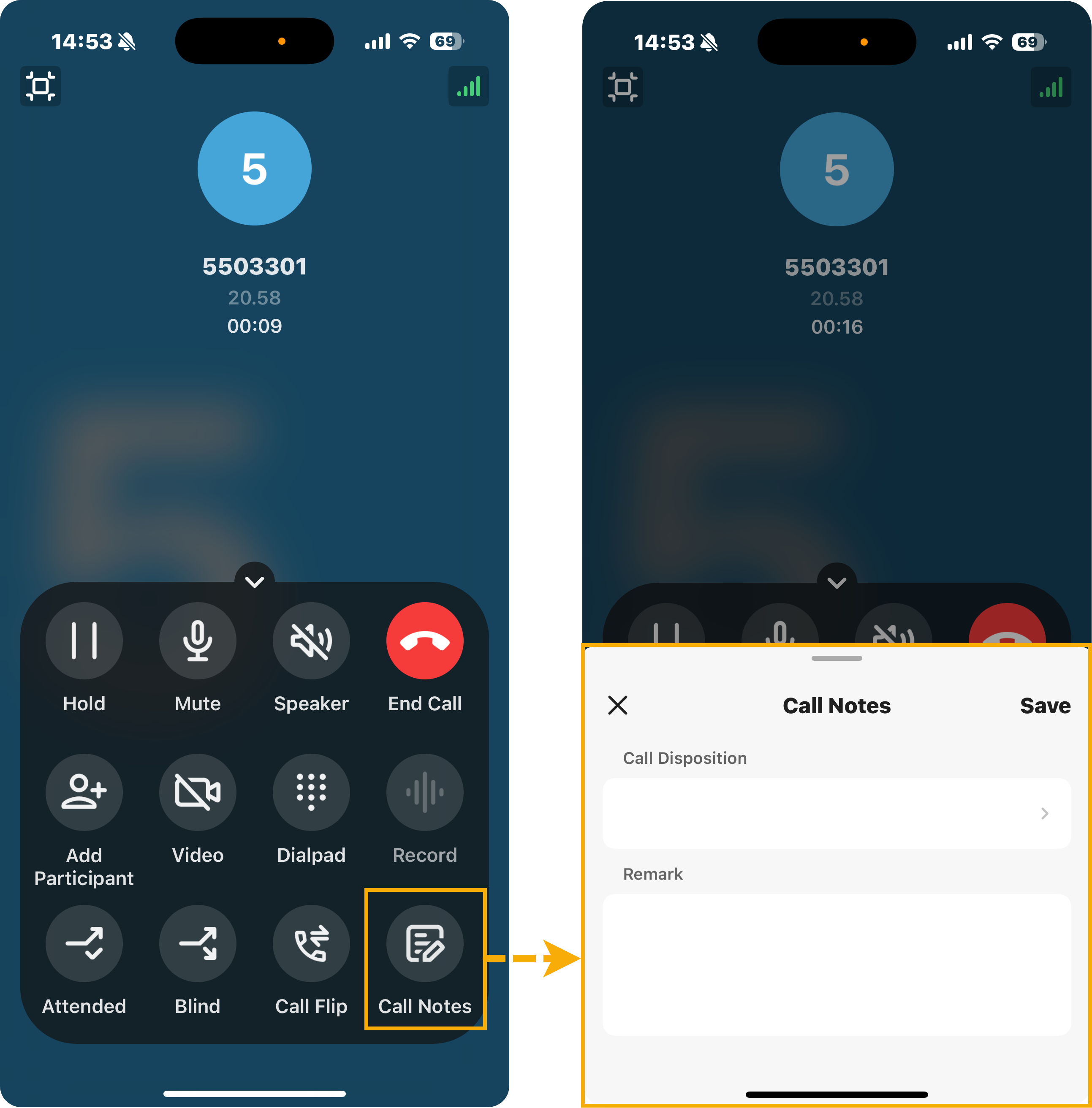
- During the active call, tap Call Notes.
- In the call notes panel:
- In the Call Disposition field, select one or more disposition codes to tag the call.
- In the Remark field, type a short note capturing the important details.
- Tap Save.
Add notes during wrap-up time
Section titled “Add notes during wrap-up time”When a queue call ends and you move into wrap-up time, the call notes panel opens automatically so you can add or update your notes.
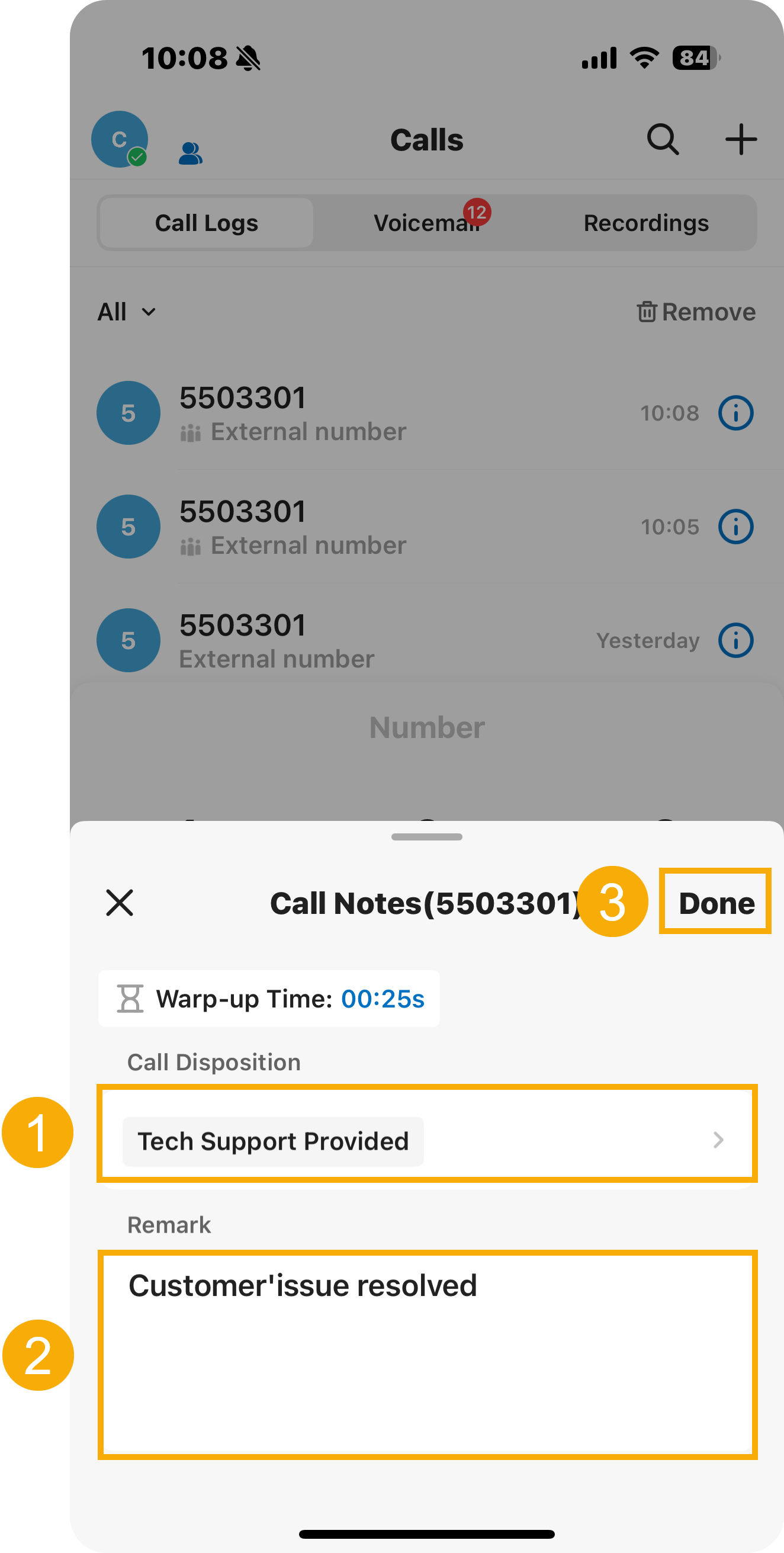
- In the Call Disposition field, select one or more disposition codes to tag the call.
- In the Remark field, type a short note capturing the important details.
- Tap Done in the top-right corner of the panel.
Hang up a call
Section titled “Hang up a call”Once you have addressed the caller’s needs, end the call by tapping the hang-up control on the call screen.
Question about this page?
Ask the AI assistant. It starts from this page, then searches the rest of the docs.
Ask Cloud Voice AI
Answers are AI-generated from the docs and may contain mistakes. Verify with the linked pages.