
Configure AI Call Transcription for an Extension
Once AI call transcription is turned on for your system, any extension you’ve authorized can have its calls transcribed into text using the global default language. Beyond that baseline, each authorized extension has its own set of transcription controls, so you can fine-tune the behavior to match how a particular user works.
Before you begin
Section titled “Before you begin”AI call transcription must already be enabled at the system level, and the extension you’re editing must have permission to use it. If you haven’t done that yet, start with one of these:
- Configure AI Call Transcription with Built-in Service
- Configure AI Call Transcription with Amazon Service
- Configure AI Call Transcription with ElevenLabs Service
- Configure AI Call Transcription with OpenAI Service
Adjust the extension’s transcription settings
Section titled “Adjust the extension’s transcription settings”-
Sign in to the phone system web portal and open Extension and Trunk > Extension.
-
Find the extension you want to change, click the edit icon
 next to it, then open the AI tab.
 -
Under Call Transcription, set the options below to suit the user.
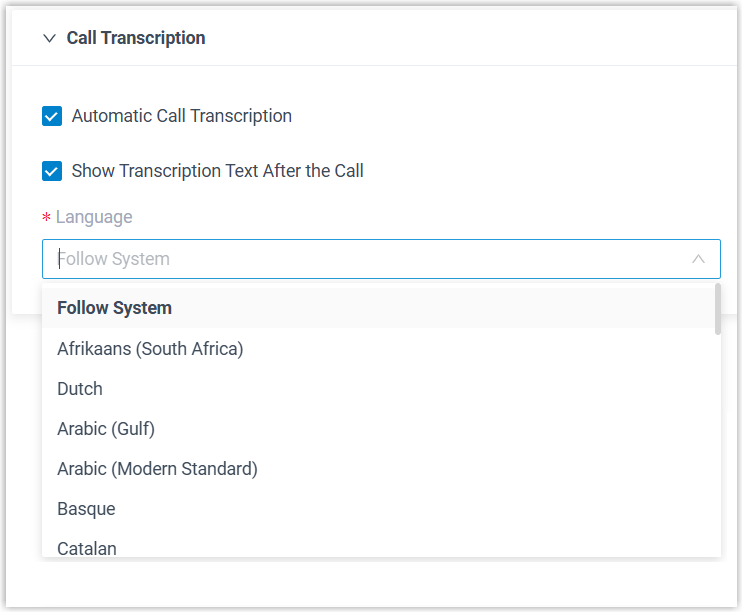
Setting What it does Automatic Call Transcription Controls whether the extension’s calls are transcribed in real time without any action from the user. Leave it off and the user can still start transcription by hand from the call screen while a call is in progress. Show Transcription Text After the Call Controls whether the transcript and summary appear automatically once the call wraps up. See the note below about when a summary is produced. Language Choose the language the call audio is transcribed into. Set this to the language people actually speak on these calls: transcription is most accurate when the spoken audio matches the selected language. -
Click Save.
What happens next
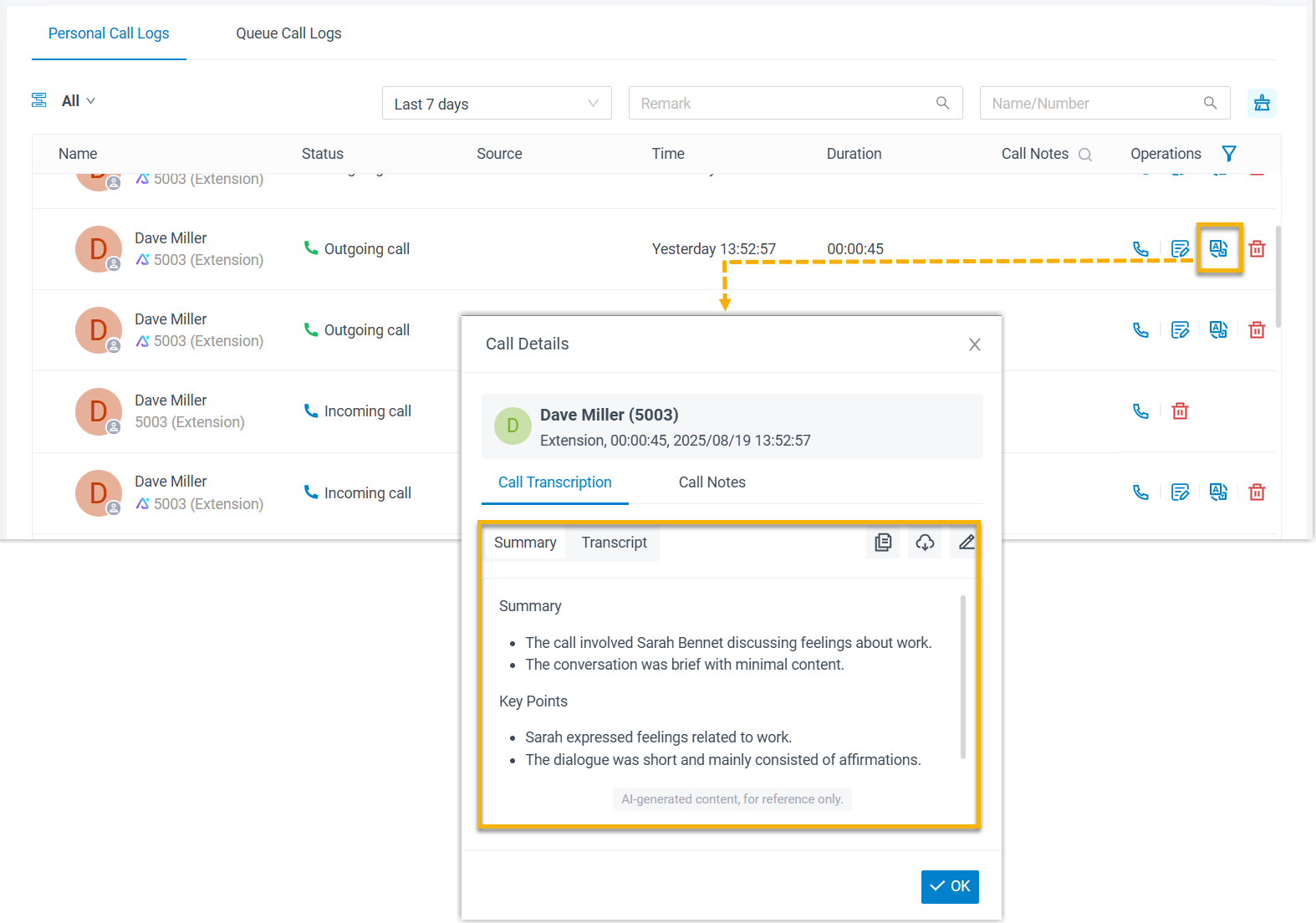
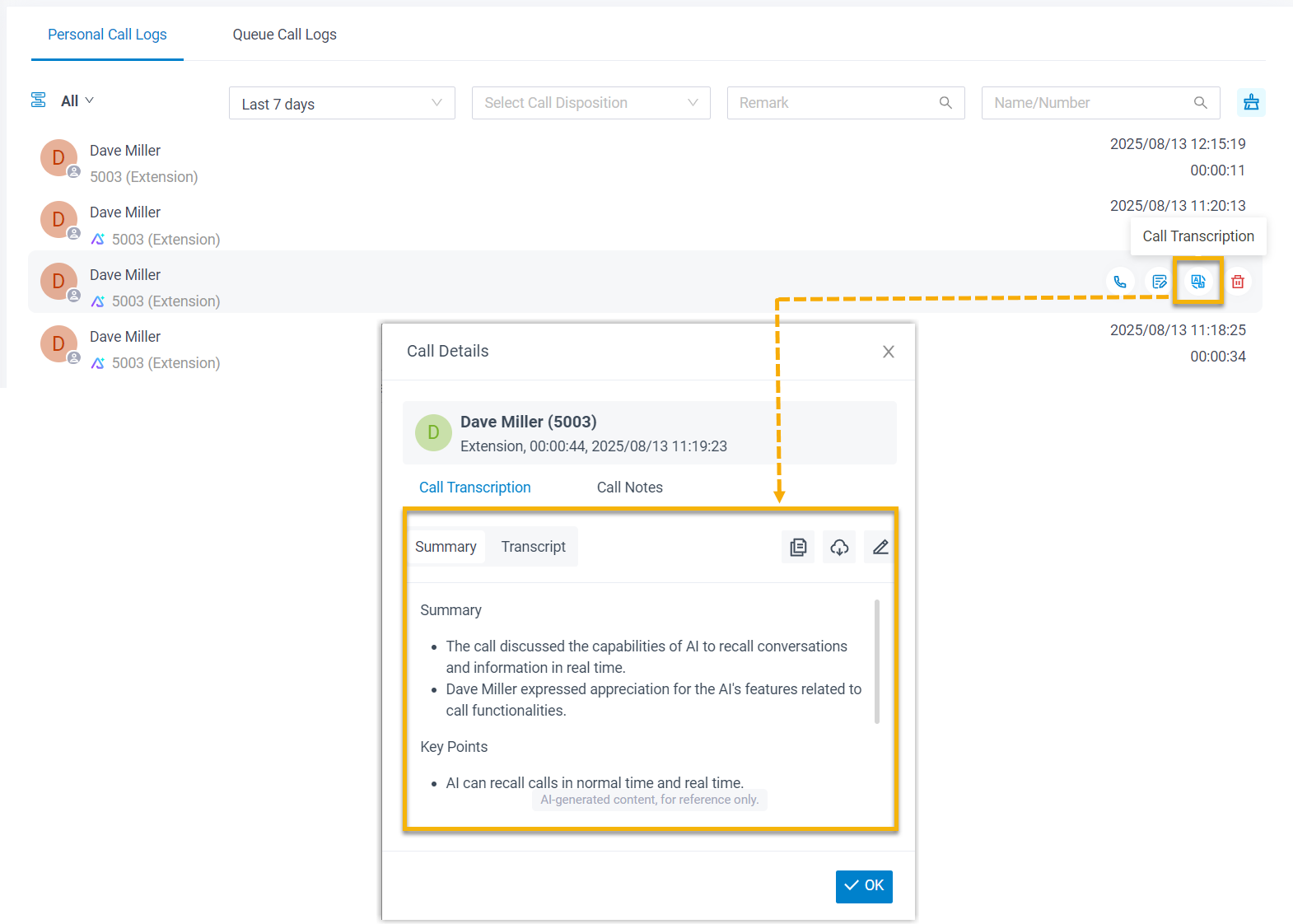
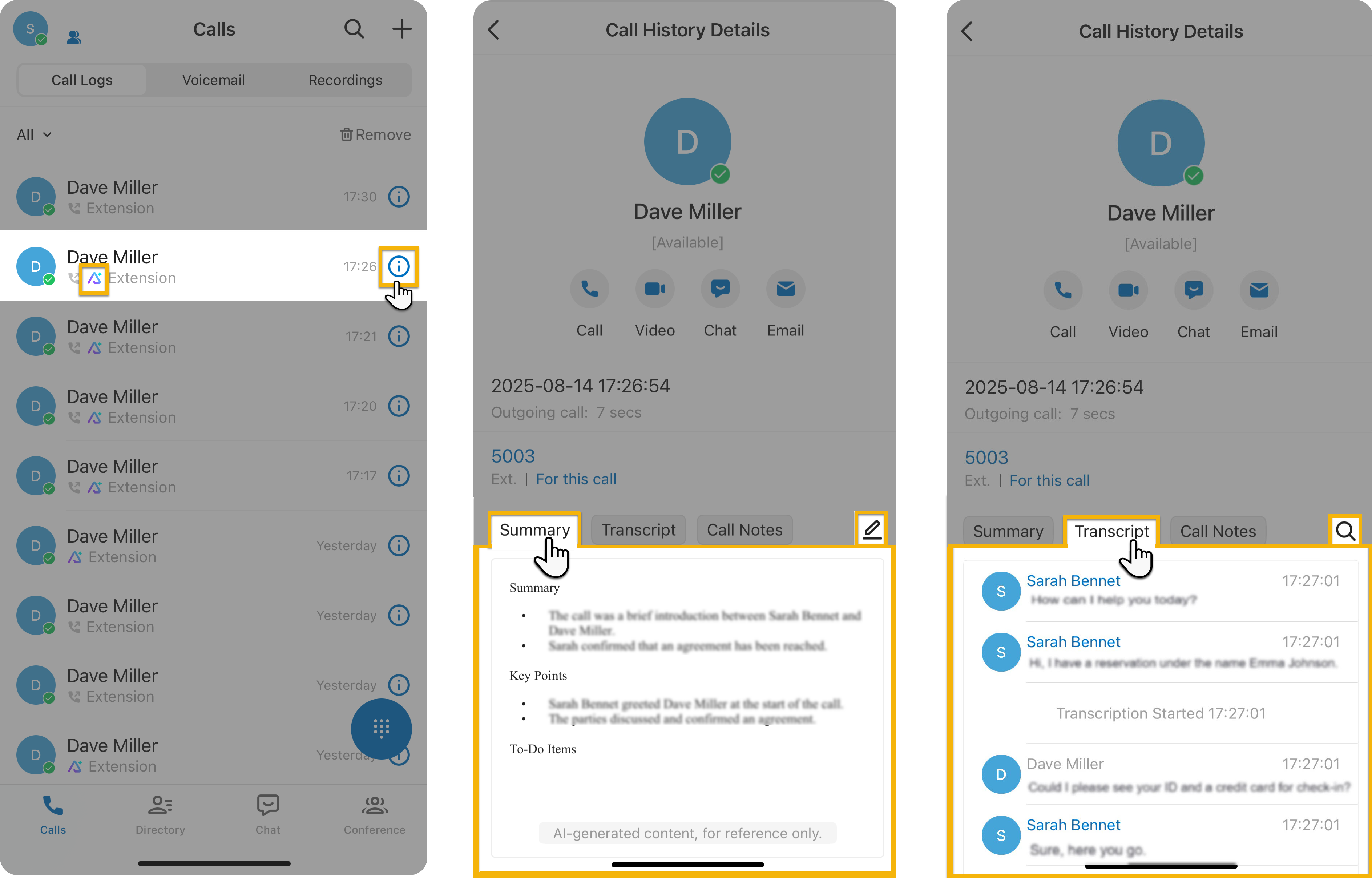
Section titled “What happens next”- On any one-on-one call the extension takes part in, the audio is transcribed in your chosen language as the call happens, and a summary is created automatically after the call ends.
- Users find the transcript and summary alongside the call in their call logs in the Cloud Voice App. Transcribed calls carry an AI marker
 so they’re easy to spot.
The transcript and summary are available across every Cloud Voice App client.
| Cloud Voice App (Web) | Cloud Voice App (Desktop) | Cloud Voice App (Mobile) |
|---|---|---|
 |  |  |
Question about this page?
Ask the AI assistant. It starts from this page, then searches the rest of the docs.
Ask Cloud Voice AI
Answers are AI-generated from the docs and may contain mistakes. Verify with the linked pages.