
Generate Audio Prompts using AI Text-to-Speech
With AI Text-to-Speech (TTS), you type the wording you want and the system produces a natural-sounding audio prompt for you. There is no need to record anything or upload a file. This page shows where TTS prompts can be used and walks through creating one.
Before you begin
Section titled “Before you begin”Enable AI Text-to-Speech for your account. The Text-to-Speech option only appears in the settings below once the feature is switched on.
Where you can create TTS prompts
Section titled “Where you can create TTS prompts”Wherever a feature accepts a voice prompt or greeting, you can generate it with Text-to-Speech. The following areas support it:
| Feature | Where to find it |
|---|---|
| Extension, call forwarding greeting | Extension and Trunk > Extension > Presence > Call Forwarding |
| Extension, voicemail greeting | Extension and Trunk > Extension > Voicemail > Voicemail Greeting > Greeting Management |
| Extension, ringback tone (played to the caller before the user answers) | Extension and Trunk > Extension > Features > Prompt > Ringback Tone |
| Inbound route, default and time-based destination prompts | Call Control > Inbound Route > Default Destination |
| Holiday prompt | Call Control > Business Hours and Holidays > Holidays > Type > Prompt |
| Call Flow Designer, prompts for flow components | Call Flow Designer |
| Group voicemail greeting | Call Features > Voicemail > Group Voicemail > General > Group Voicemail Greeting > Greeting Management |
| Global voicemail greeting | Call Features > Voicemail > Voicemail Settings > Greeting Options > Global Voicemail Greeting |
| IVR (Interactive Voice Response, the “press 1 for sales” menu) prompt | Call Features > IVR > Basic > Prompt |
| IVR key-press destination prompts (key destination, response timeout, invalid input) | Call Features > IVR > Key Press Event > … > Destination |
| Ring group, join announcement | Call Features > Ring Group > Join Announcement |
| Ring group, ringback tone | Call Features > Ring Group > Ringback Tone |
| Ring group, routing destination prompts (failover, no extension online) | Call Features > Ring Group > Failover Destination / No Extension Online Destination |
| Queue, routing destination prompts (failover, time-based, no agent available) | Call Features > Queue > Basic > Basic |
| Queue, join announcement, ringback tone, periodic announcement | Call Features > Queue > Basic > Prompt |
| Queue, satisfaction survey prompt | Call Features > Queue > Preferences > Satisfaction Survey |
| Queue, key-press event destination prompt | Call Features > Queue > Preferences > Key Press Event > Key Destination |
| Custom prompt | PBX Settings > Voice Prompt > Custom Prompt > Create New Prompt |
| Hotel wake-up call prompt | Hotel Management > Wake-up Service > Wake-Up Rule |
Generate a prompt
Section titled “Generate a prompt”-
Open the settings for the feature you want a prompt for (see the table above), then select Text-to-Speech.
-
In the dialog that opens, fill in the prompt details.
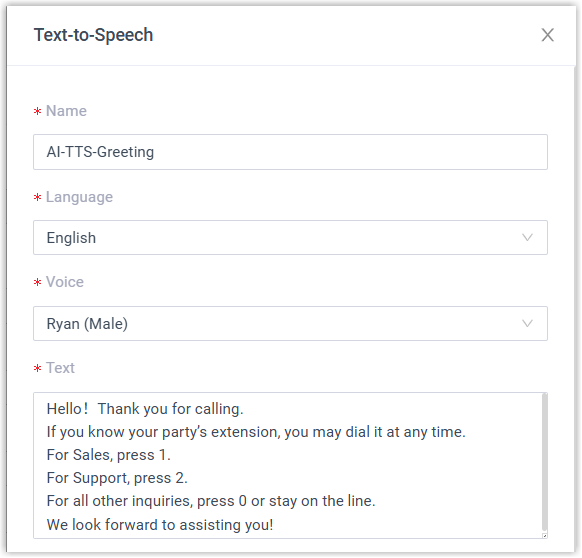
- Name: A label to help you recognize the prompt later.
- Language: The language the prompt should be spoken in.
- Voice: The voice profile used to read the text.
- Text: The wording to convert to audio. Enter it in the same language you selected above.
-
(Optional) Fine-tune the audio and listen to it before saving.
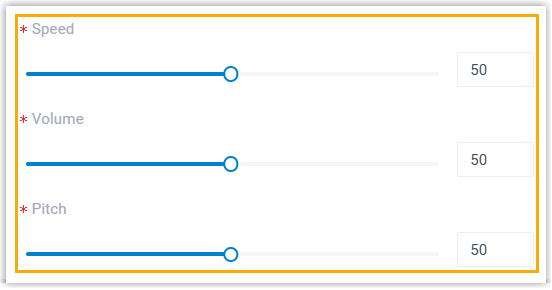
a. Drag the Speed, Volume, and Pitch sliders to get the delivery you want.
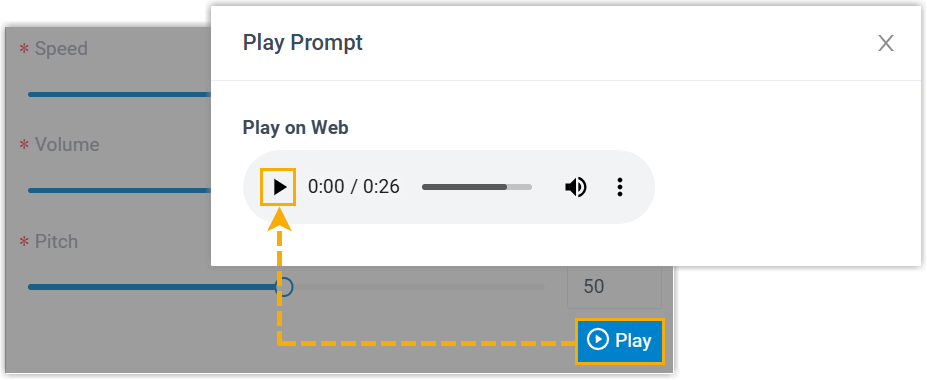
b. Select Listen to generate a preview. The button reads Generating while the audio is created, then switches to Play once it is ready.

c. Select Play, then select the play control in the pop-up to hear the prompt in your browser.
-
Select Save.
What happens next
Section titled “What happens next”-
The prompt is saved and becomes available to apply to the feature you created it for.
-
You can revise a prompt at any time by editing its text or changing the audio settings. Find saved prompts here:
- Extension greetings: Extension and Trunk > Extension > Voicemail > Voicemail Greeting > Greeting Management
- Group voicemail greetings: Call Features > Voicemail > Group Voicemail > Group Voicemail Greeting > Greeting Management
- Every other feature that supports TTS: PBX Settings > Voice Prompt > Custom Prompt

Question about this page?
Ask the AI assistant. It starts from this page, then searches the rest of the docs.
Ask Cloud Voice AI
Answers are AI-generated from the docs and may contain mistakes. Verify with the linked pages.