
AI Receptionist Overview
The AI receptionist is a virtual front-desk assistant that handles incoming calls on your behalf. It picks up automatically, greets callers, answers questions from a knowledge base you provide, gathers the details you care about, and connects each caller to the right destination. The result is fewer repetitive calls for your team and a consistent experience for everyone who reaches your business.
Requirements
Section titled “Requirements”Before you can use the AI receptionist, confirm that your Cloud Voice system meets the following conditions.
Firmware
Your system must be running firmware version 84.23.0.123 or later.
Subscription
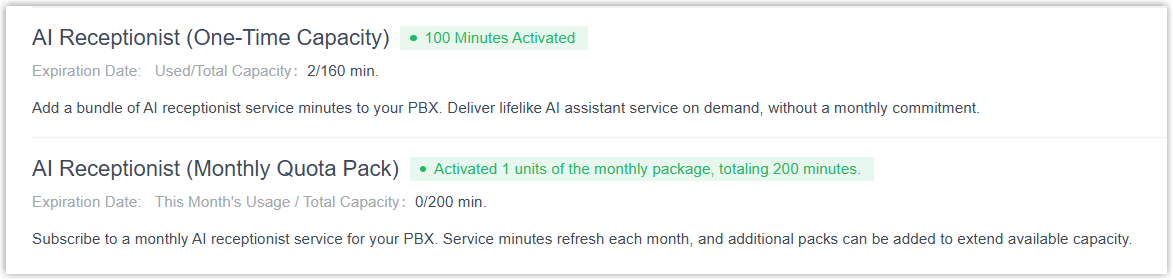
Every plan includes 60 one-time free minutes to get you started. When you need more, ask your service provider to add one or both of the following services under Plan > Add-on Subscription:
- AI Receptionist (One-Time Capacity): a one-time block of minutes. Once the block is exhausted, purchase additional capacity to keep going.
- AI Receptionist (Monthly Quota Pack): a recurring pack that grants a fixed 200 minutes each month. The allowance resets at the start of every billing month, and any minutes you don’t use are lost rather than carried forward.
Network
The PBX must have a valid domain certificate installed from a trusted certificate authority.
SIP settings
Enable the SIP TCP port so AI receptionist calls can connect. (SIP, or Session Initiation Protocol, is the signaling protocol that sets up and ends calls.) You’ll find this under PBX Settings > SIP Settings > General > Basic.

What it can do
Section titled “What it can do”Always available
The receptionist runs around the clock and answers calls the moment they arrive. Each one handles up to 10 concurrent calls, so callers still get through during busy stretches.
Speaks multiple languages
The receptionist recognizes the language a caller is using and replies in that same language, giving multilingual callers a natural conversation without extra prompts.
Tunable personality and model
Shape the voice profile, greeting, and supported languages to match your brand. You choose which large language model powers it, options include Gemini, GPT, and Claude, among others, to strike the balance you want between capability and response speed. System prompts let you set the receptionist’s persona, tone, and the boundaries it should stay within.
Answers from your knowledge base
Add FAQs, product documentation, and other reference material to a knowledge base, then assign it to the receptionists that should use it. During a call the receptionist looks up the relevant details in real time and responds, taking routine questions off your team’s plate.
Routes by intent
The receptionist reads the caller’s intent from ordinary conversation and forwards the call to the right department or extension based on names, keywords, or routing rules you define. Callers reach the correct person on the first try, which cuts down on misrouted calls and improves first-call resolution.
Collects the details you need
Tell the receptionist which pieces of information to capture, such as a caller’s name, email, or order number. It pulls those details out of the conversation and hands them to the human agent when it transfers the call, so support starts faster and feels more personal.
Connects to your other systems
Custom tools let the receptionist reach outside systems like a CRM, ERP, or calendar service. Based on what a caller asks, it can fire off API calls to those systems to look up data or perform an action, all without a person stepping in.
Getting started
Section titled “Getting started”Set up an AI receptionist
Section titled “Set up an AI receptionist”Work through these steps to put a receptionist into service.
-
Create the receptionist. Add a new receptionist and fill in its core settings, name, receptionist number, the large language model it runs on, language, voice profile, company details, greeting, and so on. See Create an AI Receptionist.
-
Build the knowledge base. Add clearly organized material such as FAQs with full answers, documents, or website URLs, and revisit it regularly to keep everything current. The receptionist searches this content live during calls to give accurate answers. See Add Contents to Knowledge Base.
-
Add custom tools. Define the API calls the receptionist uses to talk to external systems, so it can fetch information or carry out actions when callers ask. See Add tools.
-
Manage skills. Turn individual capabilities on or off, greeting, knowledge base lookup, dial by name, intent-based transfer, information collection, and custom tools, to match how you want the receptionist to behave. See Manage Skills for an AI Receptionist.
-
Test it. Place test calls or send chat messages that mimic real customer situations, and confirm the responses are accurate and the overall behavior holds up. See Test an AI Receptionist.
-
Refine it. Adjust language, voice, speech rate, model, or call handling based on what your tests reveal or how your needs change, and keep company information up to date so callers always hear the latest. See Update Settings of an AI Receptionist and Update Company Information for an AI Receptionist.
-
Put it on live calls. Once it’s configured and tested, let the receptionist handle real callers. Callers can reach it in two ways:
Method How it works Direct access Callers dial the receptionist directly. Internal extension users dial its extension number; external callers dial the direct DID assigned to the receptionist. (A DID, or Direct Inward Dialing number, is an outside phone number that routes straight to a specific internal destination.) Call routing destination Point another feature at the receptionist so calls flow to it. Supported sources are inbound routes, IVR (Interactive Voice Response, the automated menu that reads options to callers), the Call Flow transfer component, and the service number in the Hotel Management module.
Monitor usage and call performance
Section titled “Monitor usage and call performance”Keep an eye on how much capacity the receptionist consumes and how well its calls go.
Track usage capacity
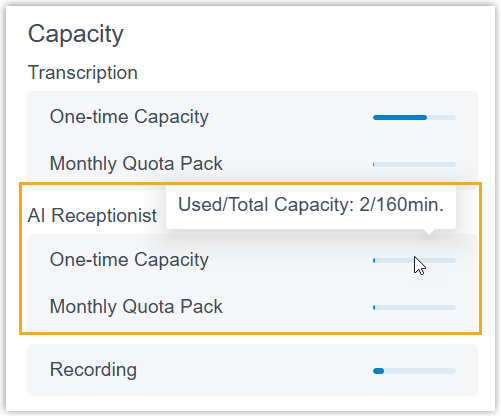
Check current usage in either of these places:
-
The Dashboard.
-
The Add-on Subscription page.
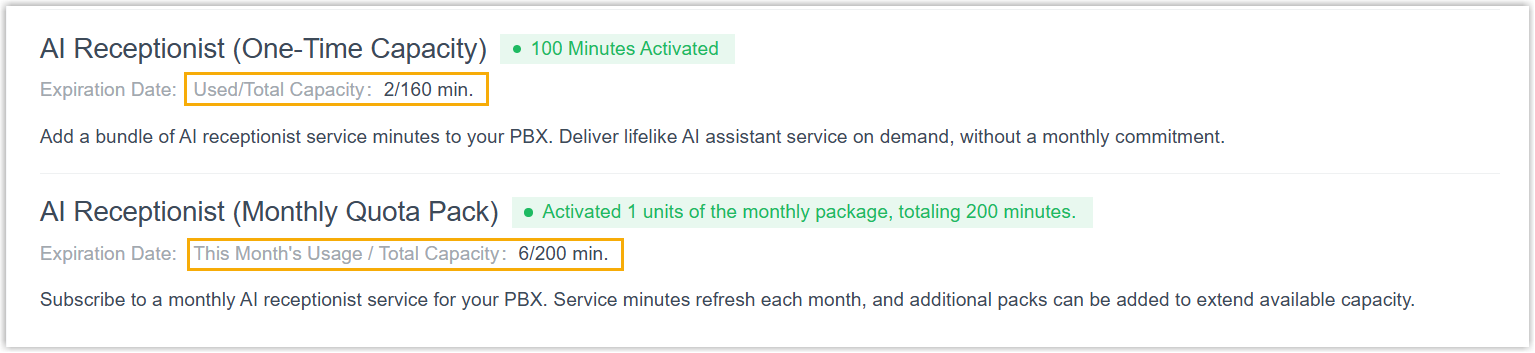
The system watches usage automatically and raises events when you hit certain points:
- Your AI Receptionist Usage is Reaching the Capacity Limit fires when the minutes used against either your one-time capacity or your monthly quota pack cross a threshold you’ve configured.
- AI Receptionist Limit Reached fires when both the one-time capacity and the monthly quota pack are fully used up.
You can manage these alerts through the system’s event notification settings.
Review call performance
-
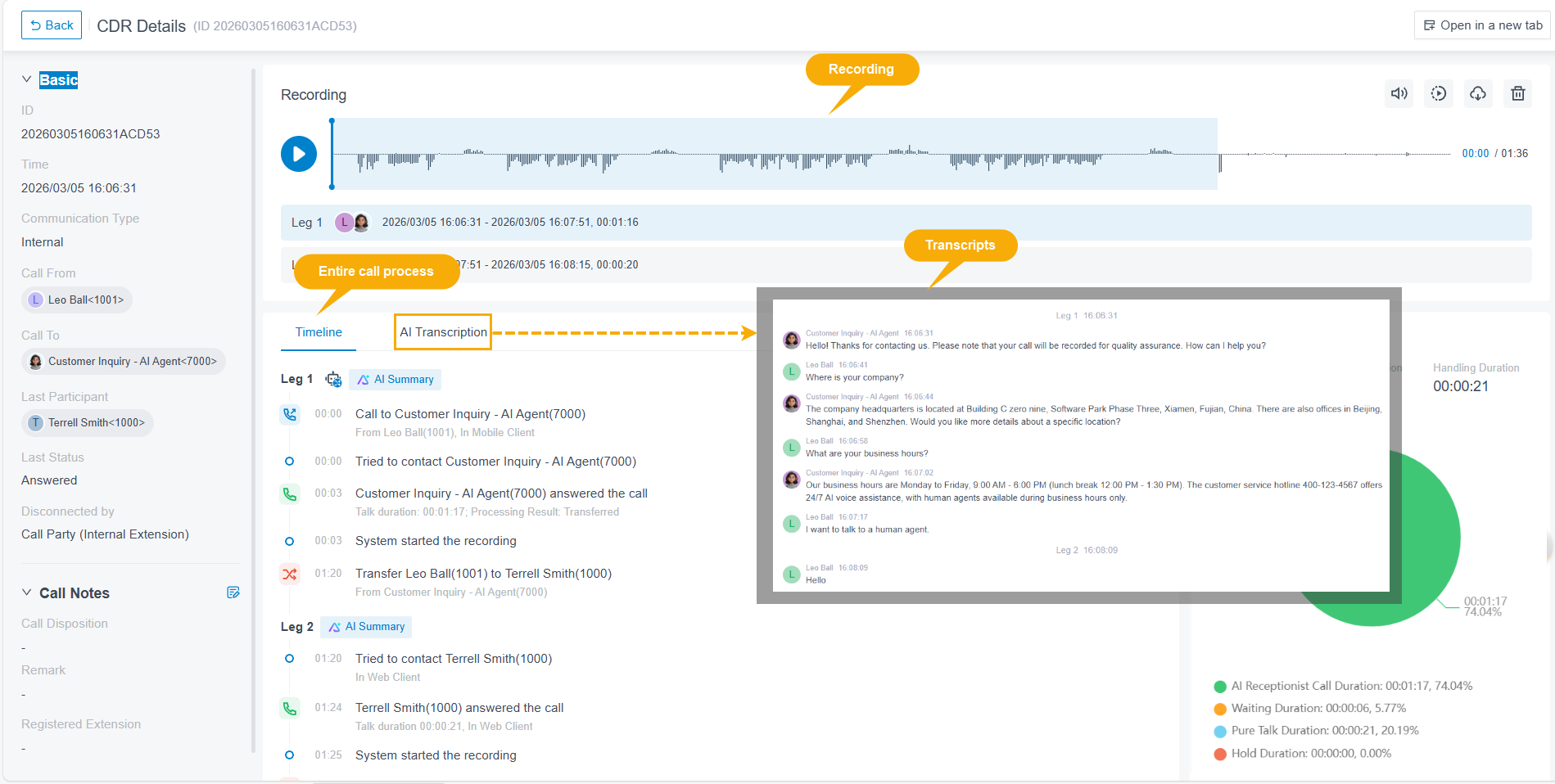
Open Reports and Recordings > CDR (Advanced) > Details to walk through an individual call. (CDR stands for Call Detail Record, the log the system keeps for every call.) Here you can see:
- The full transcript and summary of the conversation between the receptionist and the caller, including a record of any custom tools that ran during the call.
- The call recording, so you can listen back and judge the quality of the interaction.
-
Open Reports and Recordings > Call Reports > Default Reports > AI Reports to review aggregate statistics. The AI Receptionist Call Activity report summarizes metrics such as call volume, transfer rate, and call duration. See Access AI Receptionist Call Activity Report.
Question about this page?
Ask the AI assistant. It starts from this page, then searches the rest of the docs.
Ask Cloud Voice AI
Answers are AI-generated from the docs and may contain mistakes. Verify with the linked pages.