
Route Inbound Calls based on Department Hours
Some teams keep hours that don’t line up with your company’s global business schedule. When that happens, you can attach a custom business-hours schedule directly to an inbound route and send calls to different destinations depending on the time they arrive. This walkthrough uses a support team in a branch office as the example.
The scenario
Section titled “The scenario”The support department in a branch office works a schedule that differs from the head office:
- Working days: Monday through Friday
- Business hours: 21:00 - 23:00 and 00:00 - 05:00
Calls come in on the trunk sip_routein_DP (a trunk is the connection to your phone-service provider that carries calls into the system), and you want them handled like this:
- During business hours, send the call to the support team’s queue (a queue holds callers in line until an agent is free).
- During a holiday, send the call to a dedicated holiday IVR (Interactive Voice Response, the automated menu callers hear) and first play the prompt
office_holiday. - At any other time, send the call to voicemail.
Before you begin
Section titled “Before you begin”- The trunk that receives these inbound calls is already configured and in service.
- Every destination you plan to route to already exists on the system. For this example, that means the support queue and the holiday IVR are set up in advance. To build an IVR, see Set up an IVR; queue setup is covered in the contact center documentation.
- If you want a prompt played to callers during holidays, record or upload it first. Here the prompt
office_holidayis already in place. For details on holiday scheduling, see Create a Holiday.
Create the time-based inbound route
Section titled “Create the time-based inbound route”-
Sign in to the PBX (Private Branch Exchange) web portal and go to Call Control > Inbound Route, then click Add.
-
In the Name field, enter a label that makes the route easy to recognize.
-
Under Trunk, move the trunks you want from the Available box into the Selected box. For this example, select
sip_routein_DP.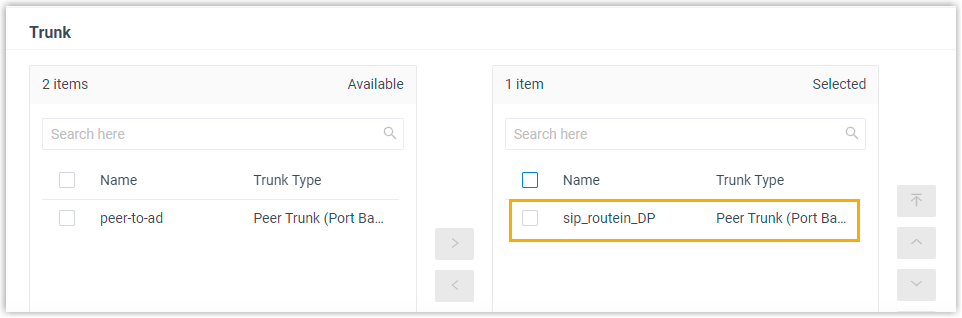
-
In the Default Destination section, set up the time-based routing.
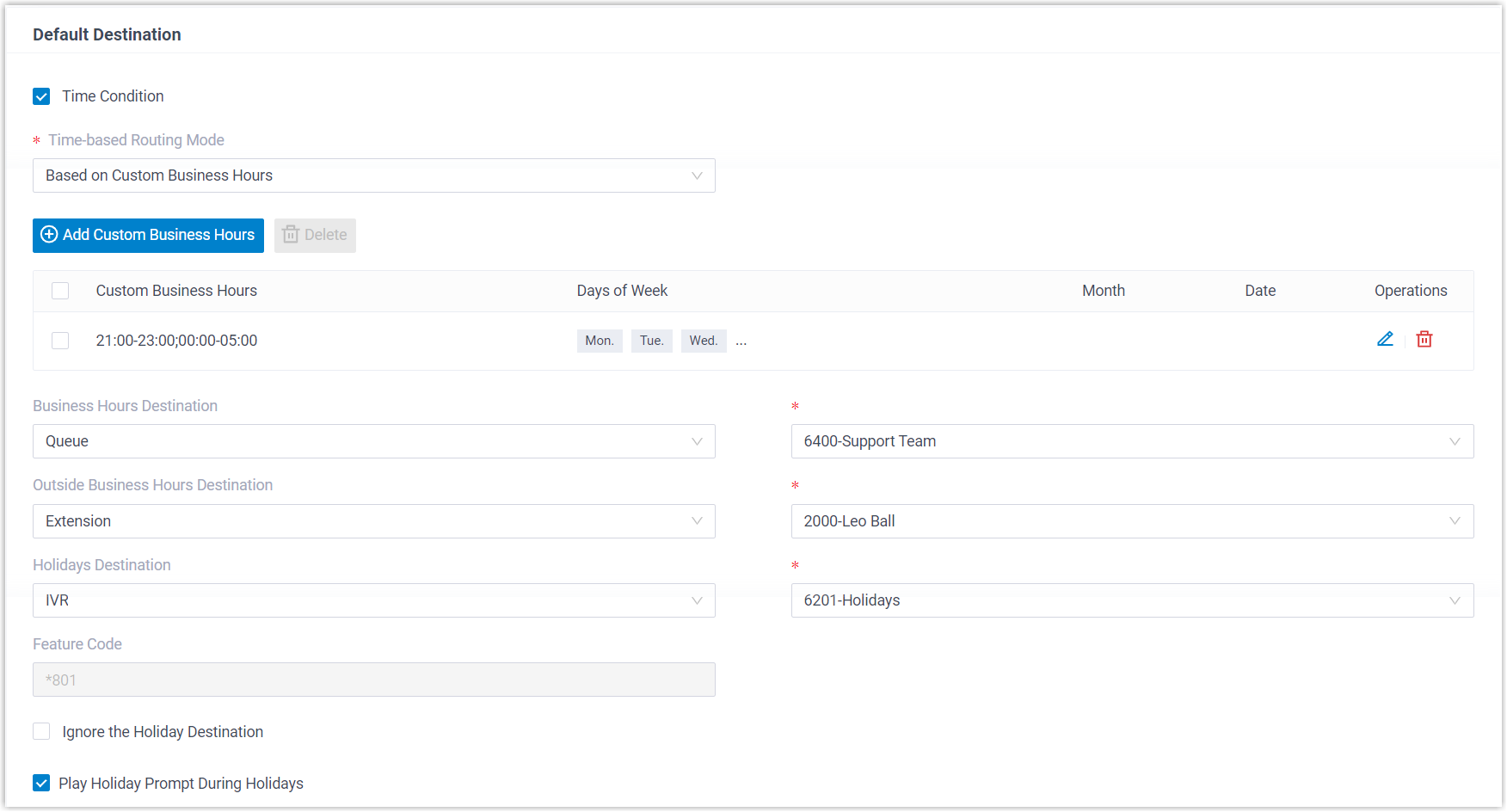
a. Select the Time Condition checkbox.
b. From the Time-based Routing Mode drop-down list, choose Based on Custom Business Hours.
c. Define the custom business hours. These are evaluated against the system’s default time zone.
i. Click Add Custom Business Hours.
ii. In the Custom Business Hours section, click Add for each time block you need. For this example, add two blocks: 21:00 - 23:00 and 00:00 - 05:00.
iii. In the Date Settings section, pick the working days. For this example, choose Days of Week and select Monday through Friday.
iv. Click Confirm.
d. Assign a destination to each time period:
- Business Hours Destination: where calls go during the hours you defined above. For this example, select Queue and choose the “Support Team” queue.
- Outside Business Hours Destination: covers any time that isn’t business hours or a holiday. For this example, select Extension Voicemail and pick an extension.
- Holidays Destination: where calls go during holidays configured in the system’s default time zone. For this example, select IVR and choose the holiday IVR.
e. Select the Play Holiday Prompt During Holidays checkbox. Here, the system plays the
office_holidayprompt before handing the call off to the holiday destination. -
Click Save, then Apply.
Result
Section titled “Result”Calls to the phone number on the sip_routein_DP trunk now land on different destinations depending on when they arrive.
The system also generates the feature code *801 for this route. An authorized user can dial *801 from a phone to override the route’s time condition on demand, for example to force calls to follow after-hours routing when the team closes early. For details, see Override Time Condition for Inbound Calls.
Question about this page?
Ask the AI assistant. It starts from this page, then searches the rest of the docs.
Ask Cloud Voice AI
Answers are AI-generated from the docs and may contain mistakes. Verify with the linked pages.