
Start a Messaging Session with a Customer on the Mobile App
There are times when you need to reach a customer first, whether it is an appointment reminder, a service notification, or an outbound marketing message. From the Cloud Voice App on your mobile device, you can begin an outbound conversation without waiting for the customer to contact you.
Before you begin
Section titled “Before you begin”Confirm the following so the SMS option is available to you.
PBX server: The PBX (Private Branch Exchange, the phone system that routes your organization’s calls and messages) is managed by your administrator. Check with them that the platform is running version 84.23.0.24 or later and that at least one messaging channel has been configured.
Cloud Voice App: Update the mobile app to a supported release:
- iOS: version
5.25.15or later - Android: version
5.25.14or later
Start the session
Section titled “Start the session”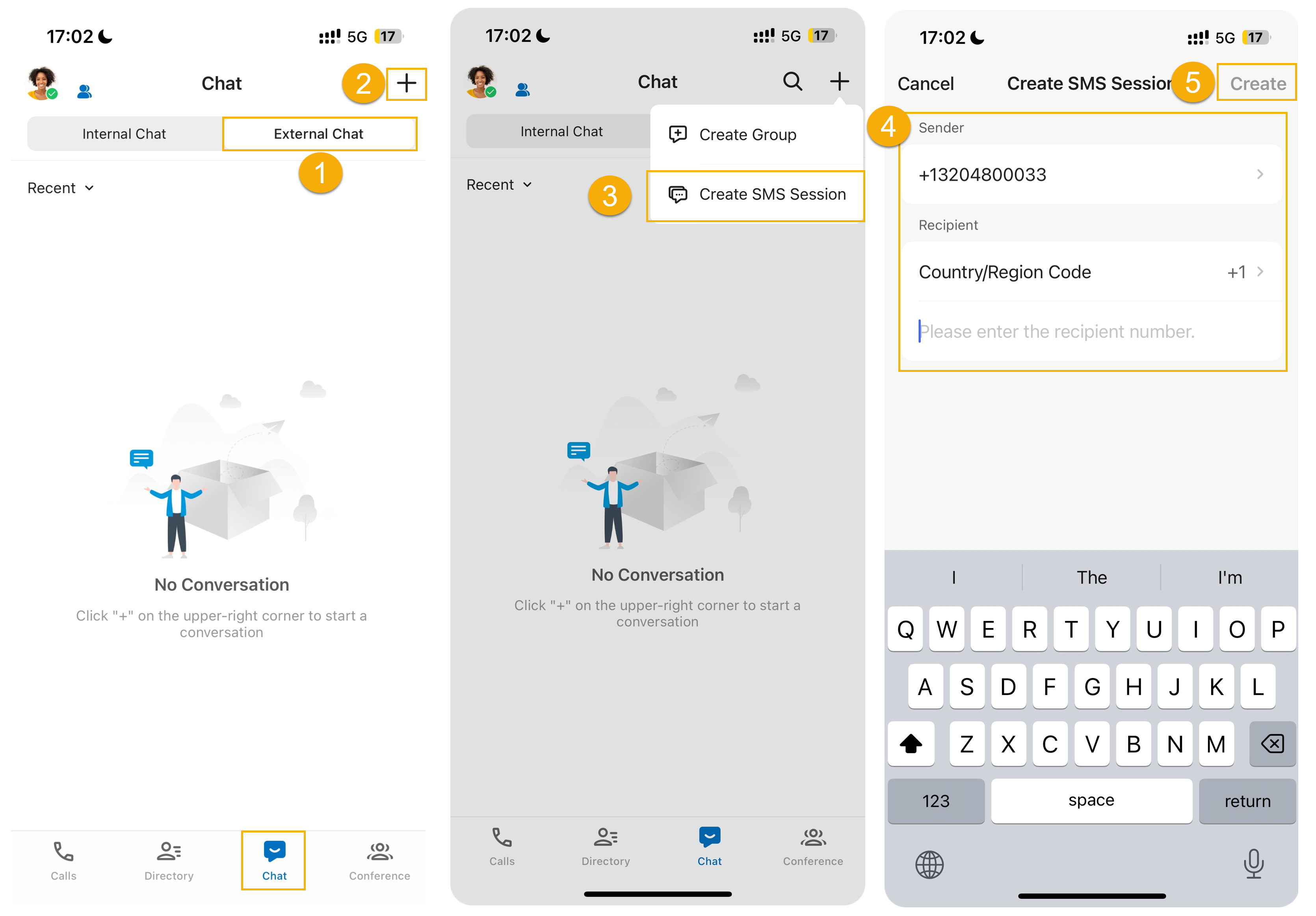
- In the Cloud Voice App, open Chat and switch to the External Chat tab.
- Tap the add icon
 in the top-right corner.
 - Choose Create SMS Session from the menu that appears.
- Set the two ends of the conversation: a. Under Sender, pick the channel number the message will be sent from. This list shows the messaging channels your administrator set up on the platform. b. Under Recipient, choose the country or region code, then type the customer’s number.
- Tap Create in the top-right corner.
What happens next
Section titled “What happens next”The conversation is ready, and you can start typing messages in the chat window.
Question about this page?
Ask the AI assistant. It starts from this page, then searches the rest of the docs.
Ask Cloud Voice AI
Answers are AI-generated from the docs and may contain mistakes. Verify with the linked pages.