
Download External Chat Logs
Cloud Voice keeps a record of the chat sessions your agents handle with contacts outside your organization. You can export these conversations to your computer whenever you need them: for legal or regulatory compliance, to resolve a customer dispute, to review agent performance, or for any similar reason.
Before you begin
Section titled “Before you begin”Your Cloud Voice system must be running firmware version 84.13.0.25 or newer.
Download the logs
Section titled “Download the logs”-
Sign in to the PBX (Private Branch Exchange, your phone-system admin portal) web portal and open Reports and Recordings > External Chat Logs.
-
Choose whether to export everything or only a subset:
Export every chat log
Click Download above the list, then select Download All Chat Logs.

Export selected chat logs
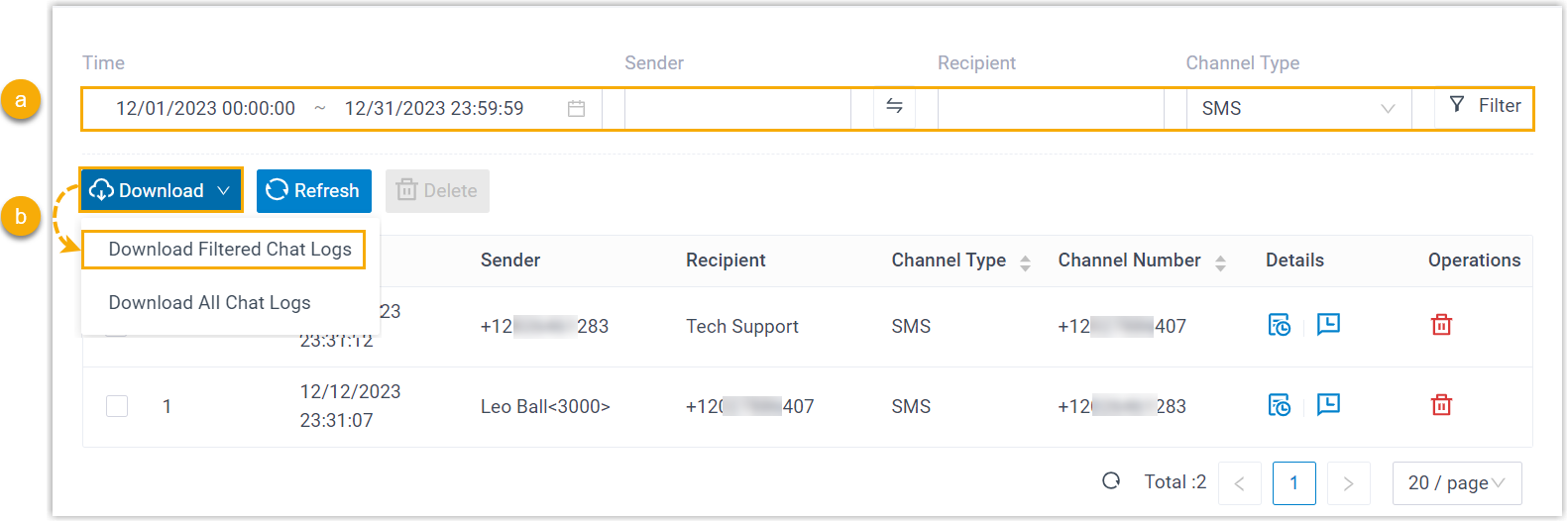
- Apply filters to narrow the list to the records you want. The matching external chat sessions appear on the page.
- Click Download above the list, then select Download Filtered Chat Logs.
What you get
Section titled “What you get”The logs are saved to your computer. Each download contains two CSV (comma-separated values, a plain table format that opens in Excel, Google Sheets, or any spreadsheet app) files:
- Session_Record: summary details for every chat session included in the export.
- Chat_Data_Record: the full message-by-message history of each chat session.
Question about this page?
Ask the AI assistant. It starts from this page, then searches the rest of the docs.
Ask Cloud Voice AI
Answers are AI-generated from the docs and may contain mistakes. Verify with the linked pages.