
Set Business Hours for an Extension
Each extension can carry its own time zone and working schedule. This lets team members spread across regions see call activity and manage availability against their local clock, rather than the time zone of the wider system.
Before you start
Section titled “Before you start”Make sure system-wide time zones and business hours already exist. You define these under Call Control > Business Hours and Holidays. An extension can only inherit or build on schedules that the system already knows about, so set those up first. For background on how these time definitions work, see Overview of business hours and holidays.
Configure an extension
Section titled “Configure an extension”-
Sign in to the PBX (Private Branch Exchange) web portal, then open Extension and Trunk > Extension.
-
Find the extension you want to change and click the edit icon next to it.

-
Open the Features tab and scroll to the Business Hours section.
-
From the Time Zone drop-down, choose the time zone that applies to this extension.
-
Decide how the extension’s working schedule is set:
-
Follow the time zone’s schedule: select Use Business Hours Configured for This Time Zone to inherit the business hours already defined for the chosen time zone.

-
Define a custom schedule: select Use Custom Business Hours, then build the schedule for this extension.
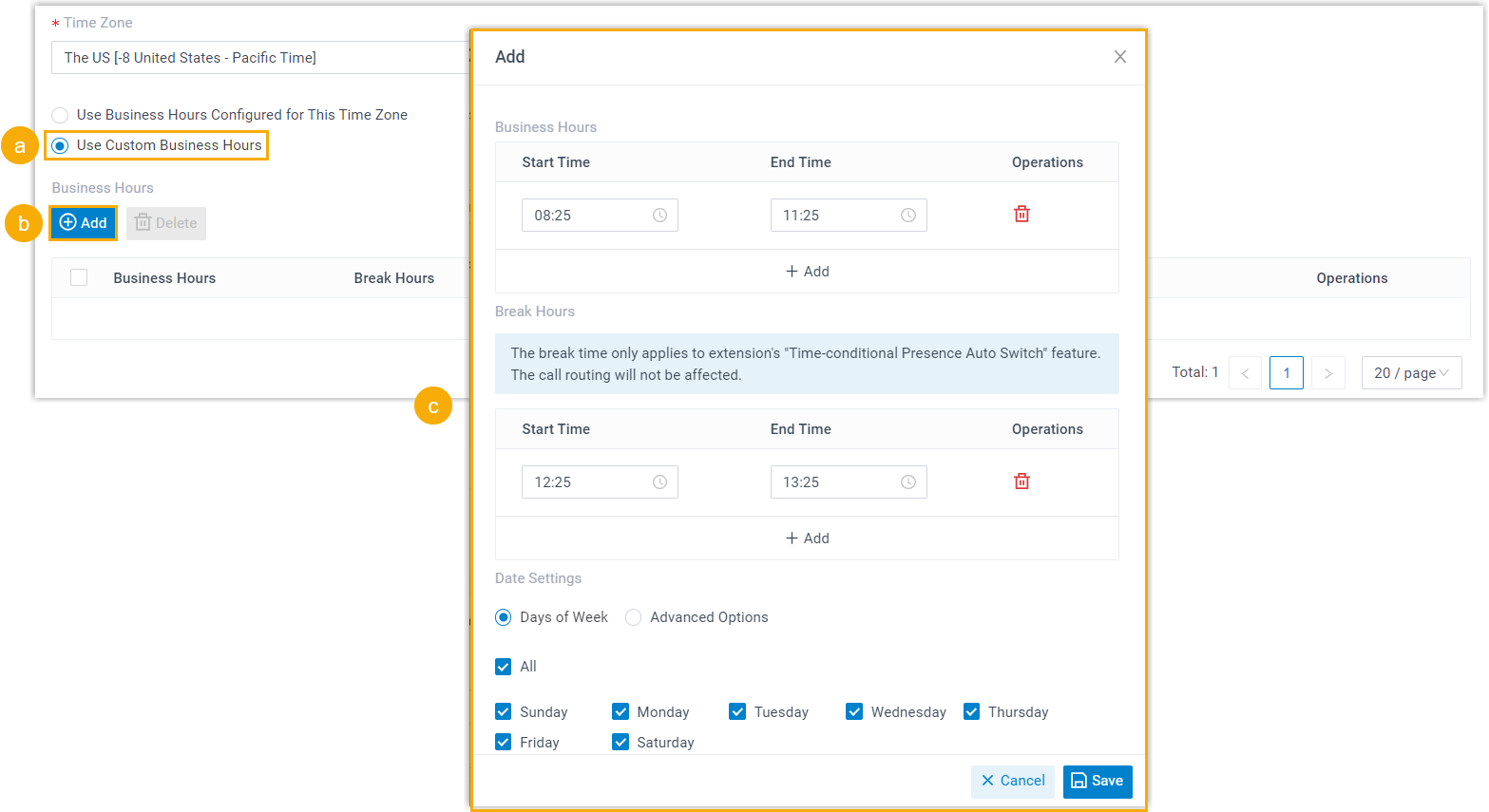
a. Select Use Custom Business Hours. b. Under Business hours, click Add. c. Fill in the time settings in the dialog, then click Save:
-
Business Hours: the periods when the user is available to make and receive calls.
-
Break Hours: rest breaks that fall within the working day.
-
Date Settings: which days the schedule applies to:
Option Description Days of Week Use specific weekdays as the condition for the schedule. Advanced Options Combine week, month, and date for more flexible scheduling.
-
-
-
Click Save, then Apply.
What changes after you save
Section titled “What changes after you save”-
Times shown for the extension, in items such as emails and voicemails, now reflect the selected time zone.
-
The extension’s schedule takes effect when it switches presence automatically based on business hours and holidays.
-
When an extension uses a custom schedule, the user can adjust it themselves from the Cloud Voice App (Web and Desktop) under Preferences > Features > Business Hours.
Question about this page?
Ask the AI assistant. It starts from this page, then searches the rest of the docs.
Ask Cloud Voice AI
Answers are AI-generated from the docs and may contain mistakes. Verify with the linked pages.