
Log in to PBX Web Portal
Cloud Voice exposes two separate web portals to your PBX (Private Branch Exchange, the phone system that routes calls for your organization) so that people with different responsibilities can set up and run it from the right place. This page explains how the portals differ and walks through signing in to each one.
The two portals at a glance
Section titled “The two portals at a glance”| Portal | Who it’s for |
|---|---|
| Administrator portal | The administrator, who holds full control of the system. An administrator can reach every feature, create extension accounts for staff, and assign privileges to those accounts. Open it by logging in to the Cloud Voice Dashboard at https://portal.voice.izt.cloud and clicking Login. |
| Management portal | Any user the administrator has given a role to. These users see and manage only the features their role allows. Reach it at PBX domain name. |
Before you start
Section titled “Before you start”You need a workstation (PC) that meets the following requirements:
-
A supported web browser is installed:
Browser Version Google Chrome (recommended) Chrome 87 or later Microsoft Edge Edge 87 or later Opera Opera 72 or later -
A display resolution of at least 1366 x 768.
Sign in to the administrator portal
Section titled “Sign in to the administrator portal”Use this portal when you need full administrator access to your phone system. Log in to the Cloud Voice Dashboard at https://portal.voice.izt.cloud and click Login to open your phone system’s management portal with full administrator access.
Sign in to the management portal
Section titled “Sign in to the management portal”Use this portal when you are a user who has been assigned a role.
-
Open your browser, type your PBX domain name in the address bar, and press
Enter. -
Type your user account credentials, then select LOG IN.
- Username: the email address of your user account.
- Password: the password for your user account.
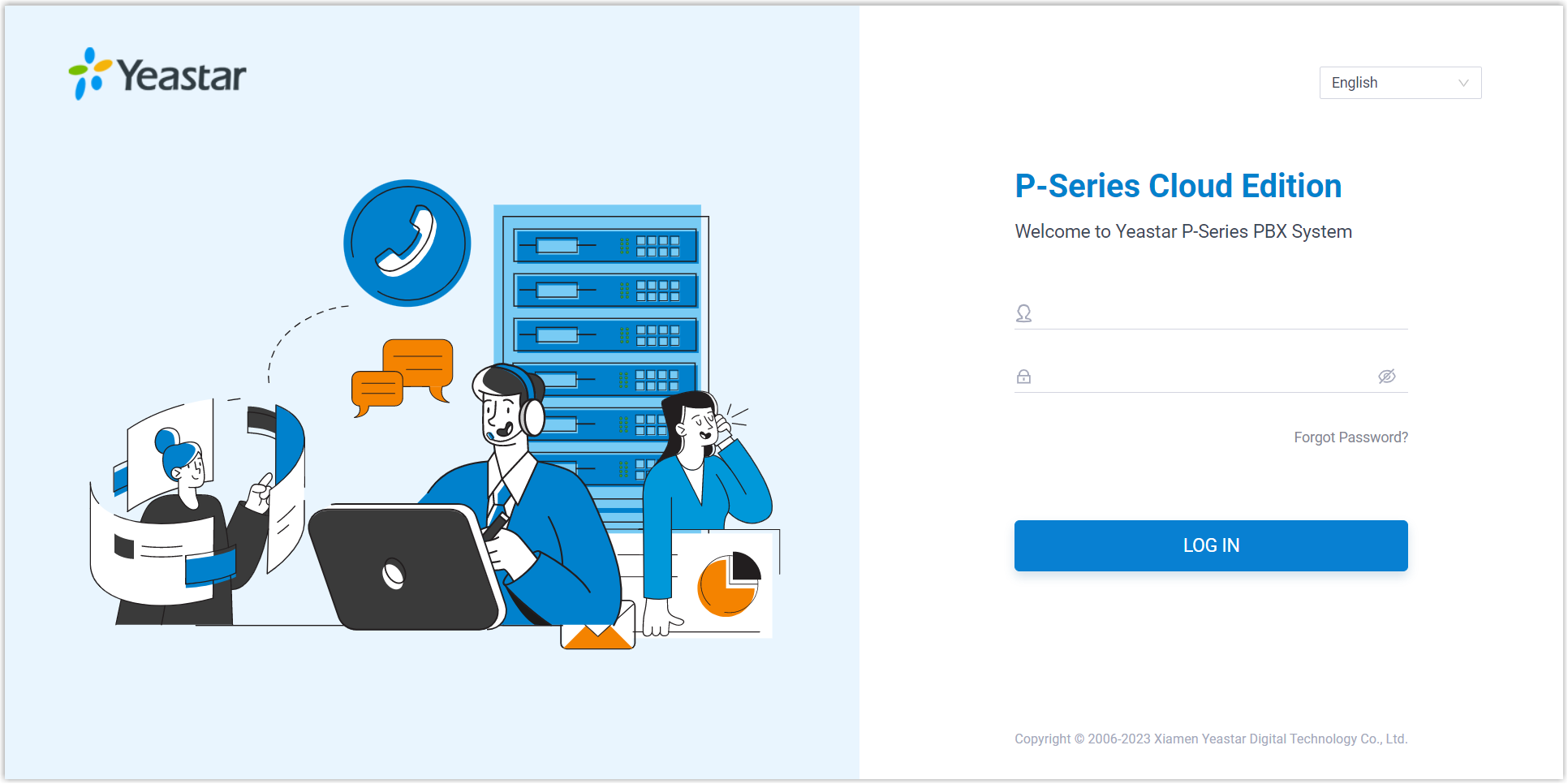
-
If you have configured two-factor authentication, supply a verification code to finish signing in.
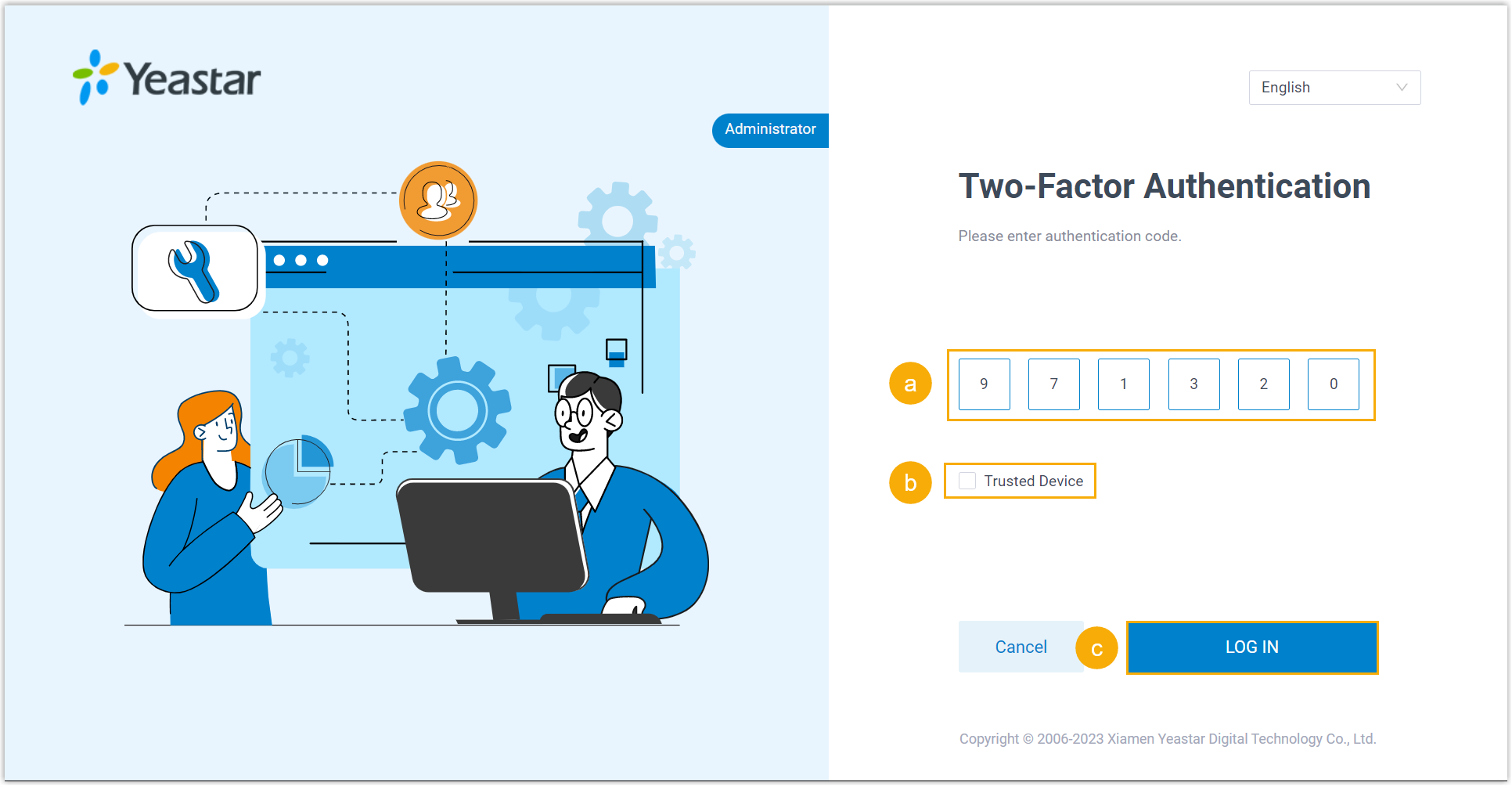
a. Enter the code from your authenticator app or the one sent to your email.
b. Optional: select the Trusted Device checkbox.
c. Select LOG IN.
-
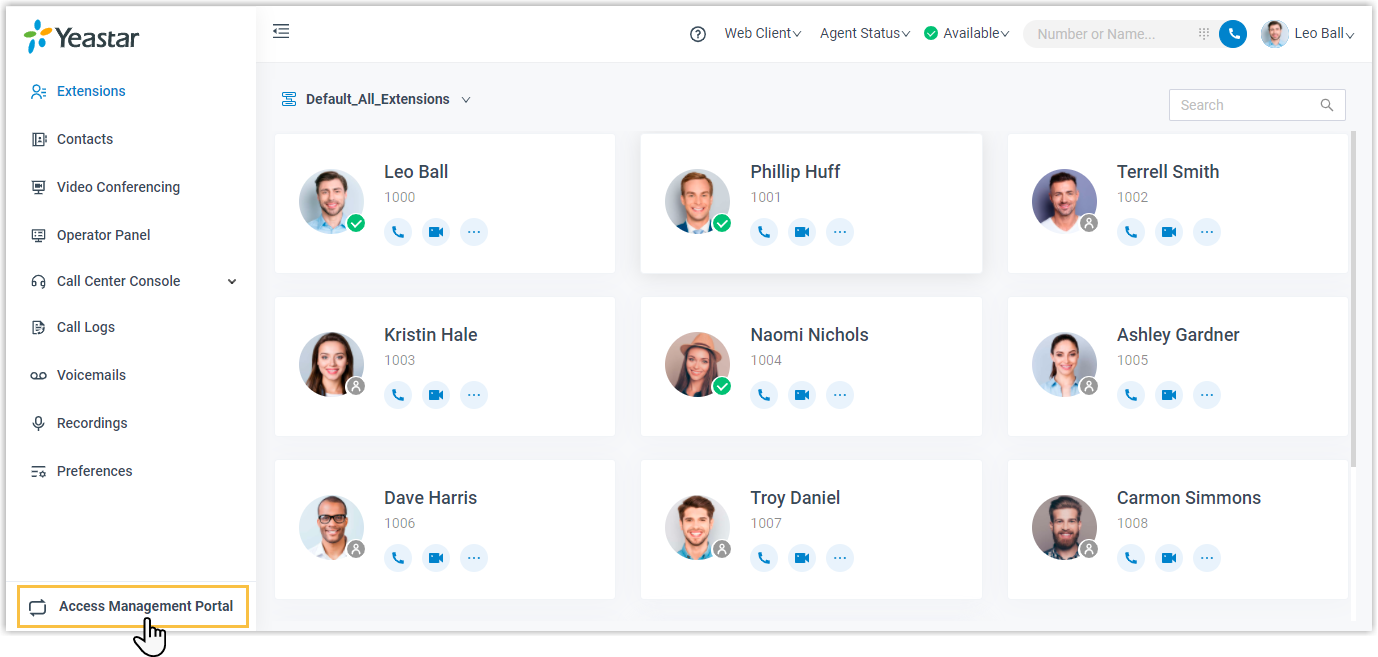
In the lower-left corner, select Access Management Portal.
Question about this page?
Ask the AI assistant. It starts from this page, then searches the rest of the docs.
Ask Cloud Voice AI
Answers are AI-generated from the docs and may contain mistakes. Verify with the linked pages.