
Configure Event Notifications
Event notifications keep you and your team aware of what happens on the phone system. When an event you care about is triggered, Cloud Voice can alert the contacts you choose through the delivery methods you assign. Follow the steps below to turn on notifications for an event and tailor how they are delivered.
Turn on and configure an event
Section titled “Turn on and configure an event”-
Sign in to the management portal and open System > Event Notification > Event Type.
-
Find the event you want to be alerted about and switch it on in the Notification column.
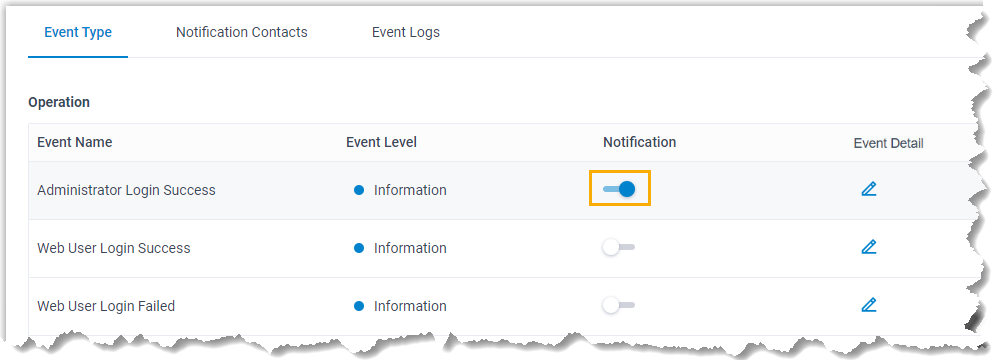
-
Adjust the settings for that event:
- Event Level: The level signals how serious the event is, which makes it easier to prioritize alerts at a glance. Leave the default or pick a different level from the drop-down list.
- Event Detail: Click the edit icon
 to customize the email template that is sent to your contacts when the event fires.
 - Notification Contacts: Choose who should be notified and which delivery method each contact receives. For details, see Manage Notification Contacts.
What happens when the event occurs
Section titled “What happens when the event occurs”Once an event you have enabled is triggered, the system does the following:
- Sends an alert to each assigned contact using the delivery method configured for them.
- Counts the event within its level in the Event Trend statistics on the dashboard.
- Increases the bell counter
 in the top-right corner of the portal by one, shown in the color that matches the event’s level.
Review event details
Section titled “Review event details”To see what triggered an alert, click the bell icon in the top-right corner of the portal.
Question about this page?
Ask the AI assistant. It starts from this page, then searches the rest of the docs.
Ask Cloud Voice AI
Answers are AI-generated from the docs and may contain mistakes. Verify with the linked pages.