
Set Up Function Keys for Extensions Using a Template
Configuring function keys one extension at a time is slow when you manage a large number of users. Cloud Voice lets you define a function keys template once and push it to any number of extensions in a single action. This page walks through creating a template and applying it in bulk.
Step 1. Create a function keys template
Section titled “Step 1. Create a function keys template”-
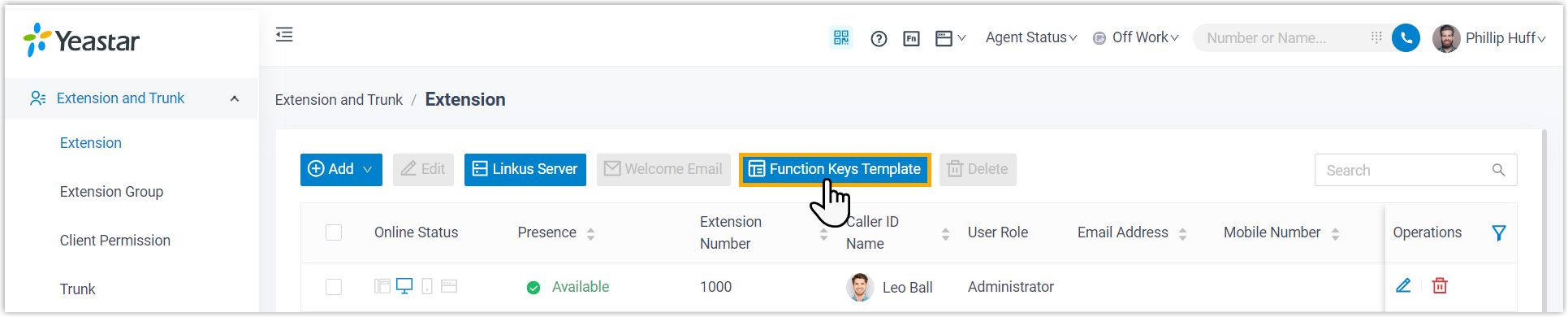
Sign in to the PBX (Private Branch Exchange) web portal and go to Extension and Trunk > Extension.
-
Select Function Keys Template.
-
Click Add to start a new template, then fill in its settings.
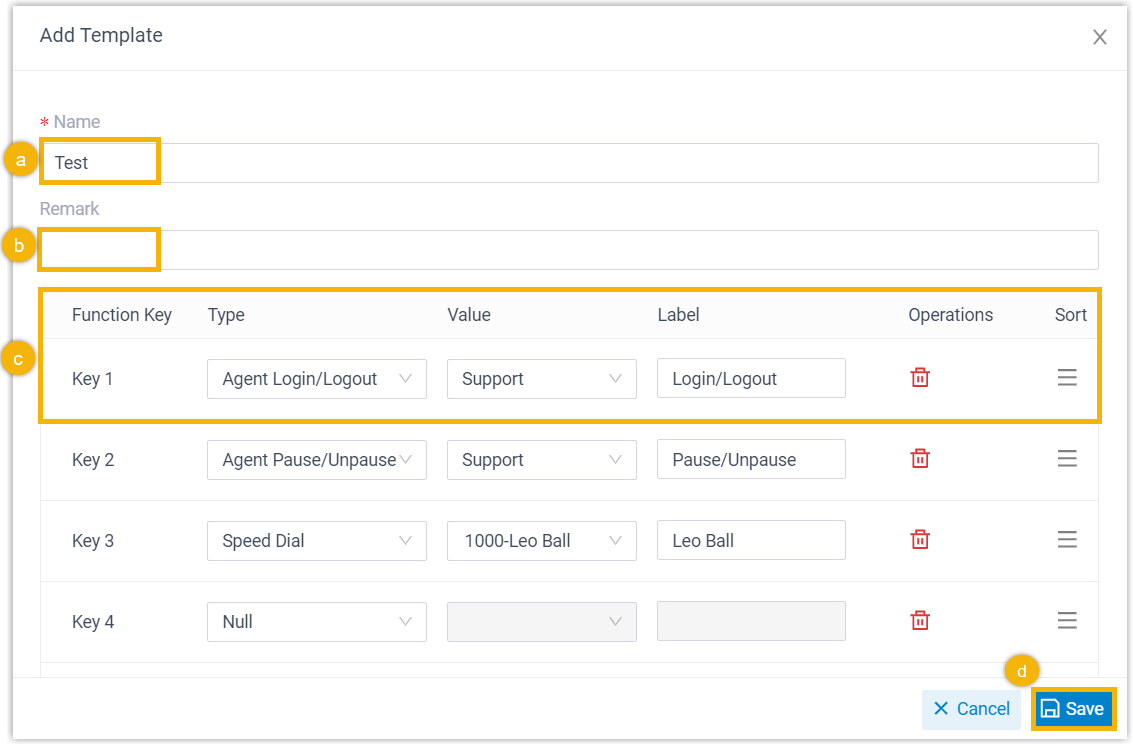
a. In Name, type a label that will help you recognize the template later.
b. Optional: use Remark to add a brief note describing the template’s purpose.
c. In the function keys list, define each key you need:
- Type: choose the kind of key.
- Value: set the value that matches the key type you selected.
- Label: optional text that helps users recognize the key.
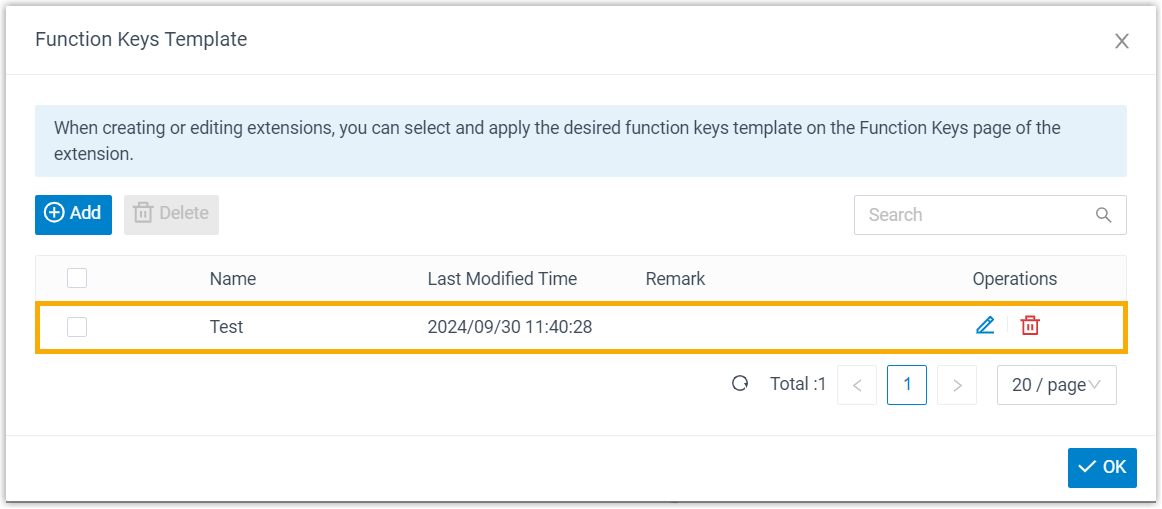
d. Click Save. The new template appears in the list.
-
Click OK.
Step 2. Apply the template to extensions
Section titled “Step 2. Apply the template to extensions”-
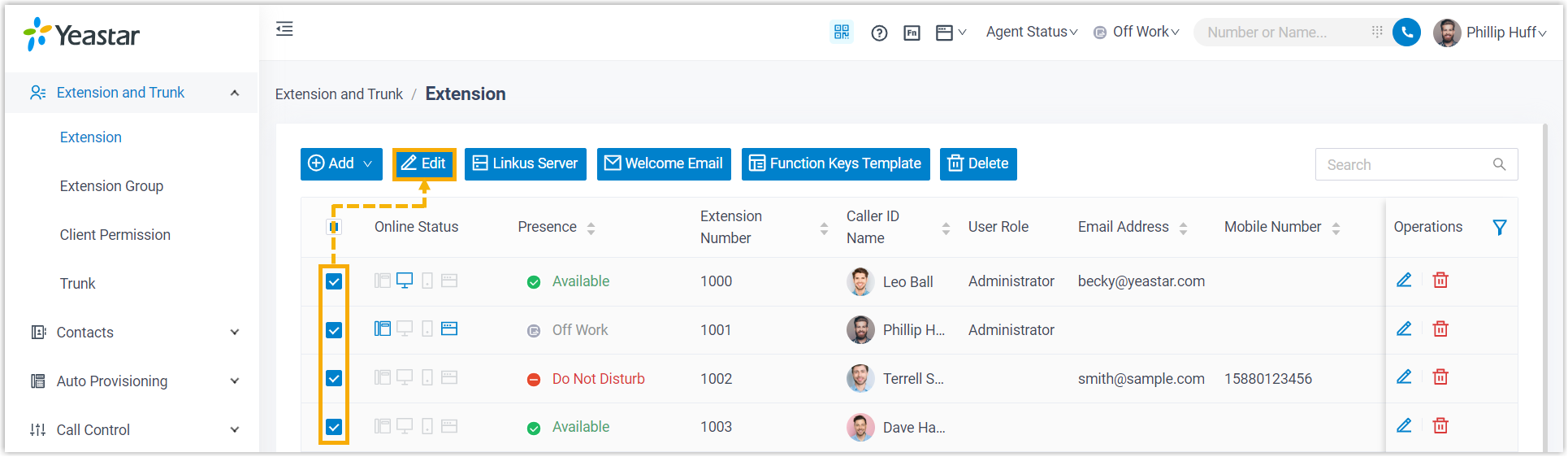
On the extension list, tick the checkboxes for the extensions you want to update, then click Edit.
-
Open the Function Keys tab, select the Bulk Edit checkbox, then click Apply Function Keys Template.
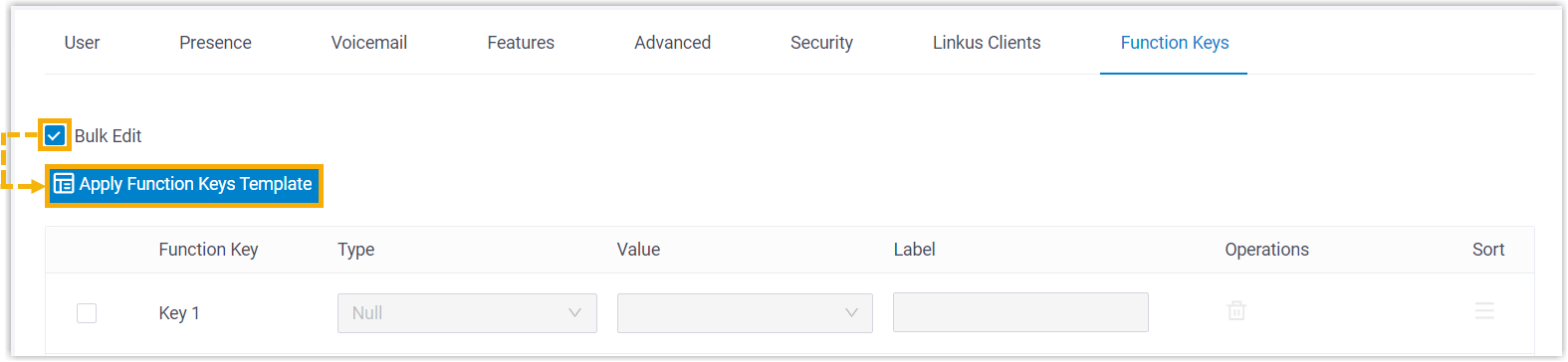
-
In the dialog that opens, pick the template you want, then click Apply.
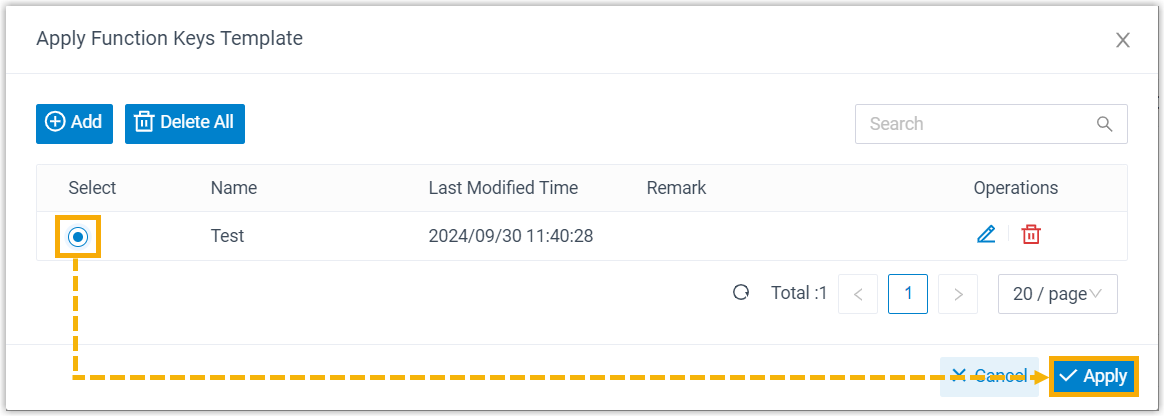
-
Click Save.
Result
Section titled “Result”The function keys are now active on the selected extensions in the Cloud Voice App (desktop and web).
Question about this page?
Ask the AI assistant. It starts from this page, then searches the rest of the docs.
Ask Cloud Voice AI
Answers are AI-generated from the docs and may contain mistakes. Verify with the linked pages.