
Route Inbound Calls based on Employee Hours
When staff members each keep their own hours, a single inbound route can hand each caller to whoever is actually on shift. This example uses time-based routing on the system’s default time zone to point calls at individual extensions during their scheduled windows, and to fall back to an IVR (Interactive Voice Response: the automated menu that answers a call and sends the caller onward based on the keys they press) at every other hour and on holidays.
Example scenario
Section titled “Example scenario”A hospital keeps duty doctors on call to handle urgent patient needs and to book appointments by phone. Each doctor works a different rotation, and patients should reach the doctor who is currently on duty. Whenever no one is scheduled, and on any holiday, the call should instead land on an IVR that directs the patient to the right service.
The rotation looks like this:
| Doctor | Hours |
|---|---|
| Dr. Tommy Tse | Monday 07:00 to 12:00, Friday 12:00 to 18:00 |
| Dr. Eric Chan | Monday 00:00 to 07:00, Thursday 07:00 to 12:00 |
Before you start
Section titled “Before you start”- A trunk for receiving inbound calls is in place and ready to use.
- The destinations you plan to route to already exist. This example relies on an IVR to catch patients when no doctor is on duty, so build that first, see Set up an IVR.
- If you need several inbound routes for different schedules, give each route its own trunk, or a trunk with distinct DID numbers (DID stands for Direct Inward Dialing: the specific phone number the outside caller dials to reach you). That keeps calls landing on the destination you intend. See Route Inbound Calls based on DID Numbers.
Create the inbound route
Section titled “Create the inbound route”-
Sign in to the PBX (Private Branch Exchange) web portal and go to Call Control > Inbound Route, then click Add.
-
In Name, enter a label that will help you recognize the route later.
-
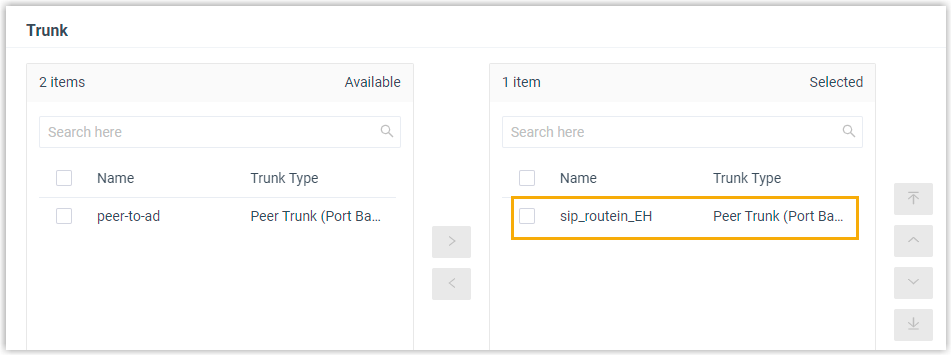
Under Trunk, move the trunks that carry these calls from the Available box to the Selected box.
For this scenario, select the sip_routein_EH trunk.
-
In the Default Destination section, set up time-based routing.
This one section holds three routing choices that work together: the custom time periods you define next, a Holidays Destination, and a Default Destination field that catches any time you did not schedule. Steps d and e set those last two.
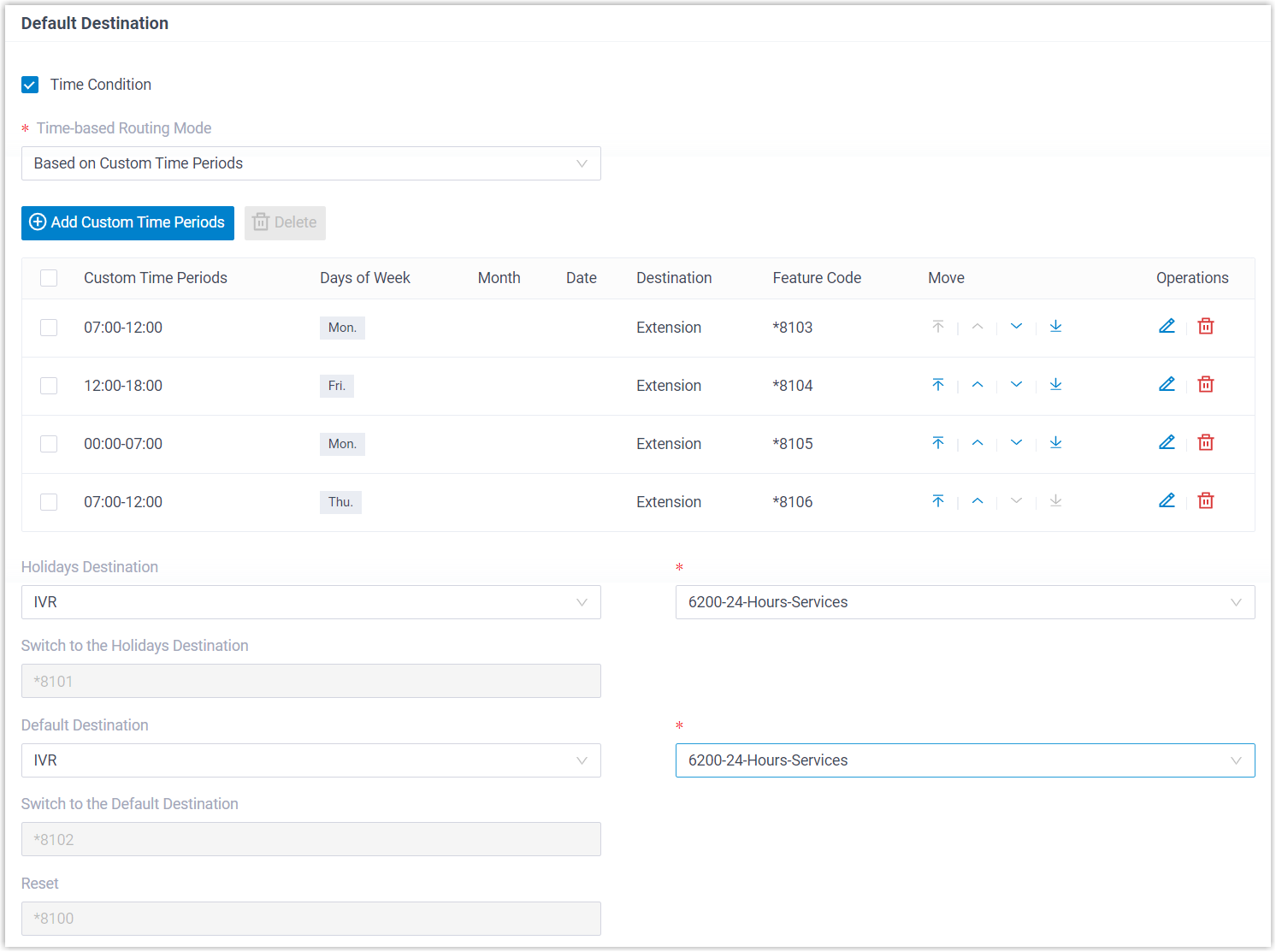
a. Select the Time Condition checkbox.
b. Set Time-based Routing Mode to Based on Custom Time Periods.
c. Add a time schedule for each doctor, using the system’s default time zone:
- Click Add Custom Time Periods.
- In the window that opens, click Add to define a time period, choose its destination, and pick the days of the week it applies to.
- Click Confirm.
- Repeat these steps for the next schedule.
For this scenario, add the following four schedules:
Start Time End Time Days of Week Destination 07:00 12:00 Monday Tommy’s extension 12:00 18:00 Friday Tommy’s extension 00:00 07:00 Monday Eric’s extension 07:00 12:00 Thursday Eric’s extension d. Set the Holidays Destination. Here, choose IVR and pick the IVR that guides patients.
e. Set the Default Destination. Here, choose IVR and pick the IVR that guides patients.
-
Click Save, then Apply.
Result
Section titled “Result”Calls that come in on the sip_routein_EH trunk now branch by the time they arrive:
- During a defined time period, the call goes to that period’s destination, the extension of the doctor on duty.
- At any hour you did not define, the call goes to the Default Destination.
- On a holiday, the call goes to the Holidays Destination.
Cloud Voice also generates a set of feature codes for the route:
- One feature code for each time period.
- A Switch to the Holidays Destination code that forces calls to the holidays destination.
- A Switch to the Default Destination code that forces calls to the default destination.
- A Reset code that clears any override currently in effect.
Question about this page?
Ask the AI assistant. It starts from this page, then searches the rest of the docs.
Ask Cloud Voice AI
Answers are AI-generated from the docs and may contain mistakes. Verify with the linked pages.