
Change Theme Mode
Out of the box, the Cloud Voice web portal mirrors whatever theme your browser is using, flipping between light and dark automatically. If you’d rather it stay one way, you can pin the portal to a fixed light or dark appearance no matter what your browser does.
Requirements
Section titled “Requirements”Your Cloud Voice system must be running firmware 84.21.0.117 or later.
Set your theme
Section titled “Set your theme”-
Sign in to the Cloud Voice web portal.
-
Open your theme options.
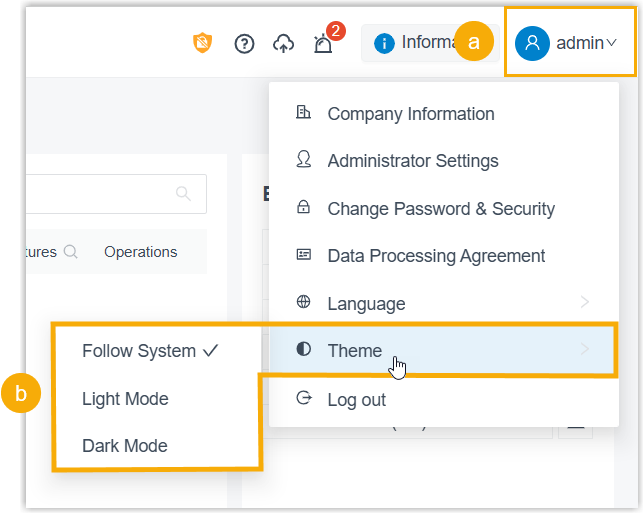
a. Click your profile icon in the top-right corner of the page.
b. Select Theme from the menu, then choose the mode you want:
Mode What it does Follow System Matches your browser’s current theme and switches with it. Light Mode Keeps the portal in the light theme at all times. Dark Mode Keeps the portal in the dark theme at all times.
Here’s how the two fixed modes look:
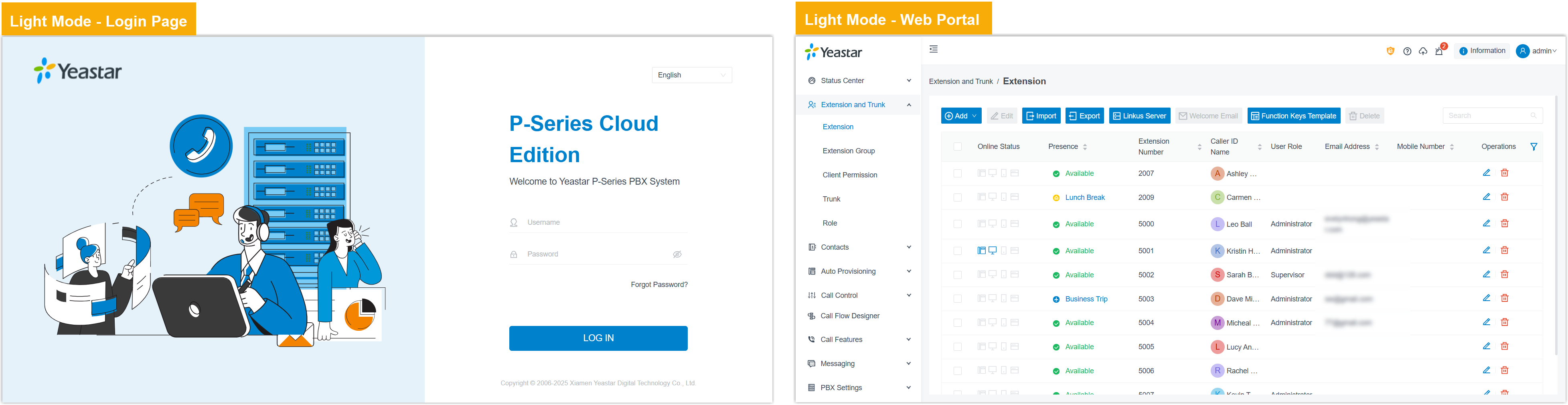
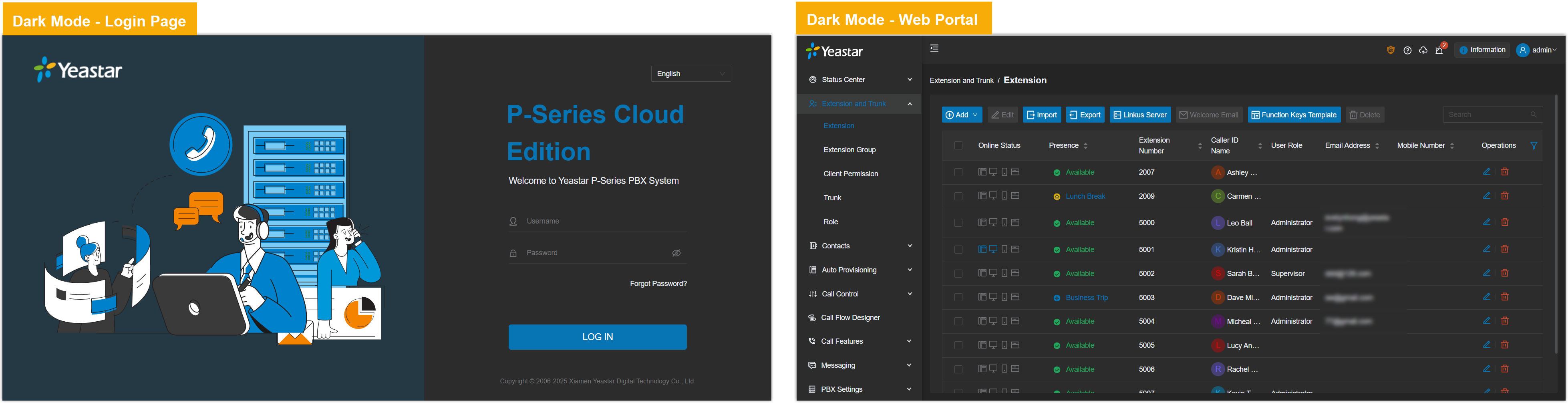
Result
Section titled “Result”Your selection applies right away, and the portal repaints in the theme you picked.
Question about this page?
Ask the AI assistant. It starts from this page, then searches the rest of the docs.
Ask Cloud Voice AI
Answers are AI-generated from the docs and may contain mistakes. Verify with the linked pages.