
Set up Extension Visibility
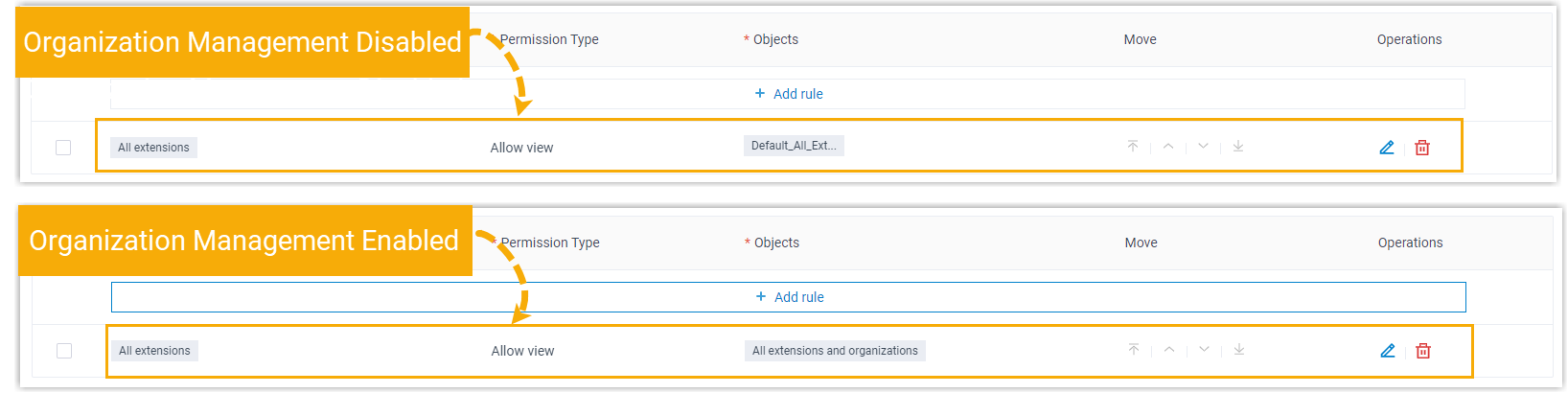
Out of the box, everyone in your organization can see every department or the default extension group in the Cloud Voice App, depending on whether organization management is turned on. When you need to hide certain extensions, departments, or groups from some users, create extension visibility rules to control exactly who sees what.
Create a visibility rule
Section titled “Create a visibility rule”-
In the Cloud Voice portal, go to Extension and Trunk > Client Permission > Extension Visibility.
The page opens with the built-in default rule already in place.
-
Click Add rule.
-
Define the rule using the fields below, then click Save.

Field What it controls Extension / Extension Group / Organization The users the rule applies to. Use the edit icon to choose either All extensions or Specific extensions and extension groups/departments. Permission Type Whether the rule grants or blocks visibility. Choose Allow view to let the selected users see the objects in the rule, or Disallow view to hide those objects from them. Objects The extensions, groups, or departments the rule covers. Use the edit icon to pick from All extensions and extension groups/departments, Groups/Departments that the extension belongs to, Selected extensions and groups/departments, or Specific extensions and extension groups/departments.
Order your rules
Section titled “Order your rules”Rules are evaluated from the top of the list downward. When two rules disagree about the same extension, the one higher in the list wins.
To reposition a rule, use the move-to-top, move-up, more, or move-to-bottom controls on that row.
Result
Section titled “Result”In the Cloud Voice App, each user sees only the extensions, groups, and departments your rules make visible to them.
Question about this page?
Ask the AI assistant. It starts from this page, then searches the rest of the docs.
Ask Cloud Voice AI
Answers are AI-generated from the docs and may contain mistakes. Verify with the linked pages.