
Active Call Panel Overview
The Active Call panel brings live call activity and extension presence together on one screen. Use it to see what is happening across your phone system as it happens, keep an eye on who is available, and intervene on calls when you need to.
Requirements
Section titled “Requirements”Before you can use the Active Call panel, make sure the following are in place.
| Item | Requirement |
|---|---|
| Firmware | Your Cloud Voice system is running firmware 84.21.0.66 or later. |
| Access | You have opened your phone system’s management portal with full administrator access by logging in to the Cloud Voice Dashboard at https://portal.voice.izt.cloud and clicking Login. |
Panel layout
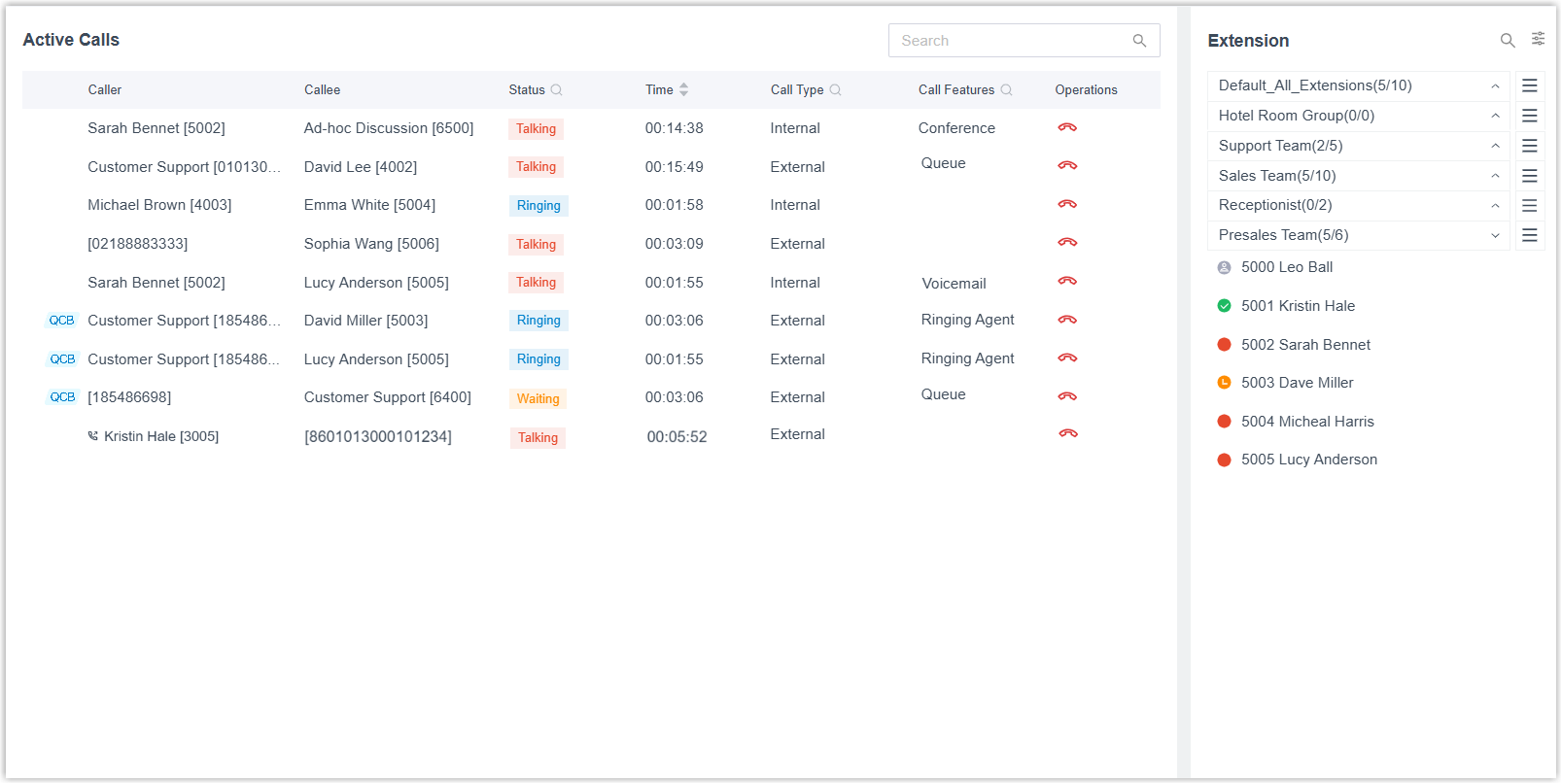
Section titled “Panel layout”The Active Call panel is split into two areas: the Active Calls list on the left and the Extension list on the right.
Active Calls
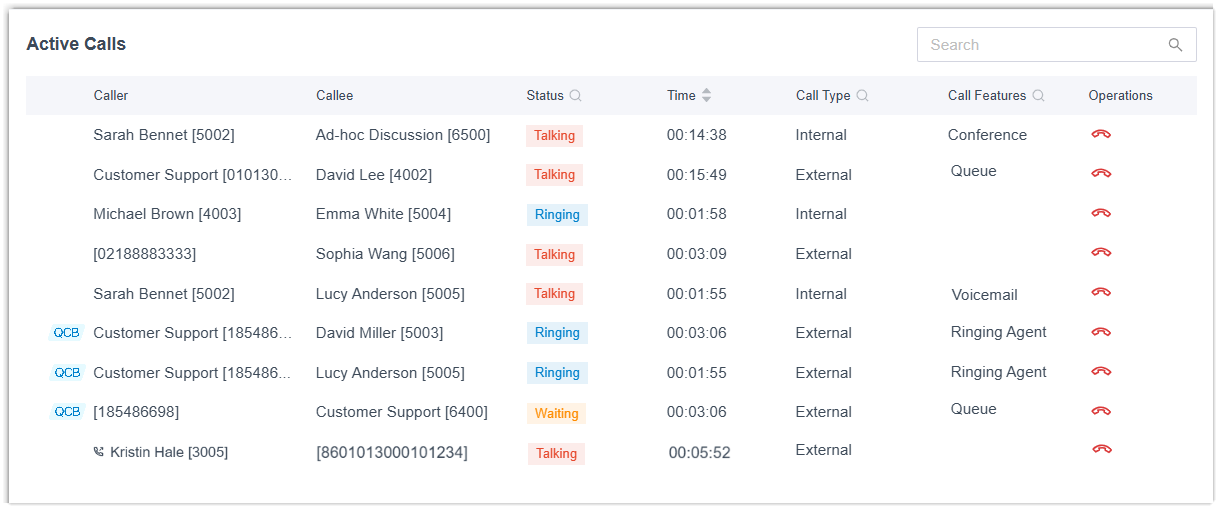
Section titled “Active Calls”The Active Calls area lists every call currently in progress on the system and refreshes in real time. From here you can review call details and take action on any call.
What each call shows
Section titled “What each call shows”Every entry in the list carries the following details.
| Field | Description |
|---|---|
| Caller | The name and number of the party placing the call. |
| Callee | The name and number of the party being called. |
| Status | Where the call is in its lifecycle: Waiting (a queue call holding in line for an agent), Ringing (the call is ringing), or Talking (the call is connected). |
| Time | How long the call has been running. |
| Call Type | Whether the call is Internal (between two extensions on the system) or External (one leg is outside the system). |
| Call Features | Any special handling applied to the call, such as a queue, a conference, or a call flow. |
The list also uses a few visual cues to help you read it at a glance.
- Outbound calls are marked with an
 icon in front of the caller details.
 - Queue callback calls are marked with a
 tag ahead of the entry. A queue callback is when the system calls a waiting caller back instead of making them hold in line.
 - A queue call still waiting to be answered appears as more than one entry so you can follow its full path:
- Caller to Queue: the original leg from the caller into the queue, shown with a Waiting status.
- Queue to Agent(s): the leg or legs the queue distributes to the agents whose phones are ringing, shown with a Ringing status.
Managing live calls
Section titled “Managing live calls”You can narrow the list and end calls directly from the panel.
Search, filter, and sort

- Type a number or name into the search box at the top of the list to match calls by their caller or callee details.
- Use the controls on the top bar to filter the list by specific conditions, or to sort calls by duration.
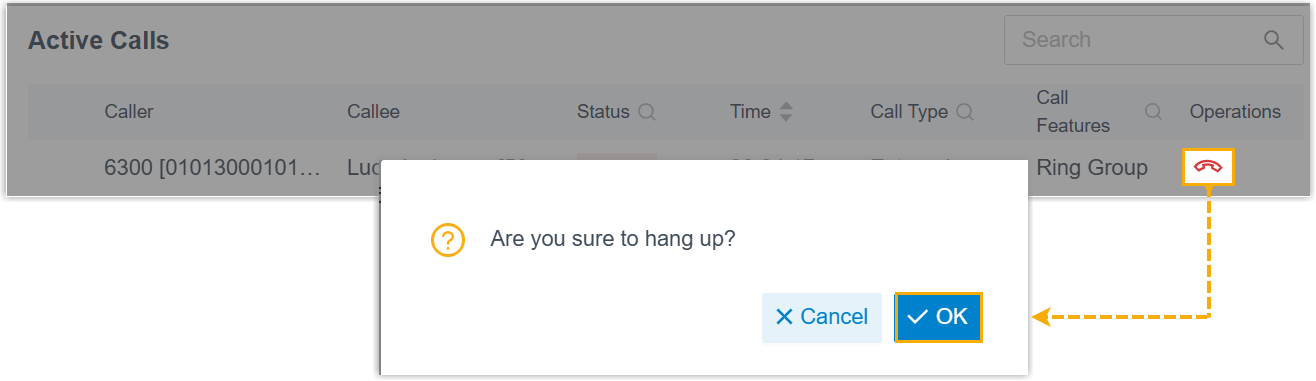
Hang up a call
Select  next to a call to end it, for example, to cut off an unauthorized or unwanted call.
Extension
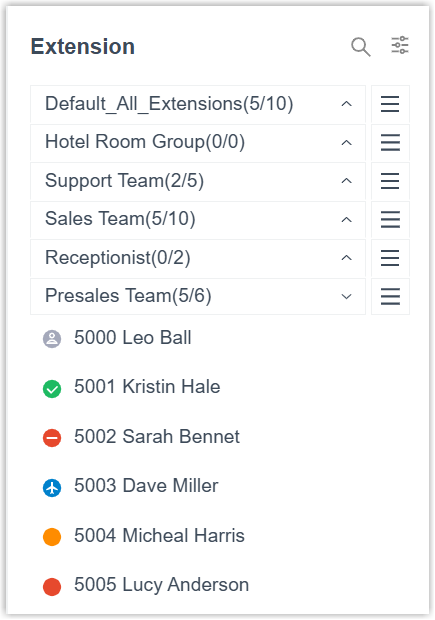
Section titled “Extension”The Extension area shows your extensions and their live status, grouped by extension group or department, so you can tell at a glance who is available.
Reading extension status
Section titled “Reading extension status”Each extension shows its registration, presence, and call state through a status icon.
| Icon | Meaning |
|---|---|
 | Unavailable, the extension is not registered. |
 | Ringing, the extension is ringing. |
 | Busy, the user is on a call. |
 | Available, the user is online and ready to take calls. |
 | Away, the user is away from the office. |
 | Business Trip, the user is away on a business trip. |
 | Do Not Disturb, the user has chosen not to be disturbed and will not receive calls. |
 | Lunch Break, the user is on a lunch break. |
 | Off Work, the user is off the clock. |
Working with the extension list
Section titled “Working with the extension list”You can search the list and change how it is displayed.
Find an extension
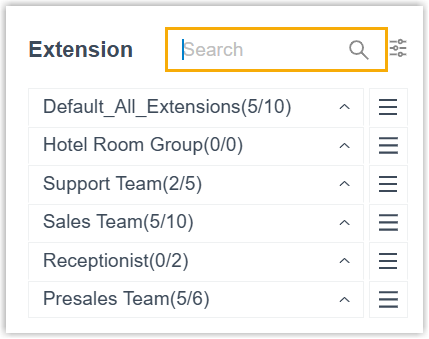
Use the search box to look up extensions by name, number, extension group, or department. Fuzzy matching is supported, so partial terms work.
Customize the display
-
Choose what to show: select
 to pick which extension groups or departments appear in the list.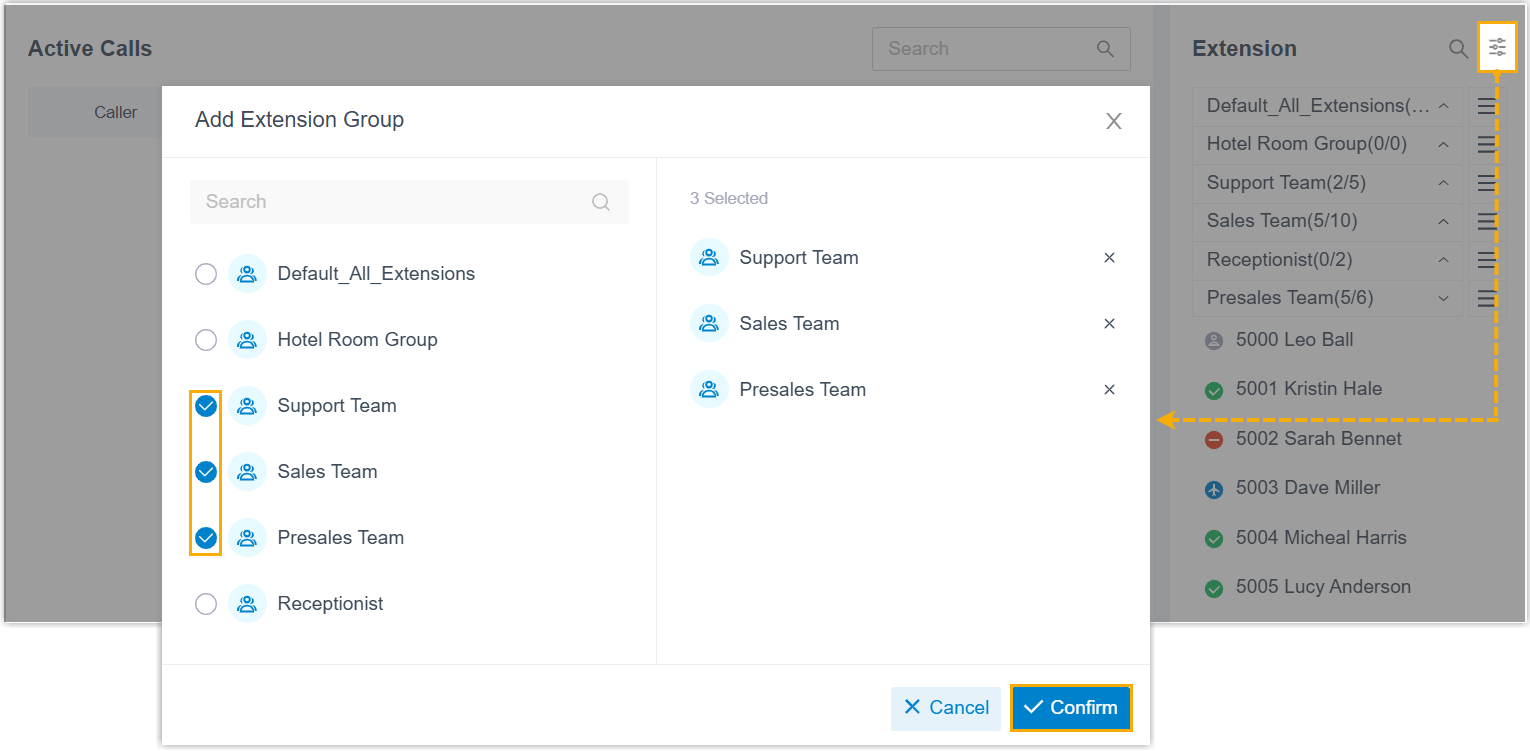
-
Reorder the list: hover over
 , then drag an item to where you want it and drop it.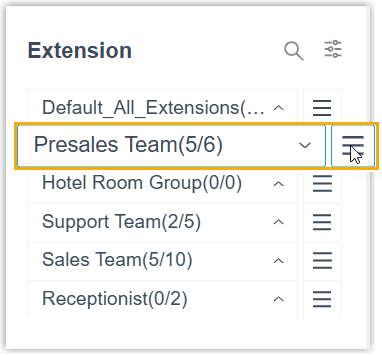
Question about this page?
Ask the AI assistant. It starts from this page, then searches the rest of the docs.
Ask Cloud Voice AI
Answers are AI-generated from the docs and may contain mistakes. Verify with the linked pages.