
Customize Email Template for Scheduled CDR
When a scheduled CDR runs, Cloud Voice delivers the report by email. You can replace the wording of that email with your own subject line and body while still handing recipients everything they need to retrieve the records.
What the default email includes
Section titled “What the default email includes”Unless you customize it, the scheduled CDR email is sent in the language set under System > Email > Email Templates > Notification Email Language, using the built-in template. That default message gives recipients:
- A link for downloading the CDR file.
- How long the download link stays valid (its validity period).
- System identifiers, namely the PBX name and PBX serial number.
If that wording suits you, no action is needed. To change it, follow the steps below.
Create a custom template
Section titled “Create a custom template”-
Sign in to the web portal and open Reports and Recordings > CDR.
-
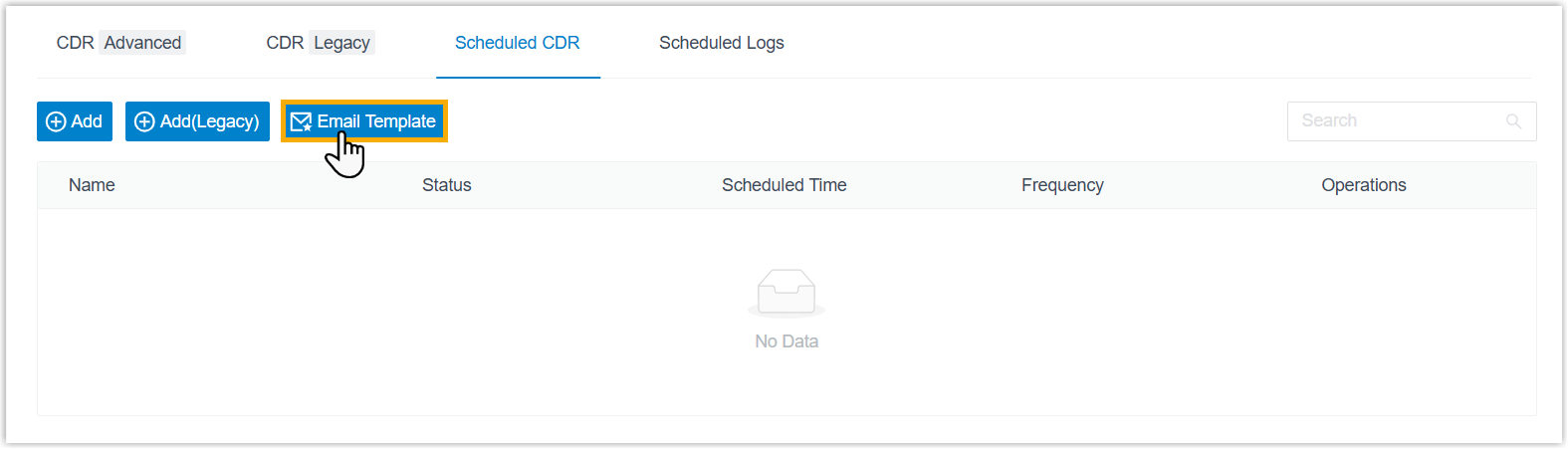
Select the Scheduled CDR tab, then click Email Template.
-
Set up your template:
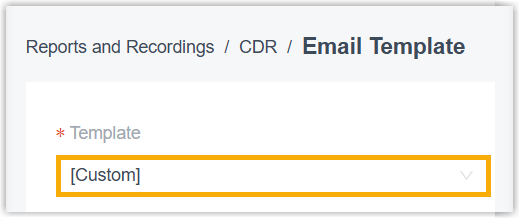
a. Open the Template drop-down list and choose Custom.
b. Write the email subject and body to match what you want recipients to see.
c. Click Save.
Every scheduled CDR sent from this point on uses your custom email template.
Question about this page?
Ask the AI assistant. It starts from this page, then searches the rest of the docs.
Ask Cloud Voice AI
Answers are AI-generated from the docs and may contain mistakes. Verify with the linked pages.