
Reset the System on Web Interface
A factory reset from the web portal lets you wipe some or all of your Cloud Voice configuration and data without physical access to the system. This page walks through what each reset option clears, how to run the reset, and how to bring the system back online afterward.
Before you begin
Section titled “Before you begin”- Confirm that no calls are in progress. Any active call is dropped the moment the reset starts.
- Create an on-demand backup of your PBX configuration first so you can restore it if needed.
Reset the system
Section titled “Reset the system”-
Log in to the Cloud Voice Dashboard at https://portal.voice.izt.cloud and click Login to open your phone system’s management portal with full administrator access. Go to Maintenance > Reset.
-
Choose the configuration and data you want to remove. You can combine options, or use Reset All to clear everything at once.
Option What it clears Reset All Every configuration and all data on the PBX. Reset CDR, Call Reports and Recording Files All call logs, call reports, and recording files held on the PBX local disk. CDR stands for Call Detail Record, the per-call log entry the system keeps. Reset Backup Files All backup files. Reset Prompts Custom prompts. Reset Company Contacts Company contacts, phonebooks, and Caller ID match settings. Reset Other System Configurations All logs and configurations except CDR, call reports, recording files, backup files, prompts, and contacts. -
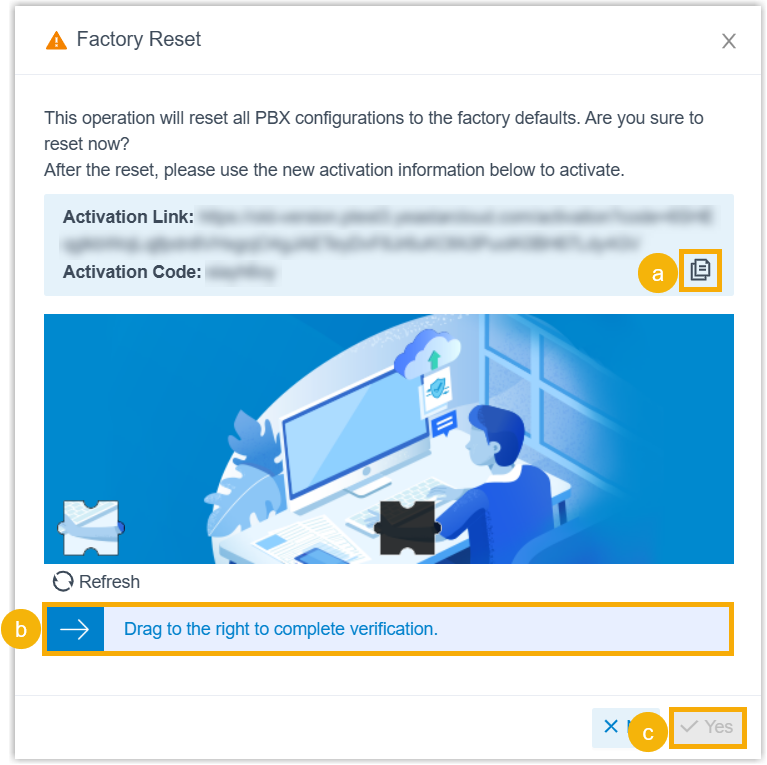
Click Factory Reset. A Factory Reset dialog box opens.
-
Complete the dialog box as follows.
-
Click
 to record the Activation Link and Activation Code.
 -
Drag the slider to confirm the operation.
-
Click Yes.
-
Result
Section titled “Result”The reset takes a few minutes to complete. When it finishes, the current web page reports that the PBX is no longer activated.
What to do next
Section titled “What to do next”Contact IZT with the activation link and activation code you saved. IZT re-provisions your Cloud Voice system and brings it back online.
Question about this page?
Ask the AI assistant. It starts from this page, then searches the rest of the docs.
Ask Cloud Voice AI
Answers are AI-generated from the docs and may contain mistakes. Verify with the linked pages.