
IVR Report
The IVR report shows how callers move through your interactive voice response (IVR) menus: the recorded greetings that ask a caller to “press 1 for sales, press 2 for support” and route the call based on the key they choose. At a glance you can see how often each key is pressed, and you can drill into the individual calls behind those totals to understand where callers end up, how many time out or enter an invalid option, and how long they spend in the menu.
Access the IVR report
Section titled “Access the IVR report”-
Sign in to the PBX (private branch exchange) web portal and go to Reports and Recordings > Call Reports.
-
Open the report:
-
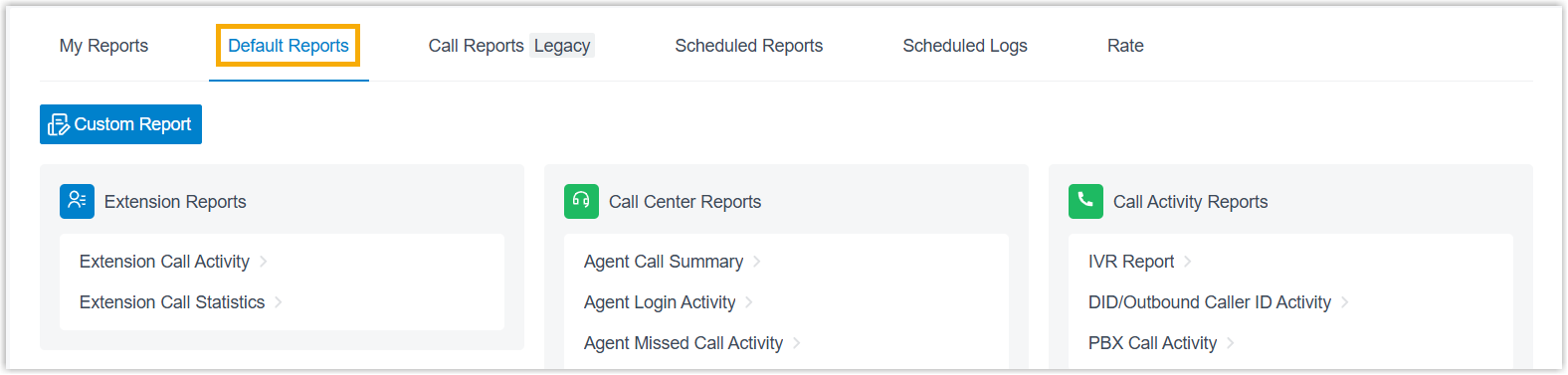
Select the Default Reports tab.
-
In the Call Activity Reports pane, click IVR Report.
-
-
Set the report filters.

- In the Time field, choose the date range the report should cover.
- Narrow the results by key type and by one or more IVRs. When you are tuning a single menu, filter to that one IVR and a short date range so the numbers are easier to read. The report that matches your filters appears on the page.
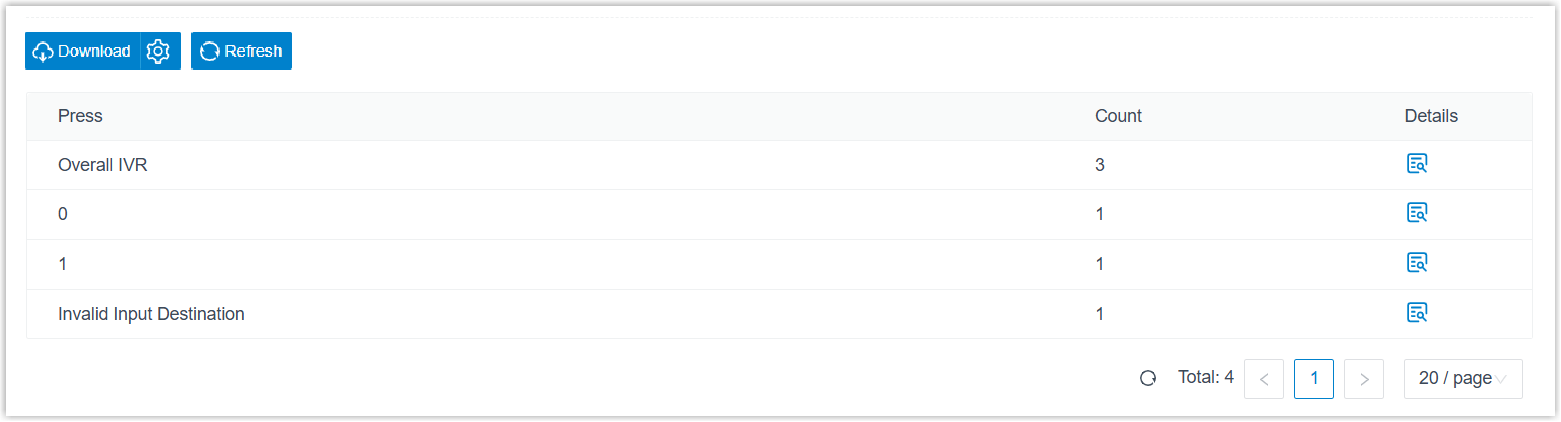
The layout depends on the key type you select:
IVR with standard keys

IVR with custom keys
-
(Optional) Adjust the columns so the list highlights the metrics you care about:
-
Choose which columns appear: click the columns icon and select the fields to display.

-
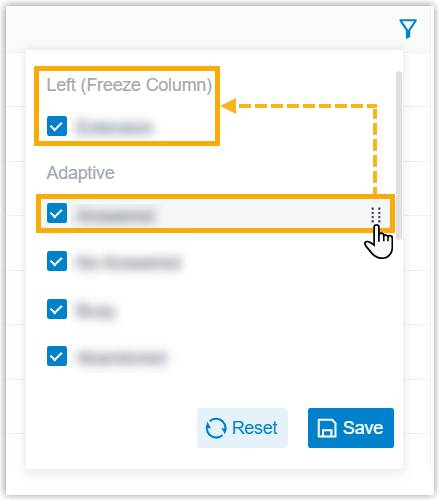
Freeze a column: click the drag handle next to a field, then drag it onto Left (Freeze Column) or Right (Freeze Column). A frozen column stays visible while you scroll the rest of the table sideways.
-
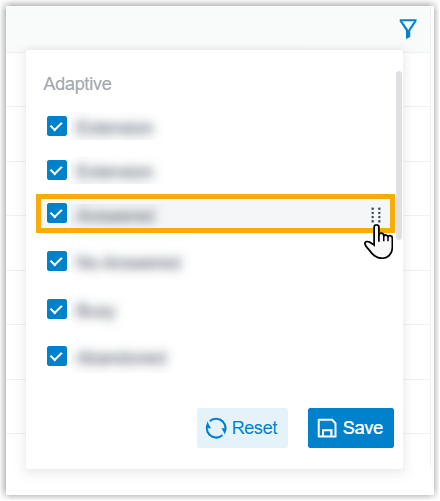
Reorder columns: click the drag handle next to a field and drag it to a new position.
-
-
(Optional) Save the report for quick access, schedule it for automatic delivery, or export it:
-
Add to My Reports: save the current view to your My Reports list for one-click access later. Click Add to My Reports at the bottom of the page, enter a name that identifies the report, adjust the filters or metrics if needed, then click Save.
-
Add to Scheduled Reports: have the report emailed automatically on a schedule. Click Add to Scheduled Reports at the bottom of the page, then finish the setup as described in Schedule call reports.
-
Download: export the report to your computer for offline review and further analysis.
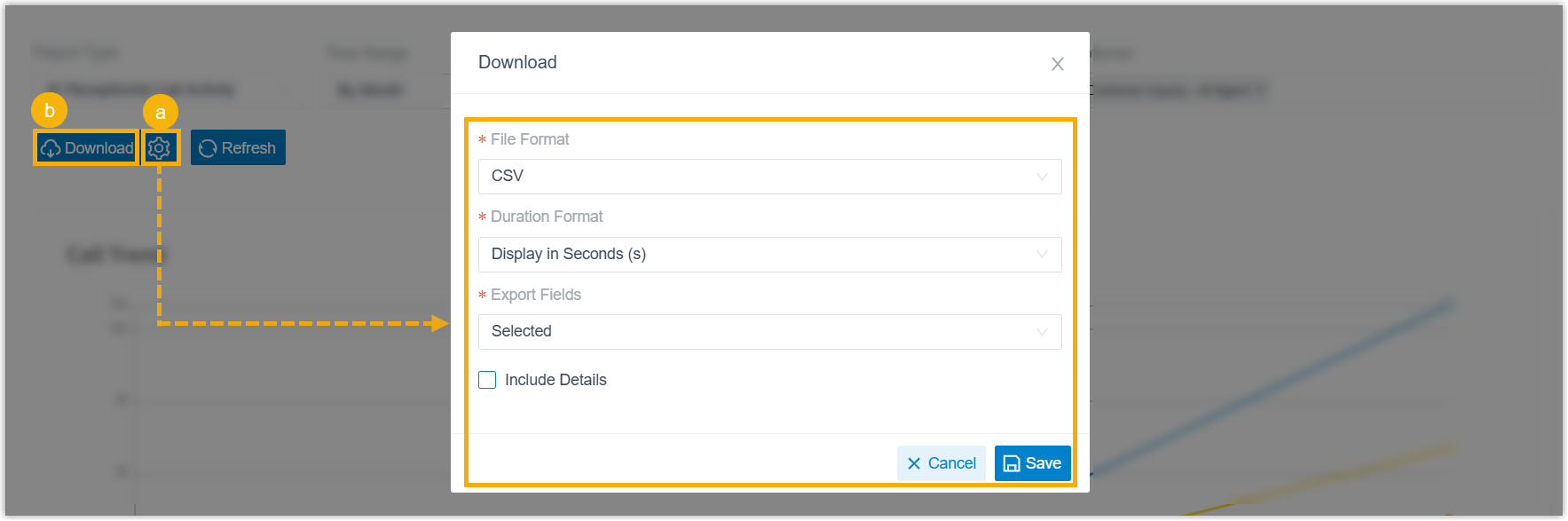
Optionally click the settings icon to change the download options and save them, then click Download:
- File Format: the file type to produce: CSV, XLS, HTML, or PDF.
- Duration Format: how every duration field is shown: Display in Second (s) or Display as HH:MM:SS.
- Export Fields: export All fields or only the Selected ones.
- Include Details: choose whether to export just the summary list, or include the underlying per-call records too. When you include records, pick how they appear: Download data as multiple files/sheets, or show them as indented, offset rows within the same list.
-
Report details
Section titled “Report details”The available metrics differ slightly depending on whether the IVR uses standard keys or custom keys.
IVR with standard keys
Section titled “IVR with standard keys”Menu-level metrics
| Metric | Description |
|---|---|
| Press {key_pressed} | The number of times the key was pressed. |
| Response Timeout | The number of calls routed to the timeout destination. This happens when no key is pressed before the IVR reaches its maximum Prompt Repeat Count. |
| Invalid Input Destination | The number of calls routed to the invalid input destination. This happens when a caller repeatedly enters a DTMF digit that the IVR does not define, up to the maximum Prompt Repeat Count. |
Per-call metrics
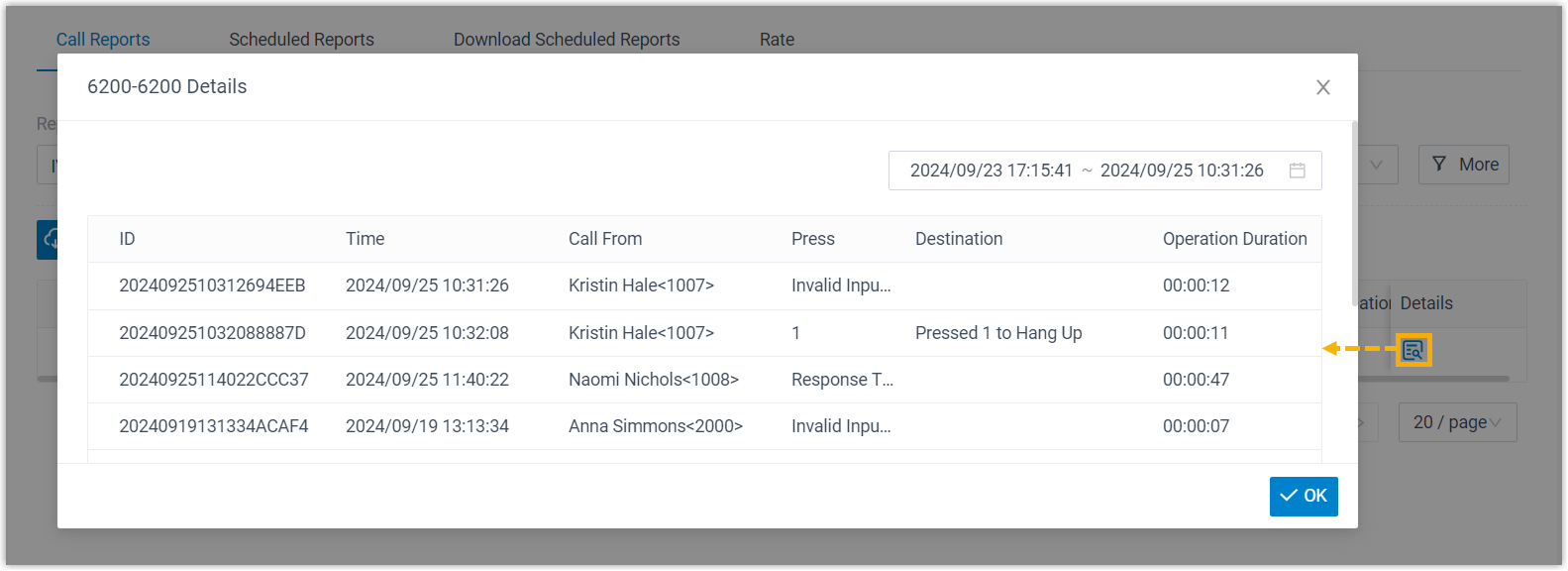
| Metric | Description |
|---|---|
| ID | A unique identifier for the call. |
| Time | When the call was received. |
| Call From | The caller’s number and name. |
| Press | The keypress event. |
| Destination | Where the call was sent. |
| Operation Duration | The elapsed time between the caller entering the IVR and leaving it. |
IVR with custom keys
Section titled “IVR with custom keys”Menu-level metrics

| Metric | Description |
|---|---|
| Overall IVR | The total number of times any keypress event in the IVR was triggered. |
| {key_pressed} | The number of times the key was pressed. |
| Response Timeout | The number of calls routed to the timeout destination. This happens when no key is pressed before the IVR reaches its maximum Prompt Repeat Count. |
| Invalid Input Destination | The number of calls routed to the invalid input destination. This happens when a caller repeatedly enters a DTMF digit that the IVR does not define, up to the maximum Prompt Repeat Count. |
Per-call metrics
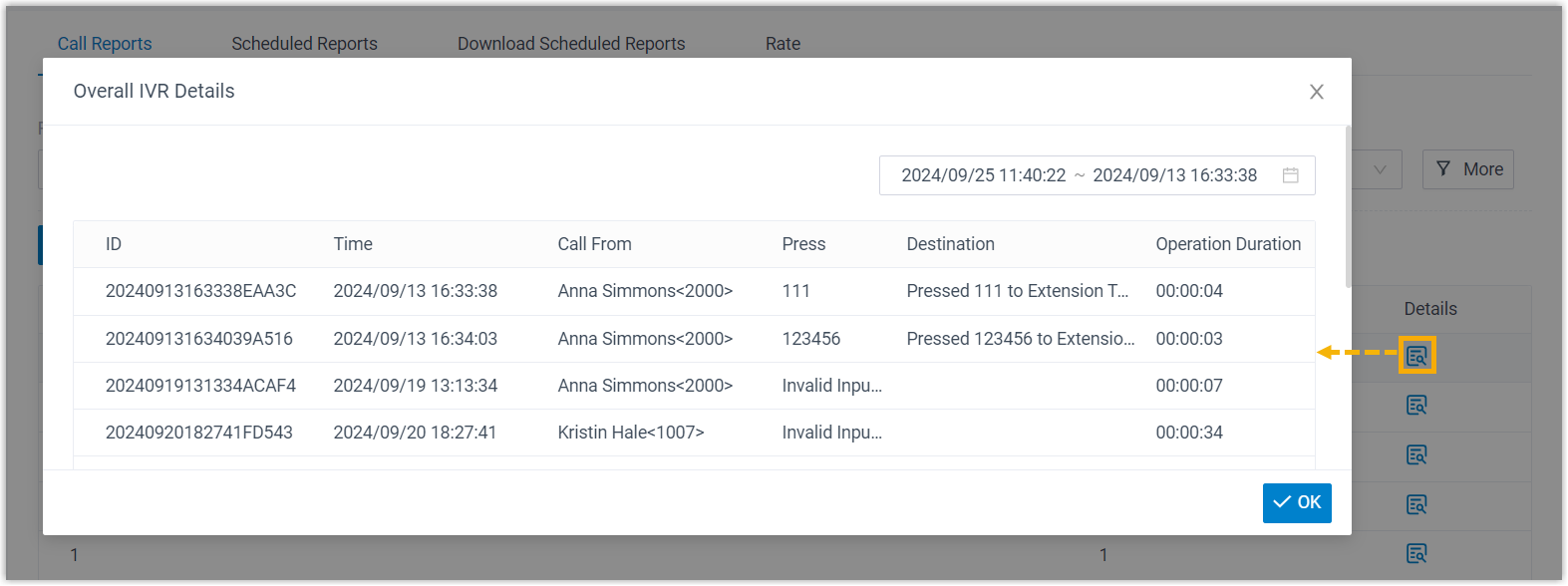
| Metric | Description |
|---|---|
| ID | A unique identifier for the call. |
| Time | When the call was received. |
| Call From | The caller’s number and name. |
| Press | The keypress event. |
| Destination | Where the call was sent. |
| Operation Duration | The elapsed time between the caller entering the IVR and leaving it. |
Question about this page?
Ask the AI assistant. It starts from this page, then searches the rest of the docs.
Ask Cloud Voice AI
Answers are AI-generated from the docs and may contain mistakes. Verify with the linked pages.