
Restrict Countries or Regions from Accessing Your Phone System
Out of the box, Cloud Voice accepts connections from every country and region. Because a reachable phone system is a target, an attacker who reaches yours could place international or long-distance calls, listen in on conversations, or take other actions that put your service at risk. To shrink that exposure, you can restrict access so that only the countries and regions you choose are permitted to connect.
Turn on country and region access protection
Section titled “Turn on country and region access protection”-
Sign in to the PBX (Private Branch Exchange) web portal and go to Security > Security Settings > Allowed Country IPs.
-
Switch on Enable Allowed Country/Region IP Access Protection.
Cloud Voice checks whether the IP address you are connecting from is already listed in the Allow IPs of your phone system.
-
If your current IP address is not in Allow IPs, Cloud Voice determines the country or region your connection comes from and asks you to permit it. You must allow your own location (or IP) before you can use the feature.
-
When your country or region is identified, a warning icon
 and a prompt appear so you can permit your current location.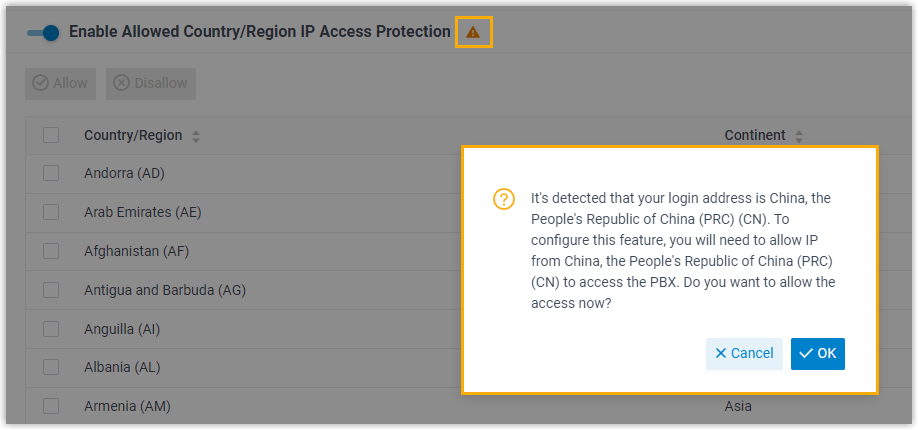
Click OK to allow IP addresses from your country or region to reach the phone system. The warning icon
clears, and the status for your country or region changes to allowed  .
.
-
When your country or region cannot be identified, a warning icon
and a prompt appear so you can permit your current IP address instead.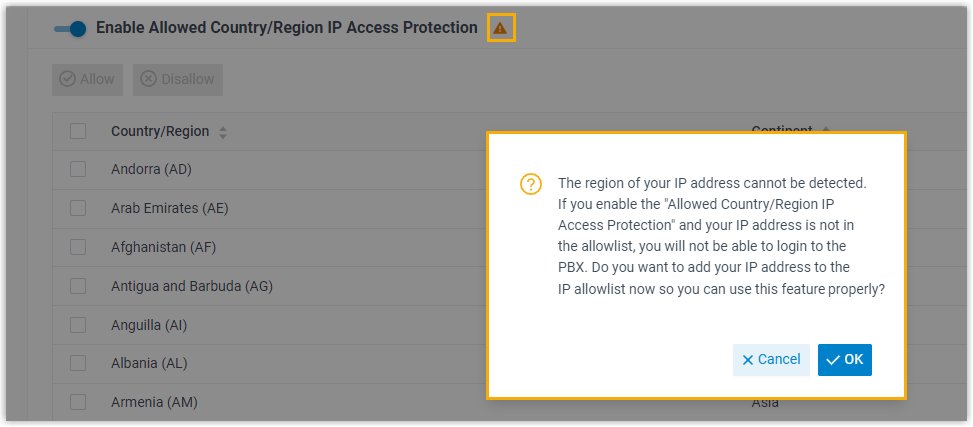
Click OK to add your IP address to Allow IPs. The warning icon
clears, and connections from that address are accepted.
-
-
Allow the other countries or regions that should be able to connect.
-
To allow one country or region:

a. Type the country or region name into the search box.
b. In the Operations column, set its status to allowed
. -
To allow several countries or regions at once:

a. Select the checkbox beside each country or region you want to permit.
b. Click Allow. Each selected status changes to allowed
.
-
-
Click Apply.
Result
Section titled “Result”Only devices whose IP addresses originate in an allowed country or region can reach the phone system.
Question about this page?
Ask the AI assistant. It starts from this page, then searches the rest of the docs.
Ask Cloud Voice AI
Answers are AI-generated from the docs and may contain mistakes. Verify with the linked pages.