
Upgrade Onsite Proxy
When a newer Onsite Proxy release is available, you can move an existing installation up to it directly from the host’s command line. The Onsite Proxy sits on the same local network as your IP phones and relays their traffic to Cloud Voice, so keeping it current makes sure you have the latest fixes and features. The upgrade keeps your current setup intact, so there is no need to reconnect or reconfigure the service afterward.
Before you begin
Section titled “Before you begin”Confirm that the Onsite Proxy is already installed on the host you want to upgrade.
Upgrade the Onsite Proxy
Section titled “Upgrade the Onsite Proxy”-
Open a command line session on the host where the Onsite Proxy is running.
-
Switch to the root user by running:
Terminal window sudo -i -
Download the latest installation package to a directory of your choice. Use the command that matches the host’s CPU architecture (the instruction set of its processor), replacing
<download_url>with the download location provided by Cloud Voice and<desired_directory>with the folder where you want the package saved.Architecture Command x86_64 wget <download_url>/onsiteproxy-x86_64.tar.gz -O <desired_directory>/onsiteproxy.tar.gzARM64 wget <download_url>/onsiteproxy-aarch64.tar.gz -O <desired_directory>/onsiteproxy.tar.gzFor example, to save an x86_64 package to the desktop:
Terminal window wget <download_url>/onsiteproxy-x86_64.tar.gz -O /home/user/Desktop/onsiteproxy.tar.gz -
Start the upgrade by pointing the upgrade command at the package you just downloaded. Replace
<your_package_path>with the actual location of the new package:Terminal window onsite-proxy-upgrade <your_package_path>/onsiteproxy.tar.gzFor the example above, this would be:
Terminal window onsite-proxy-upgrade /home/user/Desktop/onsiteproxy.tar.gz -
When the Onsite Proxy Upgrade window appears, check that the new version shown is correct, then select <Yes> and press
Enter.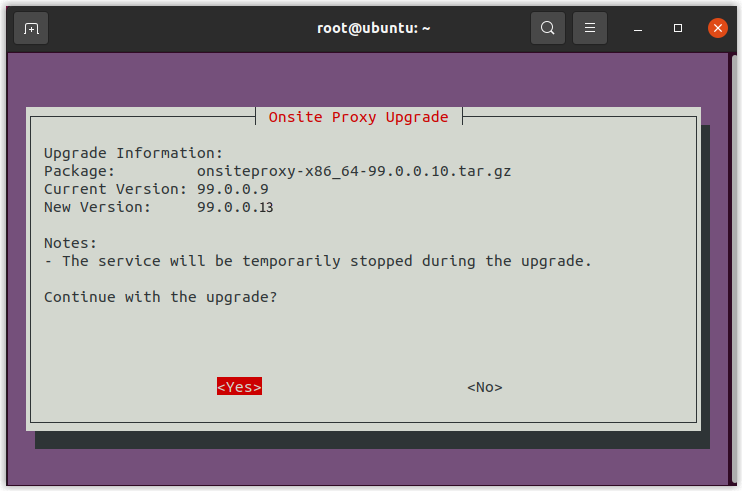
-
Once the Upgrade Complete message appears, press
Enterto finish.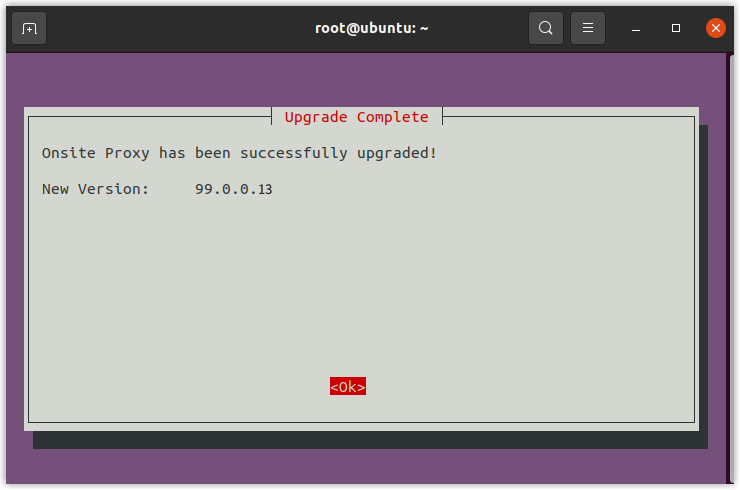
The Onsite Proxy now runs the new version. All of its previous settings, including connection information and which services are enabled, carry over automatically, so no further configuration is required.
Question about this page?
Ask the AI assistant. It starts from this page, then searches the rest of the docs.
Ask Cloud Voice AI
Answers are AI-generated from the docs and may contain mistakes. Verify with the linked pages.