
Set Distinctive Caller ID Name
Distinctive Caller ID Name lets you decide what your employees see when a call comes in. You can choose whether their devices show the matched contact name, the caller ID name sent by the caller, the name of the call feature that routed the call (a Queue, IVR, Ring Group, or Call Flow), and the name of the trunk DID/DDI the call arrived on.
All of these options live in the same place. Sign in to the PBX web portal and go to PBX Settings > Preferences.
Choose which name takes priority
Section titled “Choose which name takes priority”The Caller ID Name Display Rules section decides whether a device favors the local contact name, the caller ID name carried by the caller, or both. You can set the rule separately for different endpoint types.
-
Sign in to the PBX web portal and go to PBX Settings > Preferences.
-
In the Caller ID Name Display Rules section, set the rules described below.
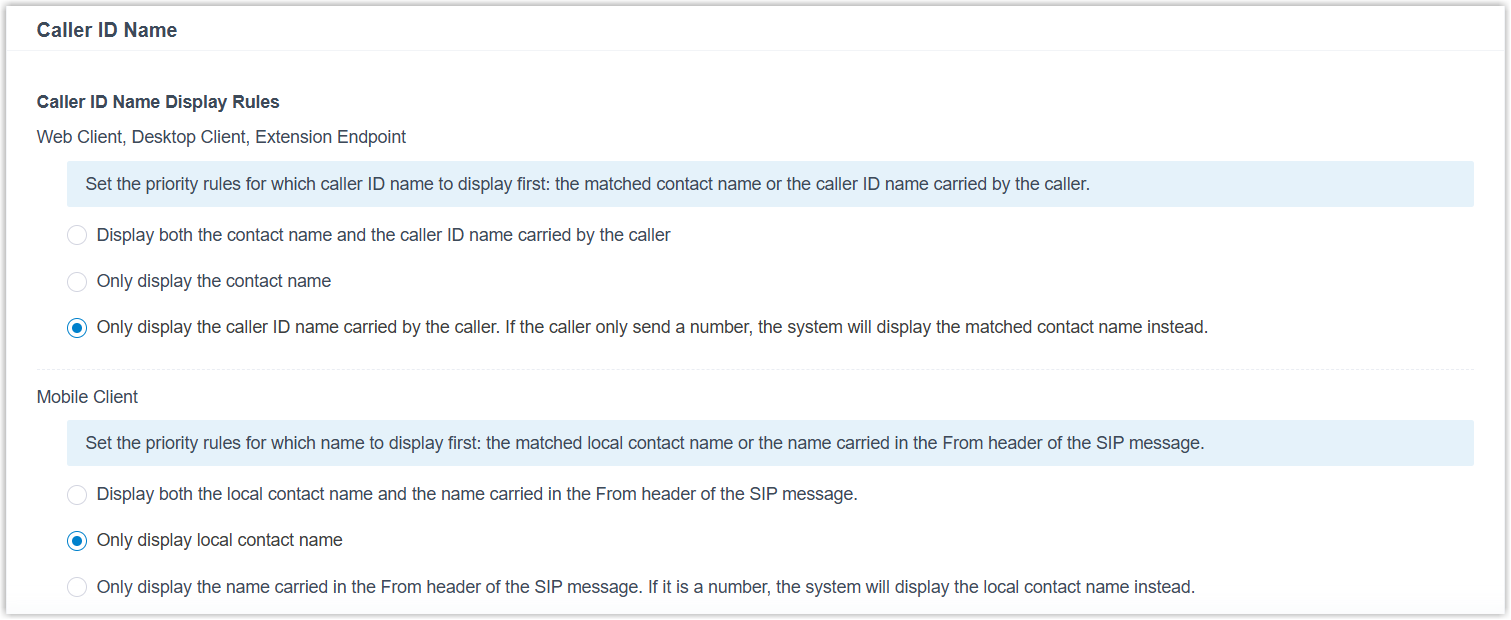
Web Client, Desktop Client, Extension Endpoint
Controls the caller ID name shown on the Cloud Voice App (Web and Desktop) and on extension endpoints such as IP phones and softphones. Choose one of the following:
- Display both the contact name and the caller ID name carried by the caller.
- Only display the contact name.
- Only display the caller ID name carried by the caller. When the caller sends a number with no name, the matched contact name is shown instead.
Mobile Client
Controls the caller ID name shown on the Cloud Voice App for mobile. Choose one of the following:
- Display both the local contact name and the name carried in the From header of the SIP (Session Initiation Protocol) message. SIP is the signaling protocol that sets up the call, and its From header carries the caller’s name.
- Only display the local contact name.
- Only display the name carried in the From header of the SIP message. If the From header contains a number rather than a name, the local contact name is shown instead.
-
Click Save, then Apply.
Show or hide the call feature name
Section titled “Show or hide the call feature name”The call feature name is the name of the IVR, Ring Group, Queue, or Call Flow that handled the call before it reached the extension. Displaying it helps employees see how a call was routed.
-
Sign in to the PBX web portal and go to PBX Settings > Preferences.
-
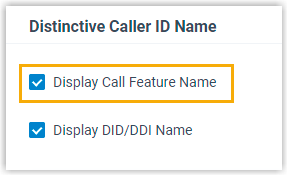
In the Distinctive Caller ID Name section, set Display Call Feature Name:
- Select the checkbox to show Queue, Ring Group, IVR, and Call Flow names.
- Clear the checkbox to hide them.
-
Click Save, then Apply.
Show or hide the trunk DID/DDI name
Section titled “Show or hide the trunk DID/DDI name”You can also surface the name of the trunk DID/DDI that received the call.
-
Sign in to the PBX web portal and go to PBX Settings > Preferences.
-
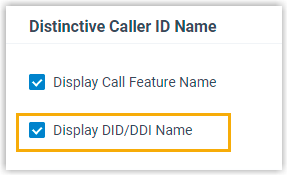
In the Distinctive Caller ID Name section, set Display DID/DDI Name:
- Select the checkbox to show the trunk DID/DDI name.
- Clear the checkbox to hide it.
-
Click Save, then Apply.
Question about this page?
Ask the AI assistant. It starts from this page, then searches the rest of the docs.
Ask Cloud Voice AI
Answers are AI-generated from the docs and may contain mistakes. Verify with the linked pages.