
Set up Periodic Password Changes for an Extension
A password that never changes gives an attacker a stable target. As an administrator, you can require the user of an extension to rotate their password on a recurring schedule, keeping credentials fresh and reducing the risk of a compromised account.
Before you begin
Section titled “Before you begin”Your Cloud Voice system must be running server version 84.18.0.102 or later.
Force periodic password changes
Section titled “Force periodic password changes”- Log in to the Cloud Voice Dashboard at https://portal.voice.izt.cloud and click Login to open your phone system’s management portal with full administrator access, then go to Extension and Trunk > Extension.
- Find the extension you want to update and click the edit icon
 next to it.
 - Open the Security tab and scroll to the Login Security section, then set the following:
- Turn on User must change password periodically.
- In Password Change Frequency (Day), enter how long a password stays valid, in days. Any value from 1 to 365 is accepted; the default of 30 requires a new password every 30 days.
- Click Save.
What the user sees
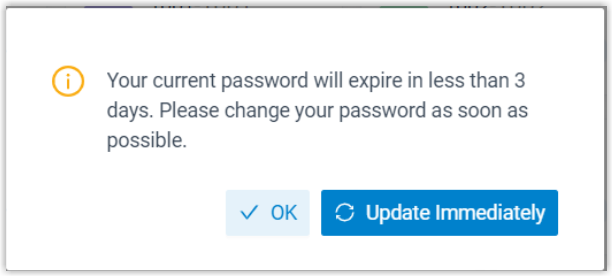
Section titled “What the user sees”Once the setting is active, the extension user is warned 3 days and again 1 day before their password expires.
Reminders reach the user in two ways:
- If the extension has a notification email address on file, Cloud Voice emails a Password expiration reminder.
- The next time the user opens the Cloud Voice App, a dialog tells them the password is expiring and needs to be updated.
Question about this page?
Ask the AI assistant. It starts from this page, then searches the rest of the docs.
Ask Cloud Voice AI
About
Answers are AI-generated from the docs and may contain mistakes. Verify with the linked pages.