
Override Time Condition for Inbound Calls
When an inbound route follows a time condition, Cloud Voice sends calls to whichever destination matches the current period, and the switch between periods happens on its own. Occasionally you need to break from the schedule for a short while. This page explains how an authorized user can dial a feature code to force a time condition into a different state, and how to clear that override afterward.
When you might override a time condition
Section titled “When you might override a time condition”Overriding is useful whenever reality does not match the calendar:
- Working after hours. Someone stays late to keep supporting customers, so they force the business-hours state to remain open past the normal closing time.
- Leaving early. The office shuts down ahead of schedule on a particular day, such as closing an hour early on Christmas Eve. Before heading out, a user forces the business-closed state.
The exact behavior depends on how the inbound route’s time condition is built. The three sections below cover global business hours, custom business hours, and custom time periods.
Global business hours
Section titled “Global business hours”In this example the inbound route routes calls according to the system’s default time zone and its global business hours. Depending on the current period, this route sends callers either to an IVR (Interactive Voice Response, the automated menu that answers and offers options) or to a Queue (a waiting line that hands calls off to available agents).
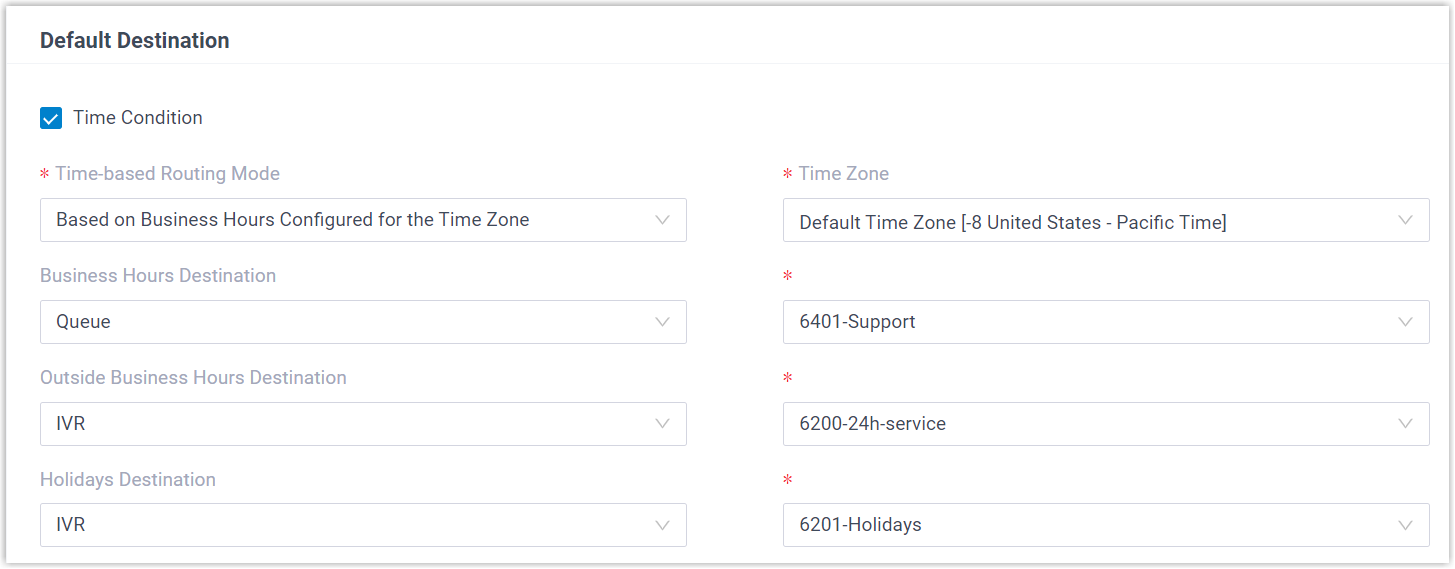
To override the schedule on a route like this:
-
Confirm the user has been granted override permission (see the note above).
-
Have the authorized user dial the override feature code, which defaults to *99. The state that the call flips to depends on when the code is dialed:
When the user dials *99 Where inbound calls go During business hours The outside-business-hours destination (IVR 6200) During outside business hours The business-hours destination (Queue 6400) During holidays The business-hours destination (Queue 6400) -
To end the override, have the user dial the same feature code (*99) again.
Custom business hours
Section titled “Custom business hours”Here the inbound route follows a custom business-hours schedule, again using the system’s default time zone.
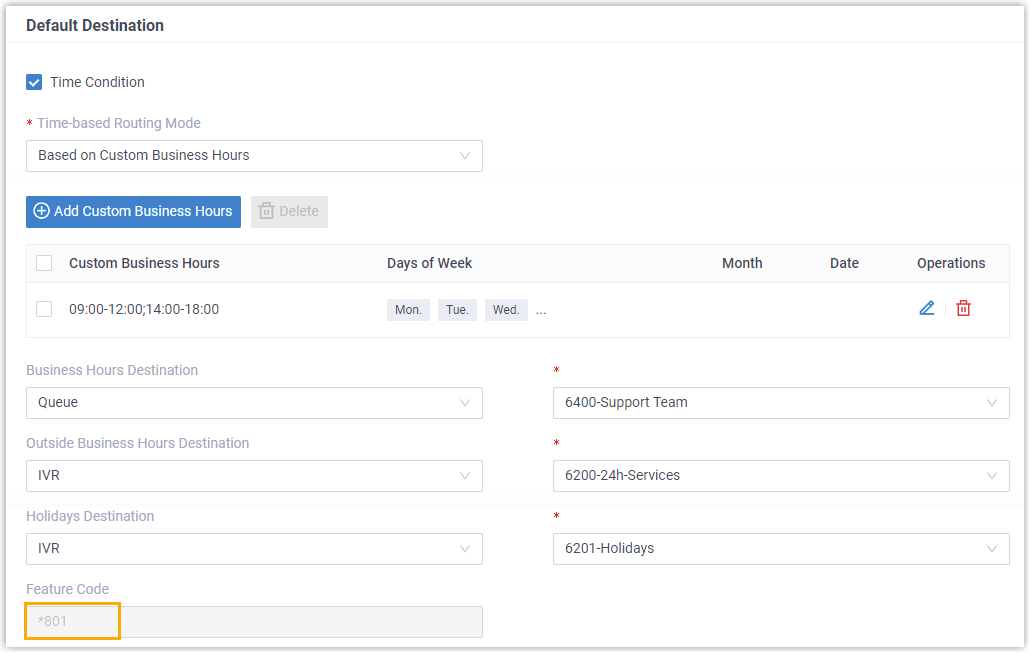
To override the schedule on this route:
-
Confirm the user has been granted override permission.
-
Have the authorized user dial the feature code *801. As before, the resulting state depends on the time of the call:
When the user dials *801 Where inbound calls go During business hours The outside-business-hours destination (IVR 6200) During outside business hours The business-hours destination (Queue 6400) During holidays The business-hours destination (Queue 6400) -
To end the override, have the user dial *801 again.
Custom time periods
Section titled “Custom time periods”With custom time periods, the schedule is divided into named periods rather than a single open/closed pattern, and each period has its own override feature code. The example route below uses the system’s default time zone.
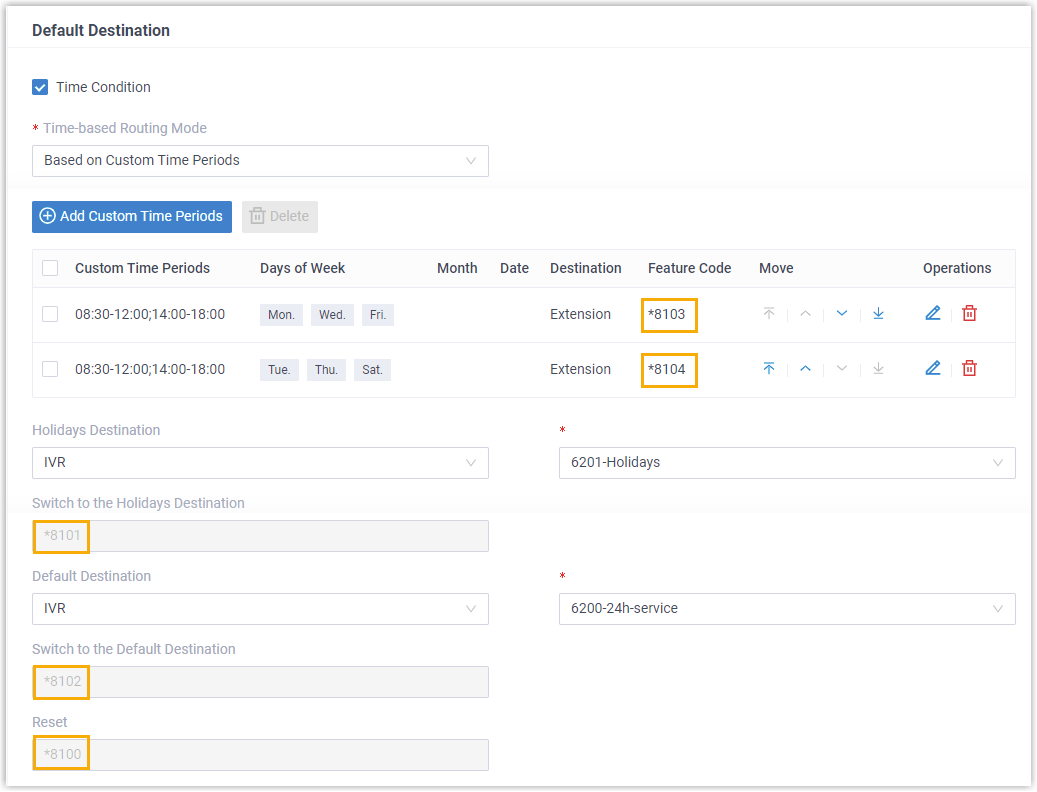
To override the schedule on this route:
-
Confirm the user has been granted override permission.
-
Have the authorized user dial the feature code for the period they want to force. Instead of toggling between two states, each code jumps straight to a specific period’s destination:
Time group Schedule Destination Feature code Time Period 1 Monday, Wednesday, Friday: 08:30 to 12:00 and 14:00 to 18:00 Extension (2000 - Leo Ball) *8103 Time Period 2 Tuesday, Thursday, Saturday: 08:30 to 12:00 and 14:00 to 18:00 Extension (2004 - Terrell Smith) *8104 Holidays - IVR (6201 - Holidays) *8101 Outside business hours - IVR (6200 - 24h-Services) *8102 -
To end the override, have the user dial the reset feature code *8100.
Question about this page?
Ask the AI assistant. It starts from this page, then searches the rest of the docs.
Ask Cloud Voice AI
Answers are AI-generated from the docs and may contain mistakes. Verify with the linked pages.