
Monitor Boss's Call Status
When the Boss-Secretary feature is in use, a secretary often needs to know whether the boss has put a call on hold and is waiting for the secretary to take it back. By adding a function key to the secretary’s extension, you can surface the boss’s live call status in the Cloud Voice App, and optionally mirror it on a BLF key on the secretary’s desk phone. This page covers both setups.
Monitor from the Cloud Voice App
Section titled “Monitor from the Cloud Voice App”Adding a function key to the secretary’s extension lets the secretary watch the boss’s call status directly in the Cloud Voice App Desktop Client, the Cloud Voice App Web Client, and Cloud Voice App for Google.
Before you start
Section titled “Before you start”Confirm that the Boss-Secretary feature has been set up for the extensions involved.
Add the function key
Section titled “Add the function key”-
Sign in to the Cloud Voice management portal and go to Extension and Trunk > Extension. Select the secretary’s extension and click the edit icon
 .
. -
Open the Function Keys tab.
-
Configure a key to subscribe to the boss’s call status:

- Type: Select Boss-Secretary Feature.
- Value: Select the boss’s extension. This is the extension whose call status the key will track.
- Label: (Optional) Enter a display name for the key.
-
Click Save.
Result
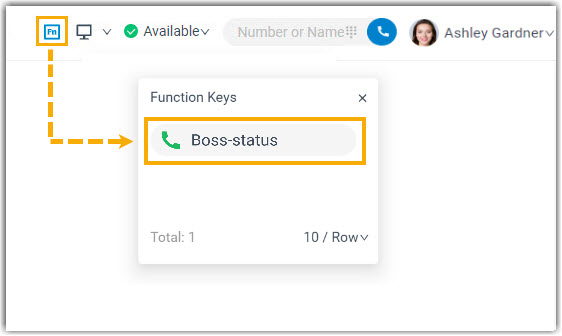
Section titled “Result”In the Function Keys list of the Cloud Voice App, the secretary can now tell at a glance whether the boss is holding a call:
 The boss has no call waiting for the secretary to resume.
 The boss has placed a call on hold and is waiting for the secretary to resume it.
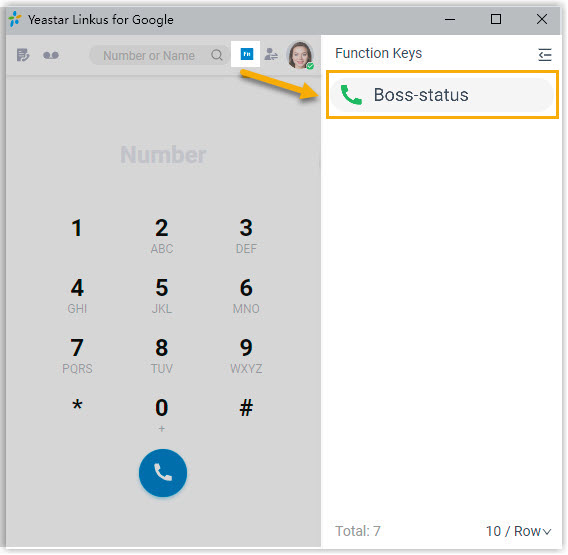
The status key appears the same way across the desktop and web clients:
Monitor from an IP phone
Section titled “Monitor from an IP phone”You can also configure the secretary’s desk phone so that the boss’s call status shows on a BLF (Busy Lamp Field) key. A BLF key is a programmable button whose LED lamp mirrors the status of another extension. The LED reflects the boss’s call status, and the secretary can press the key to resume a call the boss has transferred.
Before you start
Section titled “Before you start”-
Add the function key so the secretary can monitor the boss’s call status as described above.
-
Make sure the IP phone is connected to Cloud Voice through auto provisioning and is assigned to the secretary’s extension.
Push the configuration to the phone
Section titled “Push the configuration to the phone”- Sign in to the Cloud Voice management portal and go to Auto Provisioning > Phones.
- Click the refresh icon
 next to the secretary’s phone.
 - In the confirmation window, click OK.
Result
Section titled “Result”The BLF LED on the secretary’s phone now reflects the boss’s call status:
- Solid green: The boss has no call waiting for the secretary to resume.
- Flashing red: The boss has placed a call on hold and is waiting for the secretary to resume it. The secretary can press the BLF key to pick the call back up.
Question about this page?
Ask the AI assistant. It starts from this page, then searches the rest of the docs.
Ask Cloud Voice AI
Answers are AI-generated from the docs and may contain mistakes. Verify with the linked pages.