
Extension Call Activity Report
The Extension Call Activity report shows how many calls your extensions make and receive over time, with hourly, daily, and monthly breakdowns. You can scope it to individual extensions, extension groups, or entire organizations, then use the built-in metrics to follow answer rates, ring time, talk time, and more. This page walks through opening the report, tailoring its columns, saving or exporting it, and what each metric measures.
Open the report
Section titled “Open the report”-
Sign in to the PBX web portal and go to Reports and Recordings > Call Reports.
-
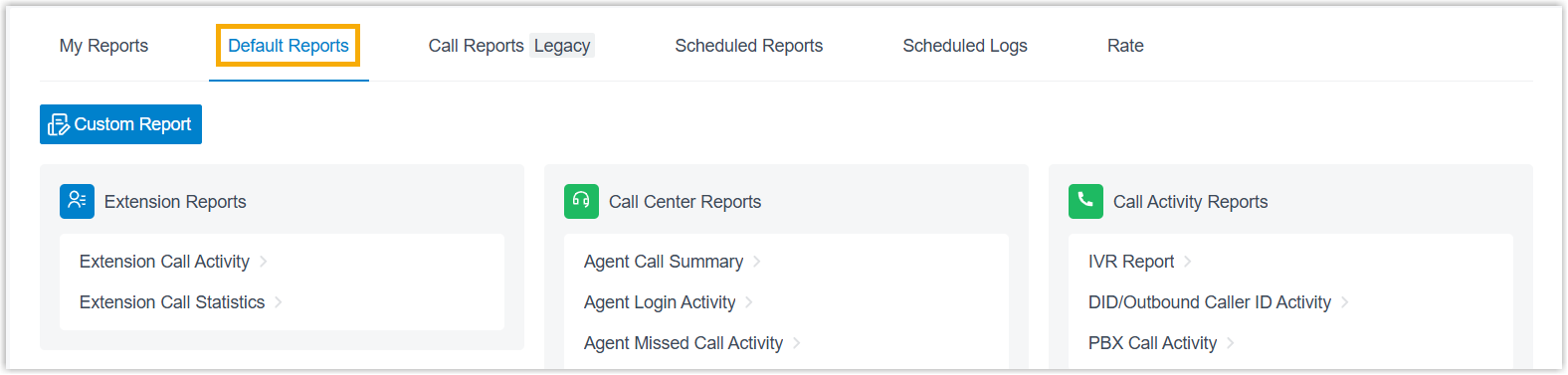
Open the Default Reports tab.
-
In the Extension Reports pane, click Extension Call Activity.

-
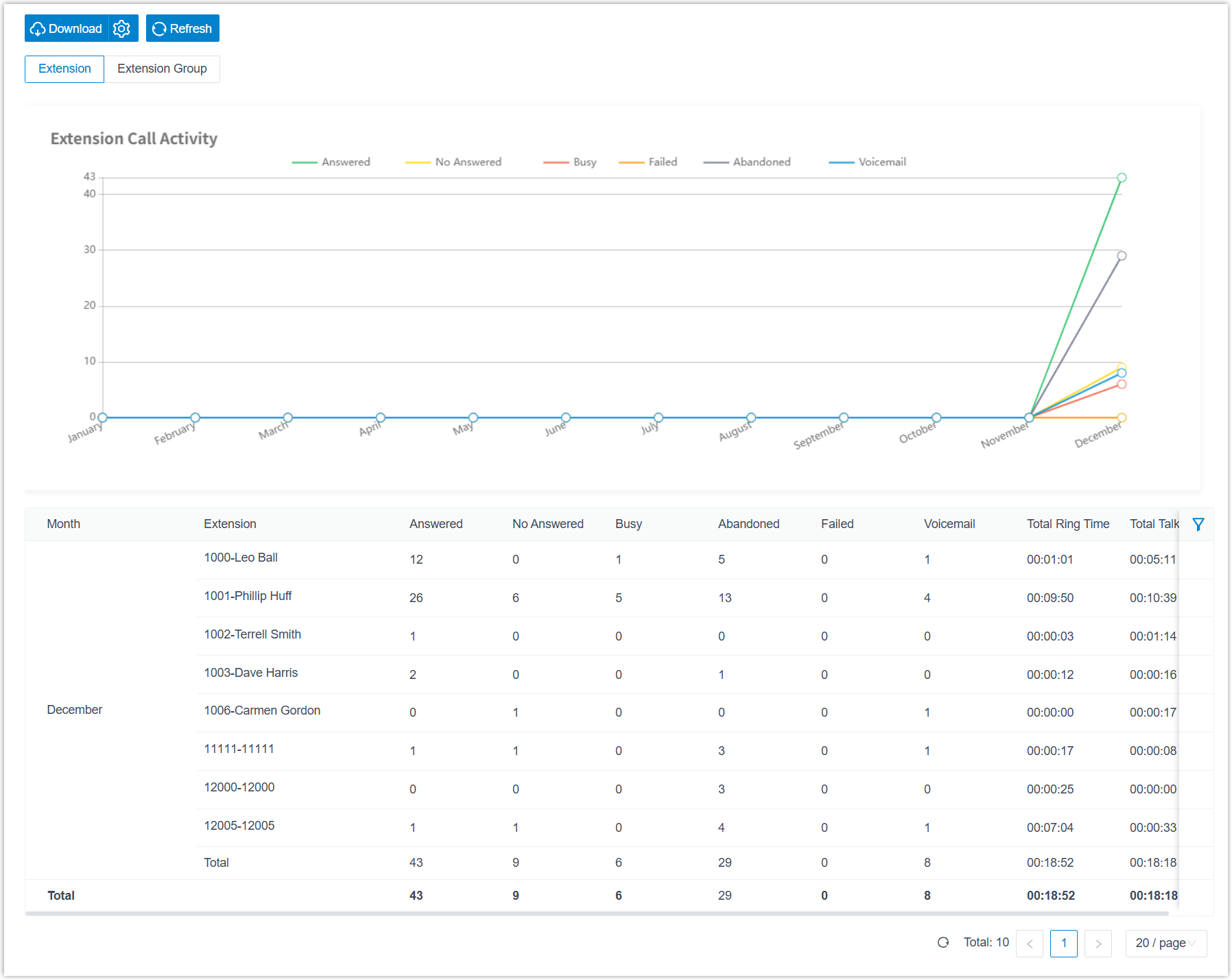
Set the reporting period using the Time Range and Select Date fields.
-
Narrow the results by extension, extension group, organization, or communication type.
The report updates to match your filters:
Adjust the columns (optional)
Section titled “Adjust the columns (optional)”Tailor the list so it surfaces only the indicators you want to follow:
-
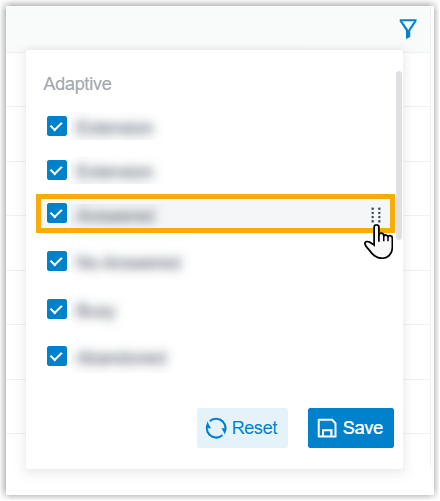
Choose which columns appear: click the column filter icon above the list, then select the columns to show.

-
Reorder columns: click the drag handle next to a field and move it to a new position.
Save, schedule, or download the report (optional)
Section titled “Save, schedule, or download the report (optional)”Once the report shows what you need, keep it for quick reference, have it delivered automatically, or export a copy.
Add to My Reports
Section titled “Add to My Reports”Save the report to your My Reports list for one-click access later:
- At the bottom of the page, click Add to My Reports.
- Enter a name that helps you recognize the report, and adjust the filters or metrics if needed.
- Click Save.
Add to Scheduled Reports
Section titled “Add to Scheduled Reports”Have the report emailed on a recurring schedule:
- At the bottom of the page, click Add to Scheduled Reports.
- Complete the scheduled task settings.
Download the report
Section titled “Download the report”Export the report to your computer for offline review and further analysis:
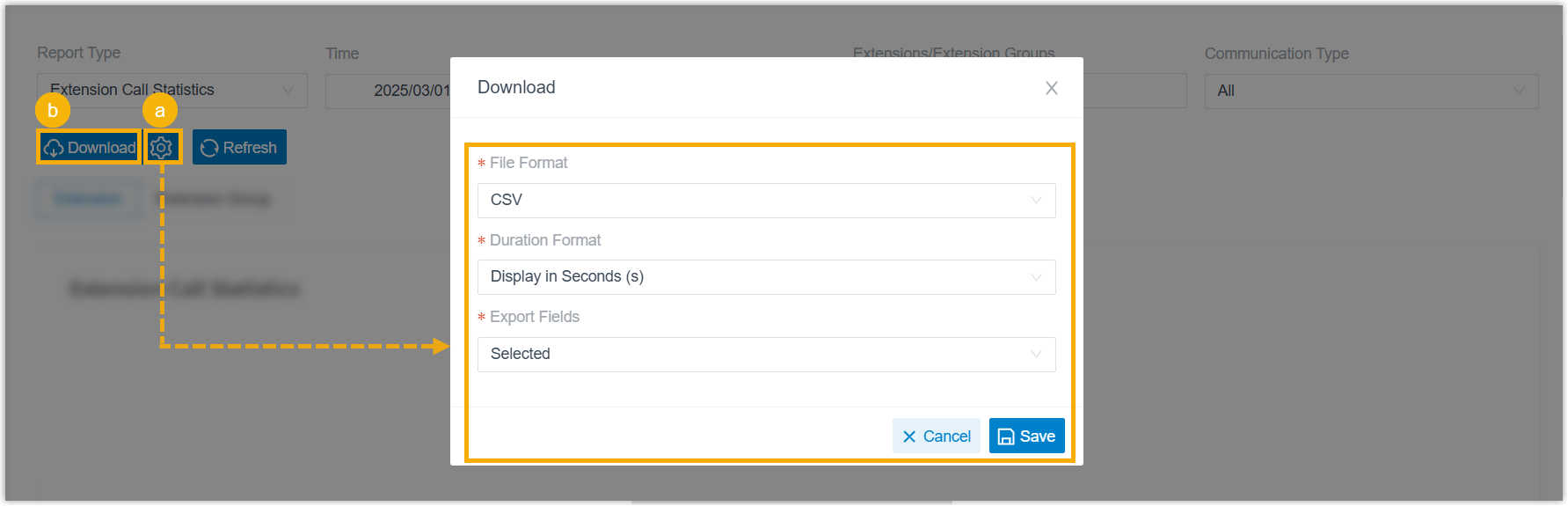
-
(Optional) Click the settings icon to customize the download options, then save your changes:
- File Format: download as CSV, XLS, HTML, or PDF.
- Duration Format: show all duration fields in seconds or as HH:MM:SS.
- Export Fields: export All fields or only the Selected ones.
-
Click Download.
Report metrics
Section titled “Report metrics”| Metric | Description |
|---|---|
| Answered | Calls the extension picked up, including calls it answered as a member of a queue or ring group. |
| No Answered | Calls the extension did not pick up, not counting calls it received as a queue or ring group member. |
| Busy | Calls that arrived while the extension was busy, not counting calls it received as a queue or ring group member. |
| Abandoned | Calls the caller ended before reaching the extension, not counting calls it received as a queue or ring group member. |
| Failed | Outbound calls the extension was unable to place. |
| Voicemail | Calls sent to the extension’s voicemail. |
| Total Ring Time | The combined time from when calls started ringing until they were answered. |
| Total Talk Time | The combined time from when calls were answered until they ended. |
Question about this page?
Ask the AI assistant. It starts from this page, then searches the rest of the docs.
Ask Cloud Voice AI
Answers are AI-generated from the docs and may contain mistakes. Verify with the linked pages.