
Manage Customer Queries from External Messaging Channels in the Cloud Voice App
As an agent on a message queue, you work through customer conversations that arrive from external messaging channels directly in the Cloud Voice App. This page walks through everything you can do with a messaging session on the web and desktop versions of the app: claiming it, replying, moving it elsewhere, turning it into a call, and closing it out.
Every task below starts the same way. In the Cloud Voice App, click Chat, then open the External Chat tab.
Before you start
Section titled “Before you start”Confirm the following with your system administrator:
- System version 84.20.0.128 or later.
- At least one messaging channel configured on the system.
If you use the desktop version of the app, it must be one of these builds or later:
- Windows: 1.2.14 or later
- macOS: 1.2.14 or later
Pick up a messaging session
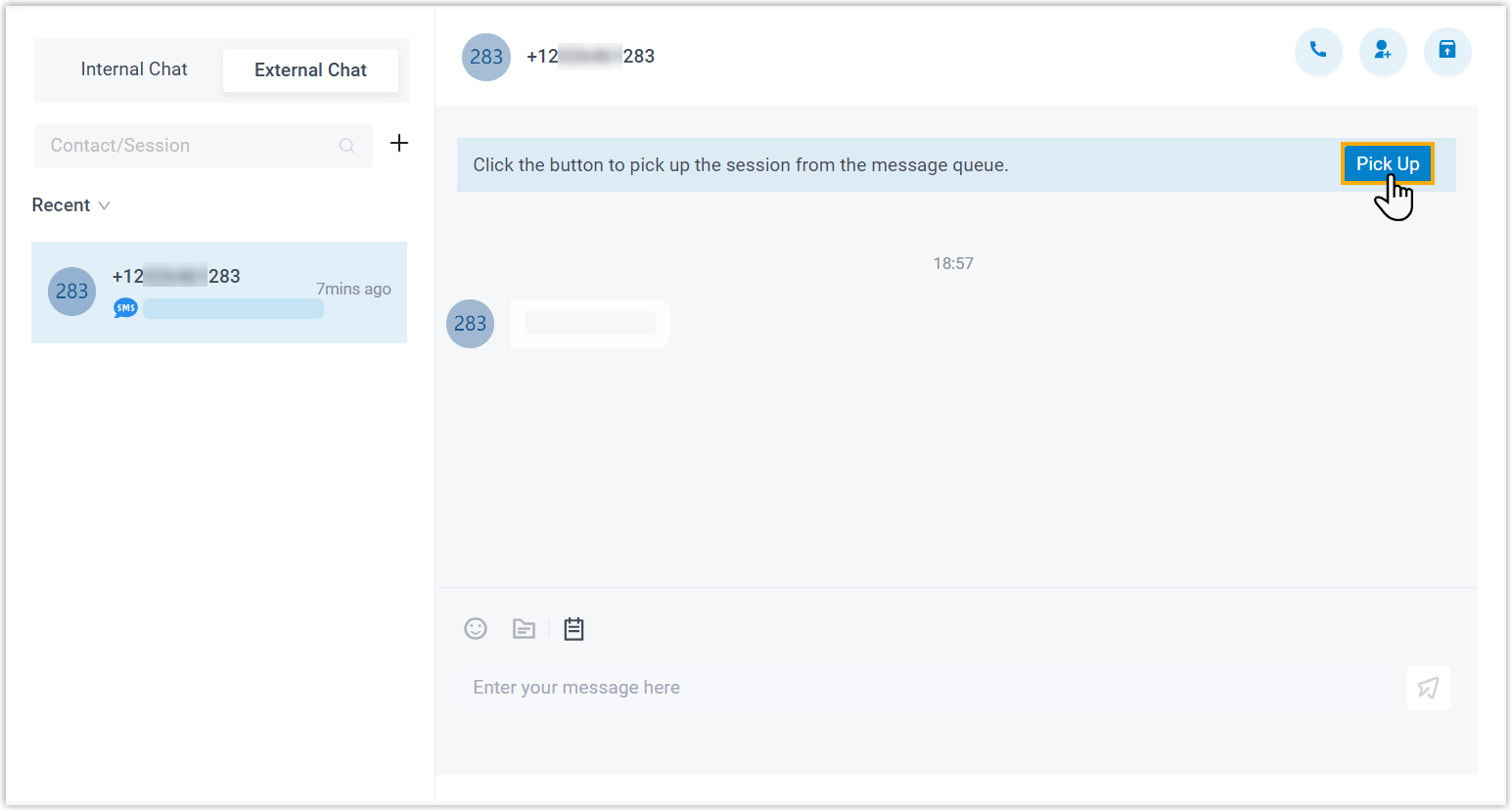
Section titled “Pick up a messaging session”When your message queue receives a new inbound conversation, you can see the incoming messages and take ownership of the session.
-
Open Chat > External Chat.
-
At the top of the session, click Pick Up.
A confirmation appears letting you know the session is now yours. From this point on, only you can see the conversation and reply to it.
Transfer a messaging session
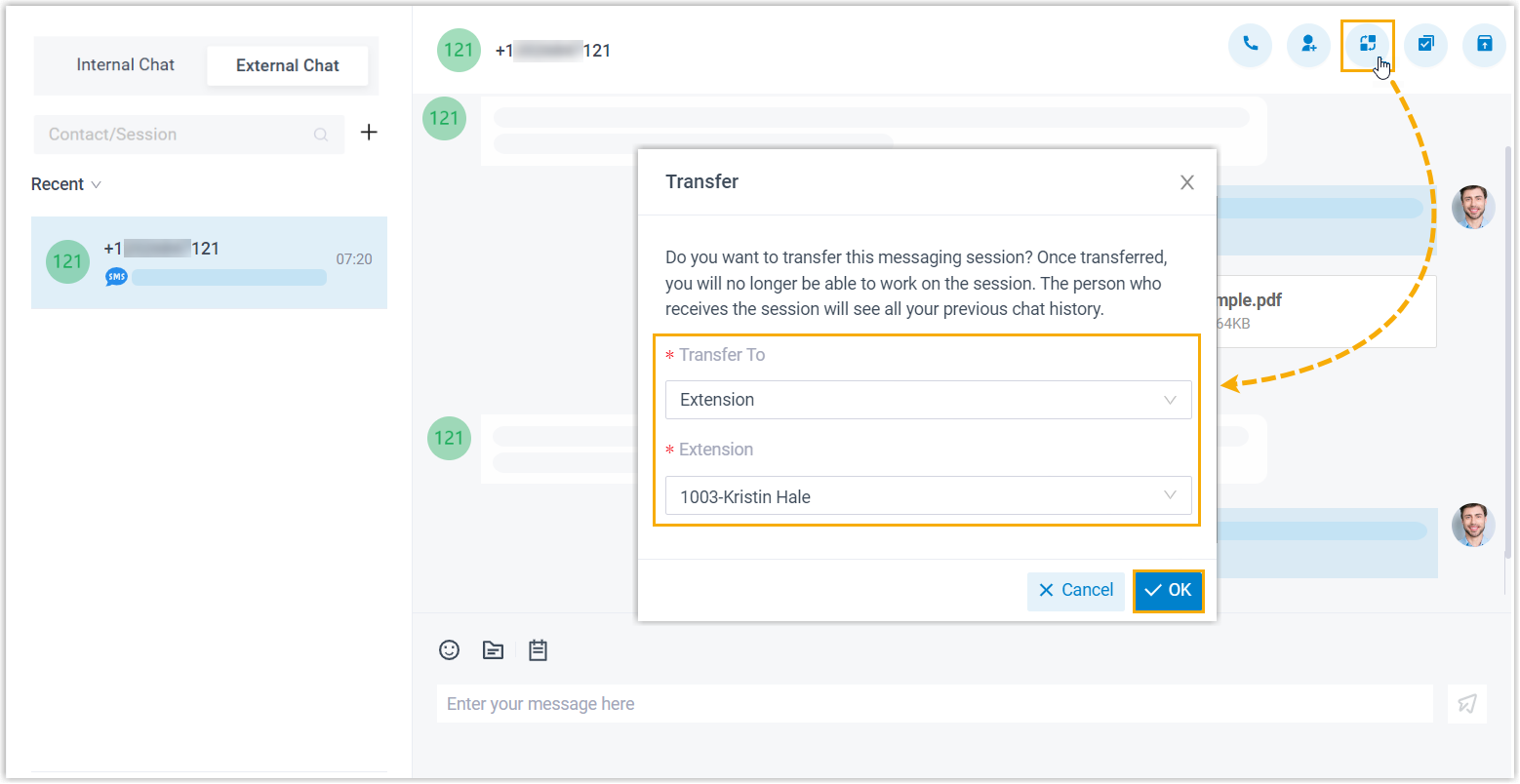
Section titled “Transfer a messaging session”Mid-conversation, you can hand a customer off to a colleague or to another message queue. If your administrator has connected the system to a third-party message analytics platform, you can also route the session there for advanced processing or automation.
-
Open Chat > External Chat.
-
In the top-right corner of the session, click the transfer icon
 .
. -
Pick a destination in the pop-up, then click OK.
The session leaves your external chat list and moves to the chosen colleague, queue, or analytics platform, carrying the full chat history with it.
Start a voice call from a session
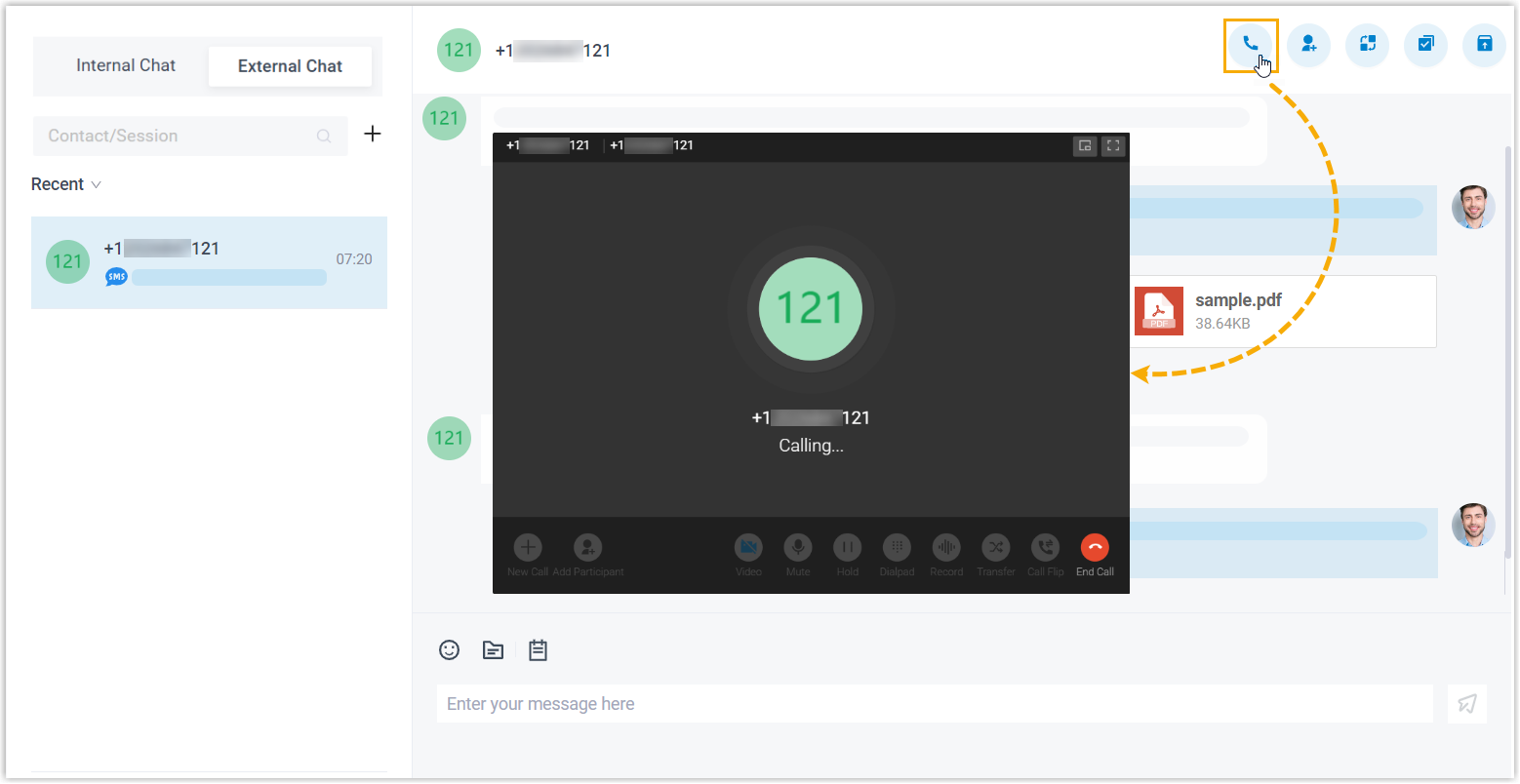
Section titled “Start a voice call from a session”When a message thread would be quicker to resolve by phone, you can call the customer without leaving the conversation.
-
Open Chat > External Chat.
-
In the top-right corner of the session, click the call icon
 .
.The app dials the customer’s number and routes the call through the system.
Add a customer to your contacts
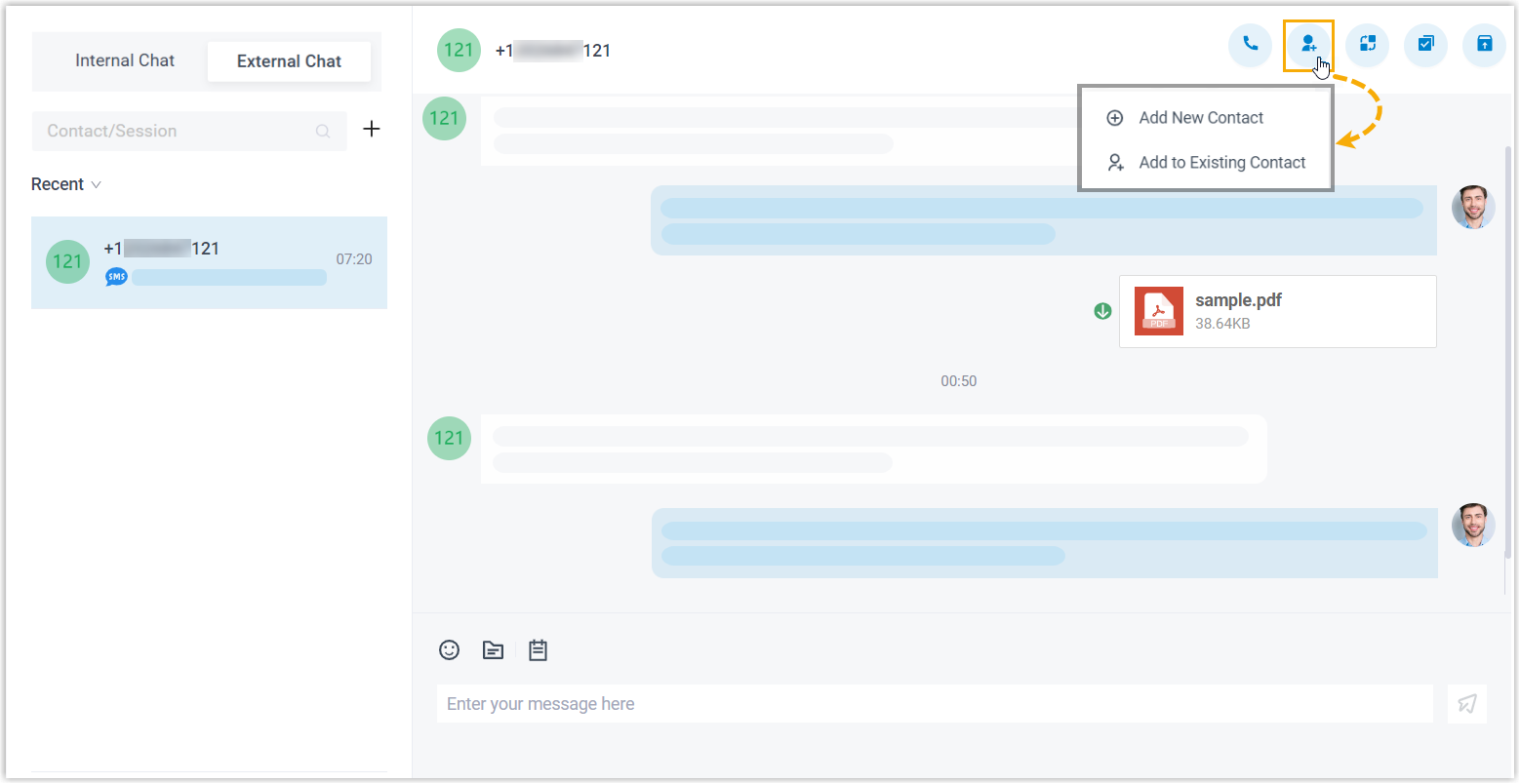
Section titled “Add a customer to your contacts”You can save a customer’s details to your contacts straight from the conversation.
- Open Chat > External Chat.
- In the top-right corner of the session, click the add-contact icon
 .
. - Choose how to save the customer:
- Add New Contact: create a fresh contact and fill in the customer’s details.
- Add to Existing Contact: attach the details to a contact you already have, editing its information as needed.
View session details
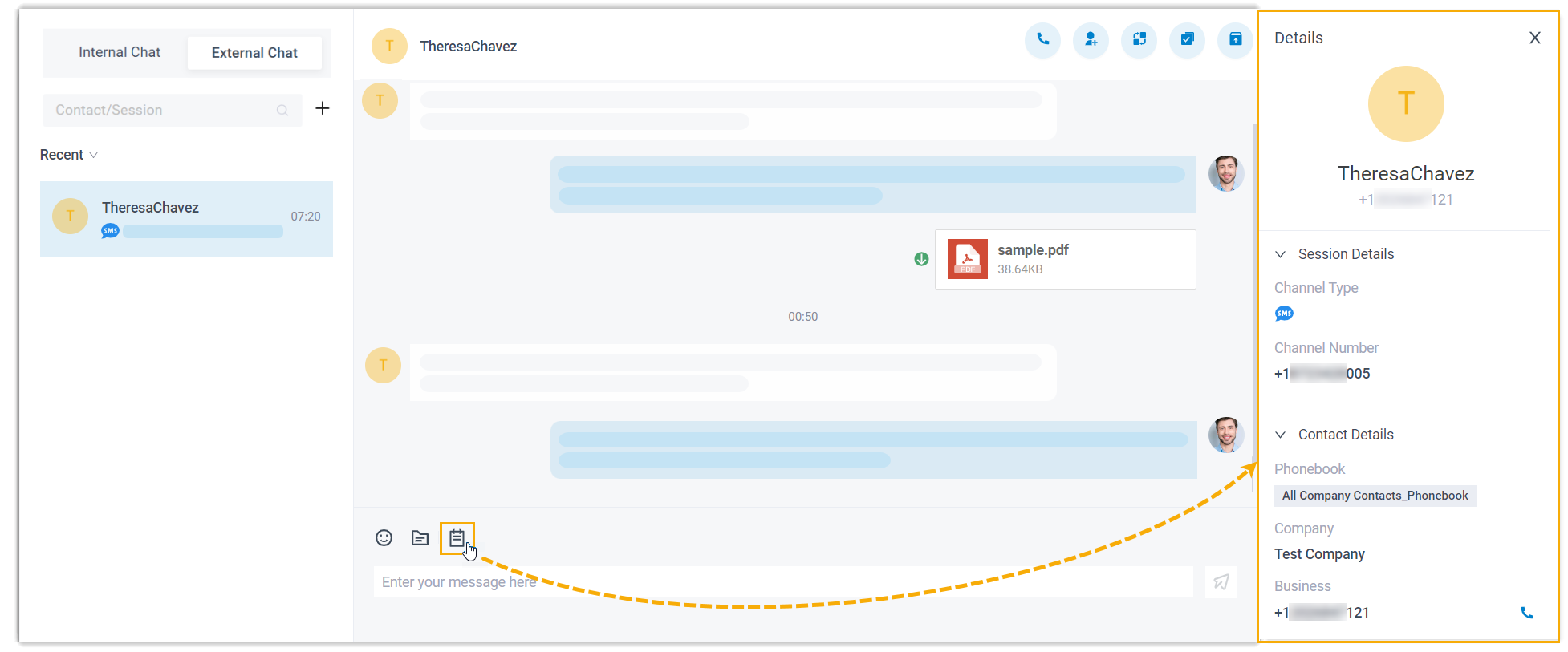
Section titled “View session details”Open a session’s detail panel to see information such as the source channel it came from and the channel number.
-
Open Chat > External Chat.
-
At the bottom of the session, click the details icon
 .
.The session’s details open in the panel on the right.
Archive a session
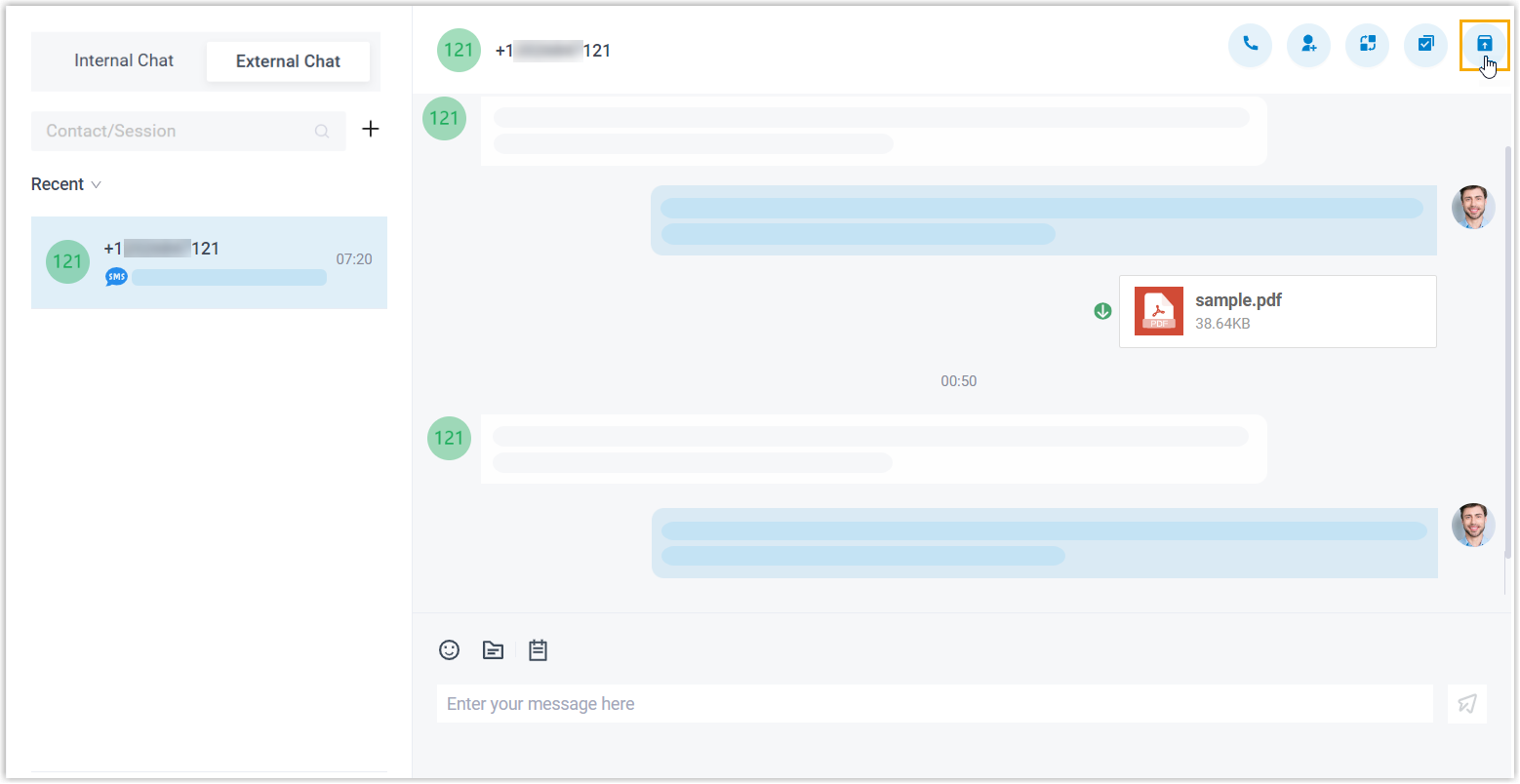
Section titled “Archive a session”Archiving is handy when a customer has gone quiet or when you simply want to set a conversation aside to revisit later.
-
Open Chat > External Chat.
-
In the top-right corner of the session, click the archive icon
 .
.The session moves from the Recent list to the Archived list.
End a session
Section titled “End a session”Once you’ve finished helping a customer, close the session out.
-
Open Chat > External Chat.
-
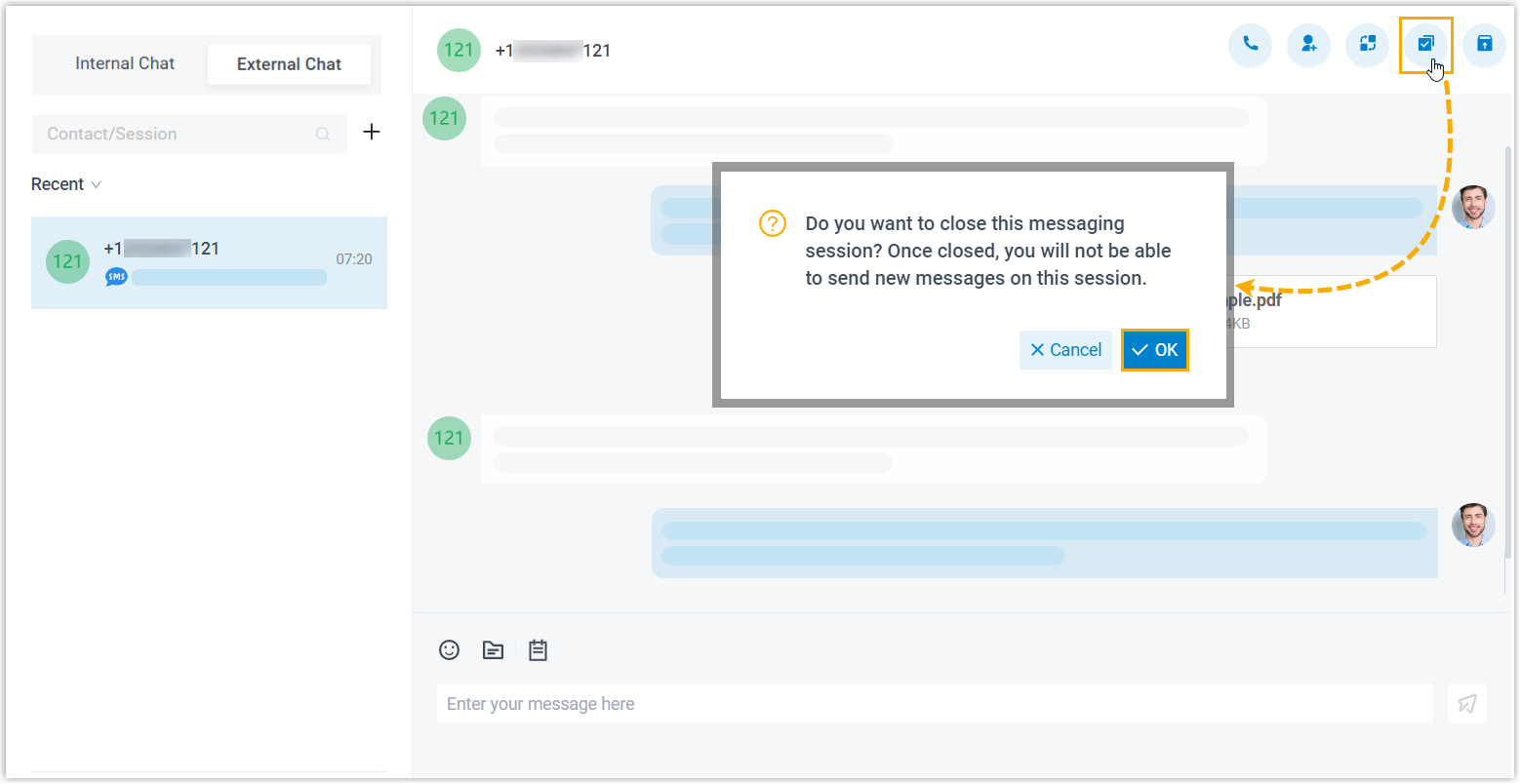
In the top-right corner of the session, click the end icon
 .
. -
Click OK in the pop-up.
The session closes and moves to the Archived list. You can no longer send messages in it. The next time this customer writes in, the system opens a brand-new session.
Remove a session
Section titled “Remove a session”To delete a session entirely:
-
Open Chat > External Chat.
-
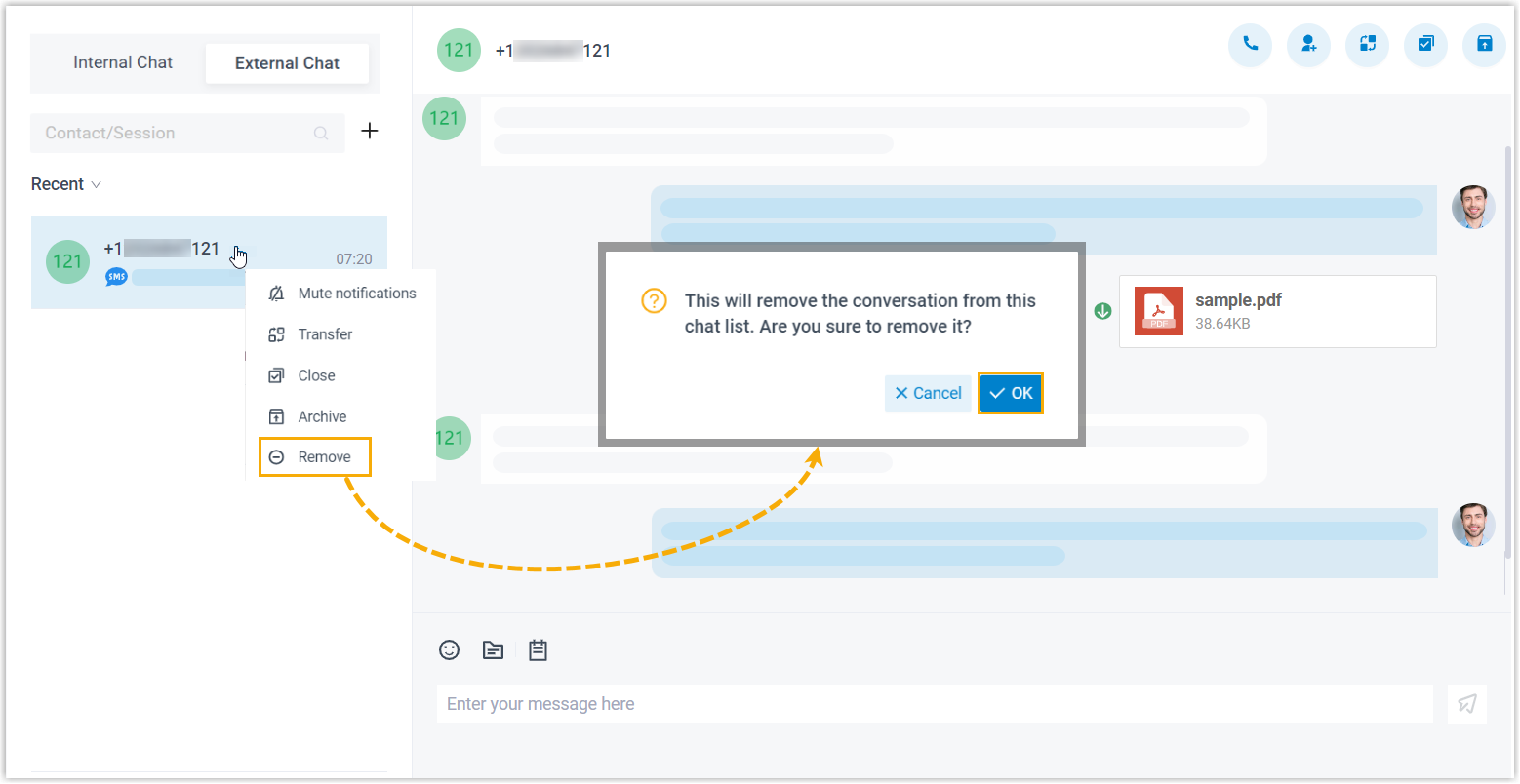
In the external chat list, right-click the session you want to delete.
-
Click Remove.
-
Click OK in the pop-up.
The session is removed from every one of your Cloud Voice App clients.
Handle campaign sessions
Section titled “Handle campaign sessions”When your administrator runs a message campaign to send messages in bulk and assigns those campaign sessions to your extension or to a queue you belong to, you can view and reply to them here.
-
Open Chat > External Chat.
-
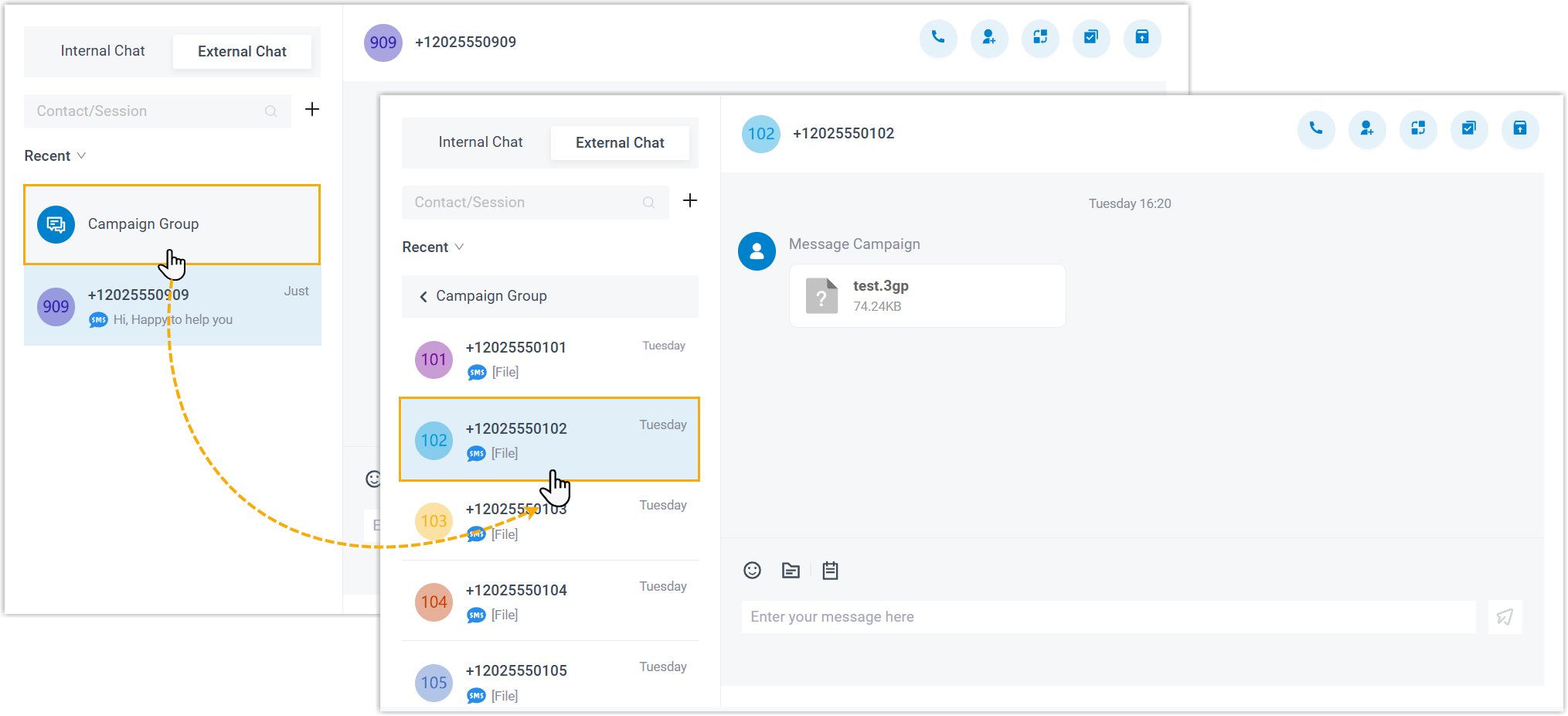
In the external chat list, click Campaign Group.
Every session created by a message campaign is listed.
-
Click a session to read it and respond to the customer’s replies.
Question about this page?
Ask the AI assistant. It starts from this page, then searches the rest of the docs.
Ask Cloud Voice AI
Answers are AI-generated from the docs and may contain mistakes. Verify with the linked pages.