
Add a Tool Manually
A tool lets an AI receptionist reach out to a third-party HTTP API (Application Programming Interface: a web service another system exposes so software can request data or trigger an action) in the middle of a call, for example, to look up an order, check availability, or file a request on the caller’s behalf. The receptionist is driven by an LLM (large language model, the AI that understands the caller and decides what to do), which is why several settings below let the LLM read a value straight from the conversation. When you build a tool manually, you fill in every part of the request yourself: the endpoint, the method, the parameters, and any authentication. This page walks through each setting.
Before you begin
Section titled “Before you begin”Collect the following details about the third-party API before you start:
| Item | What you need |
|---|---|
| Endpoint URL | The address the request is sent to. It must use HTTPS. |
| Request method | One of GET, POST, PUT, PATCH, or DELETE. |
| Parameters | Any path, header, query, or body parameters the request expects. |
| Authentication credentials | If the API requires authentication, its static credentials, an API key, a Basic Auth username and password, or a static Bearer token. |
Add the tool
Section titled “Add the tool”-
Sign in to the Cloud Voice portal and go to AI > AI Receptionist > Tools.
-
Click Add.
-
Fill in the basic information.
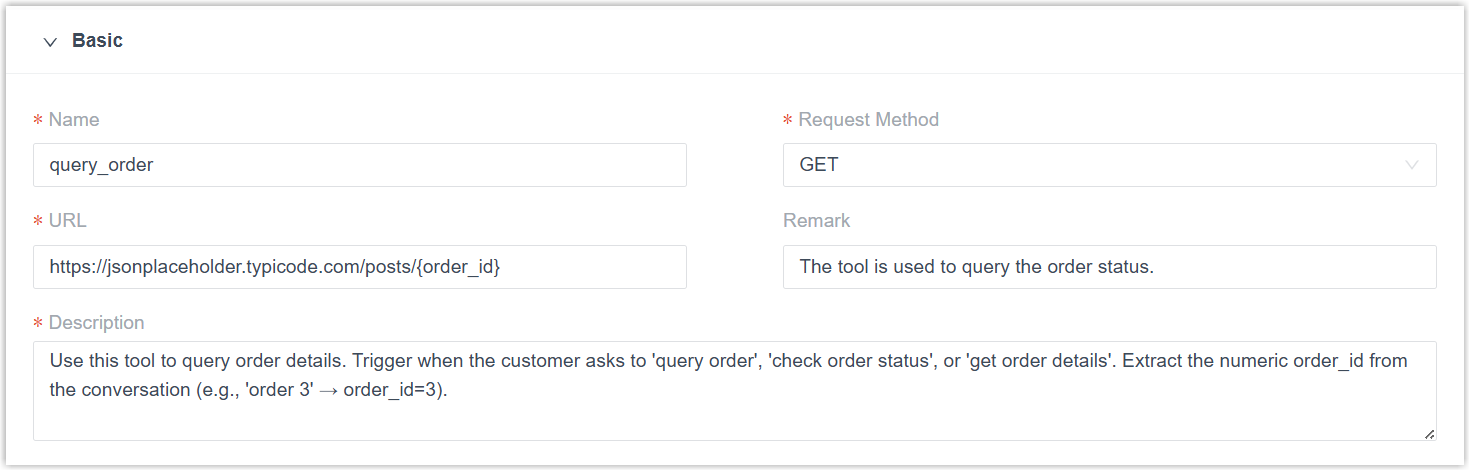
Setting Description JSON field Name A unique name for the tool. Use only letters, numbers, underscores ( _), and hyphens (-)."basic.name": "query_order"Request Method The HTTP method to use: GET,POST,PUT,PATCH, orDELETE."basic.method": "GET"URL The API endpoint. It must start with https://. You can embed up to five path parameters as{path_param}; a parameter name may contain letters, numbers, underscores (_), non-consecutive dots, and the@symbol. The receptionist can fill these in from the conversation, see Path parameters."basic.url": "https://jsonplaceholder.typicode.com/posts/{order_id}"Remark Optional. A short note that helps you recognize what the tool is for. "basic.remark": "Query order status tool"Description A plain-language explanation that tells the receptionist when to use the tool and how to call it. "basic.description": "Use this tool to query order details. Trigger when the customer asks to query an order, check order status, or get order details. Extract the numeric order_id from the conversation (e.g., 'order 3' → order_id=3)." -
Set the execution rules.
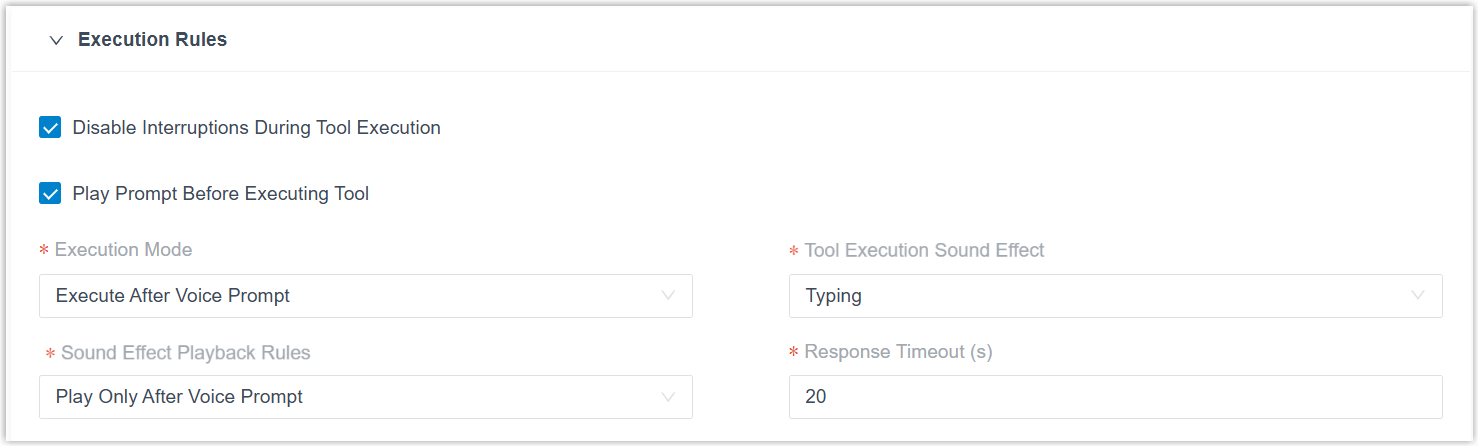
Setting Description JSON field Disable Interruptions During Tool Execution When on, the caller cannot interrupt the receptionist while the tool runs. "response_settings.disable_interruptions": truePlay Prompt Before Executing Tool When on, the receptionist always says something (for example, “Let me check that for you”) before running the tool. When off, it decides on its own based on the tool’s recent response times, skipping the prompt for fast calls and speaking first for slow ones. "response_settings.force_pre_tool_speech": trueExecution Mode How the tool runs: Execute Immediately on LLM Request ( immediate) runs it the moment the receptionist asks for it; Execute After Voice Prompt (lazy) runs it after the receptionist plays a prompt; Async (async) runs it in the background without pausing the call, so the receptionist keeps talking and does not wait for a response."response_settings.execution_mode": "lazy"Tool Execution Sound Effect The ambient sound played while the tool runs: None, Typing (a keyboard effect), or Music 1 through Music 4 (built-in beds). "response_settings.tool_call_sound": "Typing"Sound Effect Playback Rules When the ambient sound plays: Play only After Voice Prompt ( with_pre_speech) plays it only when the receptionist speaks a prompt first; Always play (always_play) plays it on every run."response_settings.sound_behavior": "with_pre_speech"Response Timeout (s) How long, in seconds, to wait for a response before giving up. Enter a value between 5 and 120. "response_settings.response_timeout": 20 -
Configure the request parameters the API expects. The parameter types available to you depend on the request method you chose above.
-
Click Save.
Request parameters
Section titled “Request parameters”A tool can carry four kinds of parameters. Configure whichever ones your API call requires.
Path parameters
Section titled “Path parameters”Path parameters are the values embedded in the URL path inside curly braces ({}). The phone system reads them straight from the endpoint URL, so you don’t add them manually, you only decide how each one is filled.
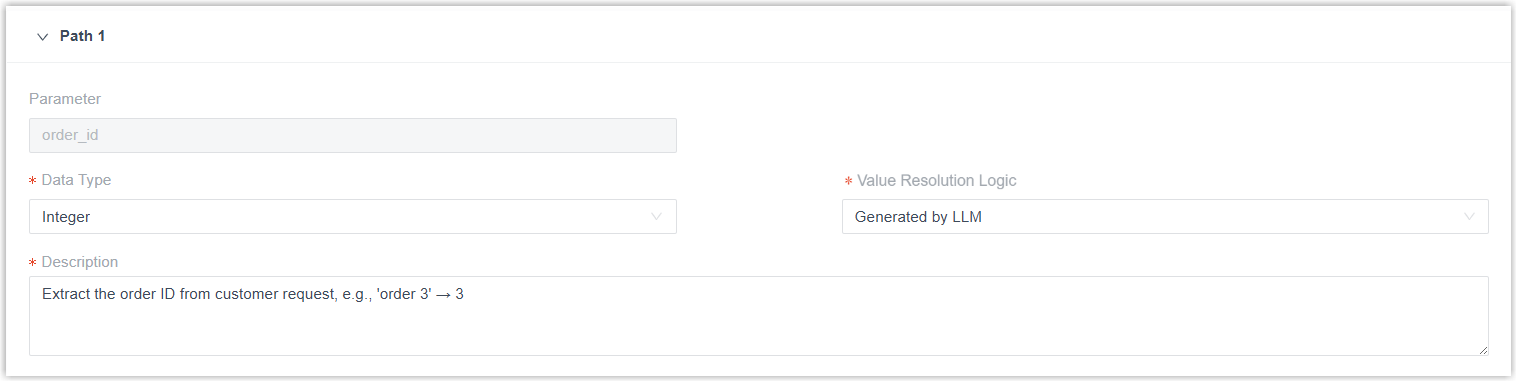
| Setting | Description | JSON field |
|---|---|---|
| Parameter | The parameter name. It is detected automatically from the URL and cannot be edited. | "path_params[].parameter": "id" |
| Data Type | The value’s type: String (text such as names, emails, or addresses), Boolean (yes/no values), Integer (whole numbers), or Number (whole or decimal numbers). | "path_params[].data_type": "String" |
| Value Resolution Logic | How the value is obtained: Constant Value (constant) uses the fixed value you enter, or Generated by LLM (llm) lets the receptionist extract or generate it from the conversation. | "path_params[].value_logic": "llm" |
| Value | The fixed value to send. Available only when Value Resolution Logic is Constant Value. For a Boolean, use True or False. | "path_params[].constant_value": "123" |
| Description | A plain-language instruction telling the receptionist how to pull the value from the call. Available only when Value Resolution Logic is Generated by LLM. | "path_params[].description": "Extract the order ID from the customer request, e.g., 'order 3' → 3" |
| Optional Value | Optional. Click Add Optional Value to list preset values the receptionist chooses from when the caller’s answer matches one. Available only when Data Type is String and Value Resolution Logic is Generated by LLM. Up to 10 options. | "path_params[].optional_values": ["standard", "express", "overnight"] |
Headers
Section titled “Headers”Add any headers the request must include. Header values must be static, if you need to pass authentication in a header, use a static credential such as Authorization: Bearer <Your_API_KEY>. You can add up to 20 headers.
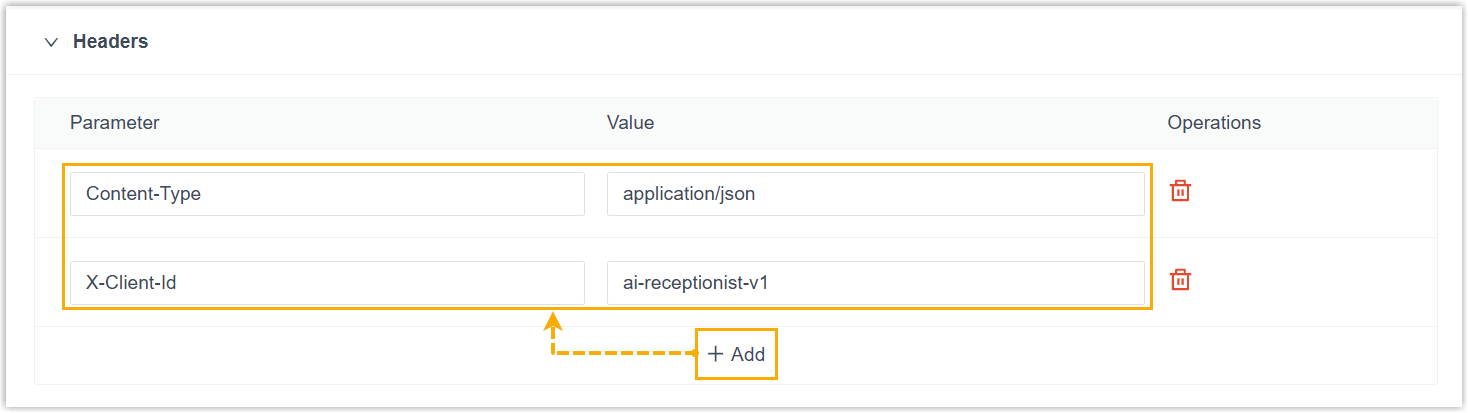
| Setting | Description | JSON field |
|---|---|---|
| Parameter | The header name. | "headers[].parameter": "Content-Type" |
| Value | The fixed header value. Dynamic values are not supported. | "headers[].value": "application/json" |
Query parameters
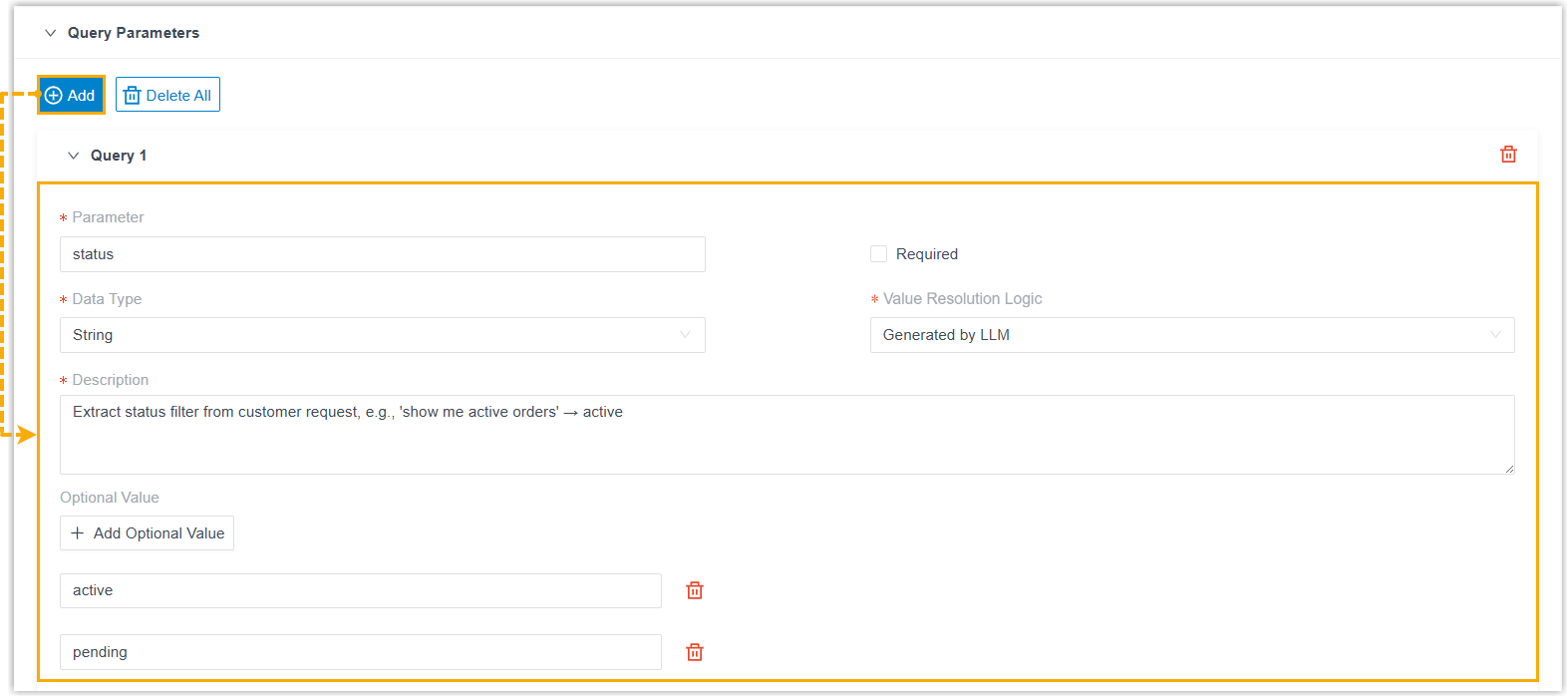
Section titled “Query parameters”Add the query-string parameters the request needs. You can add up to 10.
| Setting | Description | JSON field |
|---|---|---|
| Parameter | The parameter name. Use only letters, numbers, underscores (_), non-consecutive dots, and the @ symbol. | "query_params[].parameter": "status" |
| Required | Whether the parameter must be supplied. When on, the receptionist keeps prompting the caller until it has the value. | "query_params[].required": false |
| Data Type | The value’s type: String, Boolean, Integer, or Number. | "query_params[].data_type": "String" |
| Value Resolution Logic | How the value is obtained: Constant Value (constant) or Generated by LLM (llm). | "query_params[].value_logic": "llm" |
| Value | The fixed value to send. Available only when Value Resolution Logic is Constant Value. | "query_params[].constant_value": "active" |
| Description | A plain-language instruction telling the receptionist how to pull the value from the call. Available only when Value Resolution Logic is Generated by LLM. | "query_params[].description": "Extract the status filter from the customer request, e.g., 'show me active orders' → active." |
| Optional Value | Optional. Preset values the receptionist chooses from. Available only when Data Type is String and Value Resolution Logic is Generated by LLM. Up to 10 options. | "query_params[].optional_values": ["active", "pending", "completed", "cancelled"] |
Body parameters
Section titled “Body parameters”Body parameters are the JSON fields sent in the request body. This section appears only when the Request Method is POST, PUT, or PATCH, and you can add up to 30 parameters.
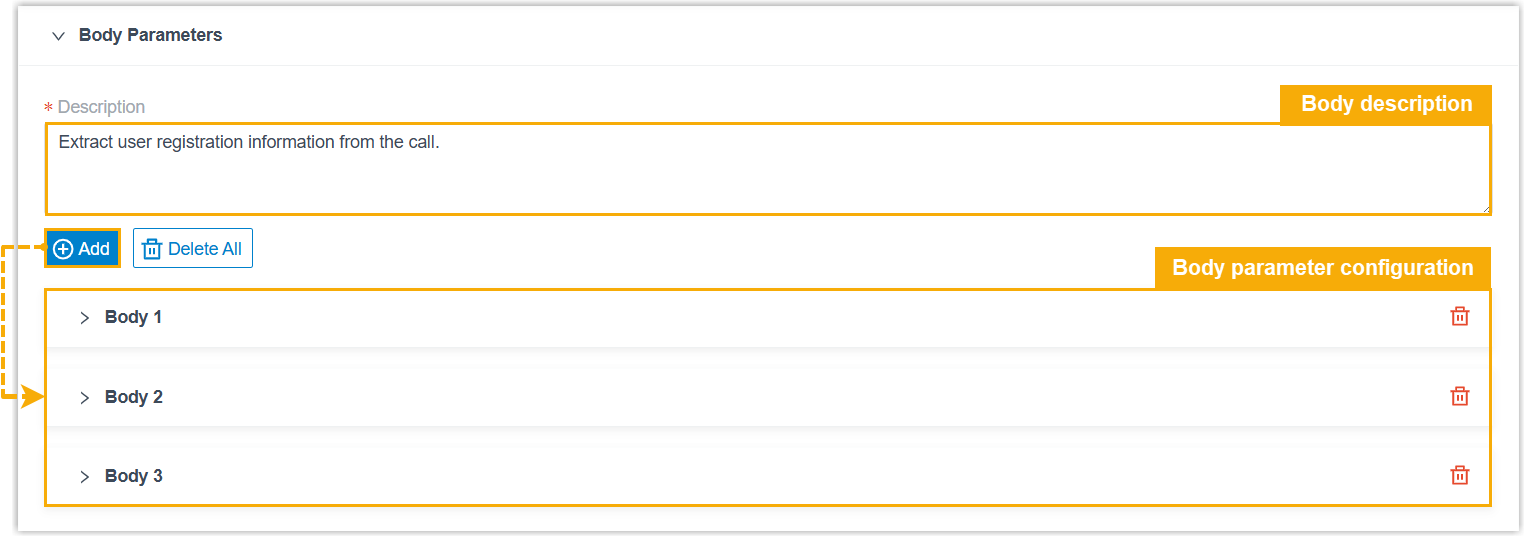
Start with a Body description: an overall instruction that tells the receptionist how to gather the body values from the call:
| Setting | Description | JSON field |
|---|---|---|
| Description | A plain-language instruction covering the whole body. | "body_description": "Extract user registration information from the conversation." |
Then define each body parameter.

| Setting | Description | JSON field |
|---|---|---|
| Parameter | The parameter name. Use only letters, numbers, underscores (_), non-consecutive dots, and the @ symbol. | "body_params[].parameter": "userId" |
| Required | Whether the parameter must be supplied. When on, the receptionist keeps prompting the caller until it has the value. | "body_params[].required": true |
| Data Type | The value’s type: String, Boolean, Integer, Number, Object (a group of nested fields), or Array (a list of same-typed values). | "body_params[].data_type": "String" |
The remaining fields depend on the data type you pick.
For a Boolean, Integer, Number, or String parameter
| Setting | Description | JSON field |
|---|---|---|
| Value Resolution Logic | How the value is obtained: Constant Value (constant) or Generated by LLM (llm). | "body_params[].value_logic": "constant" |
| Value | The fixed value to send. Available only when Value Resolution Logic is Constant Value. | "body_params[].constant_value": "active" |
| Description | A plain-language instruction telling the receptionist how to pull the value from the call. Available only when Value Resolution Logic is Generated by LLM. | "body_params[].description": "Extract the user ID from the call, e.g., 'user 123' → 123" |
| Optional Value | Optional. Preset values the receptionist chooses from. Available only when Data Type is String and Value Resolution Logic is Generated by LLM. Up to 10 options. | "body_params[].optional_values": ["standard", "premium", "enterprise"] |
For an Object parameter
An object groups several child parameters together. Each child is configured exactly like a Boolean, Integer, Number, or String parameter above, and you can nest up to 10 children.
| Setting | Description | JSON field |
|---|---|---|
| Description | A plain-language instruction telling the receptionist how to build the object from the call. | "body_params[].description": "Extract address information from the call." |
| Object | One or more nested child parameters. | See the example below. |
"body_params[].children": [ { "parameter": "city", "required": true, "data_type": "String", "value_logic": "llm", "description": "Extract city name" }, { "parameter": "zipcode", "required": false, "data_type": "String", "value_logic": "llm", "description": "Extract postal code" }]For an Array parameter
An array is a list of same-typed values. Describe the array as a whole, then define the type of its items.
| Setting | Description | JSON field |
|---|---|---|
| Description | A plain-language instruction telling the receptionist how to build the list from the call. | "body_params[].description": "Extract all product tags mentioned by the customer." |
| Data Type | The type of each item in the array: String, Boolean, Integer, or Number. | "body_params[].array_item.data_type": "String" |
| Description (item) | A plain-language instruction for a single item. | "body_params[].array_item.description": "Extract a single product tag" |
| Optional Value | Optional. Preset values for each item. Available only when the item Data Type is String. Up to 10 options. | "body_params[].array_item.optional_values": ["electronics", "books", "clothing"] |
Result
Section titled “Result”The tool is created and appears in your tool list.
What to do next
Section titled “What to do next”Assign the tool to an AI receptionist and try it out in a test conversation. See Manage skills for an AI receptionist and Test an AI receptionist.
Question about this page?
Ask the AI assistant. It starts from this page, then searches the rest of the docs.
Ask Cloud Voice AI
Answers are AI-generated from the docs and may contain mistakes. Verify with the linked pages.