
Configure AI Voicemail Transcription with ElevenLabs Service
Cloud Voice can transcribe voicemail recordings into readable text using the ElevenLabs Speech to Text service. This page walks you through generating an ElevenLabs API (Application Programming Interface) key and connecting it to Cloud Voice so incoming voicemail audio is converted to text automatically.
Requirements
Section titled “Requirements”Before you begin, confirm your system meets the following:
| Item | Requirement |
|---|---|
| Firmware | Version 84.23.0.83 or later. |
| Subscription | An Enterprise Plan or Ultimate Plan subscription, which makes the AI Transcription feature available. |
Prerequisites
Section titled “Prerequisites”| Item | Prerequisite |
|---|---|
| Network access | Cloud Voice must be able to reach api.elevenlabs.io to call the ElevenLabs Speech to Text service. |
| ElevenLabs account | An ElevenLabs account with enough transcription-minute quota, along with its username and password. |
Step 1: Create an API key on ElevenLabs
Section titled “Step 1: Create an API key on ElevenLabs”Cloud Voice authenticates each request to the Speech to Text service with an API key, so create one on the ElevenLabs platform first.
-
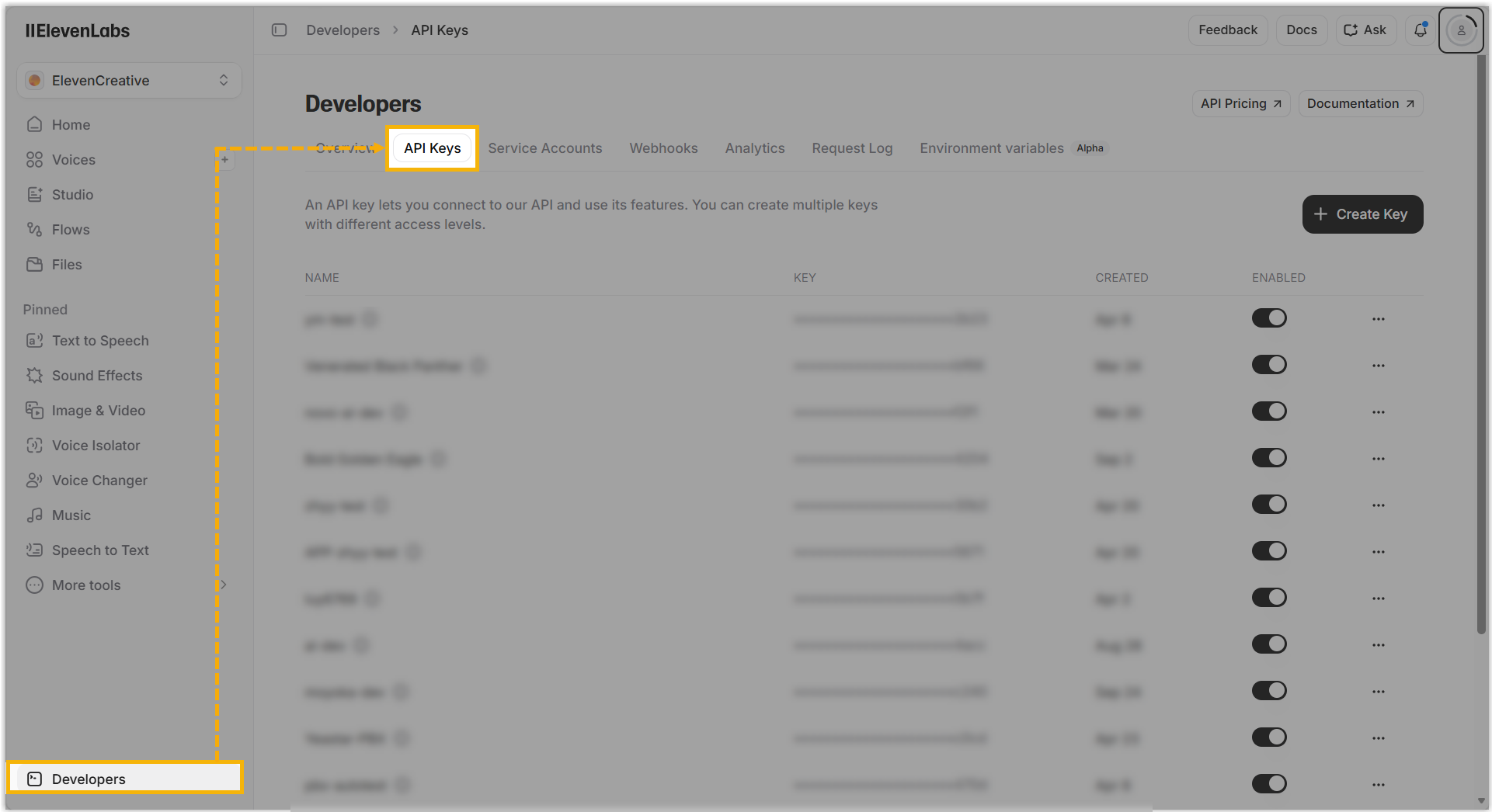
Sign in to the ElevenLabs Platform with your ElevenLabs username and password, then open Developers > API Keys.
-
In the top-right corner of the key list, select Create Key.
-
Fill in the new key in the sidebar that opens.
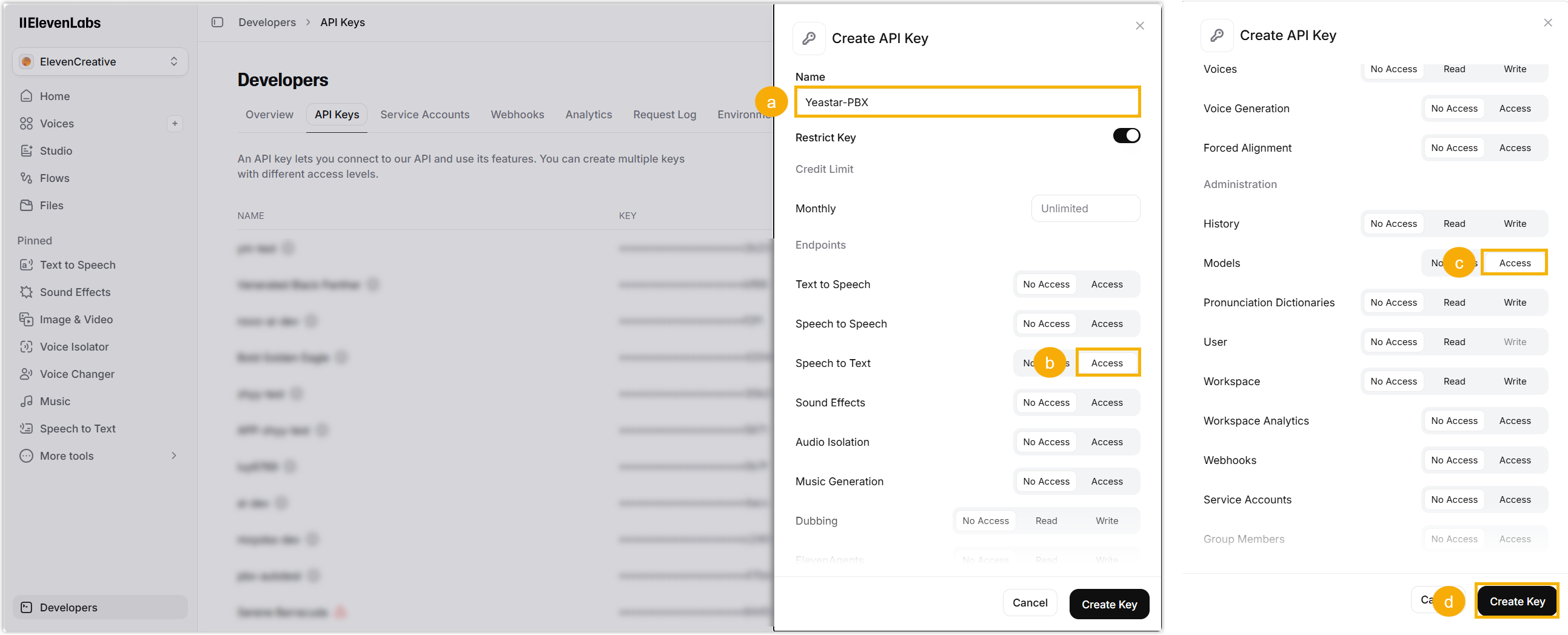
a. Enter a recognizable Name for the key.
b. Under Endpoints, select Access next to Speech to text.
c. Under Administration, select Access next to Models.
d. Select Create Key in the bottom-right corner. A window appears with the generated key.
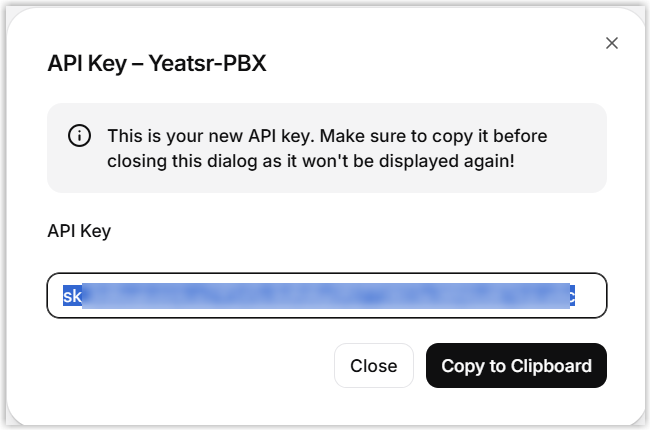
e. Select Copy to Clipboard and store the key somewhere safe for the next step.
Step 2: Configure voicemail transcription in Cloud Voice
Section titled “Step 2: Configure voicemail transcription in Cloud Voice”With the API key in hand, set up the connection in the Cloud Voice admin portal.
-
Sign in to the admin portal and open AI > AI Toolbox.
-
Turn on Voicemail Transcription.
-
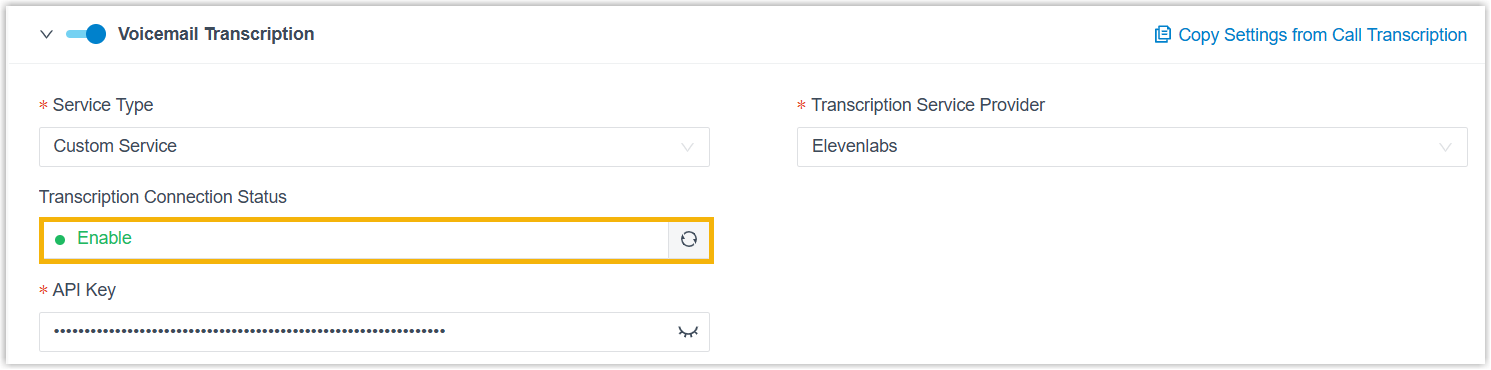
Enter the service details.
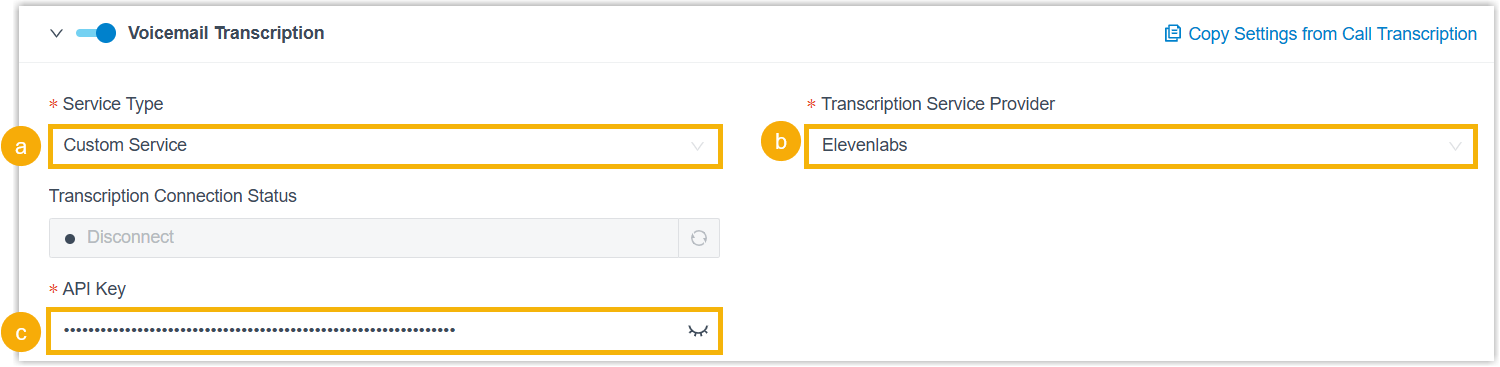
a. Set Service Type to Custom Service.
b. Set Transcription Service Provider to Elevenlabs.
c. Paste the API key you copied from ElevenLabs into the API key field.
-
Under Language, choose the language to detect and transcribe in voicemail messages.
-
In Extension Scope for This Feature, decide who can use voicemail transcription:
- All Extensions: every extension has access.
- Specific Extensions: only the extensions, extension groups, or departments you select have access.
-
Select Save.
Result
Section titled “Result”When Transcription Connection Status shows Enable, voicemail transcription through the ElevenLabs Speech to Text service is active. Both group and extension voicemail recordings are now detected and converted to readable text in the language you chose.
Question about this page?
Ask the AI assistant. It starts from this page, then searches the rest of the docs.
Ask Cloud Voice AI
Answers are AI-generated from the docs and may contain mistakes. Verify with the linked pages.