
Configure AI Call Transcription with OpenAI Service
Cloud Voice can hand off call audio to OpenAI’s Speech to Text service and turn a two-party conversation into readable text as it happens. This page walks through wiring that third-party service into your phone system, and optionally adding a large language model (LLM) so a written summary is produced once each call ends.
Requirements
Section titled “Requirements”Your phone system needs to meet the following before you start.
| Item | Requirement |
|---|---|
| Firmware | Version 84.23.0.83 or later. |
| Subscription | An Enterprise Plan or Ultimate Plan, so the AI Transcription feature is available. |
Before you begin
Section titled “Before you begin”Network access
Your phone system has to reach the service domains listed below. You can confirm each one is reachable from Maintenance > Troubleshooting > IP Ping.
| Service | Domain |
|---|---|
| OpenAI Speech to Text service | api.openai.com |
| GPT LLM | api.openai.com |
| Gemini LLM | oauth2.googleapis.com and generativelanguage.googleapis.com |
Third-party accounts
Have the right accounts and sign-in credentials ready before configuring anything.
- OpenAI Speech to Text service: An OpenAI account that has enough transcription-minute quota, along with its username and password.
- GPT LLM (optional summaries): an OpenAI account with enough token quota.
- Gemini LLM (optional summaries): a Google account with enough token quota, along with its username and password.
Step 1. Create an API key for OpenAI Speech to Text
Section titled “Step 1. Create an API key for OpenAI Speech to Text”So the phone system can authenticate its requests to OpenAI Speech to Text, generate an API (application programming interface) key on the OpenAI Platform first.
-
Sign in to OpenAI Platform with your OpenAI username and password, then open API Keys.
-
Above the list of keys, on the right, choose Create new secret key.
-
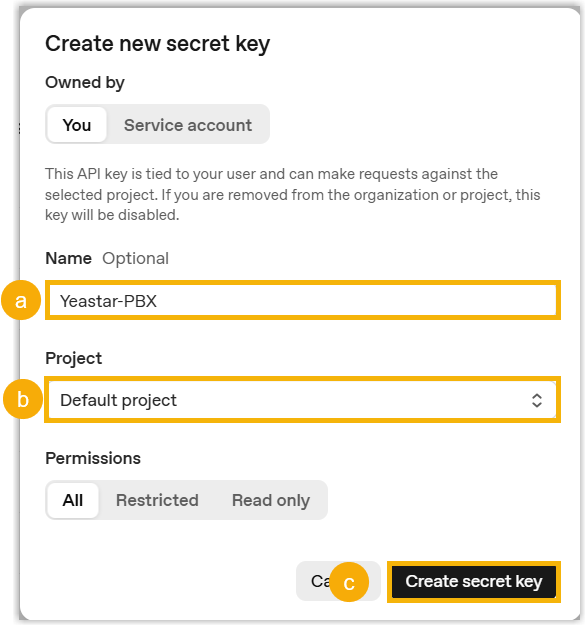
Fill in the dialog that opens.
-
In Name, enter something that identifies the key.
-
From the Project drop-down, pick the project you want.
-
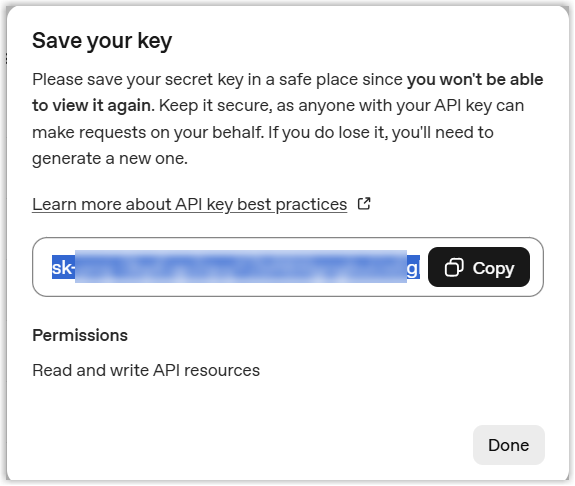
Leave the permission set to its default of All, then choose Create secret key. The generated key appears in a new dialog.
-
Choose Copy and store the key somewhere safe for later.
-
Step 2. (Optional) Create an API key for Gemini LLM
Section titled “Step 2. (Optional) Create an API key for Gemini LLM”If you would rather use Google’s Gemini models to write call summaries from the transcribed text, create a Google API key to authenticate those requests.
-
Sign in to Google AI Studio with your Google username and password, then open Dashboard > API keys.
-
Above the list of keys, on the right, choose Create API key.
-
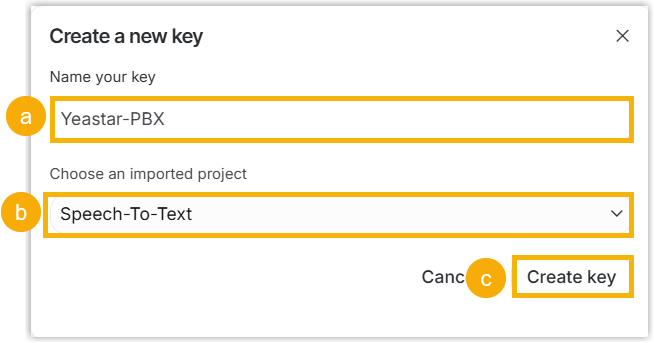
Fill in the dialog that opens.
-
In Name your key, enter something that identifies the key.
-
From the Choose an imported project drop-down, select a project. You can pick an existing project, import one, or create a new one here.
-
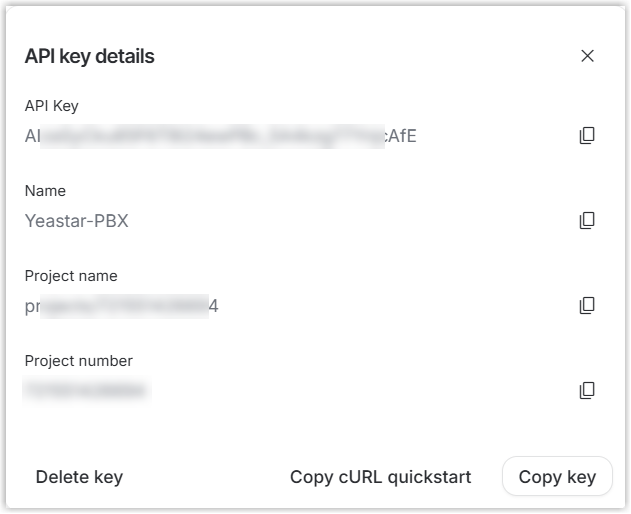
Choose Create key. The details of the new key appear in a dialog.
-
Choose Copy key and store the key somewhere safe for later.
-
Step 3. Configure AI call transcription on the phone system
Section titled “Step 3. Configure AI call transcription on the phone system”With your OpenAI Speech to Text credentials (and, optionally, an LLM key) in hand, connect the phone system to both services.
-
Sign in to the phone system web portal and open AI > AI Toolbox.
-
Turn on the Call Transcription switch.
-
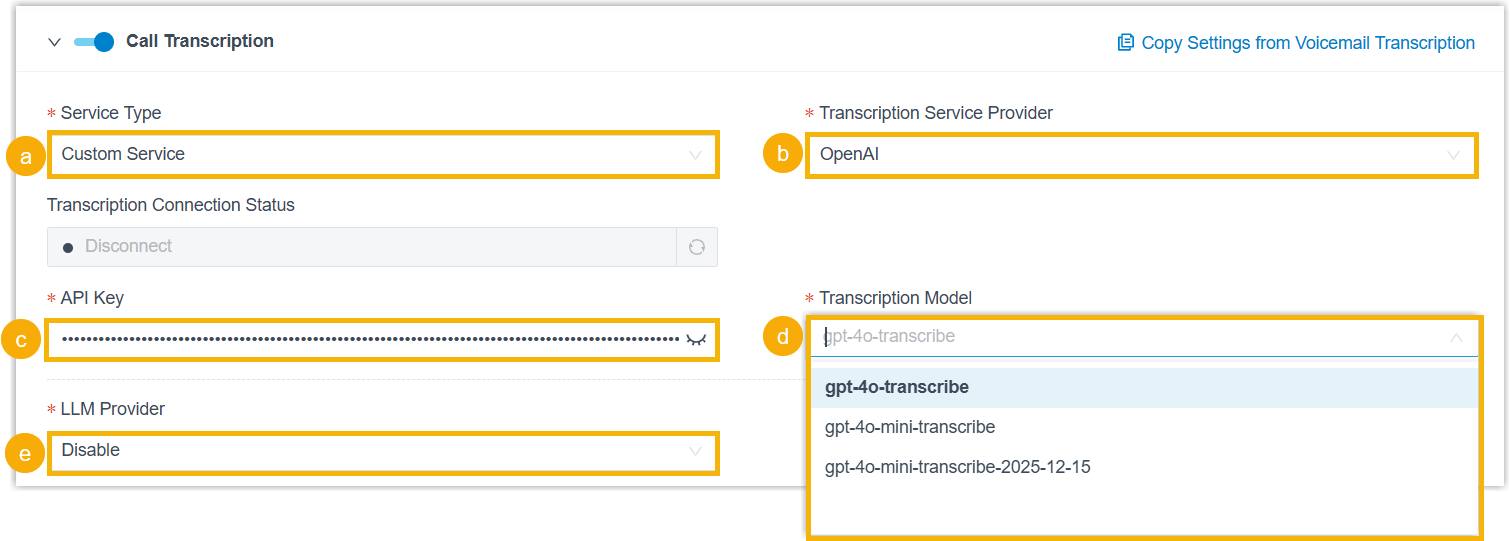
Set up the transcription service.
-
From the Service Type drop-down, select Custom Service.
-
From the Transcription Service Provider drop-down, select OpenAI.
-
In the API key field, paste the key you created on the OpenAI Platform.
-
From the Transcription Model drop-down, pick the OpenAI Speech to Text model you prefer. For how the models differ, see OpenAI’s list of Realtime & audio models.
-
Set up the LLM service using the LLM Provider drop-down.
No summaries: Select Disable if you don’t want the phone system to create call summaries.
GPT summaries: Select OpenAI, then:
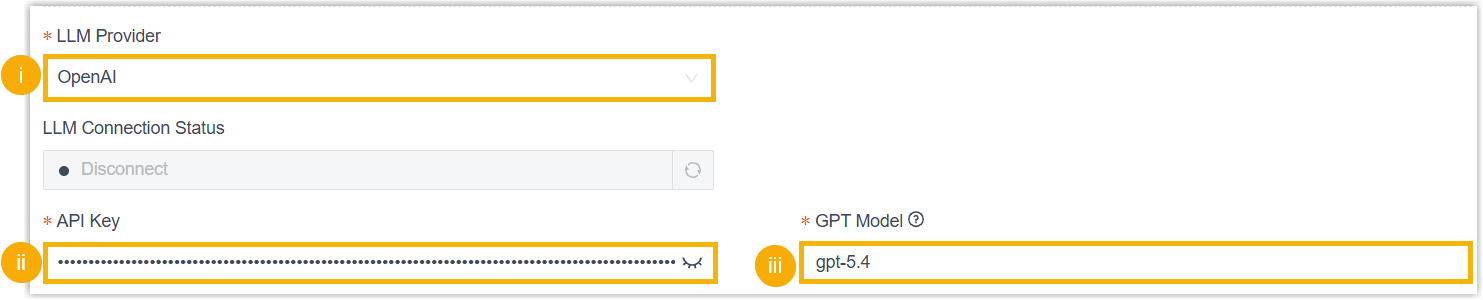
- In the API key field, paste the key you created on the OpenAI Platform.
- In the GPT Model field, enter the model ID of the GPT model you want. Check the list of GPT models for the ID, for example, to use GPT-5.4, enter
gpt-5.4.
Gemini summaries: Select Google, then:

- In the API key field, paste the key you created in Google AI Studio.
- In the Gemini Model field, enter the model code of the Gemini model you want. Check the list of Gemini models and open a model’s page for its code, for example, to use Gemini 3.1 Pro Preview, enter
gemini-3.1-pro-preview.
-
-
From the Language drop-down, choose the language that call audio should be detected and transcribed in.
-
Under Extension Scope for This Feature, decide who can use call transcription:
- All Extensions: every extension can use it.
- Specific Extensions: only the extensions, extension groups, or departments you select can use it.
-
Click Save.
Result
Section titled “Result”-
Transcription Connection Status shows Enable, confirming OpenAI Speech to Text is live. Call audio is now detected and transcribed into text in your chosen language in real time.
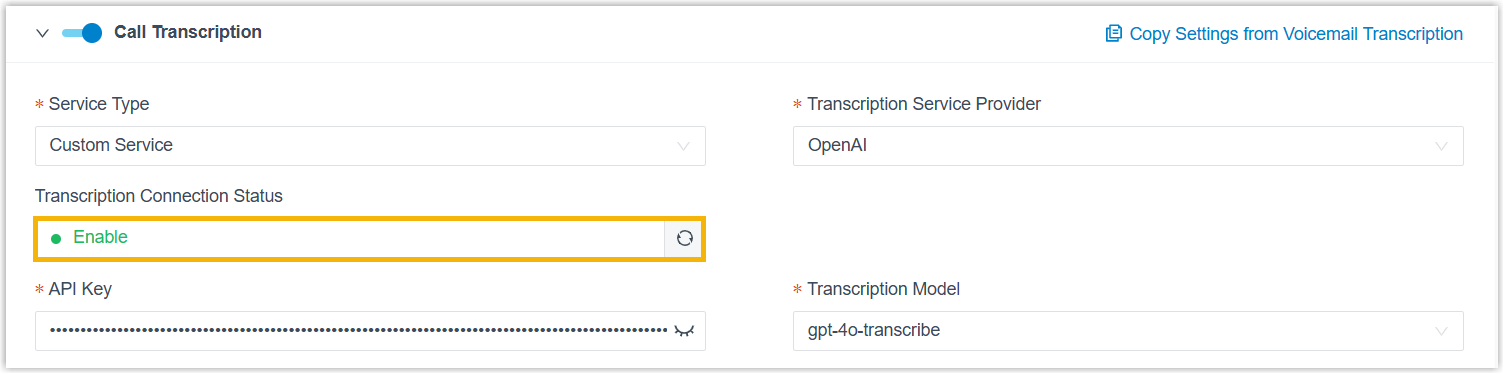
-
LLM Connection Status shows Enable, confirming the phone system reached the LLM you configured. Once each call ends, a summary is drafted from the transcript automatically.

Question about this page?
Ask the AI assistant. It starts from this page, then searches the rest of the docs.
Ask Cloud Voice AI
Answers are AI-generated from the docs and may contain mistakes. Verify with the linked pages.