
Agent Pause Activity Report
The Agent Pause Activity report shows you, at a glance, when your queue agents step away from taking calls and when they return. It records each pause, the reason behind it, and how long the agent stayed paused. Use it to understand break patterns and to see how much time agents spend away from the queue. This page covers how to open the report and what each metric means.
Open the report
Section titled “Open the report”-
Sign in to the Cloud Voice management portal and go to Reports and Recordings > Call Reports.
-
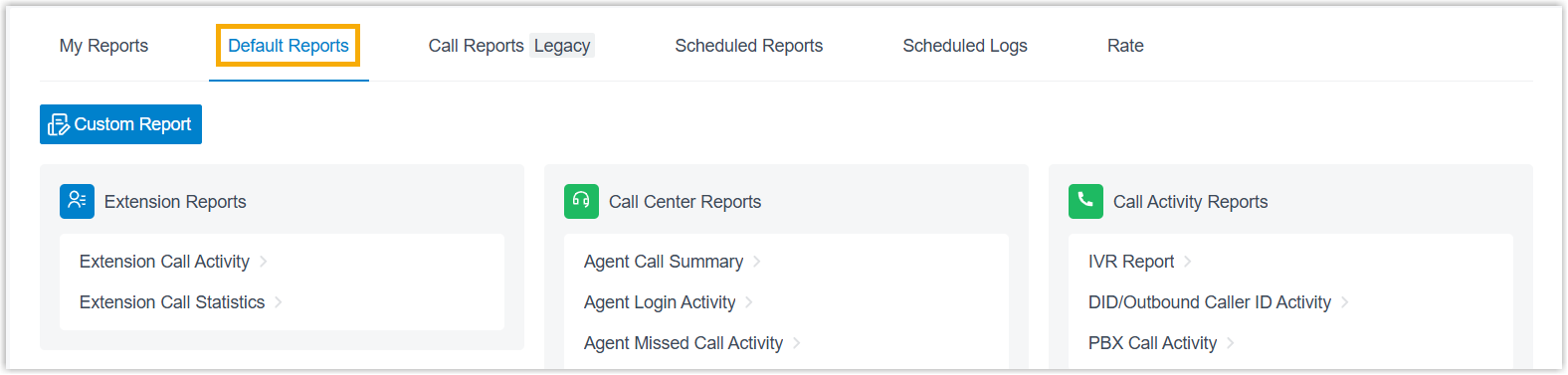
Open the Default Reports tab.
-
In the Call Center Reports pane, select Agent Pause Activity.
-
Set the filters for the report.

- In the Time field, choose the date range you want the report to cover.
- Narrow the results by queue, by agent, or by pause reason.
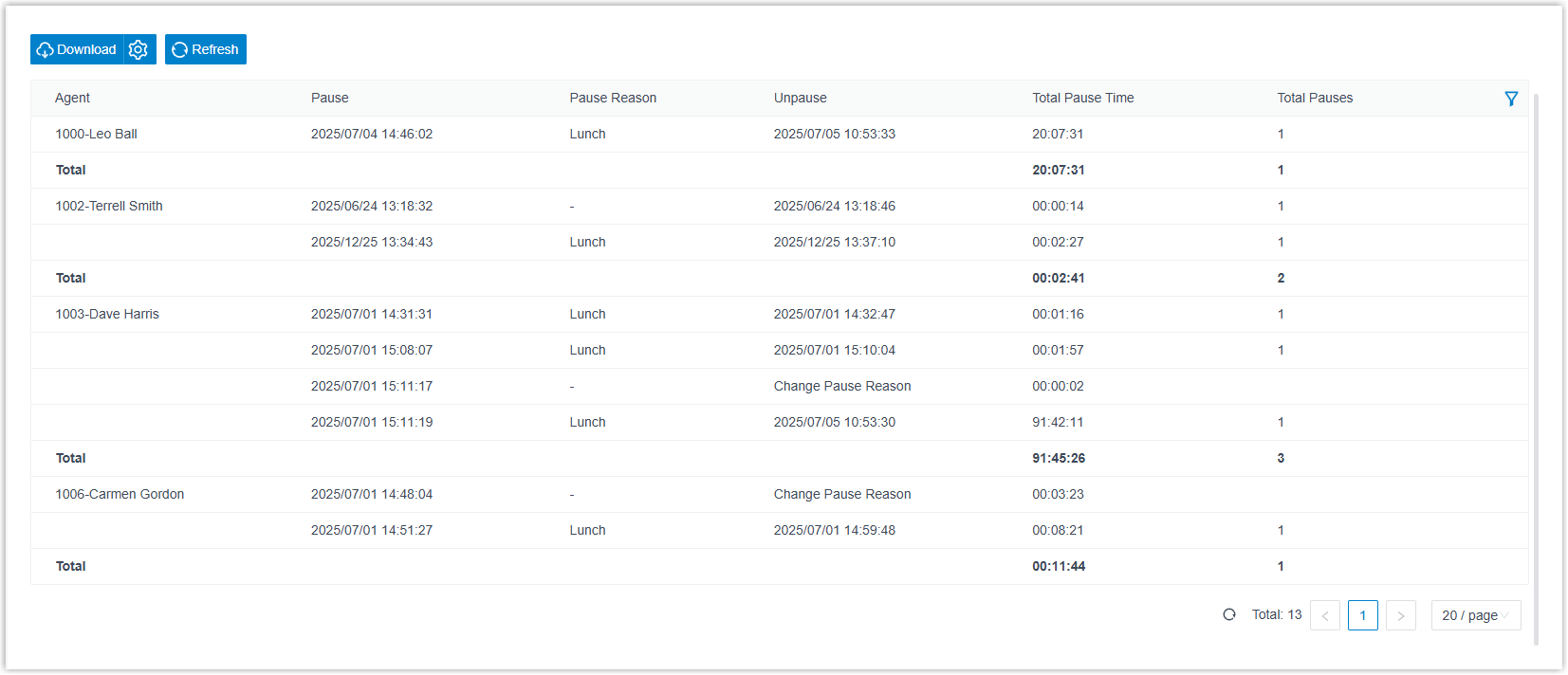
The report refreshes to show only the entries that match your filters.
Adjust the columns (optional)
Section titled “Adjust the columns (optional)”Tailor the table so the details you care about stay in view.
| Action | How to do it |
|---|---|
| Choose which columns appear | Select the column icon  and pick the columns to show. and pick the columns to show. |
| Freeze a column | Select the handle  next to a field, then drag it to Left (Freeze Column) or Right (Freeze Column). next to a field, then drag it to Left (Freeze Column) or Right (Freeze Column). |
| Reorder columns | Select the handle next to a field and drag it to the position you want. |
Save or schedule the report (optional)
Section titled “Save or schedule the report (optional)”Once the report is set up the way you like, you can keep it for later or have it emailed automatically.
Add it to My Reports for one-click access:
- At the bottom of the page, select Add to My Reports.
- Give the report a name you will recognize, and fine-tune the filters or metrics if needed.
- Select Save.
Add it to Scheduled Reports to have Cloud Voice email it on a recurring basis:
- At the bottom of the page, select Add to Scheduled Reports.
- Fill in the delivery schedule and recipient settings, then save.
Download it for offline review or further analysis:
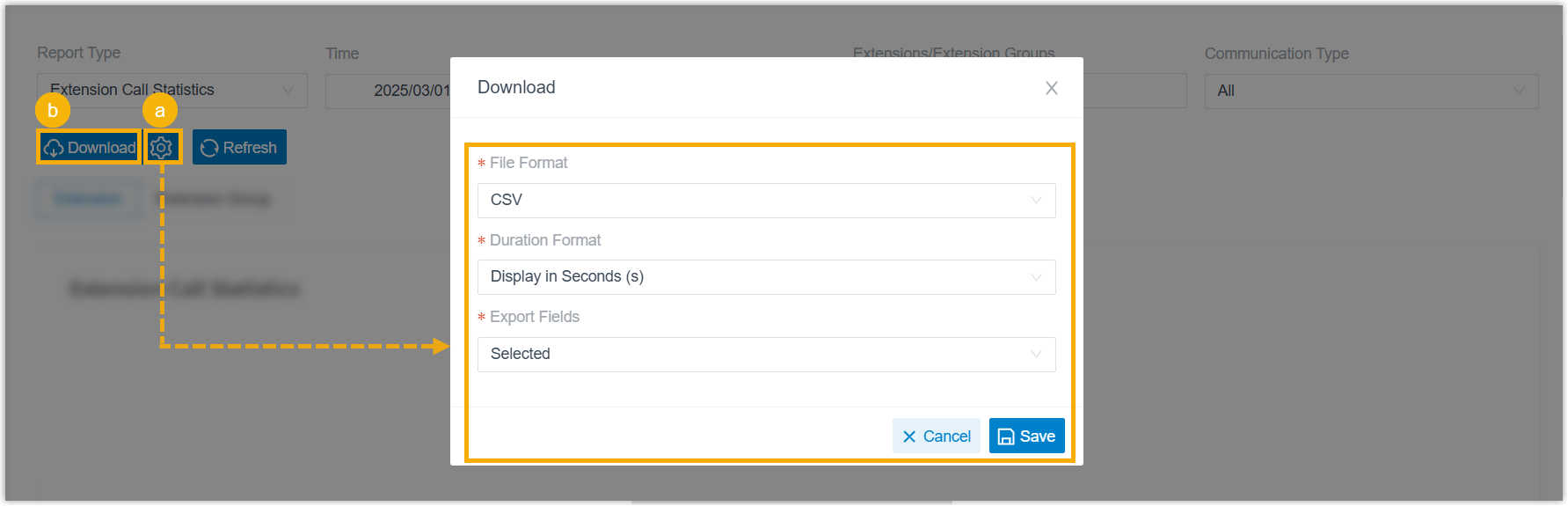
- (Optional) Select the settings icon
 to adjust how the file is exported, then save your changes:
- File Format: the format of the downloaded file: CSV, XLS, PDF, or HTML.
- Duration Format: how every duration field is shown: Display in Second (s) or Display as HH:MM:SS.
- Export Fields: which fields are included: All or Selected.
- Select Download.
Report metrics
Section titled “Report metrics”| Metric | What it shows |
|---|---|
| Pause | The date and time the agent switched to Pause status. |
| Pause Reason | The reason the agent gave for switching to Pause status. |
| Unpause | Either the date and time the agent returned to Unpause status, or a note that the agent changed the pause reason without resuming. |
| Total Pause Time | The time elapsed between the agent entering the current pause and moving to another status, resuming work or switching to a different pause reason. |
| Total Pauses | The number of times the agent paused, not counting changes to the pause reason. |
Question about this page?
Ask the AI assistant. It starts from this page, then searches the rest of the docs.
Ask Cloud Voice AI
Answers are AI-generated from the docs and may contain mistakes. Verify with the linked pages.