
Manage Your Status in Queues on the Cloud Voice App (Mobile)
If you answer calls for one or more queues, you can control your own availability directly from the Cloud Voice App on your phone. This page covers how to sign in to and out of your queues and how to temporarily stop or resume incoming queue calls, either for every queue at once or for a single queue.
A queue is a waiting line for incoming calls that the system shares out among a group of agents. How much control you have over your own membership depends on which type of agent you are.
Requirements
Section titled “Requirements”Confirm your Cloud Voice App is up to date before you begin:
- iOS: version 5.12.4 or later
- Android: version 5.12.3 or later
Open the Agent Status page
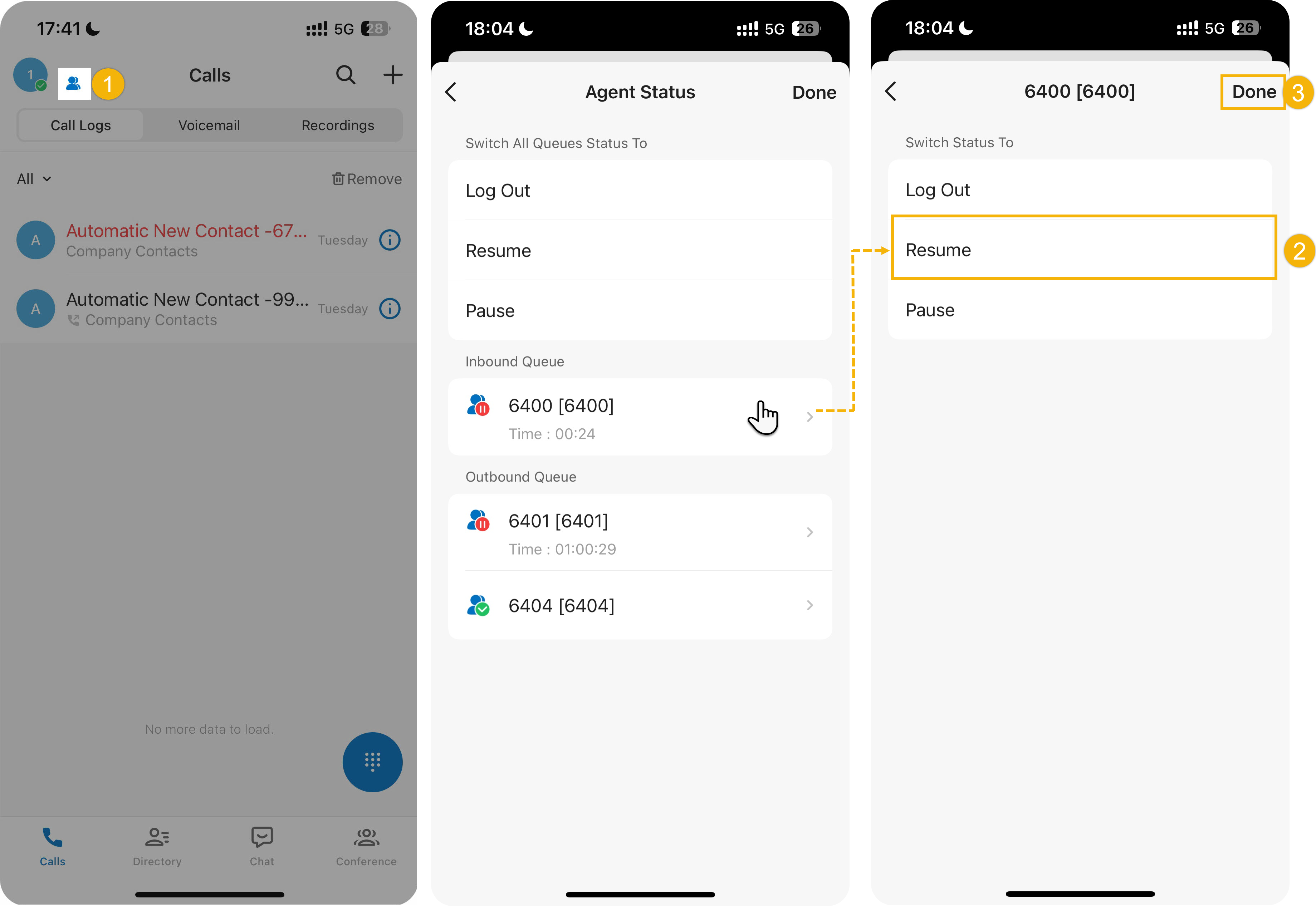
Section titled “Open the Agent Status page”Every action below starts from the same place. In the top-left corner of the app, tap the agent status icon ( ) next to your account name. The Agent Status page opens, where you can adjust your availability for all of your queues together or for one queue at a time.
After making a change on this page, tap Done in the top-right corner to apply it.
Many of these actions can also be triggered with a feature code. A feature code is a short string you dial (for example *77) that tells the phone system to perform an action instead of placing a call. This is handy when you are already on your desk phone or away from the app screen.
Log in to a queue
Section titled “Log in to a queue”Logging in tells the queue to start routing calls to you.
Log in to all queues
Section titled “Log in to all queues”From the app
- Open the Agent Status page.
- Under Switch All Queues Status To, tap Log In.
- Tap Done.
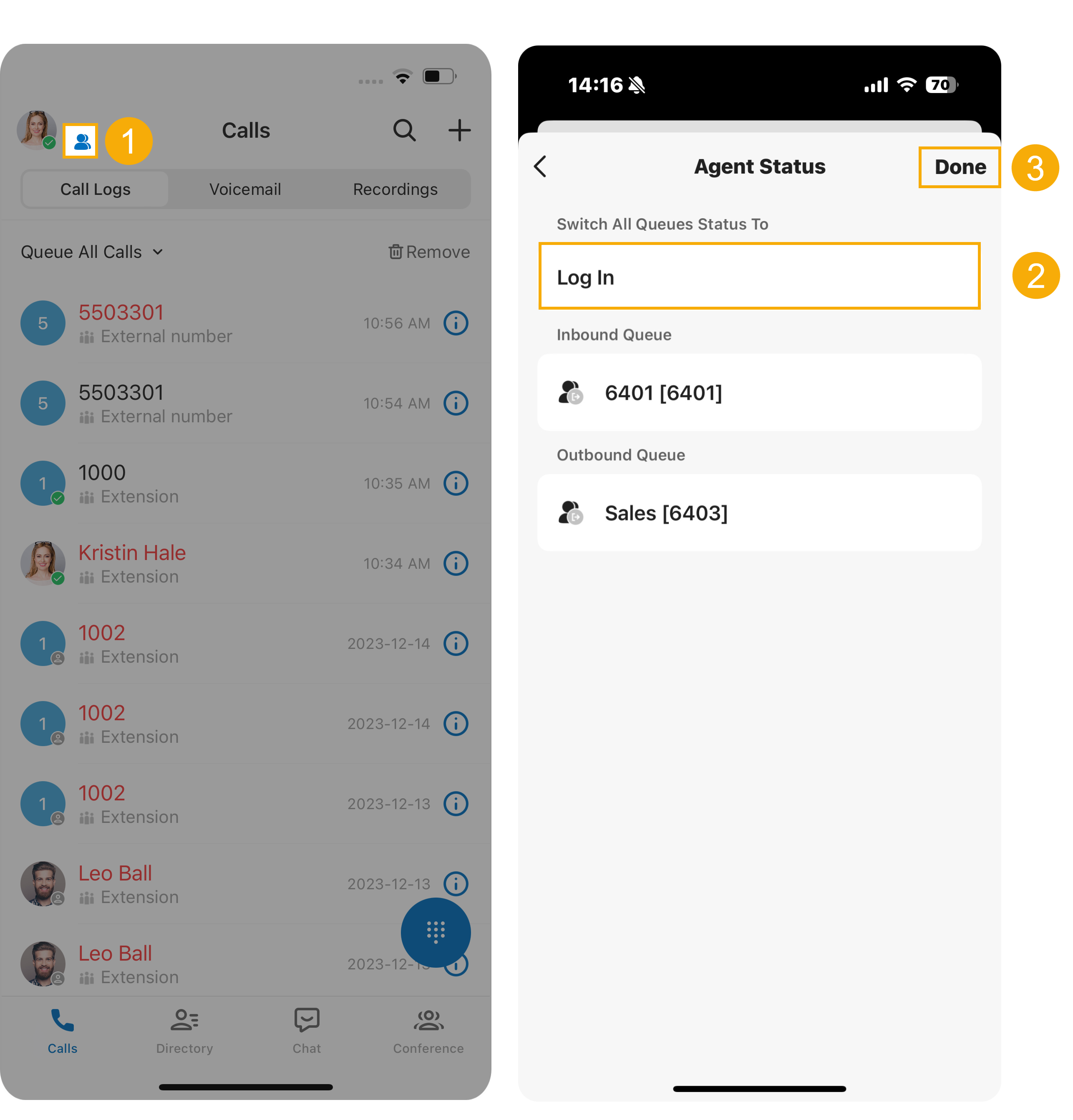
With a feature code
- Ask your administrator for the Log In to All Queues feature code.
- Dial it. For example, if the code is
*77, dial*77to sign in to every queue you belong to.
Log in to your last queues
Section titled “Log in to your last queues”If you only want to return to the queues you were previously signed in to, you can do so in one step instead of selecting each queue by hand.
From the app
- Open the Agent Status page.
- Under Switch All Queues Status To, tap Log in to Last Queues.
- Tap Done.
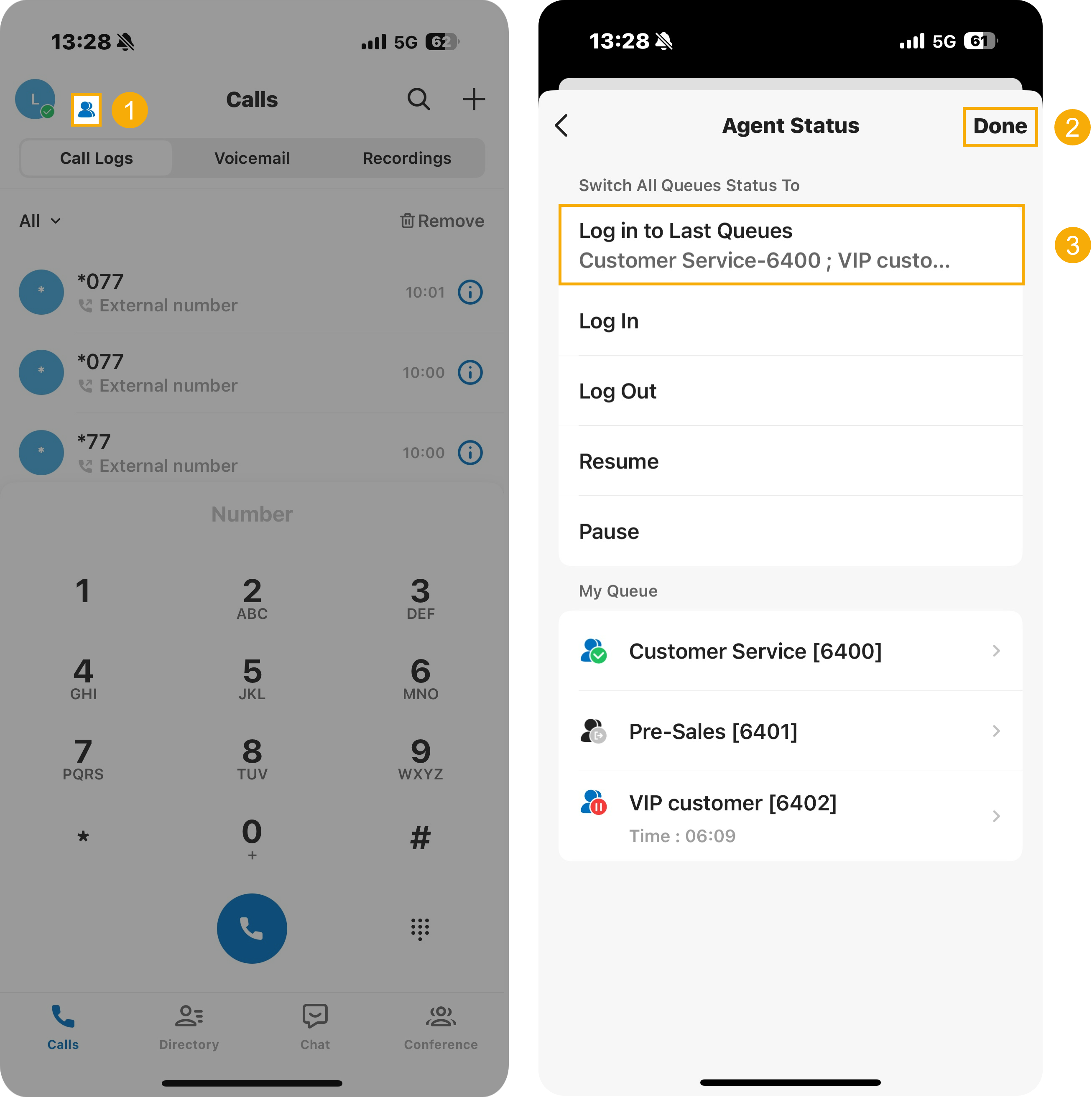
With a feature code
- Ask your administrator for the Log in to Last Queues feature code.
- Dial it. For example, if the code is
*78, dial*78to rejoin the queues you were last signed in to.
Log in to a specific queue
Section titled “Log in to a specific queue”From the app
- Open the Agent Status page.
- Tap the queue you want, then tap Log In.
- Tap Done.
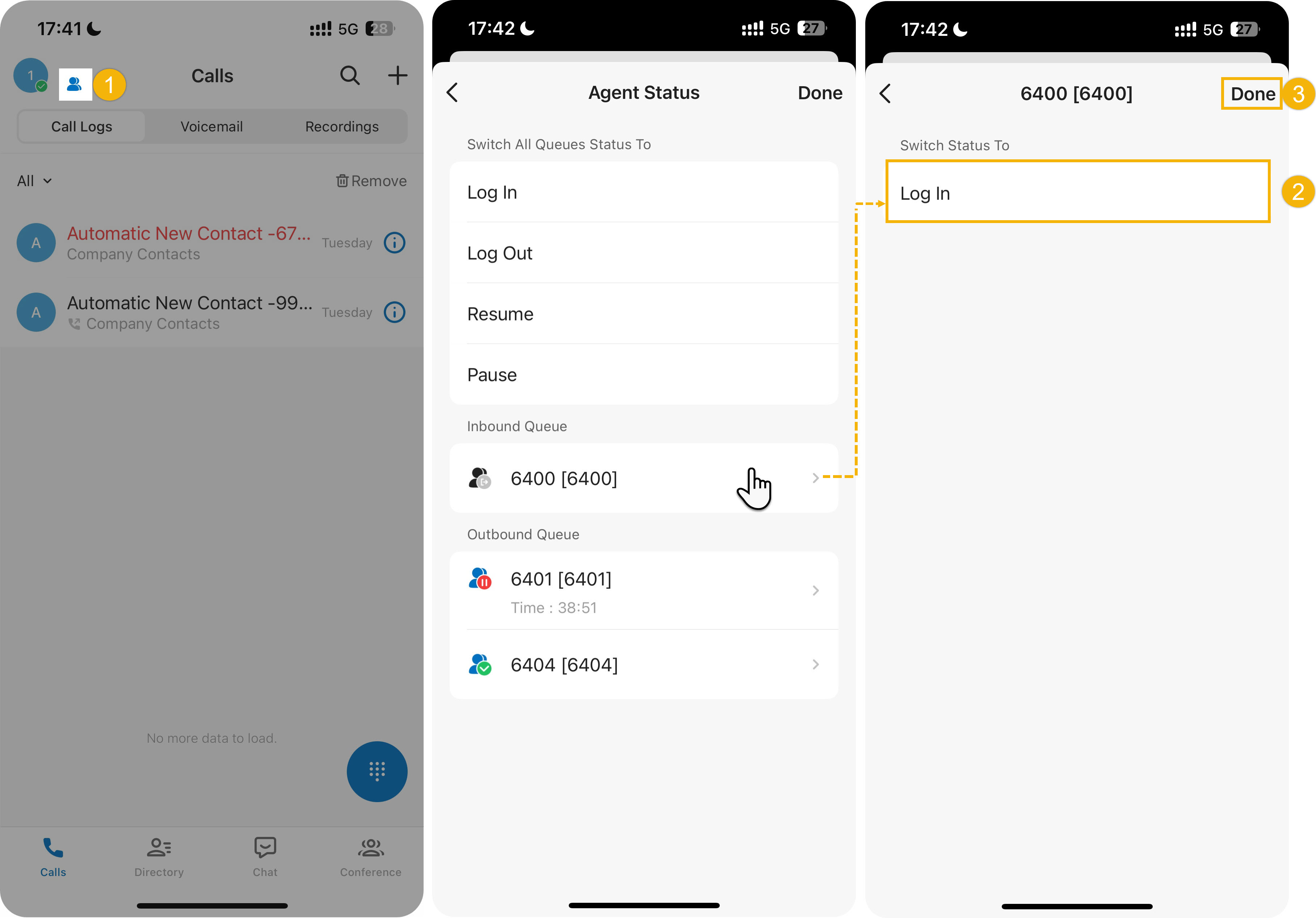
With a feature code
- Ask your administrator for the Log in/Log out feature code.
- Dial the code followed by the queue extension (the queue’s number, such as 6400). For example, if the code is
*7, dial*76400to sign in to queue 6400.
Log out of a queue
Section titled “Log out of a queue”Logging out stops the queue from sending new calls to you.
Log out of all queues
Section titled “Log out of all queues”From the app
- Open the Agent Status page.
- Under Switch All Queues Status To, tap Log Out.
- Tap Done.
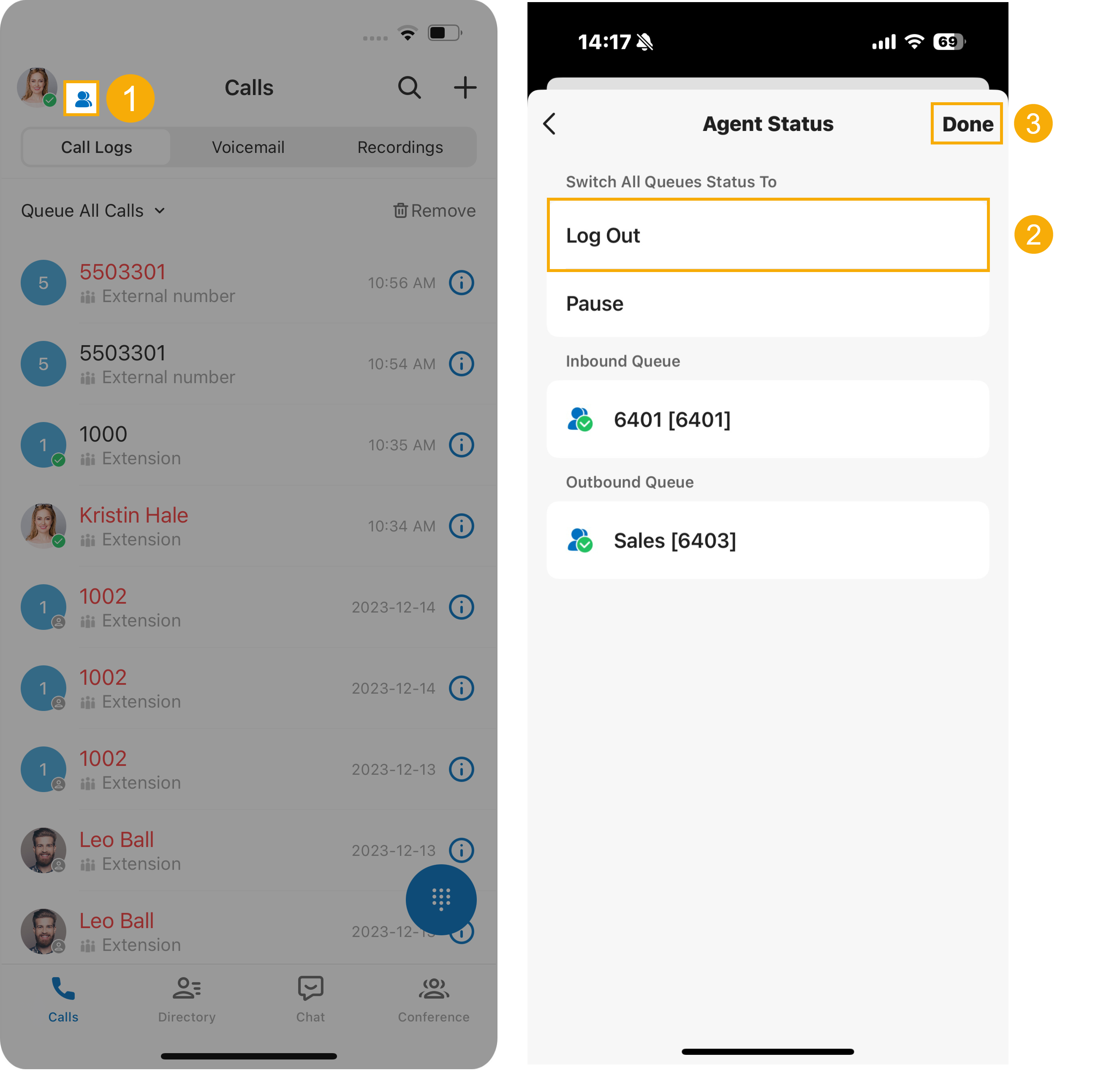
With a feature code
- Ask your administrator for the Log Out of All Queues feature code.
- Dial it. For example, if the code is
*077, dial*077to sign out of every queue you belong to.
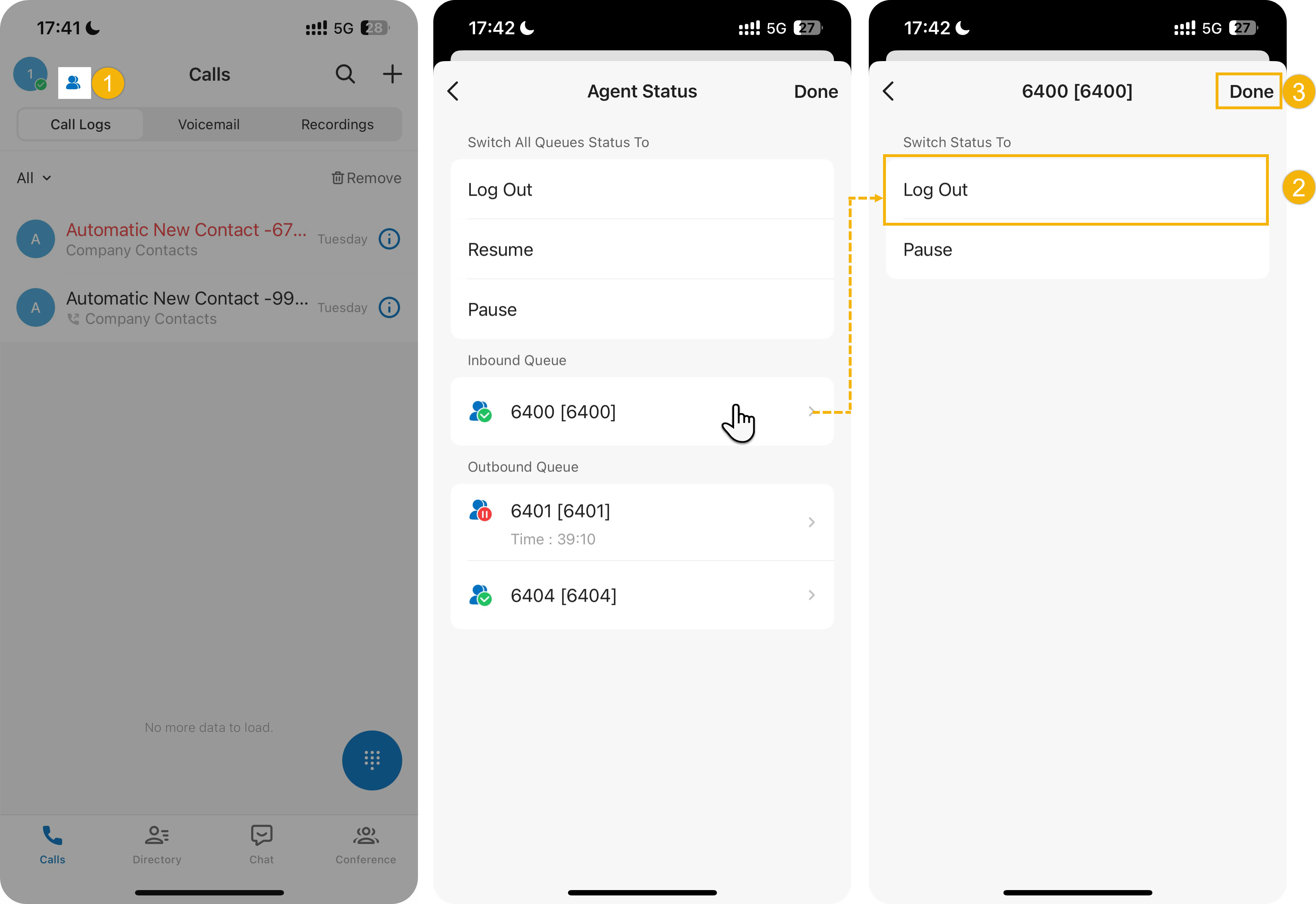
Log out of a specific queue
Section titled “Log out of a specific queue”From the app
- Open the Agent Status page.
- Tap the queue you want, then tap Log out.
- Tap Done.
With a feature code
- Ask your administrator for the Log in/Log out feature code.
- Dial the code followed by the queue extension. For example, if the code is
*7, dial*76400to sign out of queue 6400.
Pause queue calls
Section titled “Pause queue calls”Pausing keeps you signed in but tells the queue to skip you while you are unavailable, for example on a break or in a meeting. No queue calls are routed to you until you resume. Both static and dynamic agents can pause.
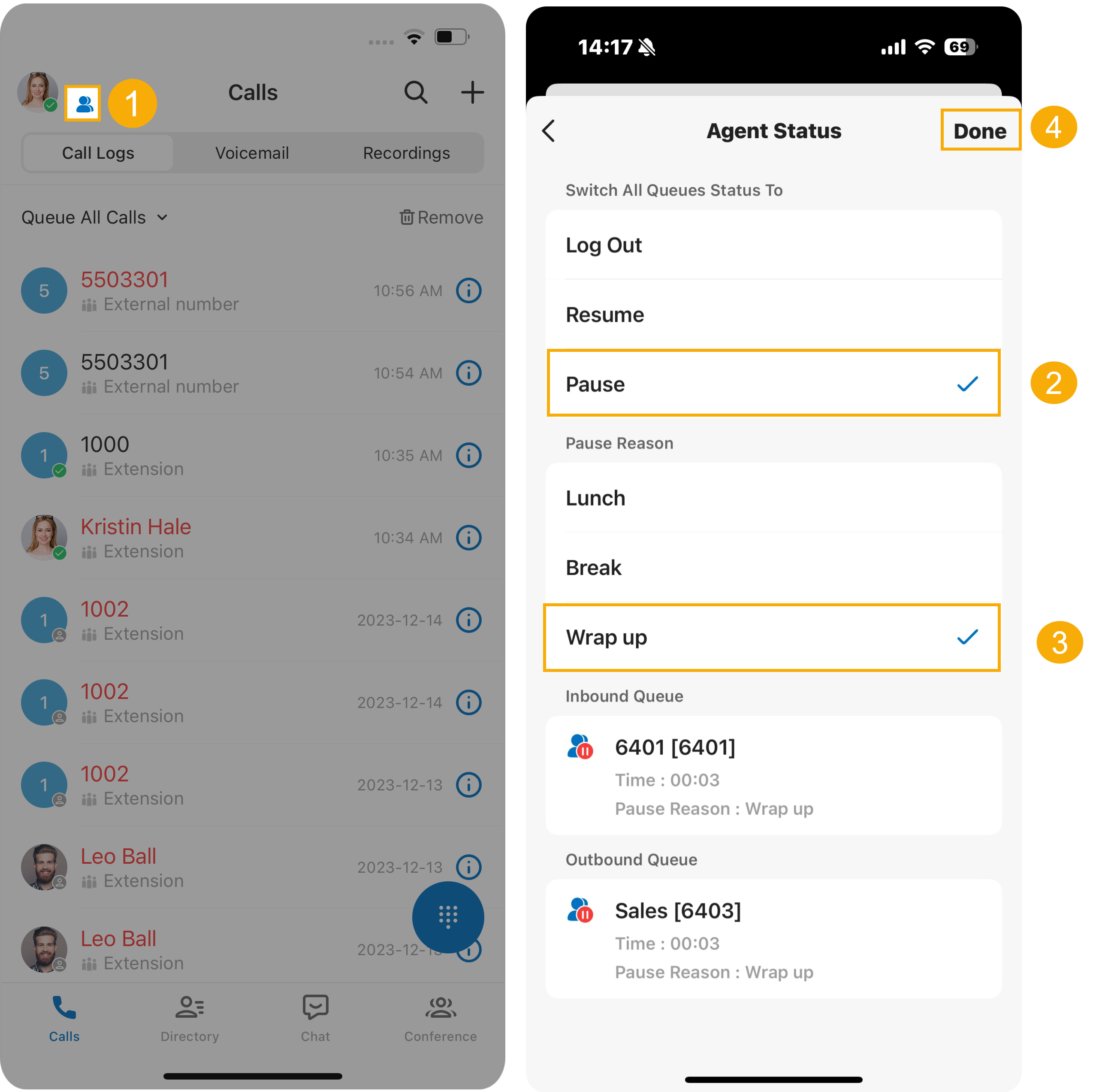
Pause all queues
Section titled “Pause all queues”- Open the Agent Status page.
- Under Switch Status To, tap Pause.
- (Optional) Under Pause Reason, choose a reason.
- Tap Done.
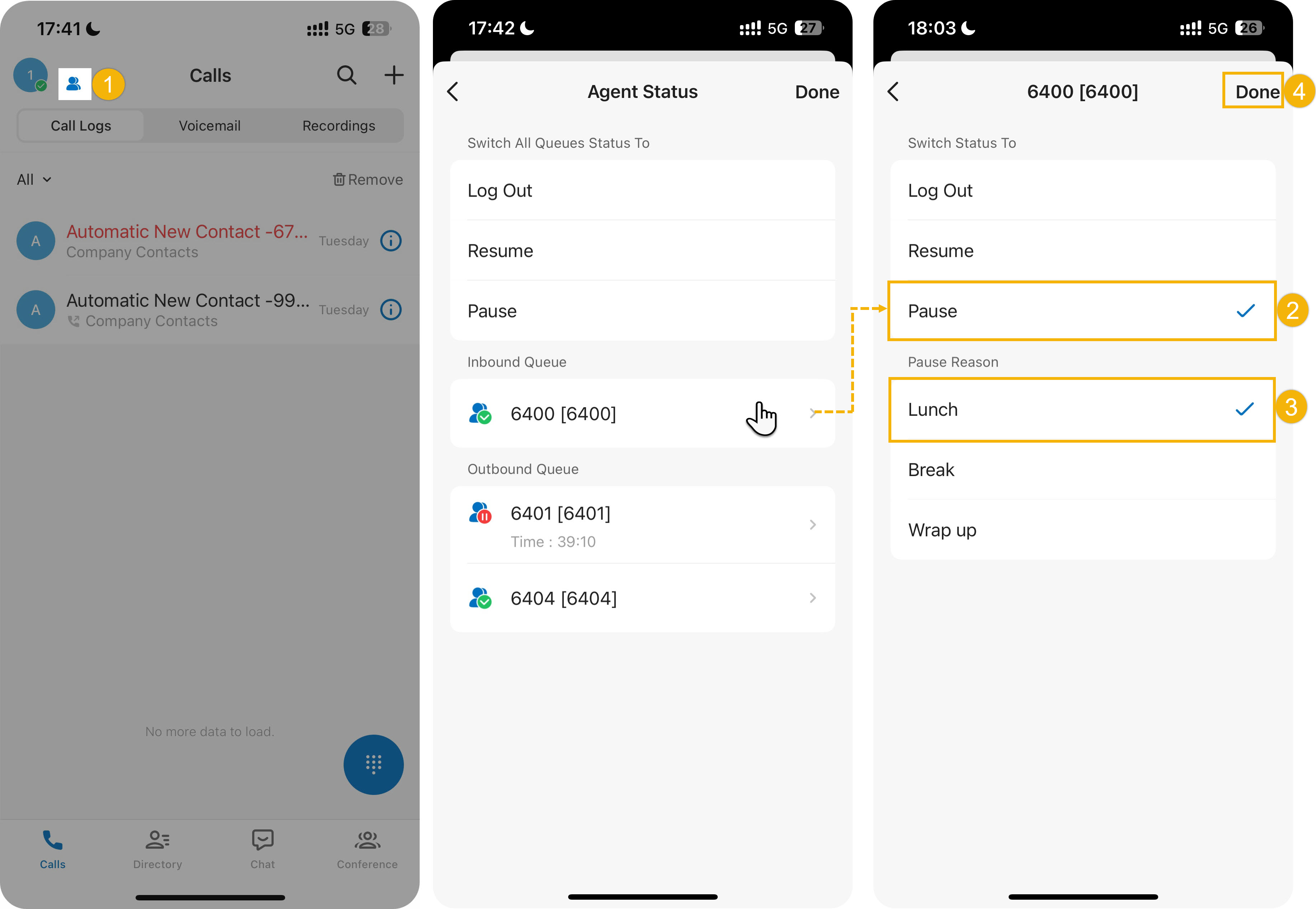
Pause a specific queue
Section titled “Pause a specific queue”From the app
- Open the Agent Status page.
- Tap the queue you want, then tap Pause.
- (Optional) Under Pause Reason, choose a reason.
- Tap Done.
With a feature code
- Ask your administrator for the Pause/Unpause feature code and, if you want to record a reason, the Pause Reason feature codes.
- Dial the pause code followed by the queue extension. For example, if the Pause/Unpause code is
*07, to pause queue 6400:- Dial
*076400to pause without a reason. - Dial
*076400followed by a pause-reason code to pause with a reason, such as*076400*03.
- Dial
Unpause queue calls
Section titled “Unpause queue calls”Unpausing returns you to active rotation so the queue resumes routing calls to you. Both static and dynamic agents can unpause.
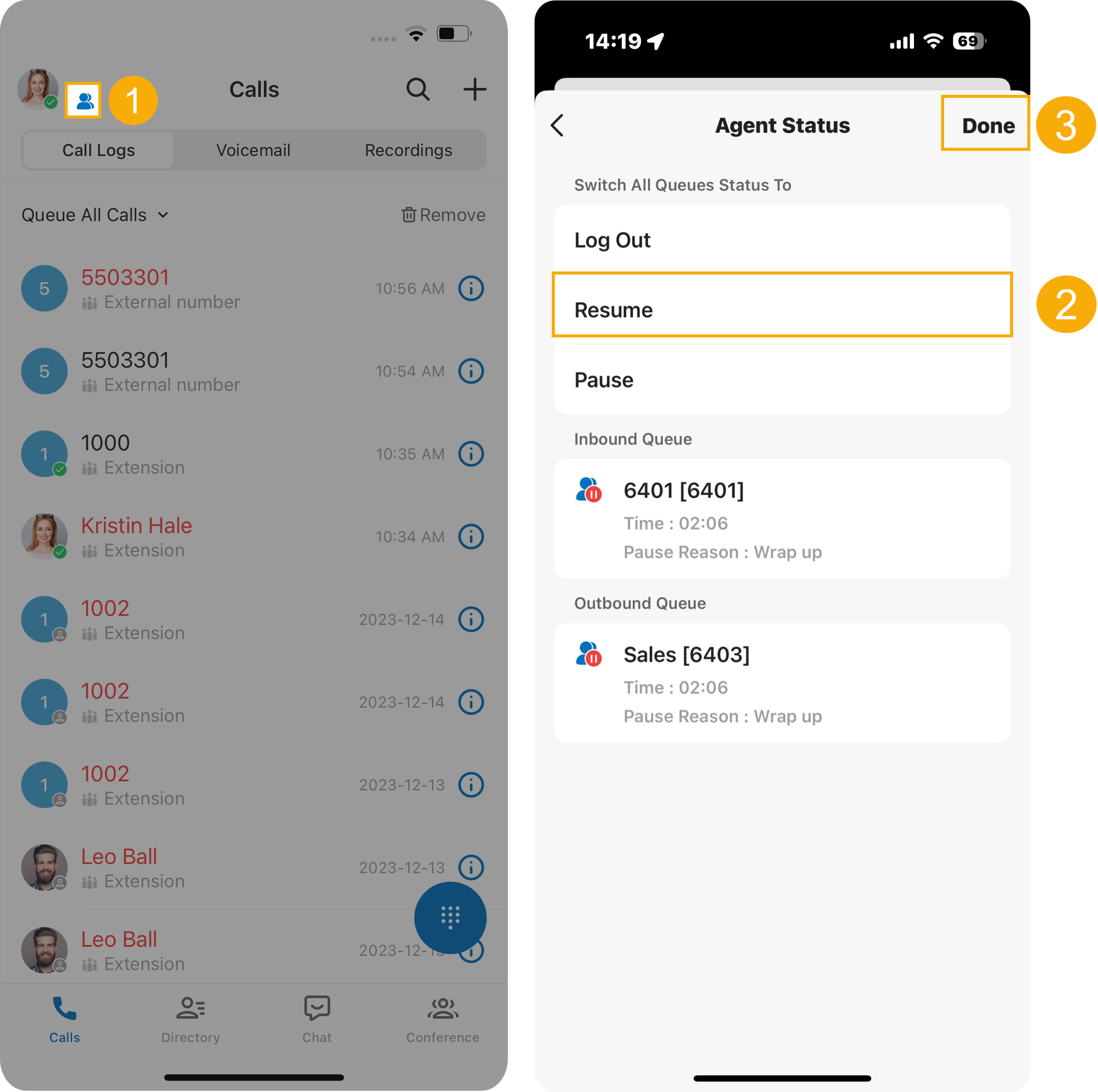
Unpause all queues
Section titled “Unpause all queues”- Open the Agent Status page.
- Under Switch Status To, tap Resume.
- Tap Done.
Unpause a specific queue
Section titled “Unpause a specific queue”From the app
- Open the Agent Status page.
- Tap the queue you want, then tap Resume.
- Tap Done.
With a feature code
- Ask your administrator for the Pause/Unpause feature code.
- Dial the code followed by the queue extension. For example, if the code is
*07, dial*076400to resume queue 6400.
Question about this page?
Ask the AI assistant. It starts from this page, then searches the rest of the docs.
Ask Cloud Voice AI
Answers are AI-generated from the docs and may contain mistakes. Verify with the linked pages.