
Manage Queue Call Logs (Manager)
As a queue manager, you can work through a queue’s call history directly in the Cloud Voice App. A queue is a virtual waiting line that holds incoming calls and hands them out to a group of agents, so its call logs list every call that came through that line, including the ones no agent answered. From the call logs you can follow up on missed calls, mark how each one is being handled, call people back, keep notes and transcriptions up to date, and clear out logs you no longer need. This page covers those tasks in the web and desktop versions of the app first, then in the mobile version.
Before you begin
Section titled “Before you begin”Confirm the following are in place:
- The Cloud Voice server is running firmware 84.23.0.24 or later.
- Your administrator has granted you permission to view and delete queue call logs.
Manage queue call logs in the web and desktop app
Section titled “Manage queue call logs in the web and desktop app”-
Sign in to the Cloud Voice App (web or desktop) and go to Call Logs > Queue Call Logs.
-
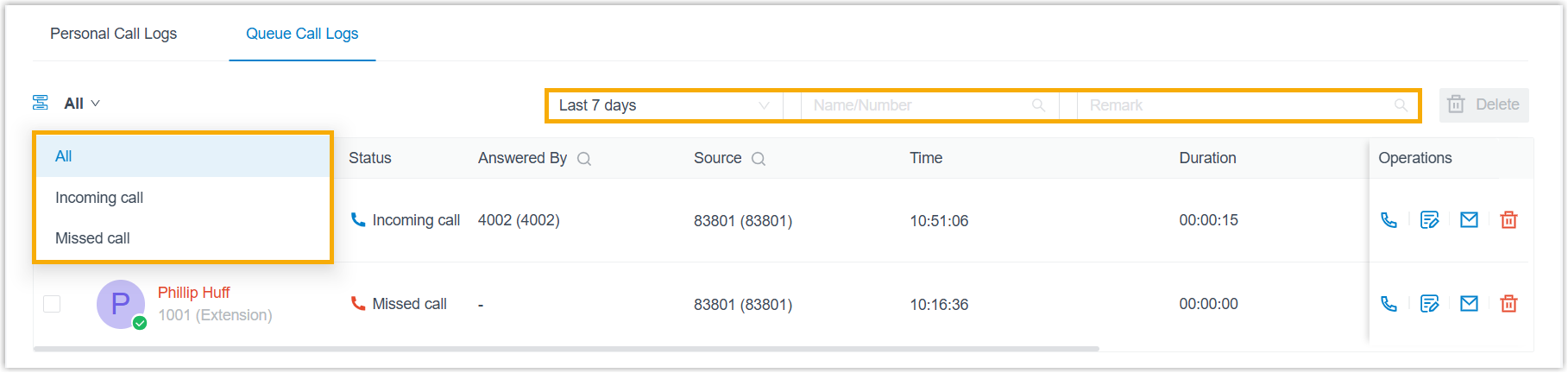
Optionally, use the filters at the top of the list to narrow down the calls you want to work with.
-
Work through the logs using the actions below.
Change the processing status of a missed call
Section titled “Change the processing status of a missed call”The processing status is a shared label that tells the rest of the team where a missed queue call stands. When you plan to follow up on a missed call, or have already dealt with it, update its status so everyone knows.
- Select the current processing status shown next to the call log.
- Choose the appropriate status from the drop-down list.

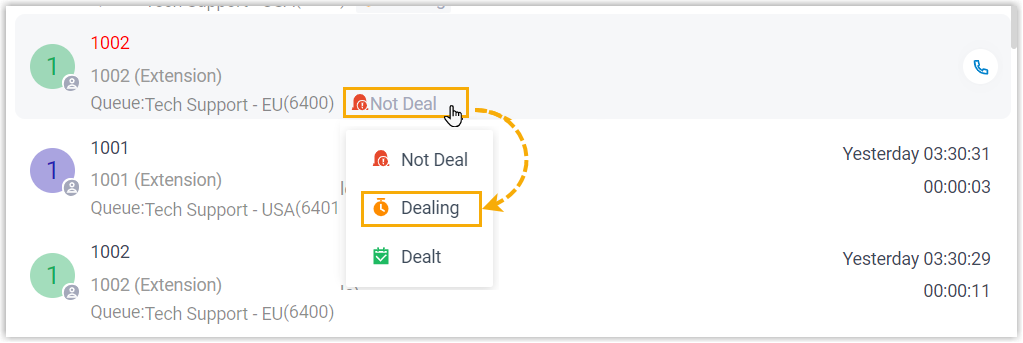
The status updates immediately. Every agent authorized to see the queue’s logs sees the new status, and hovering over it shows the operation record: who changed the status and when.


Call the caller back
Section titled “Call the caller back”You can dial a caller straight from their call log in one of two ways:
- Double-click the call log.
- Select the call icon
 next to the log.
Check or edit call notes
Section titled “Check or edit call notes”Open the note attached to a call to read it or update it.
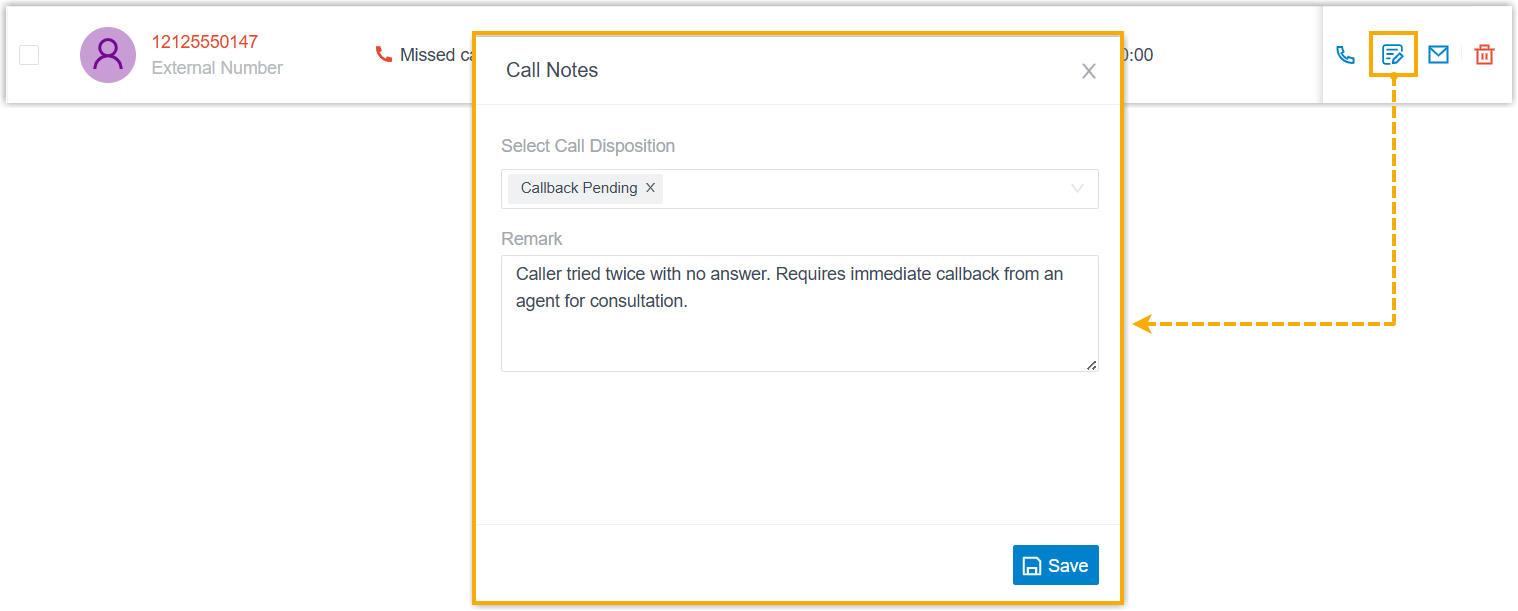
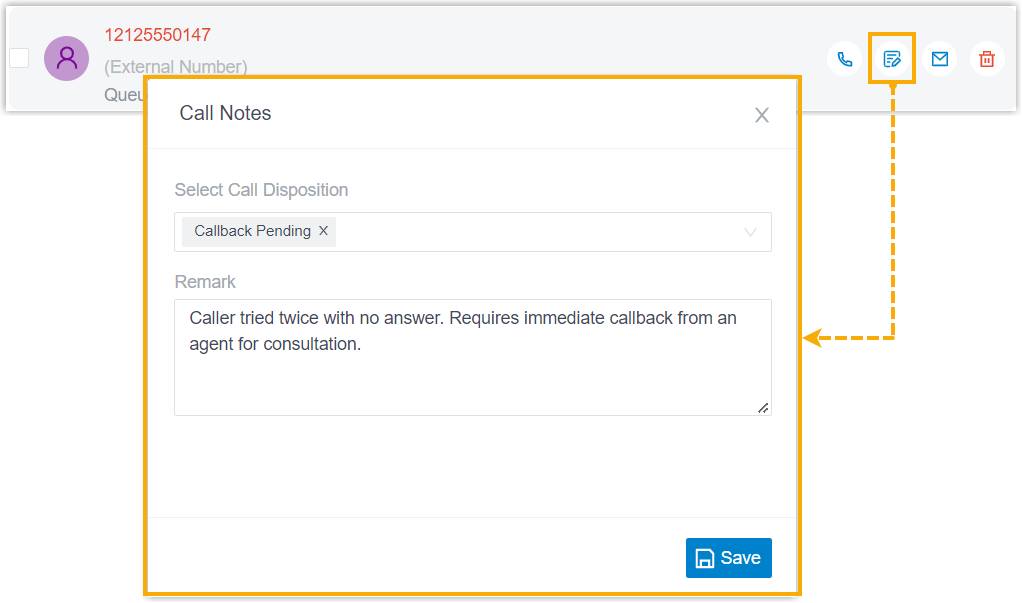
- Select the note icon
 next to the log.
 - In the call note panel, make your changes, then select Save.
Check or edit call transcription
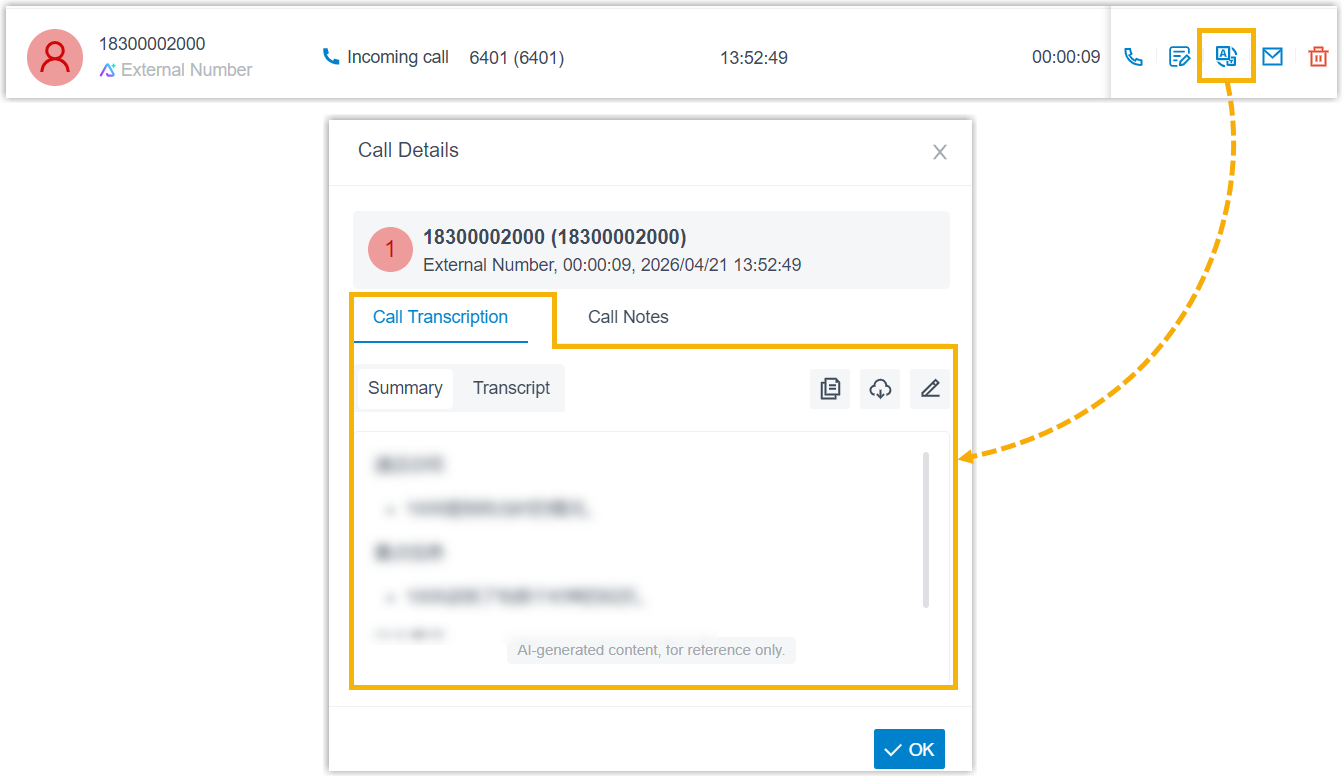
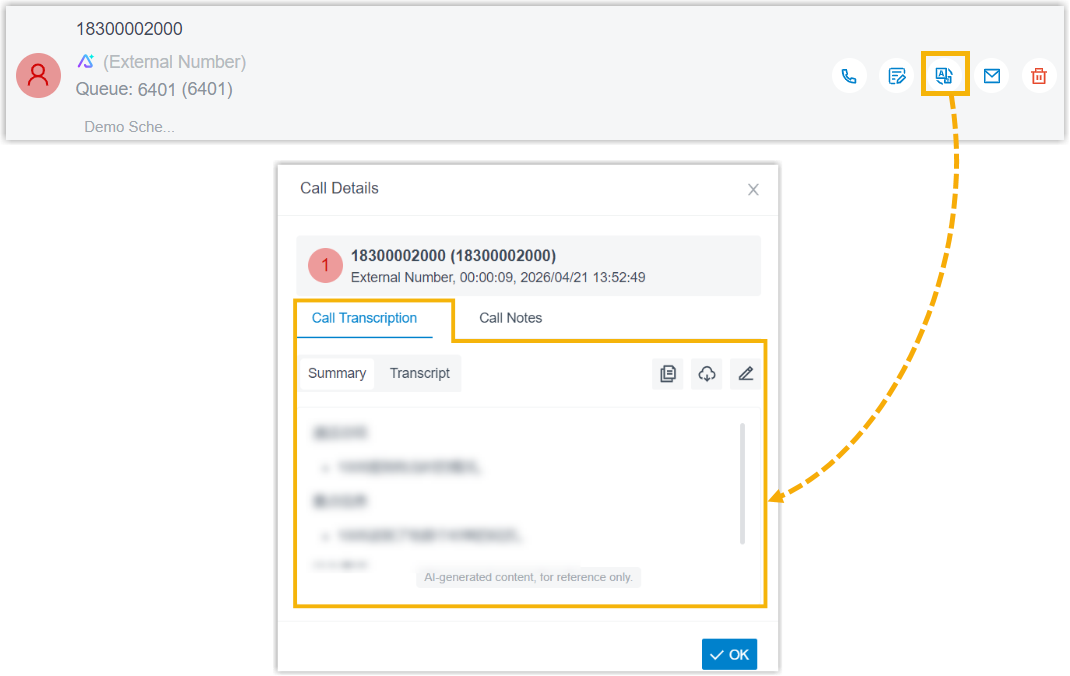
Section titled “Check or edit call transcription”For calls that Cloud Voice has transcribed with AI (artificial intelligence), you can read and refine the summary and the full transcript. Only logs showing the AI icon have a transcription available.
-
Select the transcription icon
 next to a log marked with the AI icon
  .
. -
In the window that opens, review or adjust the Summary and Transcript:
- To edit the summary, select the edit icon
 in the Summary section, then select Save in the top-right corner.
 - To copy the summary, select the copy icon
 in the Summary section.
 - To find text in the transcript, select the search icon
 in the Transcript section.
 - To save a copy, select the download icon
 and choose a file type.
- To edit the summary, select the edit icon
-
Select OK to close the window.
Send a follow-up email
Section titled “Send a follow-up email”You can forward a call’s details to one or more addresses for follow-up.
-
Select the email icon
 next to the call log. The app opens your default email program and starts a new message pre-filled with the call details.

-
Adjust the message as needed, then send it.
Delete call logs
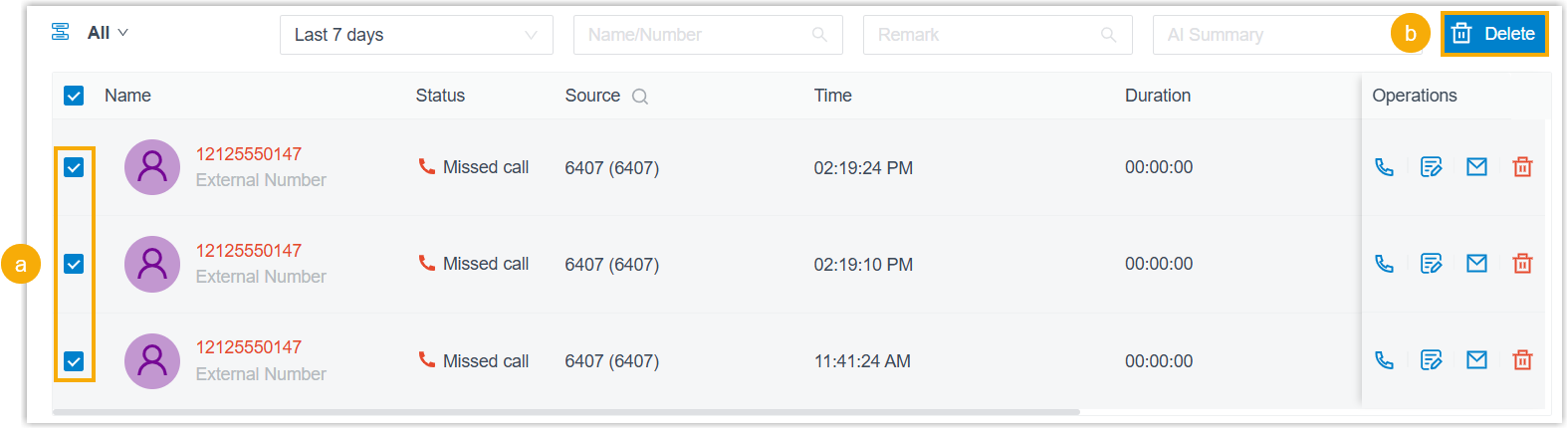
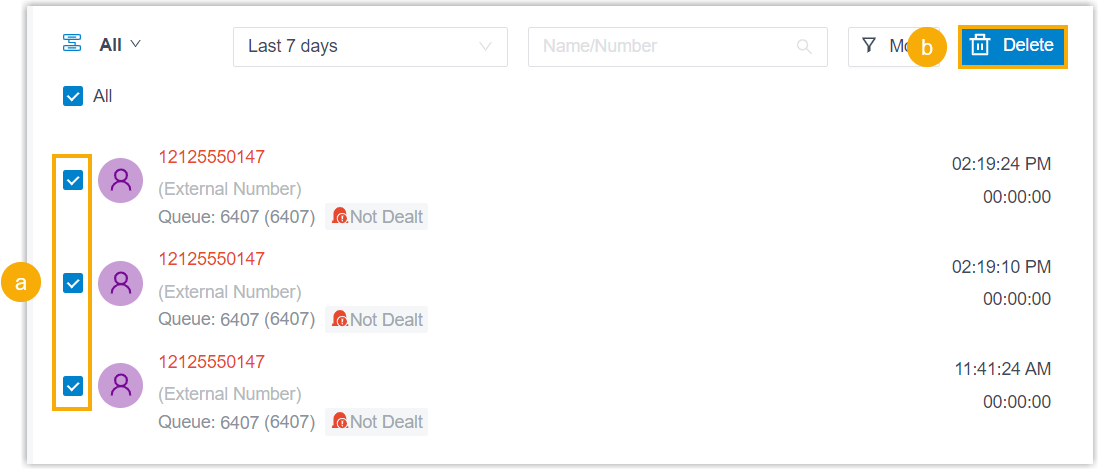
Section titled “Delete call logs”You can remove queue call logs in either of these ways:
- To delete one log, select the delete icon
 next to it.
 - To delete several at once, select the checkboxes for the logs you want to remove, then select Delete.
Manage queue call logs in the mobile app
Section titled “Manage queue call logs in the mobile app”Make sure your mobile app meets the minimum version:
- iOS: version 5.18.15 or later
- Android: version 5.18.12 or later
To get started:
-
Sign in to the Cloud Voice App on your phone and go to Calls > Call Logs.
-
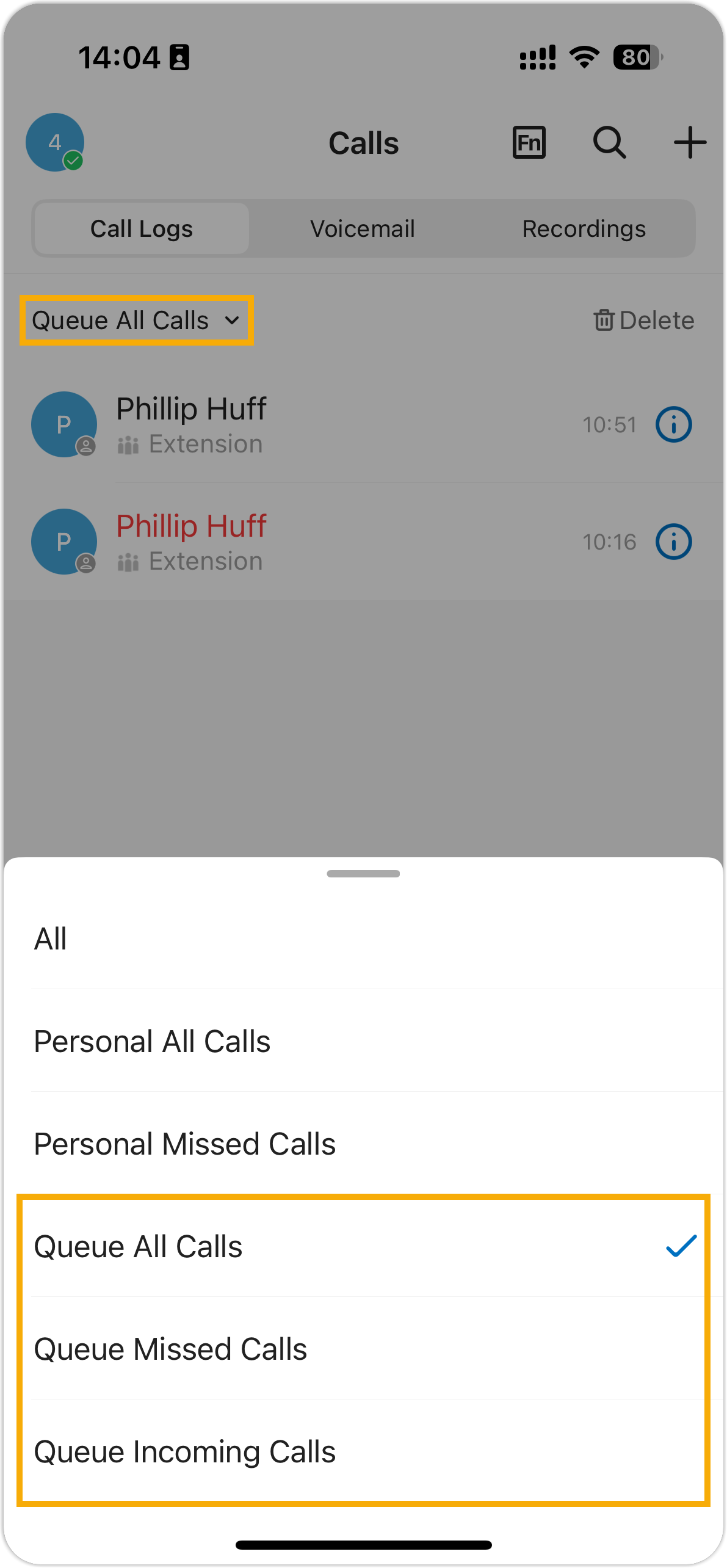
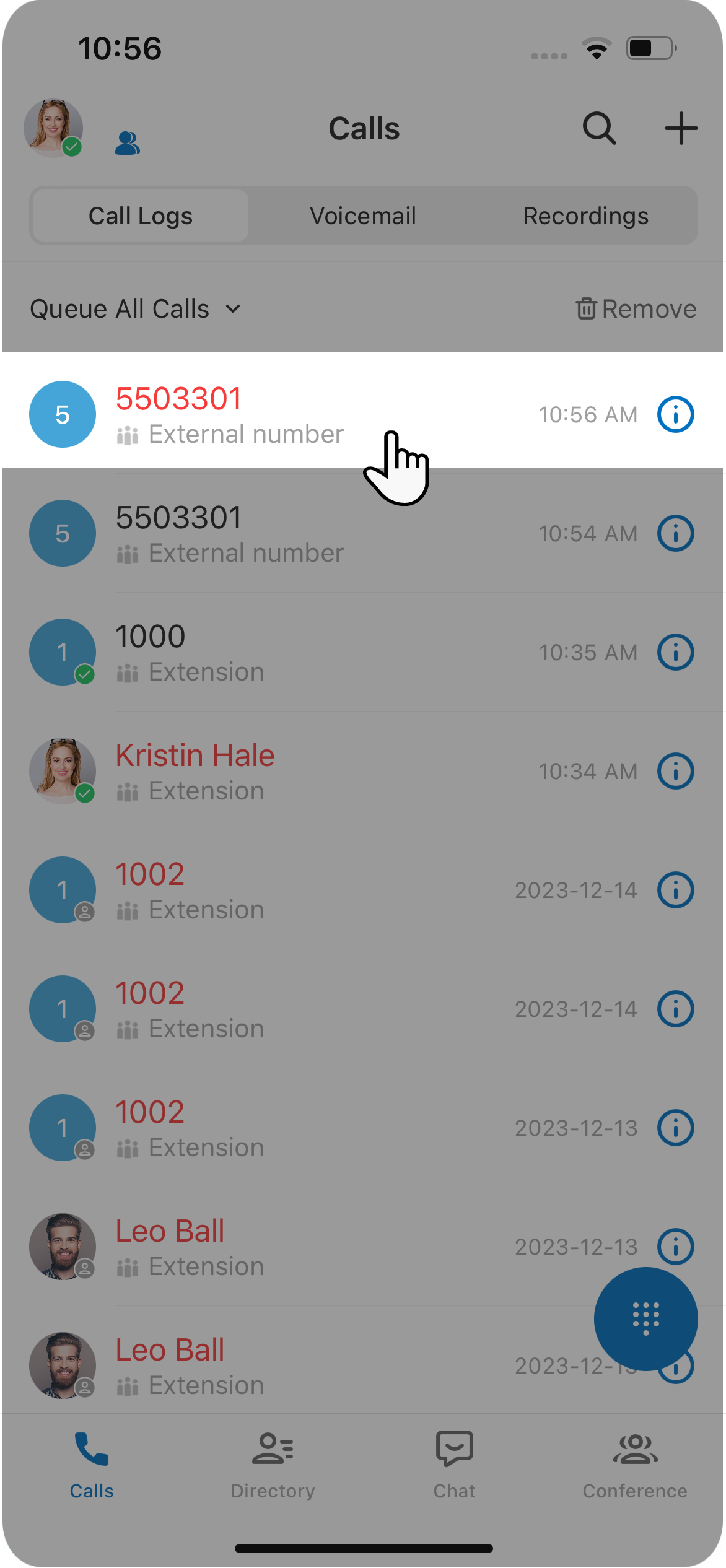
In the top-left corner, choose the type of call you want to see.
-
Work through the logs using the actions below.
Check call log details
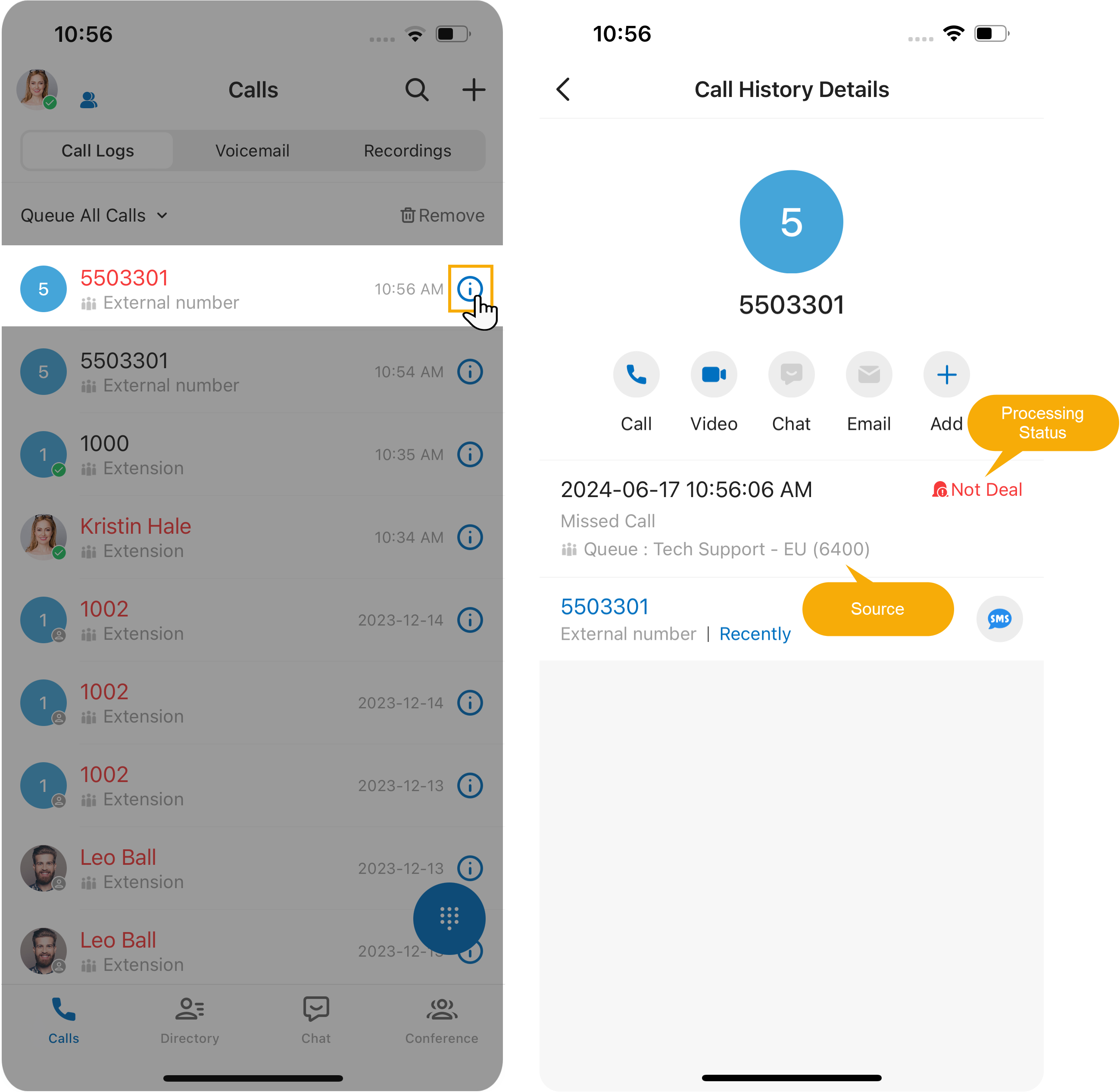
Section titled “Check call log details”See where a queue call came from and, for missed calls, how it is being handled.
-
Tap the info icon
 next to the call log.
 -
Review the details:
- Source: the queue the call arrived through.
- Processing Status: how a missed queue call is being handled.
Change the processing status of a missed call
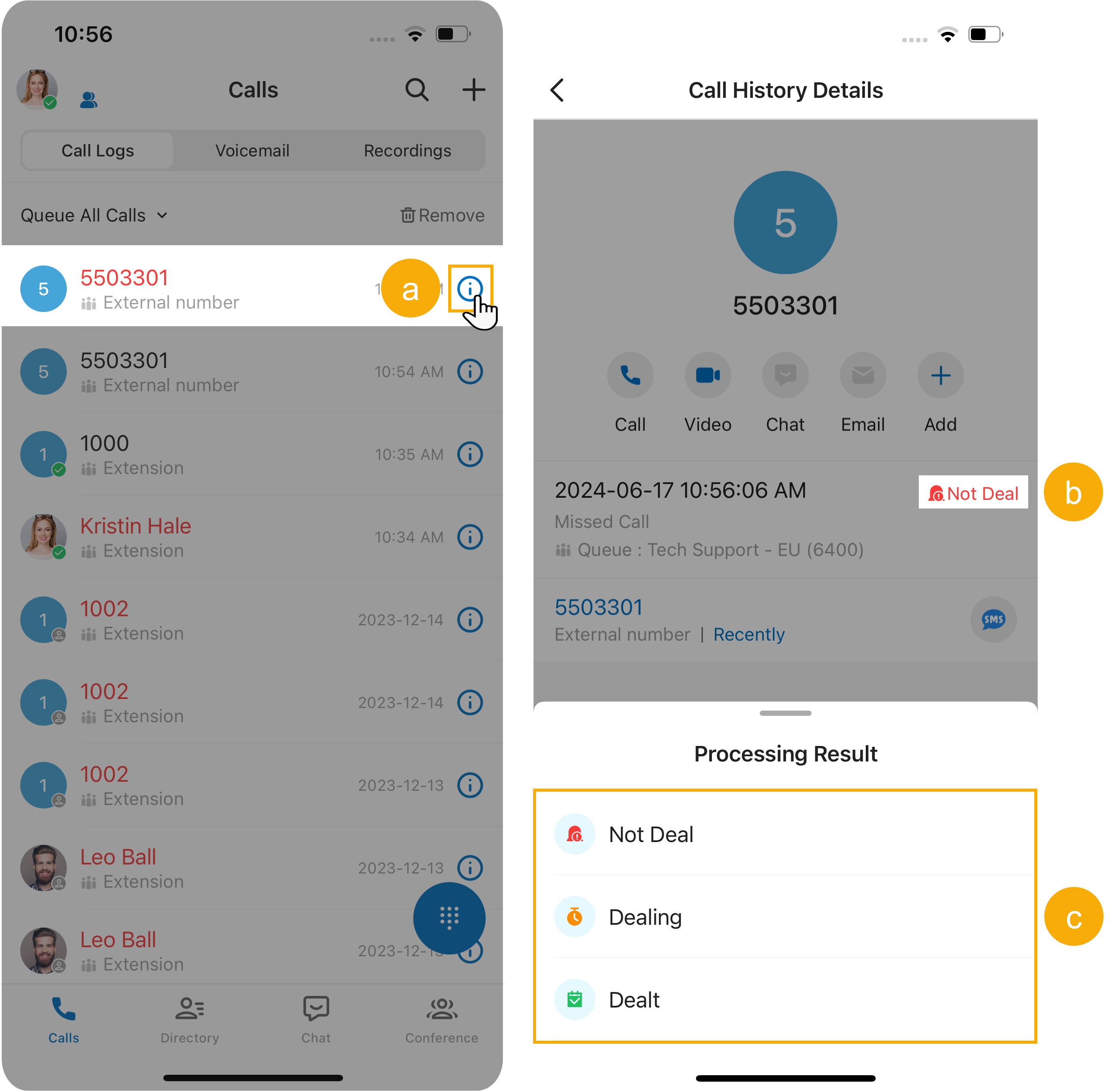
Section titled “Change the processing status of a missed call”- Tap the info icon next to the call log.
- Tap the processing status shown in the call details.
- Choose the appropriate status.
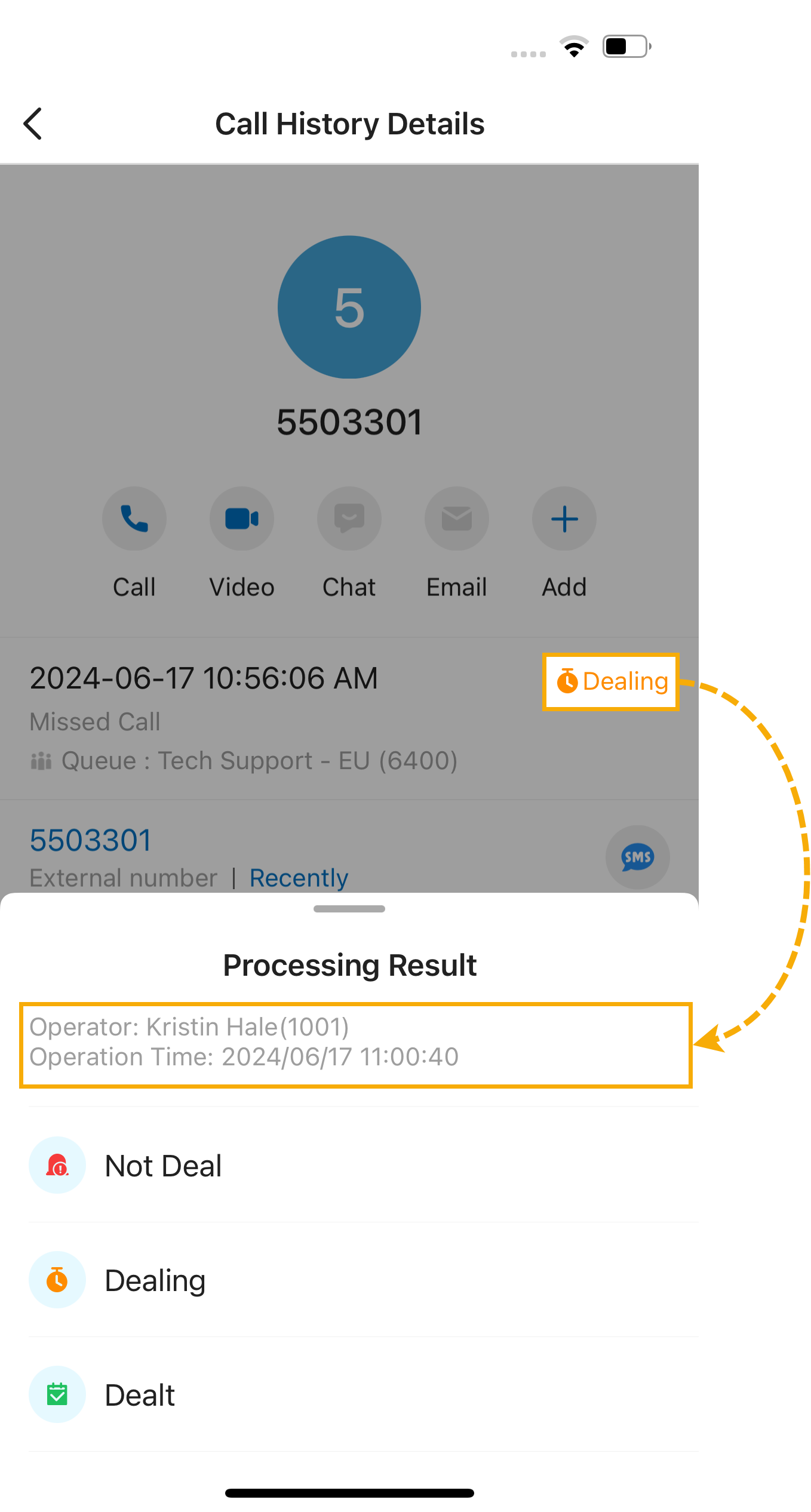
The status updates immediately, and every authorized agent can see the change and its operation record.
Call the caller back
Section titled “Call the caller back”Tap a call log to dial that caller.
Check or edit call notes
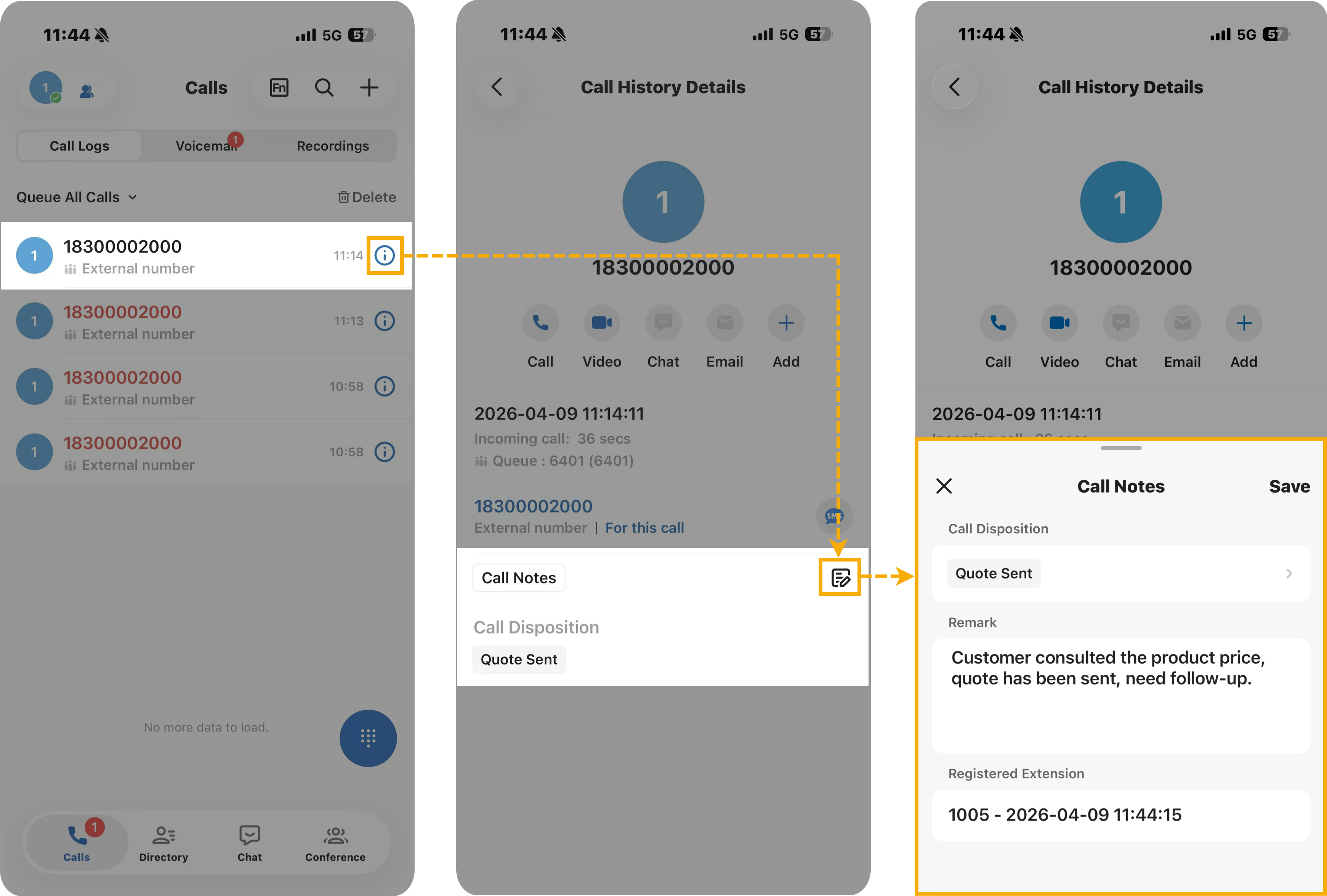
Section titled “Check or edit call notes”- Tap the info icon next to the call log.
- On the details page, tap the note icon
 beside the call note.
 - Review or update the note in the panel, then tap Save.
Check or edit call transcription
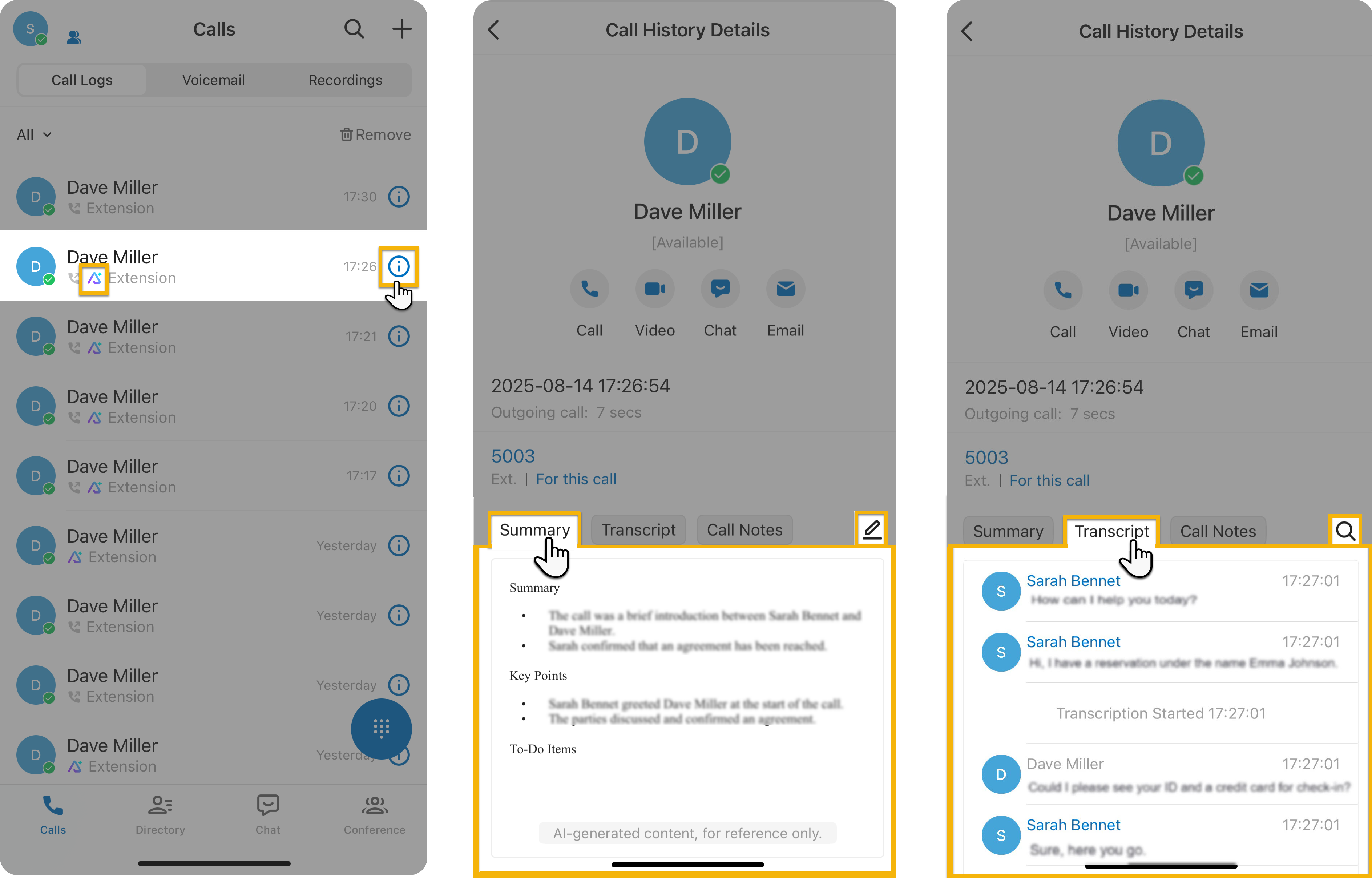
Section titled “Check or edit call transcription”For calls that have been transcribed with AI, you can read and refine the summary and transcript. Only logs showing the AI icon have a transcription available.
- Tap the info icon next to a call log marked with the AI icon .
- In the top-right corner of the Summary section, tap the edit icon
 .
. - Update the summary, then tap Save.
- Tap the Transcript tab.
- In the top-right corner of the Transcript section, tap the search icon to find text in the transcript.
Delete incoming call logs
Section titled “Delete incoming call logs”You can remove incoming queue call logs in either of these ways:
-
To delete one log, swipe left on it and tap Delete.
-
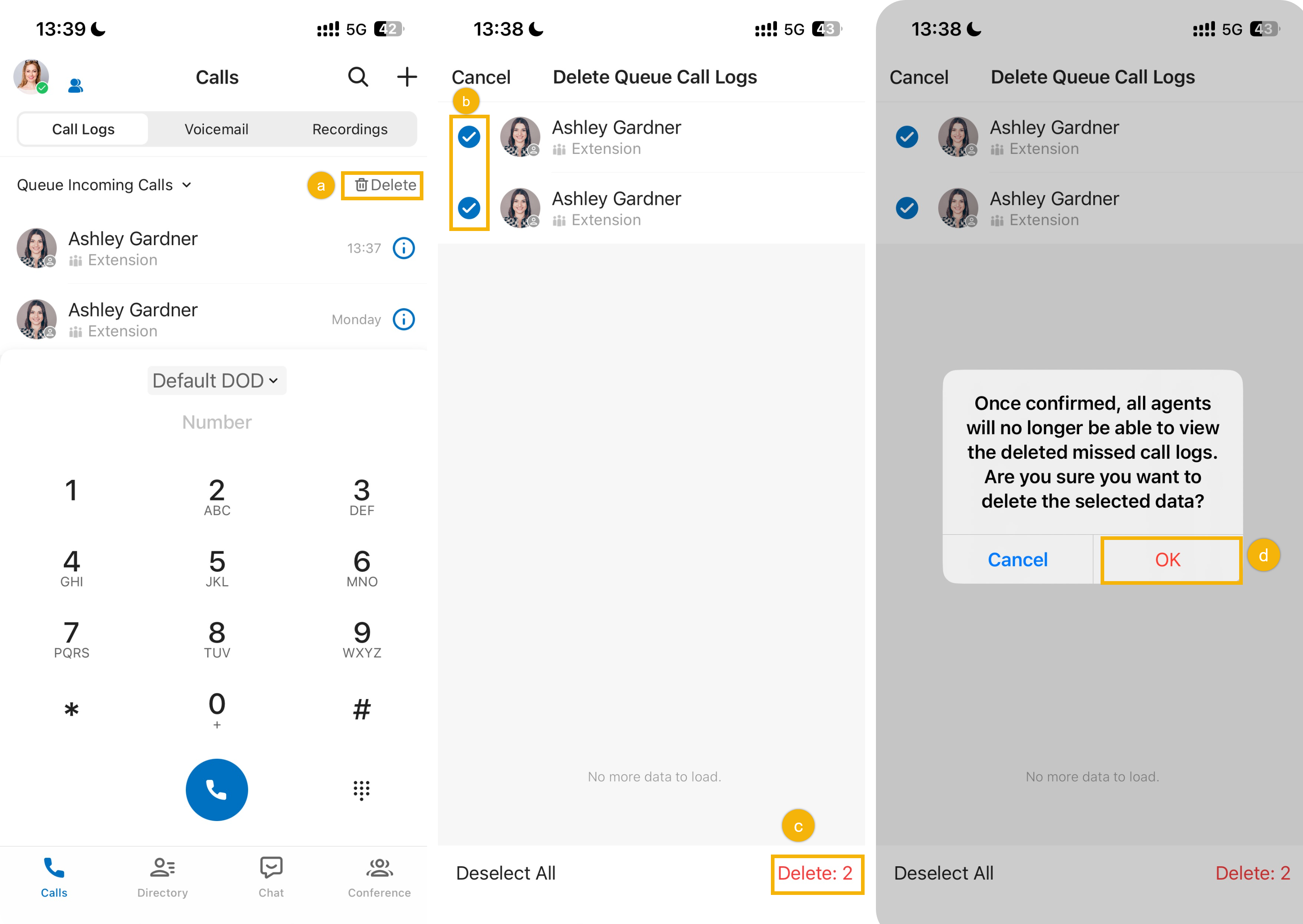
To delete several at once:
- Tap Delete in the top-right corner.
- Select the checkboxes for the logs you want to remove.
- Tap Delete.
- Tap OK in the confirmation dialog.
Question about this page?
Ask the AI assistant. It starts from this page, then searches the rest of the docs.
Ask Cloud Voice AI
Answers are AI-generated from the docs and may contain mistakes. Verify with the linked pages.