
Enable Call Recording Playback in Dynamics 365
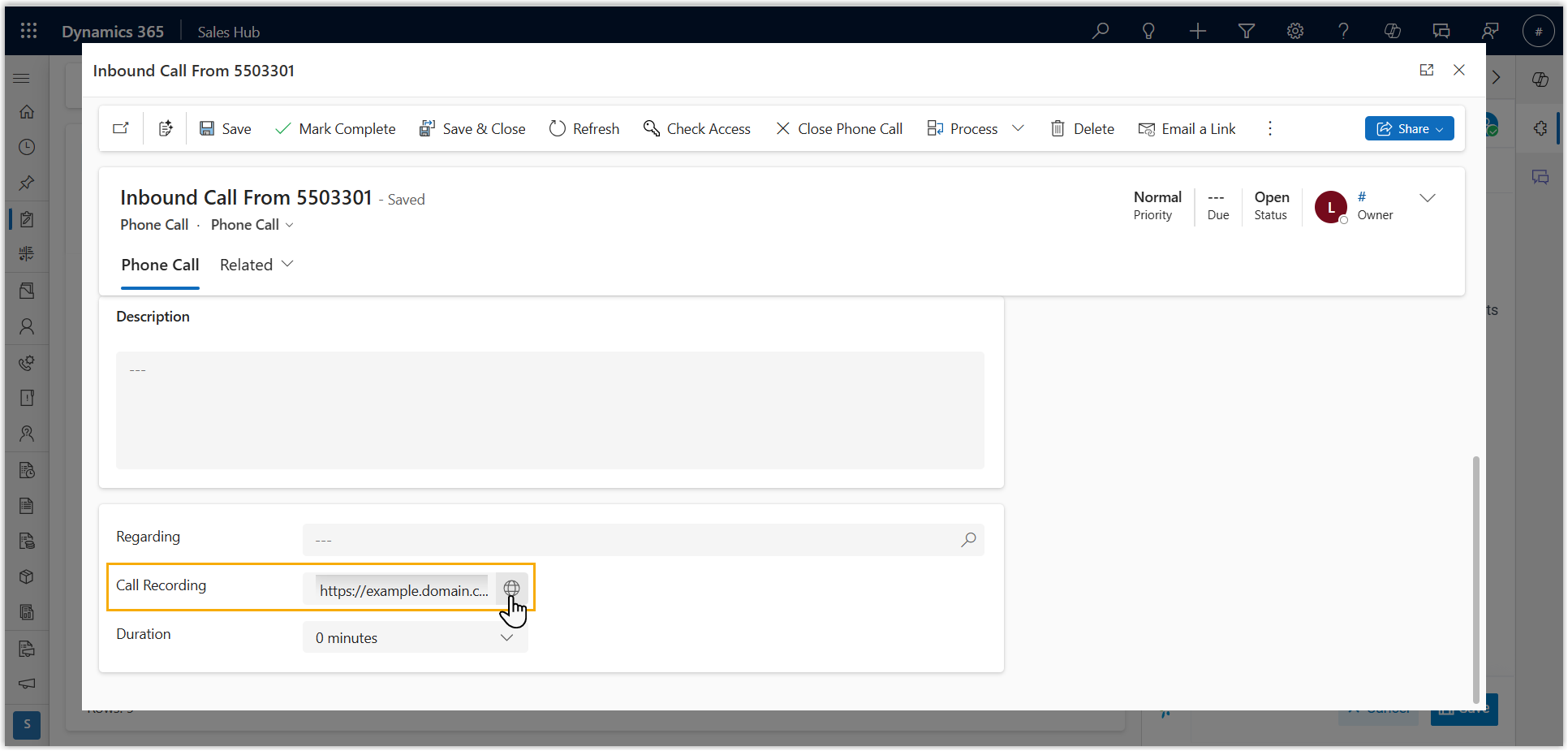
Turn on recording access so that Cloud Voice pushes each stored recording to its matching phone call activity in Dynamics 365. Once enabled, your team can listen to calls from inside the CRM (Customer Relationship Management system) without leaving the record they are working on.
Before you begin
Section titled “Before you begin”Make sure phone call activity creation is already configured. This is what ties every inbound and outbound call to a phone call activity, and the recording is attached to that activity.
Turn on recording playback
Section titled “Turn on recording playback”- Sign in to the Cloud Voice App for Dynamics 365, then open the settings menu (
 ).
). - Select the Dynamics Integration tab.
- Enable the Play Call Recording checkbox.
- Click Save.
Result
Section titled “Result”Recordings held on the PBX are now available from the linked phone call activity in Dynamics 365, where you can review and play them directly.
Question about this page?
Ask the AI assistant. It starts from this page, then searches the rest of the docs.
Ask Cloud Voice AI
Answers are AI-generated from the docs and may contain mistakes. Verify with the linked pages.