
Access Operator Panel
The Operator Panel lives inside the Cloud Voice App and is available from both the web client and the desktop client. Follow the steps below to sign in and open the panel.
Requirements
Section titled “Requirements”Before you begin, confirm your environment meets the following minimums:
- PBX (Private Branch Exchange) server: version 84.18.0.59 or later
- Cloud Voice App (Desktop): version 1.10.2 or later
Before you start
Section titled “Before you start”Make sure the following are in place:
- The Cloud Voice App web client or desktop client is enabled for your account.
- Your extension has permission to use the Operator Panel.
- You have the sign-in details from your system administrator, your username and password, plus the server’s network information (the domain name, or the IP addresses and ports).
Sign in and open the panel
Section titled “Sign in and open the panel”-
Sign in to the Cloud Voice App using either the web client or the desktop client.
Web client
- Open your web browser, type the Cloud Voice App domain in the address bar, and press Enter.
- Type your username and password, then select LOG IN.
- Username: your extension number or email address.
- Password: your extension user password.
Desktop client
- Launch the Cloud Voice App desktop client.
- Enter your sign-in details, then select LOG IN.
- Username: your extension number or email address.
- Password: your extension user password.
- Domain: enter the domain name, or select the settings icon
 to enter the IP addresses and ports instead.
-
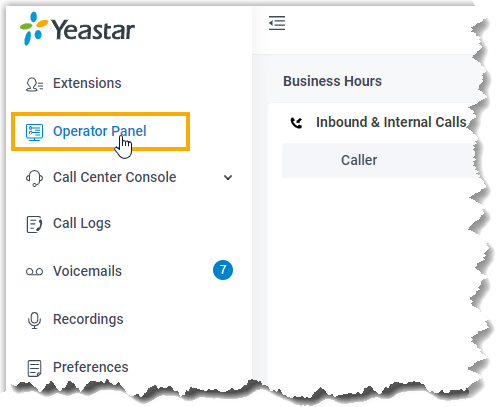
In the left navigation bar, select Operator Panel.
Question about this page?
Ask the AI assistant. It starts from this page, then searches the rest of the docs.
Ask Cloud Voice AI
About
Answers are AI-generated from the docs and may contain mistakes. Verify with the linked pages.