
Operator Panel Overview
The Operator Panel is a call-management console built directly into the Cloud Voice App on both the web and desktop clients. This page introduces what the panel is, the tasks it supports, and the permissions you need to work with other people’s calls.
What the Operator Panel is
Section titled “What the Operator Panel is”Fielding calls for a busy organization is demanding work. A receptionist has to catch each incoming call, judge where it belongs, and get it to the right person without keeping the caller waiting, and doing all of that from the keypad of a desk phone quickly becomes a bottleneck. The Operator Panel is built for exactly this role: the people who move a high volume of calls through the system, such as front-desk receptionists and team or agent managers.
The panel brings several views together in one place: a live call console alongside lists of extensions, ring groups, queues, parking slots (numbered holding spots where a call can wait), and group voicemail boxes. From a single screen you can see what every call is doing, who is available, and how your groups are performing, which makes it far easier to keep calls flowing and to spot when someone needs help.
Most actions come down to a click or a drag-and-drop, so you can pick up, route, and hand off calls without hunting through menus or dialing feature codes.
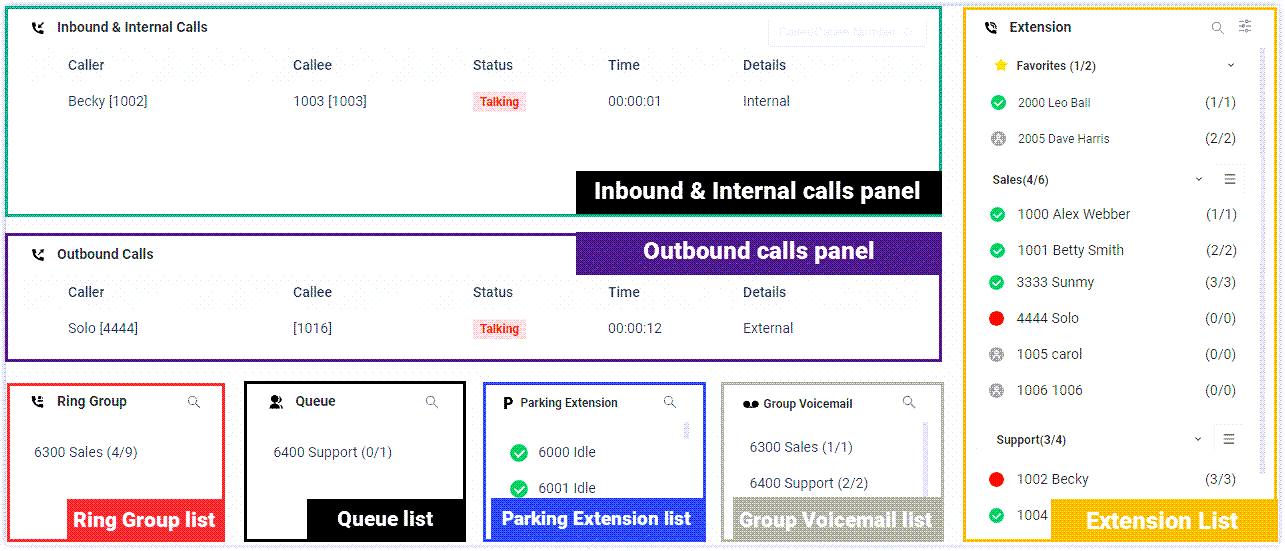
What you can do on the Operator Panel
Section titled “What you can do on the Operator Panel”The panel gives you a working view of every call in play, your own and your group members’, and a fast way to send each one where it needs to go. From here you can:
- Check and change the presence status of extensions. Presence is the availability state shown for each extension, such as available, busy, or away.
- Track the status of queues, ring groups, parking slots, and group voicemail boxes.
- Watch call activity as it happens, across internal, inbound, and outbound calls.
- Take action on any internal, inbound, or outbound call:
- Distribute calls: redirect an incoming call or transfer a connected one.
- Connect calls: pick up a ringing call or hang one up.
- Park calls: place a call in a parking slot and retrieve it later.
- Control recording: check whether a call is being recorded and switch recording on or off.
- Monitor calls: barge in, listen silently, or whisper to one party.
- Call a group member directly.
- Leave a voicemail message.
Permissions you need
Section titled “Permissions you need”Watching and controlling calls for other people is governed by permissions. To manage your group members’ calls and presence, ask your PBX (Private Branch Exchange, the phone system) administrator to grant the permissions that cover the actions you perform:
- Switch group members’ presence status.
- Manage call distribution, redirect, transfer, and drag-and-drop routing.
- Monitor calls, listen, whisper, and barge in.
- Park and retrieve calls.
- Switch Business Hours and Holiday status.
- Switch the recording status of extensions.
- Pick up or hang up calls that belong to other extensions.
- Route calls straight out of an IVR (Interactive Voice Response, the automated menu that asks callers to press a key), regardless of the IVR menu.
Question about this page?
Ask the AI assistant. It starts from this page, then searches the rest of the docs.
Ask Cloud Voice AI
Answers are AI-generated from the docs and may contain mistakes. Verify with the linked pages.