
Manage Your Status in Queues on the Cloud Voice App
If you handle calls for one or more queues, you control your own availability directly from the Cloud Voice App on the web or desktop. This page covers how to log in to and out of queues, and how to pause and unpause the calls a queue sends you.
Two things shape which actions apply to you:
- Logging in and out joins or leaves a queue. This applies only to dynamic agents, since static agents are always assigned to their queues.
- Pausing and unpausing temporarily stops or resumes queue calls without leaving the queue. Any agent can do this, whether static or dynamic.
Most actions are available two ways in the app: from the Agent Status menu in the top navigation bar, or from Call Center Console > Queue Panel. Many can also be triggered by dialing a feature code, which your system administrator provides.
Log in to queues
Section titled “Log in to queues”Log in to every queue
Section titled “Log in to every queue”From the Agent Status menu
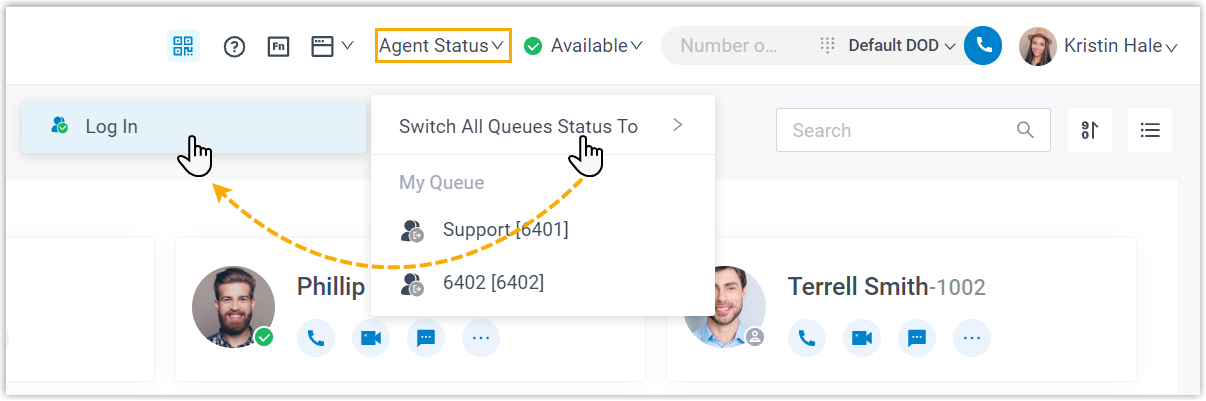
- In the top navigation bar, click Agent Status.
- Point to Switch All Queue Status To.
- Click Log In.
With a feature code
- Ask your system administrator for the Log In to All Queues feature code.
- Dial it. For example, if the code is
*77, dial*77to log in to all the queues you belong to.
Log back in to your previous queues
Section titled “Log back in to your previous queues”If you want to rejoin only the queues you were last logged in to, you can do so in one step, without picking each queue by hand.
From the Agent Status menu
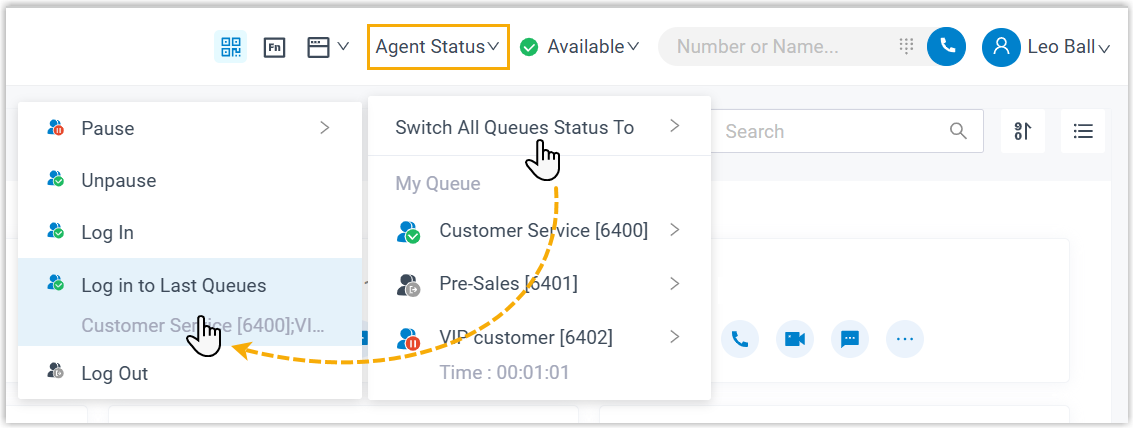
- In the top navigation bar, click Agent Status.
- Point to Switch All Queue Status To.
- Click Log in to Last Queues.
With a feature code
- Ask your system administrator for the Log in to Last Queues feature code.
- Dial it. For example, if the code is
*78, dial*78to rejoin every queue you were previously logged in to.
Log in to one queue
Section titled “Log in to one queue”From the Agent Status menu
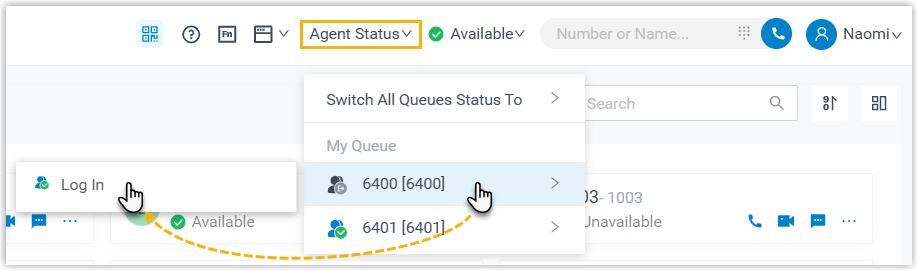
- In the top navigation bar, click Agent Status.
- Point to the queue you want to join.
- Click Log In.
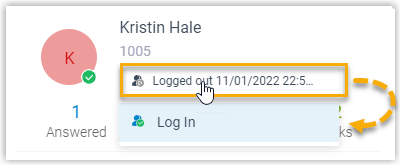
From the Queue Panel
-
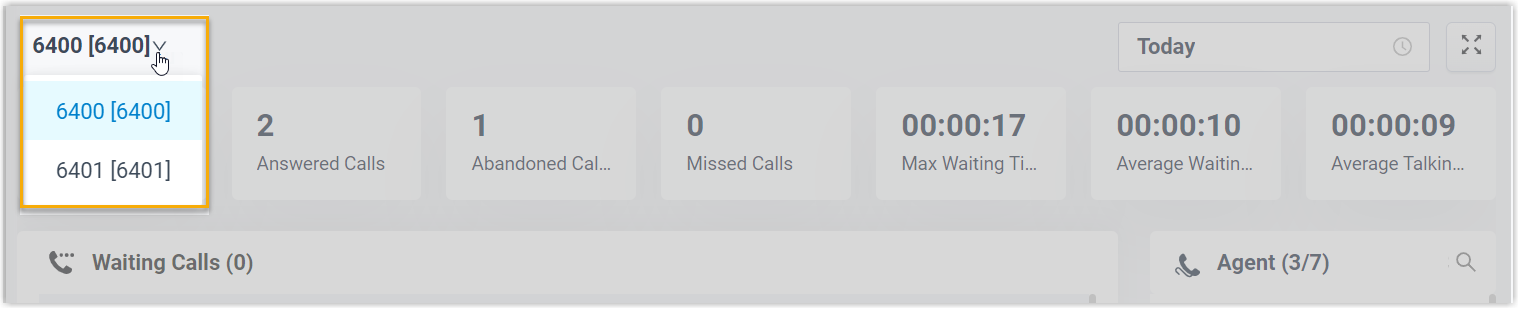
Go to Call Center Console > Queue Panel.
-
In the top-left corner, choose the queue you want.
-
In the Agent panel, point to your extension and update your status:
- Click your current agent status.
- Click Log In.
With a feature code
- Ask your system administrator for the Log in/Log out feature code.
- Dial the code followed by the queue extension. For example, if the code is
*7, dial*76400to log in to queue 6400.
Log out of queues
Section titled “Log out of queues”Log out of every queue
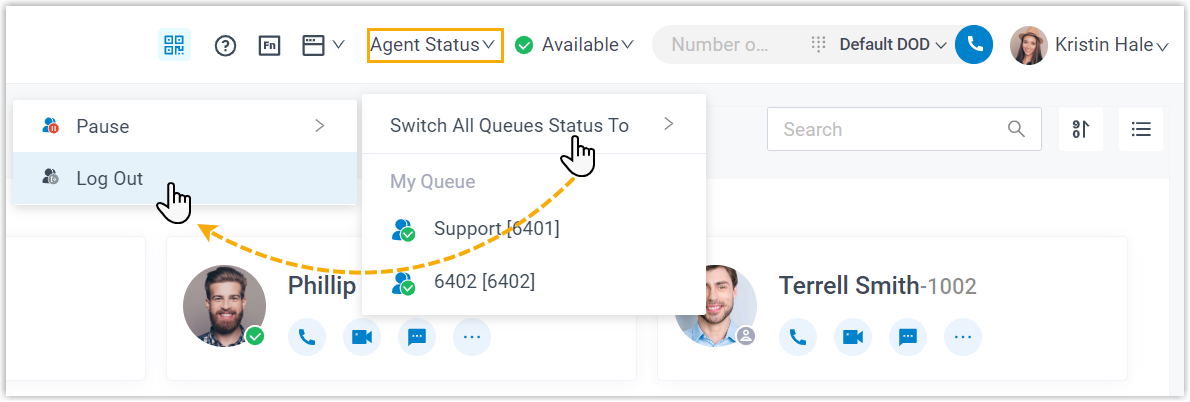
Section titled “Log out of every queue”From the Agent Status menu
- In the top navigation bar, click Agent Status.
- Point to Switch All Queue Status To.
- Click Log Out.
With a feature code
- Ask your system administrator for the Log Out of All Queues feature code.
- Dial it. For example, if the code is
*077, dial*077to log out of all the queues you belong to.
Log out of one queue
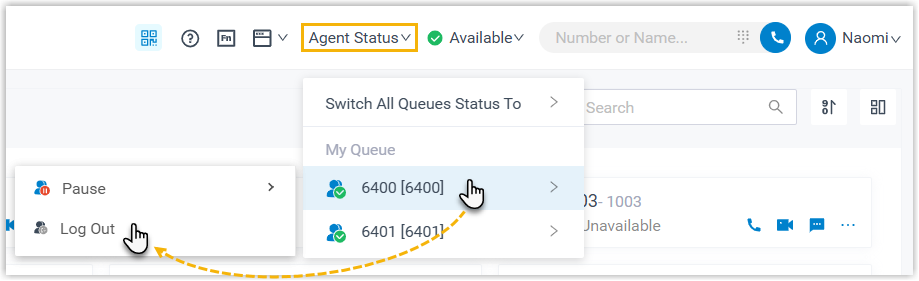
Section titled “Log out of one queue”From the Agent Status menu
- In the top navigation bar, click Agent Status.
- Point to the queue you want to leave.
- Click Log Out.
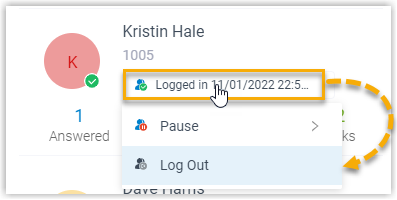
From the Queue Panel
-
Go to Call Center Console > Queue Panel.
-
In the top-left corner, choose the queue you want.
-
In the Agent panel, point to your extension and update your status:
- Click your current agent status.
- Click Log Out.
With a feature code
- Ask your system administrator for the Log in/Log out feature code.
- Dial the code followed by the queue extension. For example, if the code is
*7, dial*76400to log out of queue 6400.
Pause queue calls
Section titled “Pause queue calls”Pausing is useful when you step away from your desk. While you are paused, the queue holds calls back and stops routing them to you. This works whether you are a static or dynamic agent.
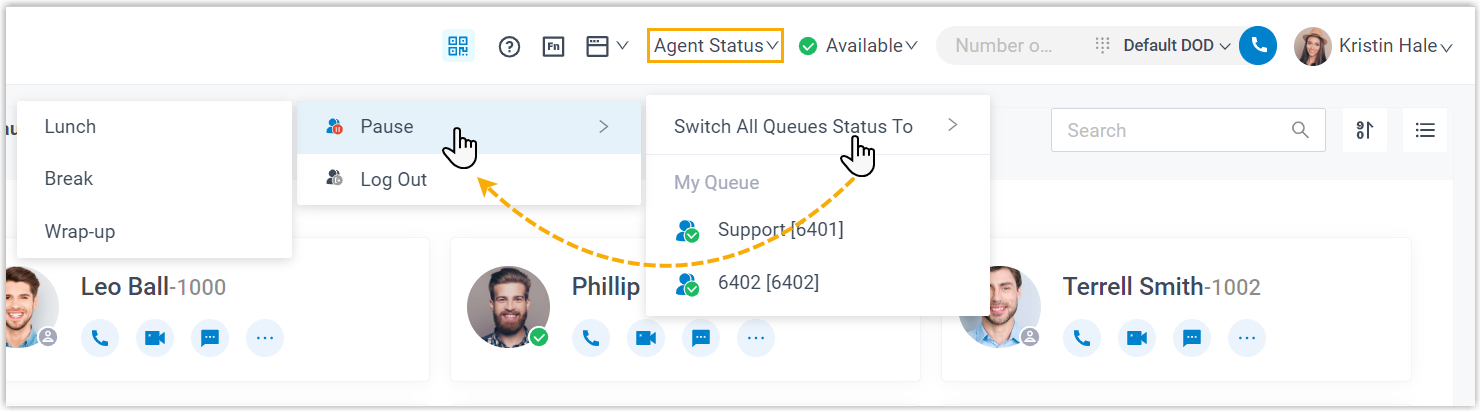
Pause in every queue
Section titled “Pause in every queue”- In the top navigation bar, click Agent Status.
- Point to Switch All Queue Status To.
- Click Pause.
- Optional: pick a reason from the pause reason list.
Pause in one queue
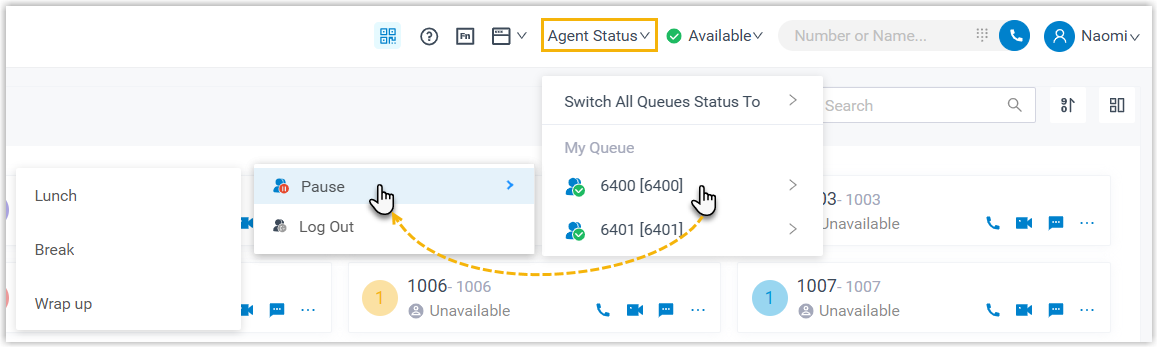
Section titled “Pause in one queue”From the Agent Status menu
- In the top navigation bar, click Agent Status.
- Point to the queue you want to pause.
- Click Pause.
- Optional: pick a reason from the pause reason list.
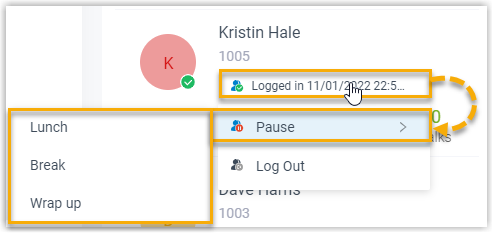
From the Queue Panel
-
Go to Call Center Console > Queue Panel.
-
In the top-left corner, choose the queue you want.
-
In the Agent panel, point to your extension and update your status:
- Click your current agent status.
- Click Pause.
- Optional: pick a reason from the pause reason list.
With a feature code
- Ask your system administrator for the Pause/Unpause feature code and, if you want to record why you paused, the Pause Reason feature codes.
- Dial the code. For example, if the Pause/Unpause code is
*07, to pause queue 6400 you can:- Pause with no reason by dialing
*076400. - Pause with a reason by adding the pause reason code, such as
*076400*03.
- Pause with no reason by dialing
Unpause queue calls
Section titled “Unpause queue calls”When you are ready to take calls again, unpause to let the queue resume routing calls to you. This works whether you are a static or dynamic agent.
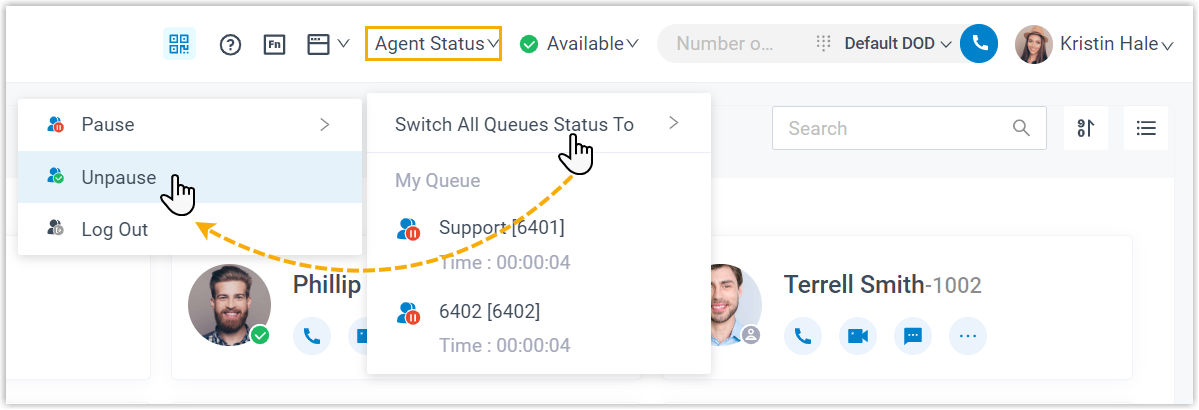
Unpause in every queue
Section titled “Unpause in every queue”- In the top navigation bar, click Agent Status.
- Point to Switch All Queue Status To.
- Click Unpause.
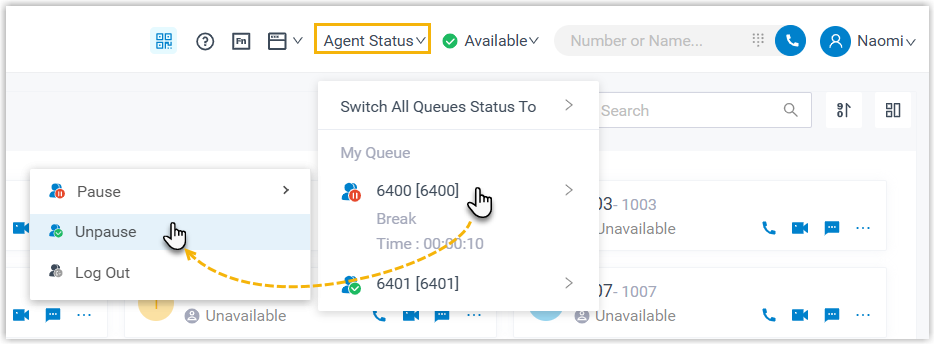
Unpause in one queue
Section titled “Unpause in one queue”From the Agent Status menu
- In the top navigation bar, click Agent Status.
- Point to the queue you want to unpause.
- Click Unpause.
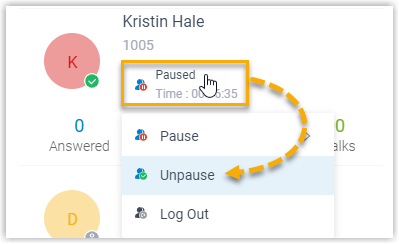
From the Queue Panel
-
Go to Call Center Console > Queue Panel.
-
In the top-left corner, choose the queue you want.
-
In the Agent panel, point to your extension and update your status:
- Click your current agent status.
- Click Unpause.
With a feature code
- Ask your system administrator for the Pause/Unpause feature code.
- Dial the code followed by the queue extension. For example, if the code is
*07, dial*076400to unpause queue 6400.
Question about this page?
Ask the AI assistant. It starts from this page, then searches the rest of the docs.
Ask Cloud Voice AI
Answers are AI-generated from the docs and may contain mistakes. Verify with the linked pages.