
Manage Users within Organizations
As your team changes, you will need to keep the organizational structure in Cloud Voice up to date. This page explains how to move users between departments when they change roles, and how to remove users when they leave.
Every task below starts from the same place in the portal: go to Extension and Trunk > Extension > User. The left side of the page shows your organizational tree; selecting a node lists the extensions that belong to it.
Move a single user to another department
Section titled “Move a single user to another department”Use this when one person transfers to a different team.
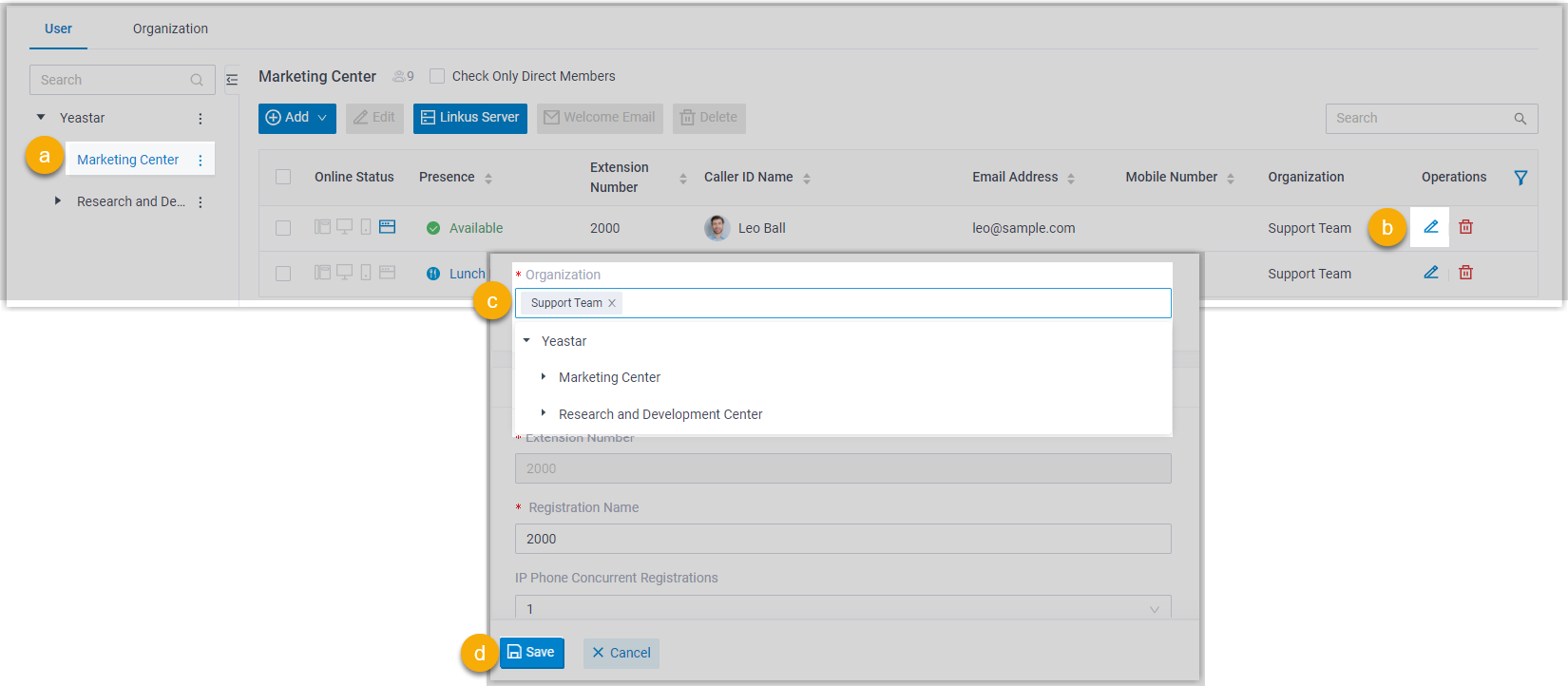
- In the organizational tree on the left, click the department the user currently belongs to. Cloud Voice lists every extension in that department.
- Click the edit icon
 next to the user’s extension.
 - In the Organization field, choose the department you want to assign the user to.
- Click Save, then Apply.
Move several users to the same department
Section titled “Move several users to the same department”If a group of people is joining the same team, you can update them all in one pass.
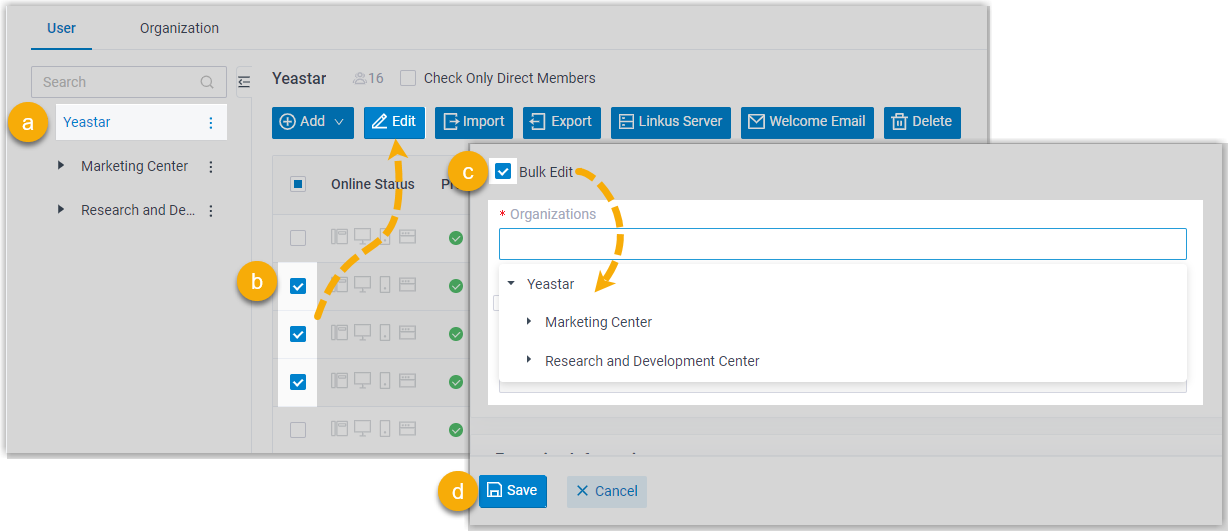
- In the organizational tree, click the root organization. Cloud Voice lists every extension across the whole company.
- Select the checkboxes for the extensions you want to move, then click Edit. Their current department assignments are cleared.
- Select the Bulk Edit checkbox for organization, then choose the department(s) to assign.
- Click Save, then Apply.
Remove users from your organization
Section titled “Remove users from your organization”When someone leaves, you can remove their extension from the department it belongs to.
Users in the same department
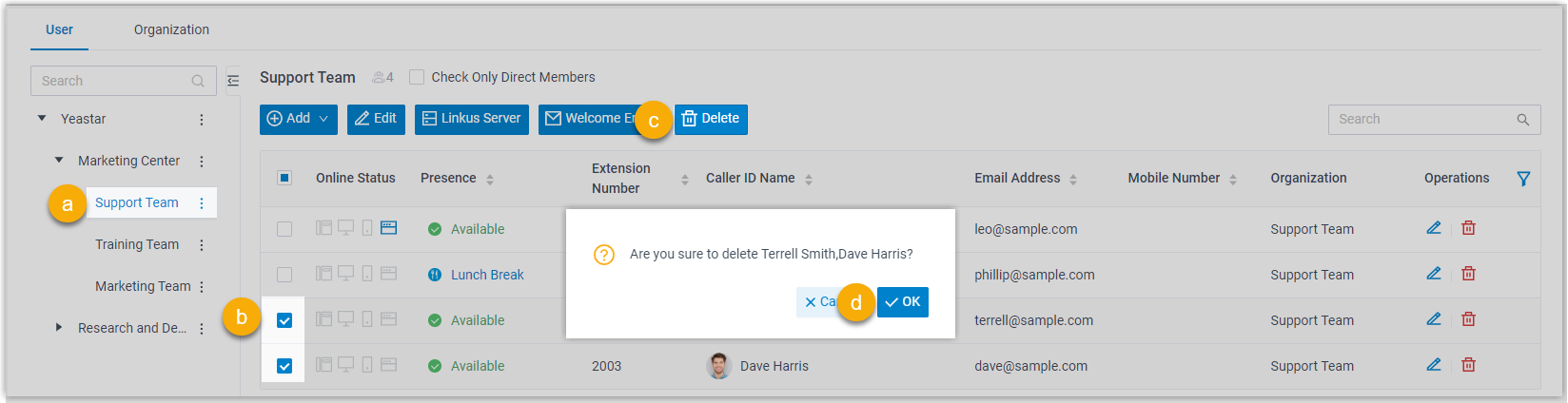
Section titled “Users in the same department”- In the organizational tree, click the department the users belong to. Cloud Voice lists that department’s extensions.
- Select the checkboxes for the extensions you want to remove, then click Delete.
- In the confirmation window, click OK.
- Click Apply. The selected extensions are deleted from the system.
Users across different departments
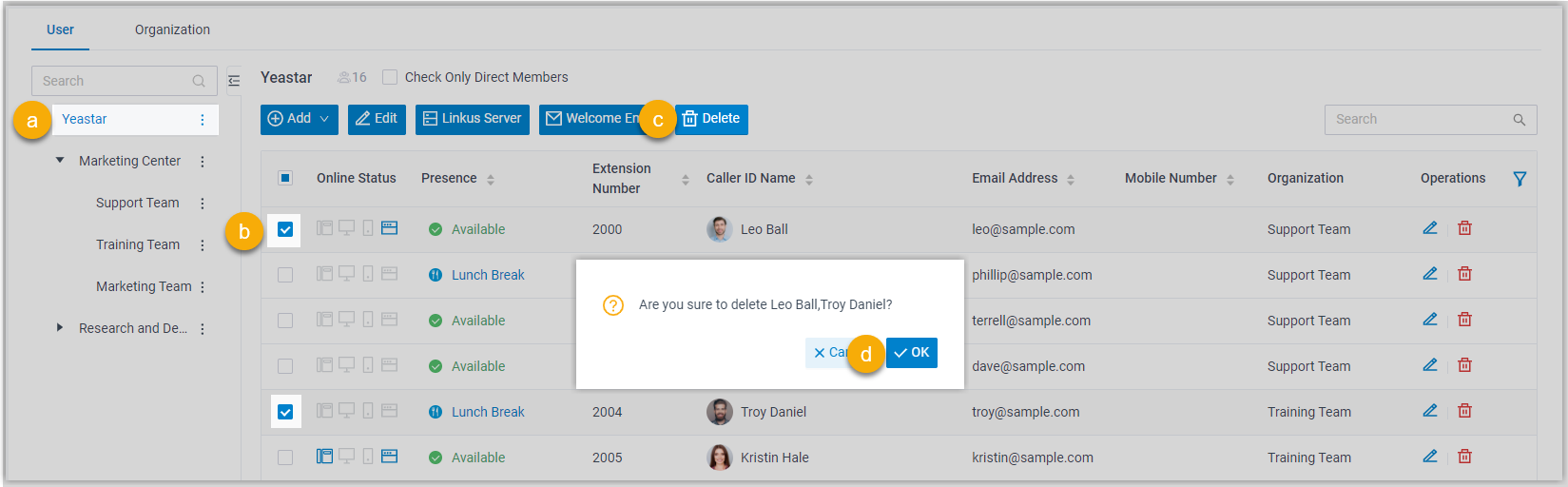
Section titled “Users across different departments”- In the organizational tree, click the root organization to list every extension in the company.
- Select the checkboxes for the extensions you want to remove, then click Delete.
- In the confirmation window, click OK.
- Click Apply. The selected extensions are deleted from the system.
Question about this page?
Ask the AI assistant. It starts from this page, then searches the rest of the docs.
Ask Cloud Voice AI
Answers are AI-generated from the docs and may contain mistakes. Verify with the linked pages.