
Quality of Service Report
The Quality of Service report gives you a high-level view of how well calls are performing across your phone system, along with the underlying metrics for each call leg. Use it to spot patterns by client, network, or extension, and to identify the calls that need a closer look.
View the Quality of Service report
Section titled “View the Quality of Service report”-
Sign in to the PBX web portal and go to Reports and Recordings > Call Reports.
-
Open the report.
a. Select the Default Reports tab.
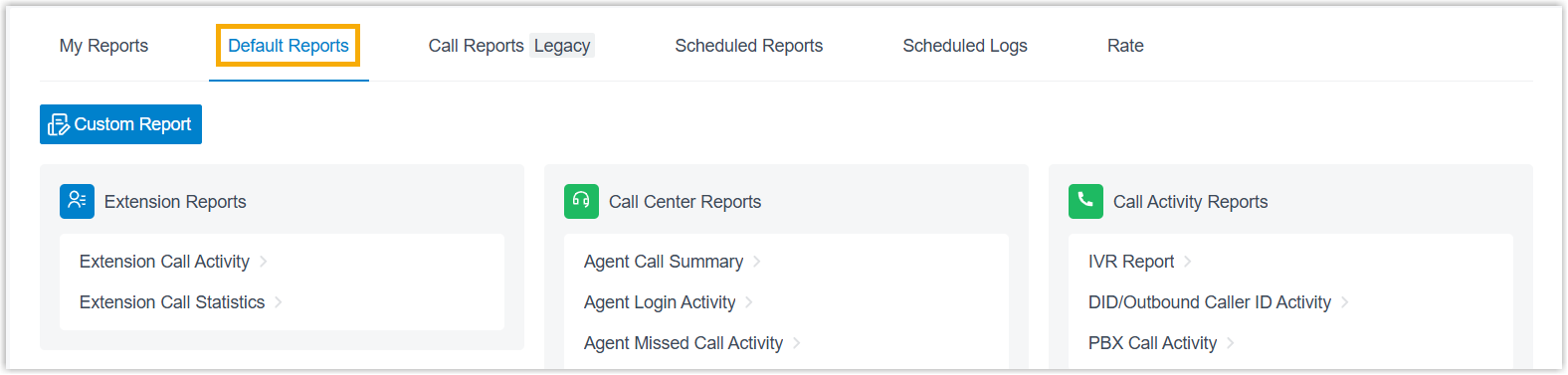
b. Under Call Activity Reports, click Quality of Service Report.
-
Set the filter criteria for the report.

a. In the Time field, choose the period the report should cover.
b. Narrow the results by extension(s), extension group(s), organization(s), communication type, client type(s), network type(s), or overall score.
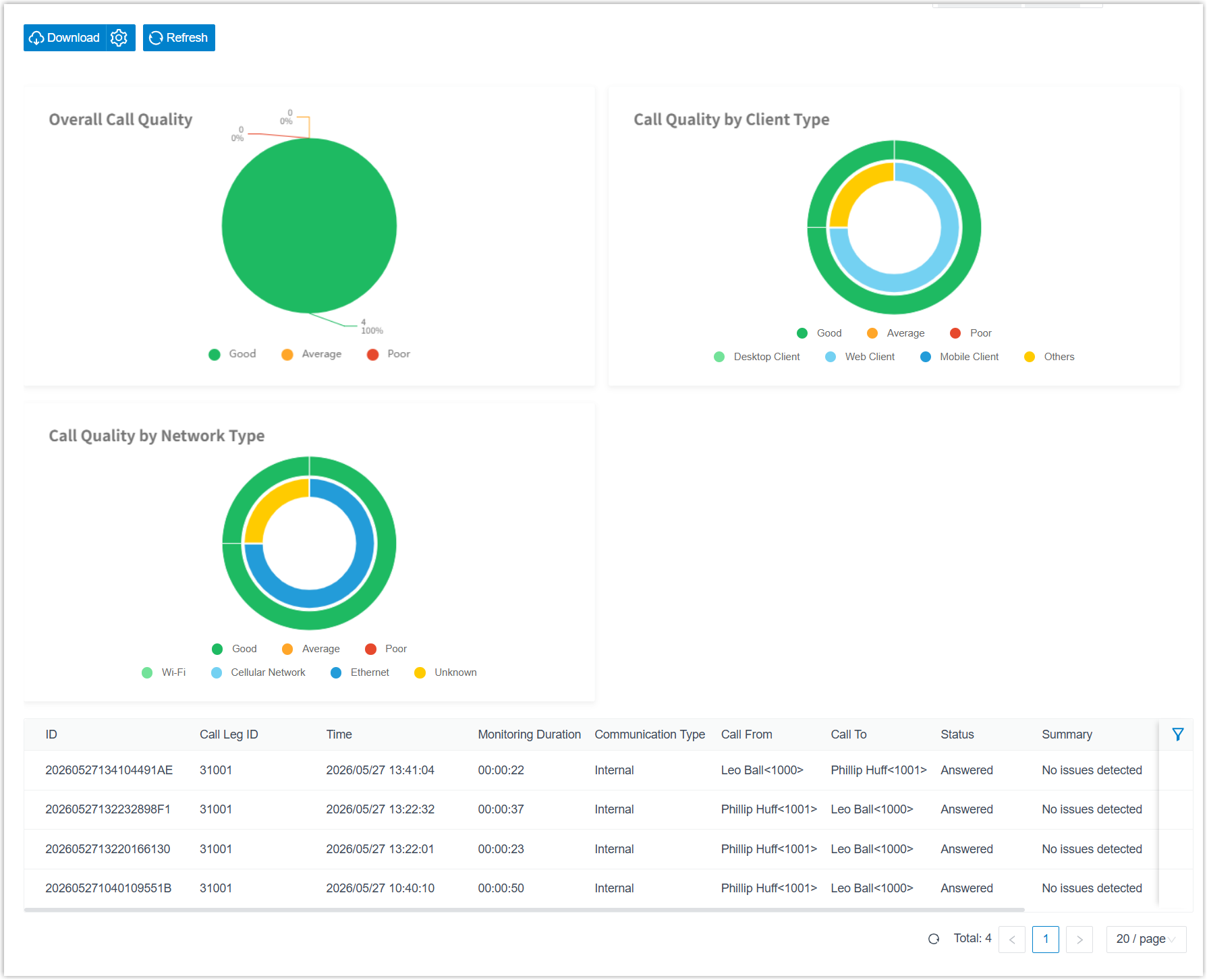
The report matching your criteria appears on the page.
-
Optional: Tailor the columns so the list highlights the indicators you care about most.
Action How Choose which columns appear Click the column-selection icon and tick the columns you want to display. Reorder columns Click the drag handle next to a field and drag it to a new position. 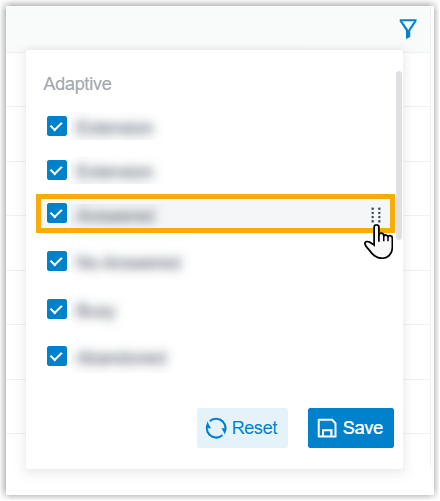
-
Optional: Keep the report handy or have it delivered automatically.
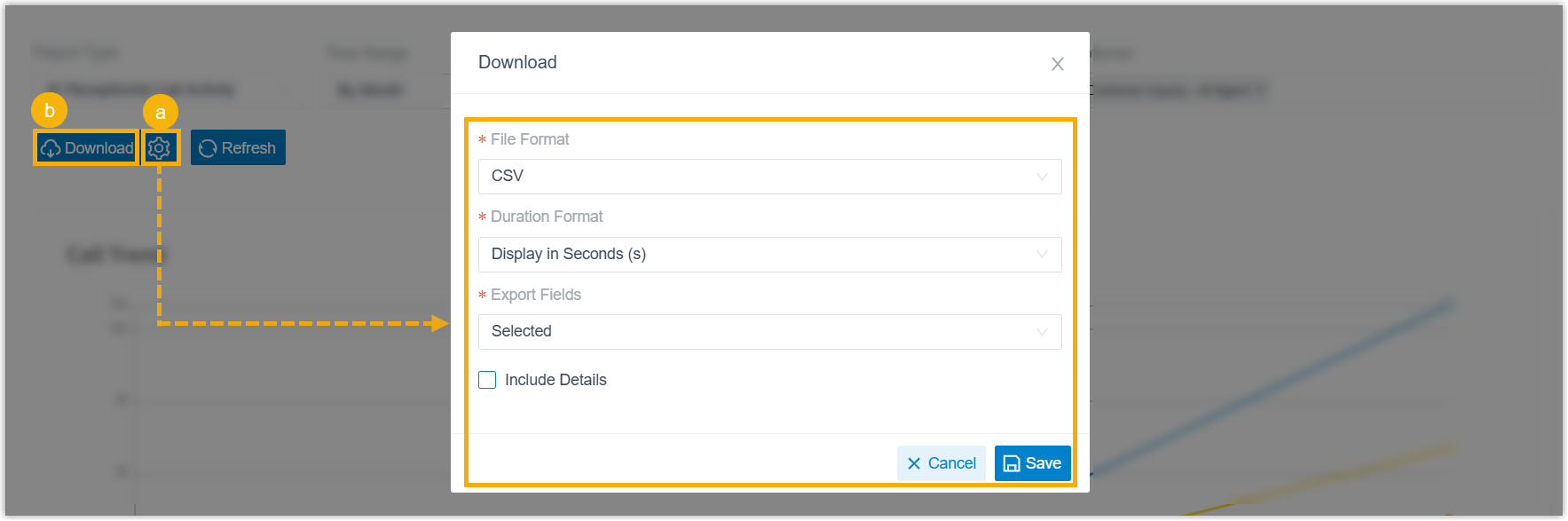
Action How Schedule delivery At the bottom of the page, click Add to Scheduled Reports, then finish the setup as described in Schedule call reports. The report is emailed to the chosen recipients on a schedule. Download the report Save the report to your computer for offline review. Optionally click the settings icon first to adjust the download options, then click Download. When you customize the download, you can set the following options:
- File Format: the output format: CSV, XLS, HTML, or PDF.
- Duration Format: how duration fields are shown: Display in Second (s) or Display as HH:MM:SS.
- Export Fields: which fields to export: All or Selected.
- Include Details: whether to export only the summary list, or the detailed records as well. If you include details, choose how they are laid out:
- Download data as multiple files/sheets
- Details are displayed as indented, offset rows within the same list
Report details
Section titled “Report details”The sections below explain each part of the report.
Overall call quality
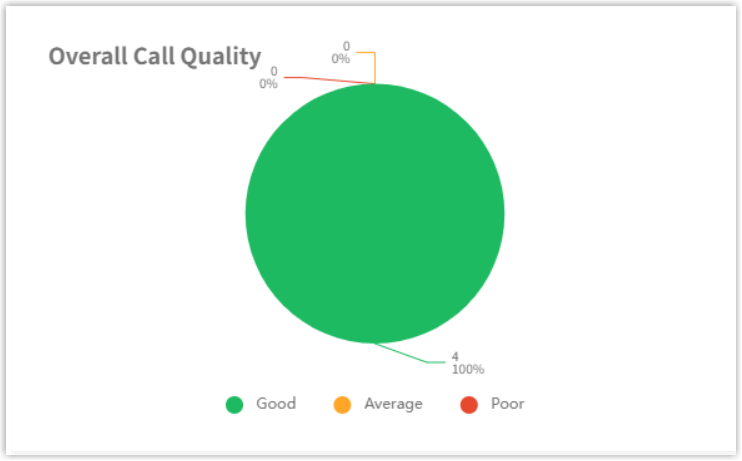
Section titled “Overall call quality”This breakdown shows the share of call legs in each quality band across the whole report.
| Metric | Description |
|---|---|
| Good | Percentage of call legs rated as good quality. |
| Average | Percentage of call legs rated as average quality. |
| Poor | Percentage of call legs rated as poor quality. |
Call quality by client type
Section titled “Call quality by client type”This two-ring chart relates each client type to the quality of its calls.
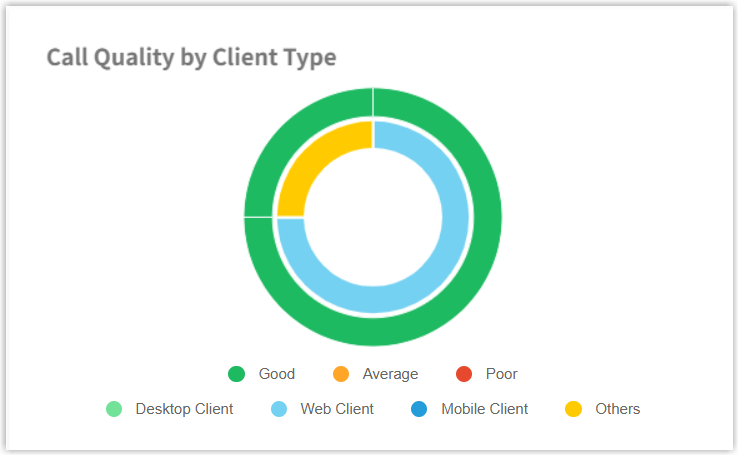
Outer ring, call quality
| Metric | Description |
|---|---|
| Good | Percentage of good-quality call legs for each client type. |
| Average | Percentage of average-quality call legs for each client type. |
| Poor | Percentage of poor-quality call legs for each client type. |
Inner ring, client type
| Metric | Description |
|---|---|
| Desktop Client | Percentage of call legs from the Cloud Voice App desktop client. |
| Web Client | Percentage of call legs from the Cloud Voice App web client. |
| Mobile Client | Percentage of call legs from the Cloud Voice App mobile client. |
| Others | Percentage of call legs from IP phones, softphones, or other devices. |
Call quality by network type
Section titled “Call quality by network type”This chart pairs each network type with the quality of the calls carried over it.
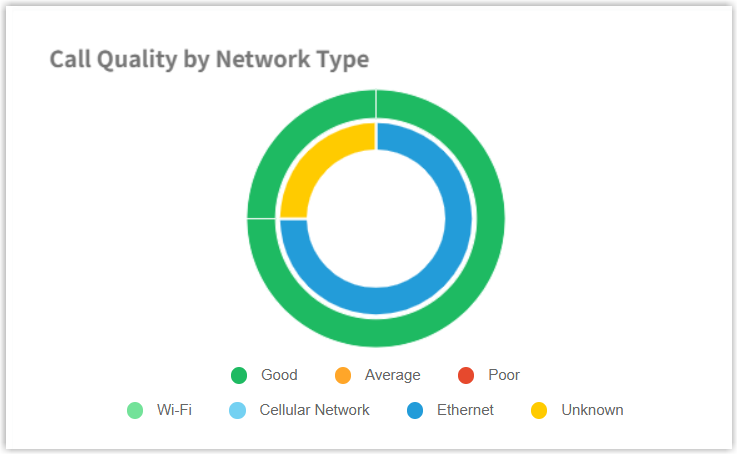
Outer ring, call quality
| Metric | Description |
|---|---|
| Good | Percentage of good-quality call legs for each network type. |
| Average | Percentage of average-quality call legs for each network type. |
| Poor | Percentage of poor-quality call legs for each network type. |
Inner ring, network type
| Metric | Description |
|---|---|
| Wi-Fi | Percentage of call legs carried over Wi-Fi. |
| Cellular Network | Percentage of call legs carried over a cellular network. |
| Ethernet | Percentage of call legs carried over Ethernet. |
| Unknown | Percentage of call legs whose network type could not be determined. |
Call statistics
Section titled “Call statistics”This list breaks the report down to individual call legs.

| Metric | Description |
|---|---|
| ID | Unique identifier for the call. |
| Call Leg ID | Unique identifier for the call leg. |
| Time | Start time of the call leg. |
| Monitoring Duration | Length of time call quality was monitored. |
| Communication Type | The call’s direction: Internal, Inbound, or Outbound. |
| Call From | The caller who placed the call. |
| Call To | The callee who received the call. |
| Status | Outcome of the call: ANSWERED, NO ANSWER, BUSY, FAILED, VOICEMAIL, or ABANDONED. |
| Summary | A short summary of the call quality. |
| Overall Score | The overall call-quality rating. |
Call quality details
Section titled “Call quality details”Opening a call leg reveals the full set of quality metrics for that leg.
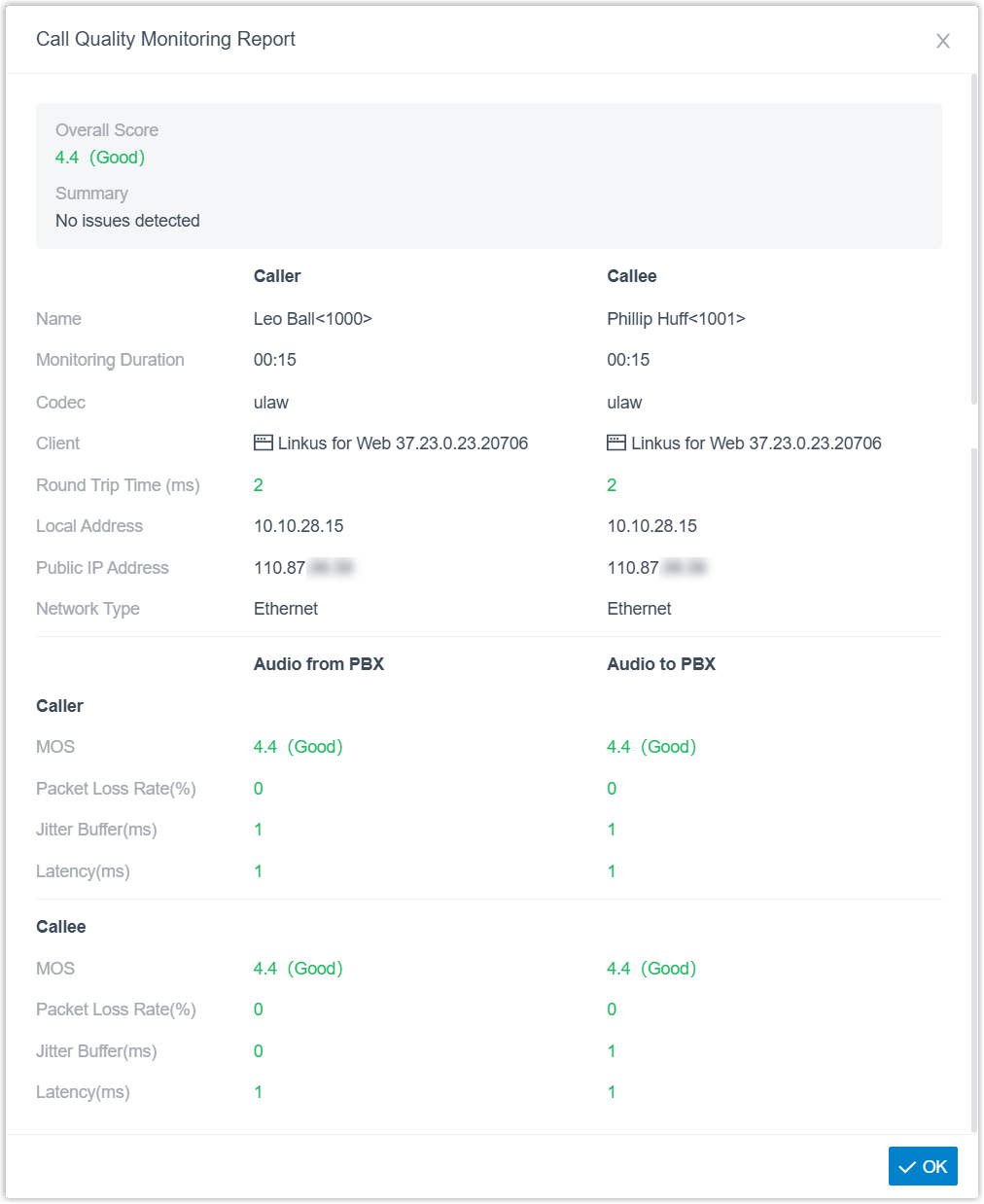
| Metric | Description |
|---|---|
| Overall Score | The overall call-quality score and rating. |
| Summary | A summary of the call-quality report. |
Caller & Callee
| Metric | Description |
|---|---|
| Name | Name and number. |
| Monitoring Duration | Length of time call quality was monitored. |
| Codec | The codec used for the call. |
| Client | The client or device used for the call: Cloud Voice App mobile client (iOS/Android), Cloud Voice App desktop client (Windows/Mac), Cloud Voice App web client, or an IP phone (vendor, model, and firmware version). |
| Round Trip Time (ms) | Round-trip transmission time for audio packets. |
| Local Address | Local IP address the client used for the call. |
| Public IP Address | Public IP address the client used for the call. |
| Network Type | Network connection type the client used during the call. |
Audio from PBX & Audio to PBX
| Metric | Description |
|---|---|
| MOS | Mean Opinion Score for audio quality: MOS < 3.5 is Poor, 3.5 ≤ MOS < 4.0 is Moderate, and 4.0 ≤ MOS ≤ 5.0 is Good. |
| Packet Loss Rate (%) | Percentage of audio packets that were lost. |
| Jitter Buffer (ms) | Buffer used to compensate for delay variation. |
| Latency (ms) | Network transmission delay. |
Question about this page?
Ask the AI assistant. It starts from this page, then searches the rest of the docs.
Ask Cloud Voice AI
Answers are AI-generated from the docs and may contain mistakes. Verify with the linked pages.