
Allow Agents to Manage Their Status via IP Phones
If your agents work from IP (Internet Protocol) desk phones, you can turn a pair of programmable keys into shortcuts for changing their queue status. Once configured, an agent presses one key to join or leave a queue and another to pause or resume calls, while the key’s indicator light shows their current state. This page walks you through assigning those keys and pushing the settings to the phones.
The indicator used here is a BLF (Busy Lamp Field) key: a programmable key whose LED reflects the live state of whatever it is set to watch. In this case it watches the agent’s own status in a queue.
Before you start
Section titled “Before you start”The IP phones must already be provisioned through Cloud Voice auto provisioning and mapped to the agents’ extensions. If you haven’t set that up yet, provision and assign the phones first, then return here.
Step 1. Assign function keys on the agents’ extensions
Section titled “Step 1. Assign function keys on the agents’ extensions”- Open the configuration for the agents’ function keys:
- Sign in to the Cloud Voice management portal and go to Extension and Trunk > Extension.
- Select the extensions that belong to your agents and click Edit.
- Open the Function Keys tab.
- Define the keys for those extensions:
-
Select the Bulk Edit checkbox.
-
Pick a key and fill in the following fields:
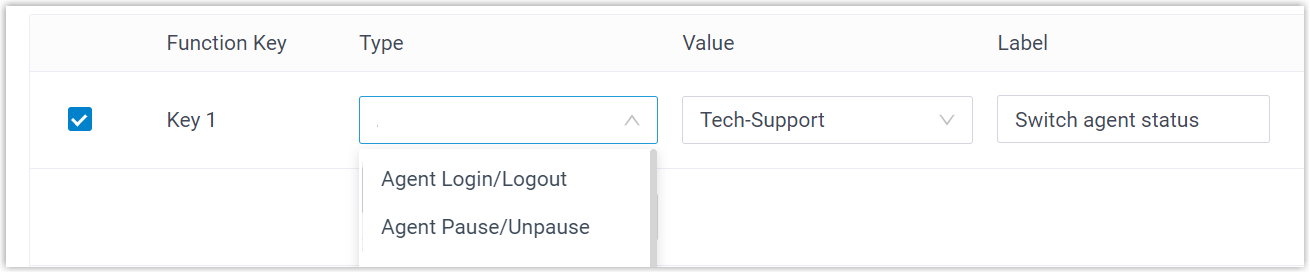
- Type: choose one of the two status controls:
- Agent Login/Logout lets the agent join or leave the queue.
- Agent Pause/Unpause lets the agent pause or resume incoming queue calls.
- Value: select the queue the agent belongs to.
- Label: optional text shown on the phone screen for that key.
- Type: choose one of the two status controls:
-
- Click Save.
Step 2. Push the settings to the agents’ phones
Section titled “Step 2. Push the settings to the agents’ phones”Saving the extension changes does not update the physical phones on its own. You reprovision the phones so they download the new function-key layout.
-
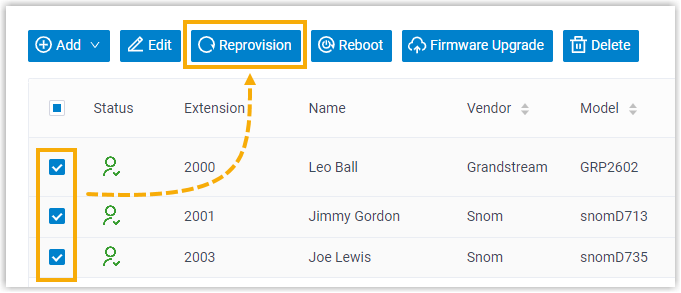
Go to Auto Provisioning > Phones.
-
Select the phones assigned to your agents and click Reprovision.
-
Confirm by clicking OK in the dialog that appears.
Result
Section titled “Result”Agents can now watch and change their status for the assigned queue directly from the BLF keys and their indicator lights.
| BLF key | LED status | What it means |
|---|---|---|
| Log in/Log out | Solid green | The agent is logged in to the queue. Press the Log in/Log out key to log out. |
| Log in/Log out | Solid red | The agent is logged out of the queue. Press the Log in/Log out key to log in. |
| Log in/Log out | Off | The key isn’t tracking the agent’s status. Recheck the key settings and confirm the agent’s extension is registered. |
| Pause/Unpause | Solid green | The agent is available for queue calls. Press the Pause/Unpause key to pause them. |
| Pause/Unpause | Flashing red | The agent has paused queue calls. Press the Pause/Unpause key to resume them. |
| Pause/Unpause | Off | The key isn’t tracking the agent’s status. Recheck the key settings and confirm the agent’s extension is registered. |
Question about this page?
Ask the AI assistant. It starts from this page, then searches the rest of the docs.
Ask Cloud Voice AI
Answers are AI-generated from the docs and may contain mistakes. Verify with the linked pages.