
Queue Preferences
Every call queue carries a set of preference options that shape how it behaves once calls start arriving. Use them to give queue calls their own ring tone, offer waiting callers a callback, weight one queue ahead of another, track your service level, survey callers after a call, and let callers press a key to leave the queue. Each group of settings is described below.
Distinctive ring tone
Section titled “Distinctive ring tone”Give queue calls a ring tone that sets them apart from ordinary calls, both on desk phones and in the Cloud Voice App.
| Setting | What it does |
|---|---|
| Queue Alert Info | The text Cloud Voice adds to the Alert-Info header of the SIP (Session Initiation Protocol, the signaling used to set up calls) INVITE for calls coming through this queue. When a queue call arrives, the phone reads that header and chooses the matching ring tone. |
| Cloud Voice App Distinctive Ringtone | The tone that plays in an agent’s Cloud Voice App when a queue call comes in. Choose a built-in tone or upload your own. |
Callback
Section titled “Callback”Let callers who reach a busy queue hang up and keep their place in line, so the system rings them back when an agent frees up.
| Setting | What it does |
|---|---|
| Request Callback Method | Chooses how a caller in a busy queue asks to be called back. |
| Digit to press | The key a caller presses to request a callback while the queue is busy. Available only when Request Callback Method is set to Triggered by caller input. |
| Timeout (s) | How long, in seconds, a caller waits in the queue before Cloud Voice automatically offers the callback option. Available only when Request Callback Method is set to Auto triggered after the timeout. |
| Callback Outbound Prefix | The outbound-route prefix Cloud Voice uses to dial the caller back. |
| Callback Timeout | How long a pending callback stays reserved in the queue. If no agent becomes available within this window, the callback request is cancelled. |
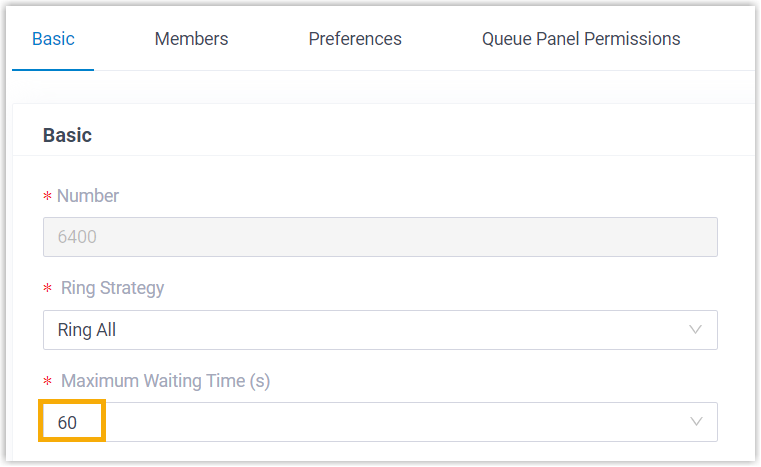
Callback Timeout offers two ways to set the reservation window:
-
Enable Queue’s Maximum Waiting Time: Reuse the value from Queue > Basic > Maximum Waiting Time (s).
-
Custom: Enter your own window in the Timeout (s) field. The value must be lower than the queue’s Maximum Waiting Time (s).
Priority queue
Section titled “Priority queue”When an agent belongs to more than one queue, weighting decides which queue’s calls that agent takes first.
| Setting | What it does |
|---|---|
| Weight | The queue’s starting weight, from 1 to 999. A higher number means higher priority. Cloud Voice compares the weights of the queues an agent serves and hands calls from the heavier queue over first. For instance, a call in a queue weighted 2 is answered sooner than one in a queue weighted 1. |
| Enable Acceleration Weight | Raises a queue’s weight dynamically based on how long a call has been waiting, so calls sitting in a lower-priority queue don’t get stuck behind higher-priority traffic indefinitely. |
| Acceleration (s) | How many seconds a call must wait before its queue weight climbs by 1, from 10 to 1800. Longer-waiting calls gain weight and get answered sooner. |
With acceleration enabled, Cloud Voice works out the effective weight from the starting weight and the call’s wait time:
Queue Weight = Weight + (Waiting Time / Acceleration) × 1
Service level agreement
Section titled “Service level agreement”Set a target answer time for the queue, tracked as a service level agreement (SLA), and have Cloud Voice alert you when performance slips below it.
| Setting | What it does |
|---|---|
| SLA Time (s) | The longest an agent should take, in seconds, to answer an incoming call. The default is 60 seconds. |
| Evaluation Interval (min) | How often Cloud Voice compares the queue’s SLA performance against the alarm threshold and, when needed, sends a notification email. |
| Alarm Threshold (%) | The service-level threshold for the queue. The default is 80%. |
Satisfaction survey
Section titled “Satisfaction survey”Ask callers to rate the service they received once the agent hangs up, then review the results in your reports.
| Setting | What it does |
|---|---|
| Satisfaction Survey Prompt | The prompt that asks the caller to rate their satisfaction after the agent ends the call. The default is “Please rate your satisfaction with our service, press 1 for satisfied, press 2 for dissatisfied. Thank you.” Once the caller presses a key, “Thanks for your calling, goodbye.” plays. |
| End Prompt | The prompt played to the caller after they press a key to rate the agent. Available only when a Satisfaction Survey Prompt has been set. |
| Satisfaction Survey Points | The scores assigned to each key a caller can press to rate the agent’s service. |
Key press event
Section titled “Key press event”Give waiting callers an escape route: let them press a key to leave the queue and go somewhere else.
| Setting | What it does |
|---|---|
| Key | The key a caller can press while waiting in the queue to jump to a specific destination. Pair it with a Periodic Announcements prompt that tells callers which key to press. |
| Key Destination | Where the call goes when the caller presses the key. |
The following destinations are available:
- Hang up: End the call.
- Extension: Send the call to a specific extension.
- Extension Voicemail: Send the call to the voicemail box of a specific extension.
- Group Voicemail: Send the call to the group voicemail box of a queue, ring group, or custom group.
- IVR: Send the call to a specific IVR (Interactive Voice Response), the automated “press 1 for sales” style menu.
- Call Flow: Send the call to a specific call flow.
- Ring Group: Send the call to another ring group.
- Queue: Send the call to a specific queue.
- External Number: Send the call to an outside number.
- Play Prompt and Exit: Play a custom prompt, then hang up.
Question about this page?
Ask the AI assistant. It starts from this page, then searches the rest of the docs.
Ask Cloud Voice AI
Answers are AI-generated from the docs and may contain mistakes. Verify with the linked pages.