
Set Up a Two-way Intercom Group
Two-way intercom lets you open a live conversation with one user or a whole group at the same time. Everyone you reach can talk back straight away, without lifting a handset or pressing a key to answer. It is a fast way to coordinate people who need to respond immediately, such as security staff spread across a campus, ward teams in a hospital, or roaming supervisors dispatching employees during the day.
Two ways to start an intercom call
Section titled “Two ways to start an intercom call”You can direct an intercom call at a single extension or at a defined group.
- One user: Dial the intercom feature code (default
*6) followed by the extension you want to reach. For example,*61002opens an intercom call to extension1002. To change the feature code, go to Call Features > Feature Code > Intercom. - Several users: Create a two-way intercom group, then dial the group’s number. The rest of this page walks through setting one up.
Create the group
Section titled “Create the group”-
Sign in to the PBX (Private Branch Exchange, your phone system) web portal and go to Call Features > Paging/Intercom, then click Add.
-
Fill in the group settings.
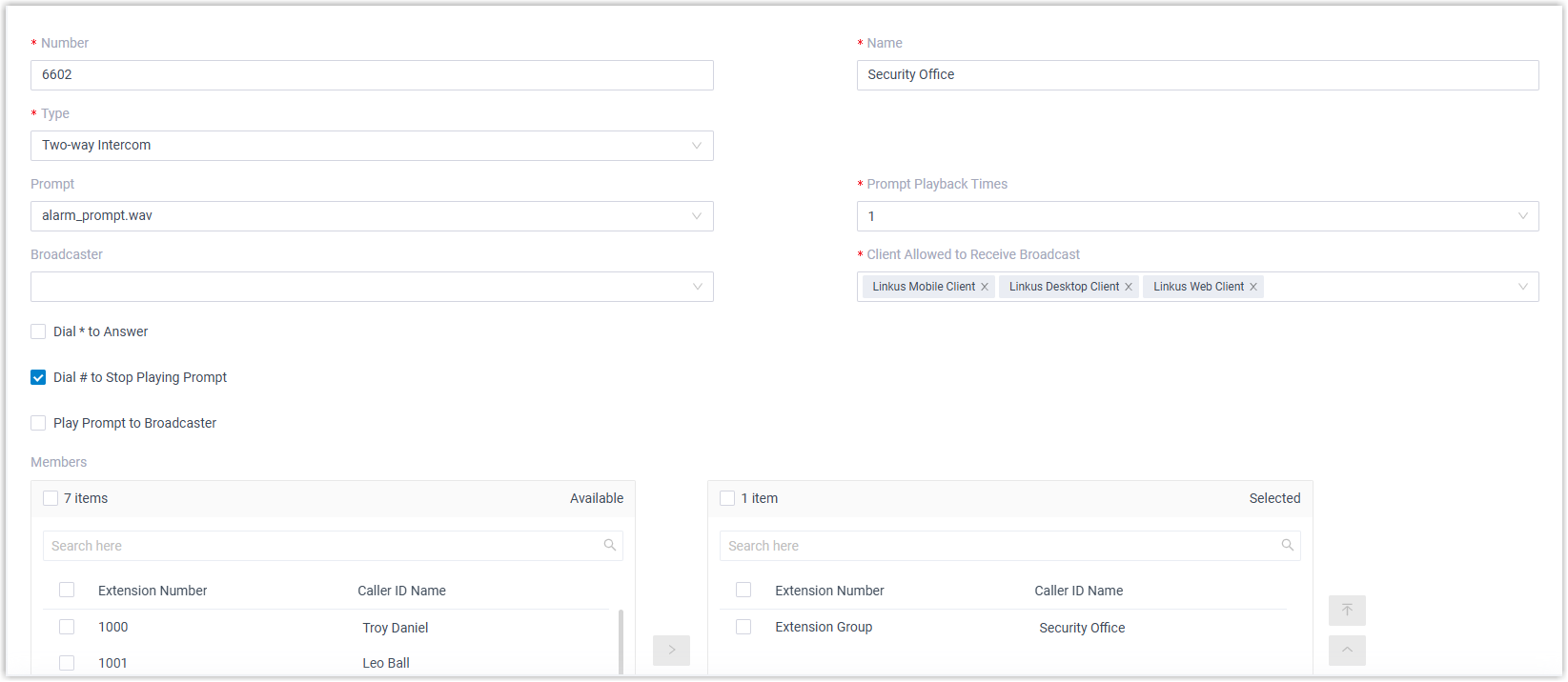
Field What to enter Number A number to identify the group. This example uses 6602.Name A label for the group. This example uses Security Office.Type Choose Two-way Intercom. Prompt Optional. Pick a custom prompt to play before the broadcast begins. This example uses alarm_prompt.wav.Prompt Playback Times How many times the prompt repeats. Enter a value from 1 to 100, or choose Unlimited to loop it continuously. Broadcaster Optional. Restrict who may call the group by choosing the allowed extensions or extension groups. Leave it empty to let anyone call the group. This example leaves it blank. Client Allowed to Receive Broadcast Choose which client types receive the intercom call. Dial * to Answer Optional. Let a recipient dial *to speak with the broadcaster privately. Doing so drops the call for everyone else so the two of them can talk one to one.Dial # to Stop Playing Prompt Optional. When a prompt is set, this lets the broadcaster dial #mid-playback to cut it short.Play Prompt to Broadcaster Optional. Turn this off if the broadcaster should not hear the prompt. This example disables it. Members Move the extensions you want to include from Available to Selected. This example adds the Security Officegroup. -
Click Save, then Apply.
Placing a call to the group
Section titled “Placing a call to the group”Dial the group’s number to reach every member on the client types you selected. How each device responds depends on the endpoint:
- Cloud Voice App (Mobile, Desktop, Web, and Pad): The client rings first, and the user answers manually to hear the broadcast. If you would rather these clients pick up automatically, you can enable auto answer for paging calls in the client’s settings.
- IP (Internet Protocol) phones: The phone answers on its own and switches to speakerphone.
Question about this page?
Ask the AI assistant. It starts from this page, then searches the rest of the docs.
Ask Cloud Voice AI
Answers are AI-generated from the docs and may contain mistakes. Verify with the linked pages.