
View a Default Auto Provisioning Template
Cloud Voice ships a default auto provisioning template for every supported phone model, each carrying the parameters appropriate for that device. This page shows you how to locate a template and review the configuration it applies.
About default templates
Section titled “About default templates”A default template holds general, pre-defined settings that are tailored to a device model. Some models are grouped under a shared template, for instance, the Yealink YSDP_YealinkT5xS template covers both the T52S and the T54S.
Every value inside a template is one of two kinds:
- Variable: a placeholder that resolves to a different value for each phone. A variable opens with
{{.and closes with}}. For example,{{.PhoneWebLanguage}}stands in for the Phone Web Language setting, which is filled in per phone from that phone’s own configuration. - Absolute value: a fixed value applied identically to every device that uses the template. For example,
features.dtmf.hide_delay = 1sets that parameter to 1 (Enabled) on all such devices. Here DTMF (Dual-Tone Multi-Frequency) is the tone a phone sends when a key is pressed during a call.
View a template
Section titled “View a template”-
Sign in to the PBX (Private Branch Exchange, your phone system) web portal and go to Auto Provisioning > Resource Repository.
-
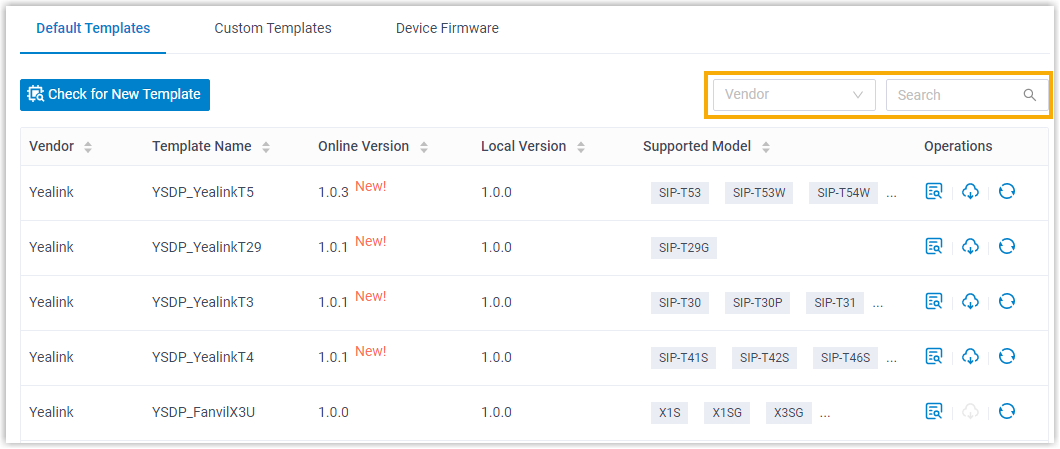
Pick a device vendor from the list, or type a keyword to search.
You can search by vendor, by provisioning template name, or by device model. Matching templates appear on the page as you type.
-
Click the view icon
 next to the template you want to open its default configuration.
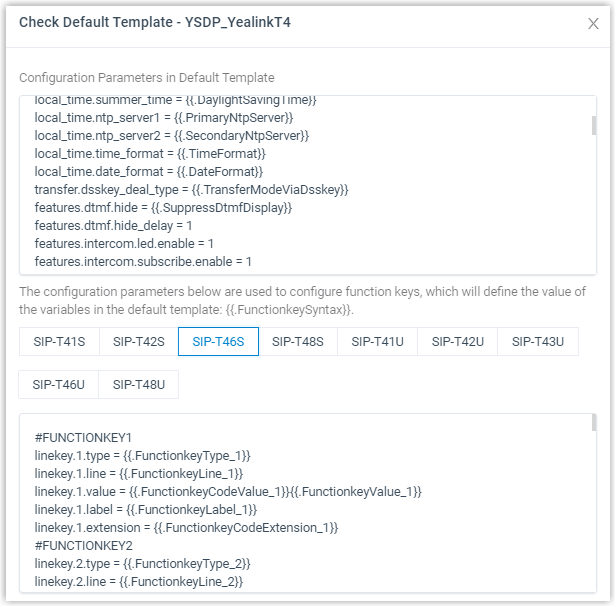
A template is presented in two parts:
- Configuration parameters: the pre-defined parameters for the template, shown in the first text box.
- Function keys: the function keys (the programmable buttons on the handset, such as line and speed dial keys) that the device model supports, shown in the second text box. Select a device model tab to see the keys available for that model.
Question about this page?
Ask the AI assistant. It starts from this page, then searches the rest of the docs.
Ask Cloud Voice AI
Answers are AI-generated from the docs and may contain mistakes. Verify with the linked pages.