
AI Receptionist Call Activity Report
The AI Receptionist Call Activity report summarizes how your AI (artificial intelligence) receptionists are handling calls. An AI receptionist answers inbound calls automatically and either resolves the caller’s request itself or passes the caller to the right person. This report combines trend charts, headline statistics, and a per-call breakdown so you can see how many callers each receptionist served, how long those conversations ran, and what the outcome was. This page explains how to open the report and how to read every figure it presents.
Before you begin
Section titled “Before you begin”Your system must be running Cloud Voice firmware 84.22.0.138 or later.
Open the report
Section titled “Open the report”-
Sign in to the PBX (private branch exchange, your hosted phone system) web portal and go to Reports and Recordings > Call Reports.
-
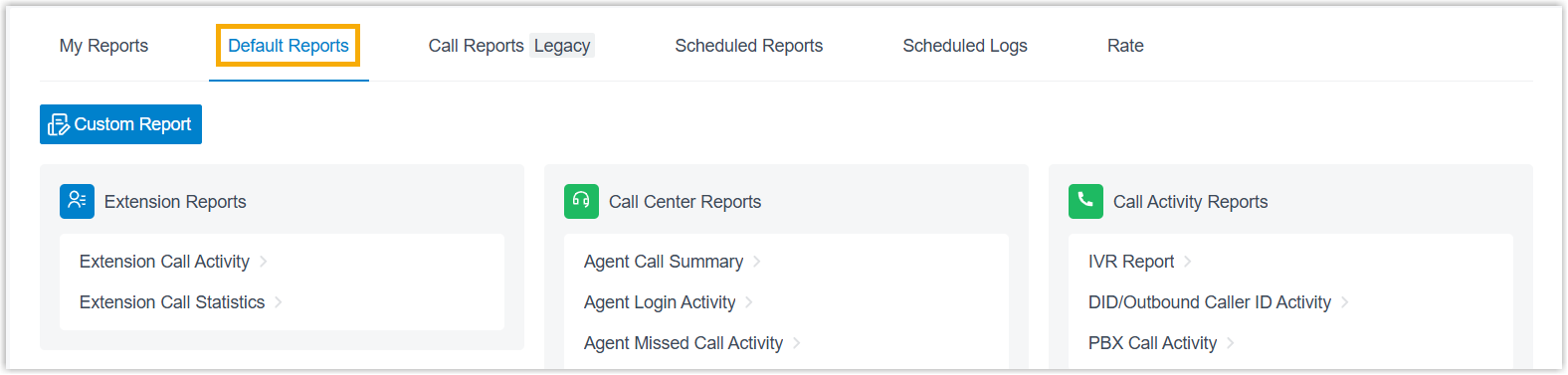
Open the Default Reports tab.
-
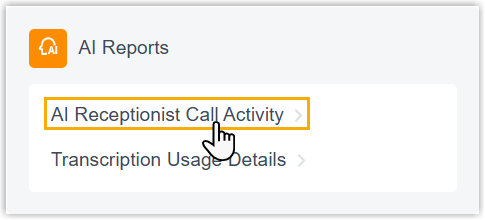
In the AI Reports pane, select AI Receptionist Call Activity.
-
Choose what the report should cover.

-
Use the Time Range and Select Date fields to set the period the report covers.
-
In the Receptionist drop-down list, select one or more AI receptionists.
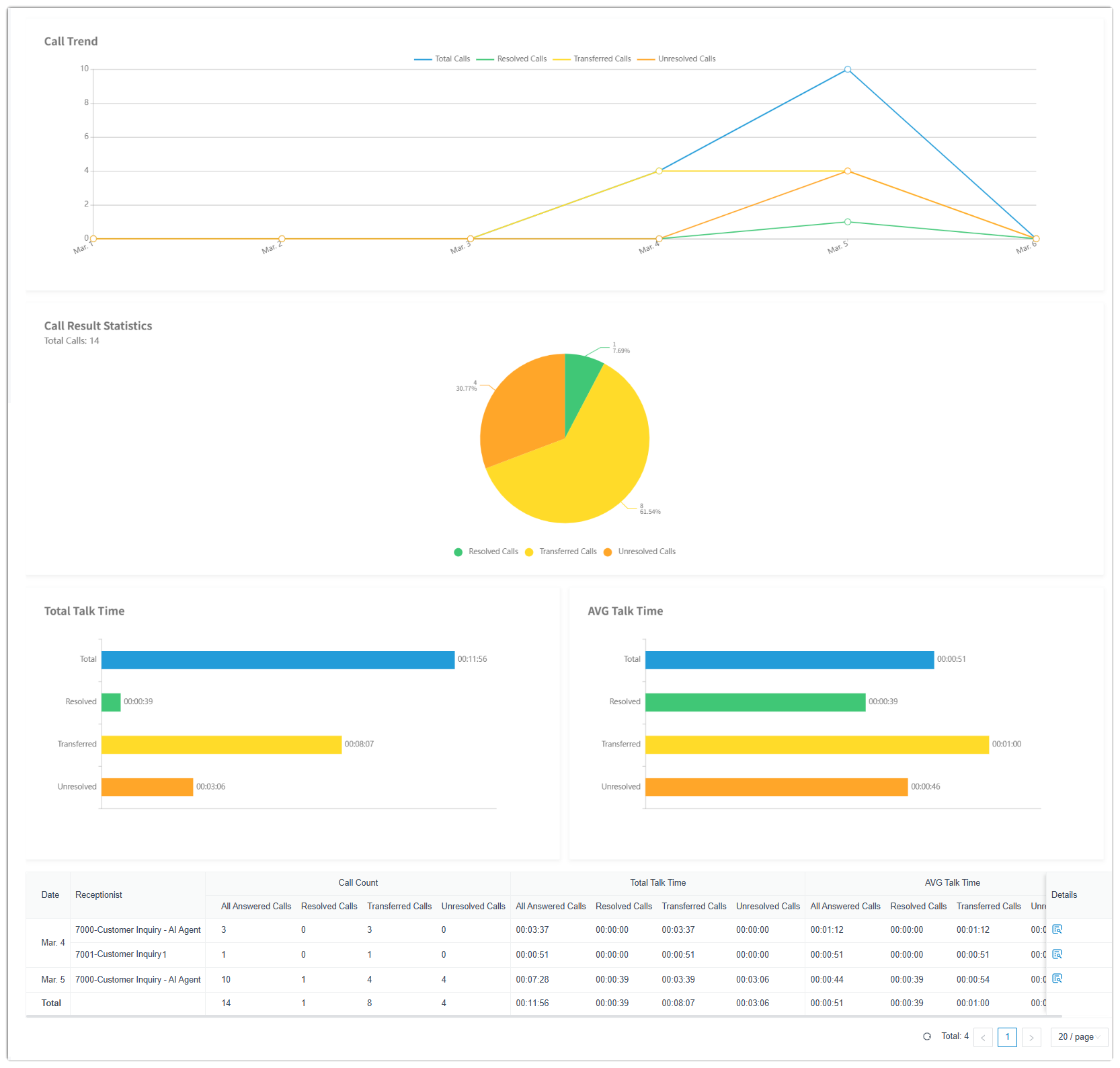
The report refreshes to match your filters.
-
Save, schedule, or download
Section titled “Save, schedule, or download”Once the report looks the way you want, you can keep it handy, have it emailed automatically, or export a copy.
Save to My Reports
Section titled “Save to My Reports”Add the report to your My Reports list so you can reopen it later without rebuilding the filters.
- At the bottom of the page, select Add to My Reports.
- Give the report a name you’ll recognize, and adjust the filters or metrics if needed.
- Select Save.
Schedule automatic delivery
Section titled “Schedule automatic delivery”Set up a task that emails the report on a recurring basis, for example a weekly summary for a manager who does not log in to the portal.
- At the bottom of the page, select Add to Scheduled Reports.
- Complete the scheduled task settings to define the recipients and delivery frequency.
Download a copy
Section titled “Download a copy”Export the report to your computer for offline review or deeper analysis.
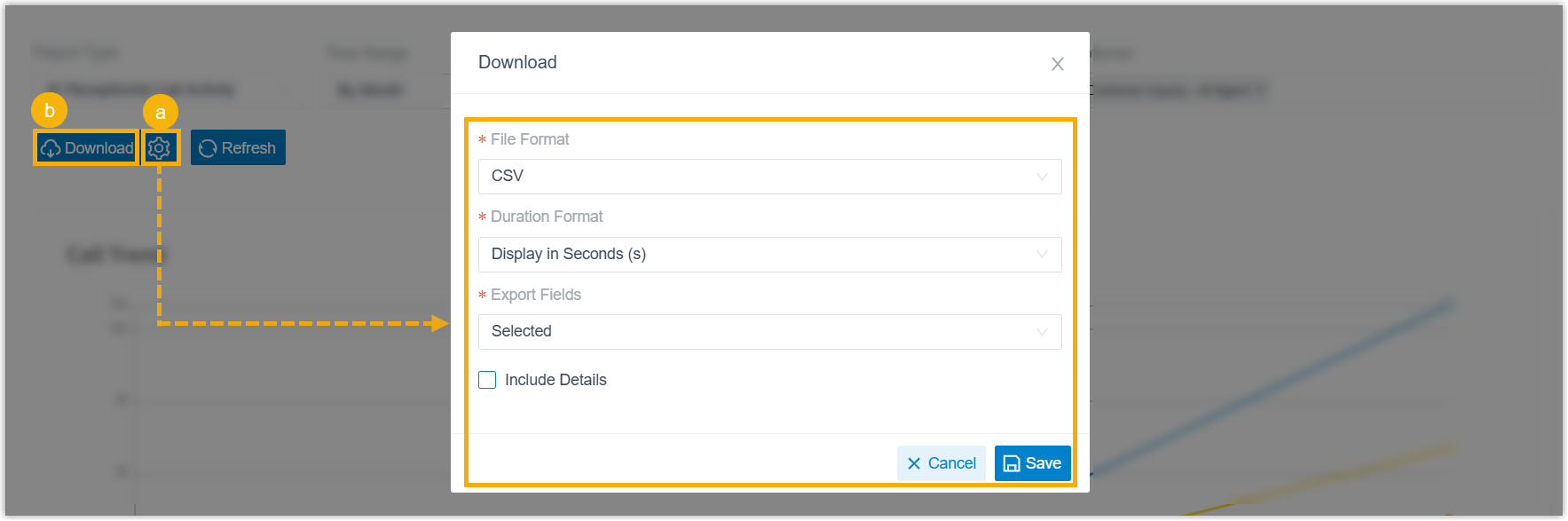
- Optional: Select the settings icon to adjust how the file is exported, then save your changes:
- File Format: Choose CSV, XLS, HTML, or PDF.
- Duration Format: Show every duration field either Display in Second (s) or Display as HH:MM:SS.
- Export Fields: Export All fields or only the Selected ones.
- Include Details: Export the summary list only, or include the detailed call records. If you include the details, choose how they appear:
- Download data as multiple files/sheets
- Details are displayed as indented, offset rows within the same list
- Select Download.
How calls are categorized
Section titled “How calls are categorized”Every call an AI receptionist handles is assigned one of three processing results. These categories drive the statistics throughout the report.
Visual analytics
Section titled “Visual analytics”The charts at the top of the report plot call volume over the selected period and show how outcomes are distributed across the three processing results.
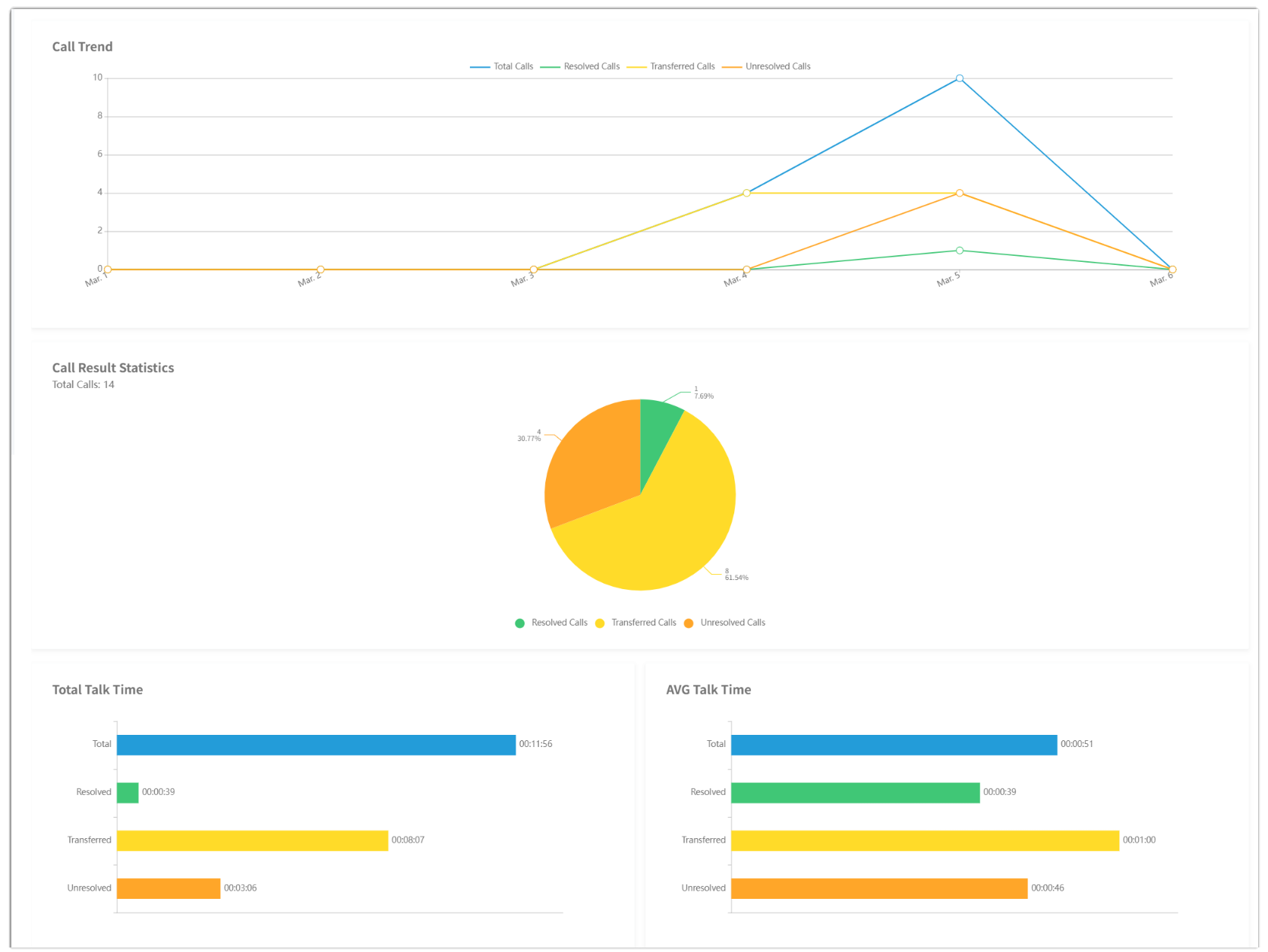
Call statistics
Section titled “Call statistics”The statistics panel groups the headline numbers into three sets, each broken down by processing result.

| Metric | What it measures |
|---|---|
| Call Count: All Answered Calls | Total calls the AI receptionist answered. |
| Call Count: Resolved Calls | Number of calls resolved. |
| Call Count: Transferred Calls | Number of calls transferred. |
| Call Count: Unresolved Calls | Number of calls left unresolved. |
| Total Talk Time: All Answered Calls | Combined time the receptionist spent talking to callers across all answered calls. |
| Total Talk Time: Resolved Calls | Combined talk time across resolved calls. |
| Total Talk Time: Transferred Calls | Combined talk time across transferred calls. |
| Total Talk Time: Unresolved Calls | Combined talk time across unresolved calls. |
| AVG Talk Time: All Answered Calls | Average talk time per answered call. |
| AVG Talk Time: Resolved Calls | Average talk time per resolved call. |
| AVG Talk Time: Transferred Calls | Average talk time per transferred call. |
| AVG Talk Time: Unresolved Calls | Average talk time per unresolved call. |
Call details
Section titled “Call details”The details table lists every call the AI receptionist handled during the reporting period.
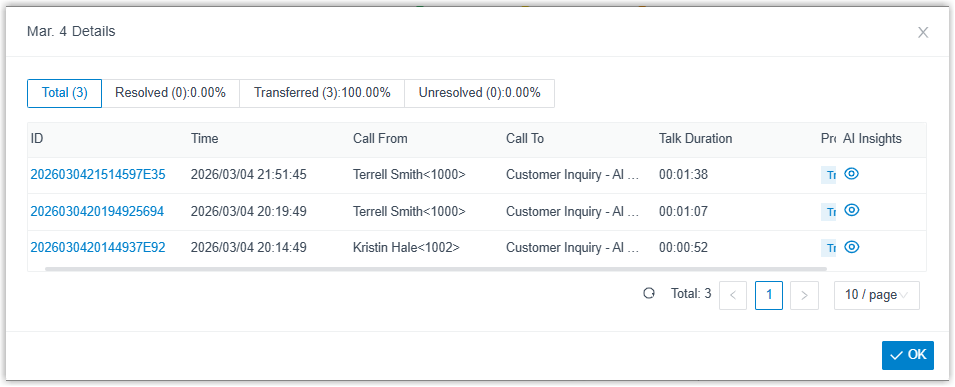
| Metric | What it shows |
|---|---|
| ID | A unique identifier for the call. Select the ID to open the matching CDR (Call Detail Record, the system’s log entry for that call) details. |
| Time | When the call came in. |
| Call From | The caller’s name and number. |
| Call To | The name and number of the AI receptionist that answered. |
| Talk Duration | The elapsed time between the call being answered and ending. |
| Processing Result | The outcome assigned to the call: Resolved, Transferred, or Unresolved. |
| AI Insights | The AI transcript and summary for the call. Select the eye icon to view them. |
Question about this page?
Ask the AI assistant. It starts from this page, then searches the rest of the docs.
Ask Cloud Voice AI
Answers are AI-generated from the docs and may contain mistakes. Verify with the linked pages.