
Redirect an Incoming Call
When a call keeps ringing without anyone picking up, you can move it somewhere it will be answered rather than leaving the caller on hold. From the Operator Panel you can redirect a live ringing call to a single extension, a ring group, a queue, a group voicemail box, or an individual extension’s voicemail. Each destination is covered below.
Before you begin
Section titled “Before you begin”The redirect actions depend on the permissions assigned to your Operator Panel account:
- Redirecting the incoming calls of members in your extension groups requires the Call distribution management (Redirect, Transfer, Drag and Drop operation) permission.
- Redirecting an inbound call that has reached an IVR (Interactive Voice Response, the automated “press 1 for sales” menu that answers callers) but not yet landed on a destination requires the Route calls directly from IVR regardless of the IVR menu permission.
Redirect a call to an extension
Section titled “Redirect a call to an extension”There are two ways to hand a ringing call to a specific extension user.
Drag and drop
- On the Inbound & Internal Calls panel, point to the call that is ringing.
- Drag the call onto the target extension in the Extension list and release it.
That extension immediately starts ringing.

Right-click menu
- On the Inbound & Internal Calls panel, point to the ringing call.
- Right-click it, choose Redirect, and pick the party you want to send it to.
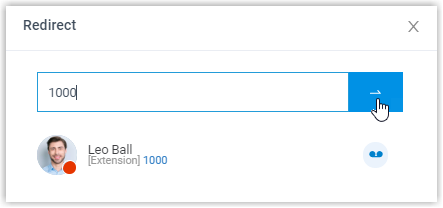
- In the panel that opens, type the extension number and click the redirect button
 .
.
The extension begins ringing.
Redirect a call to a ring group
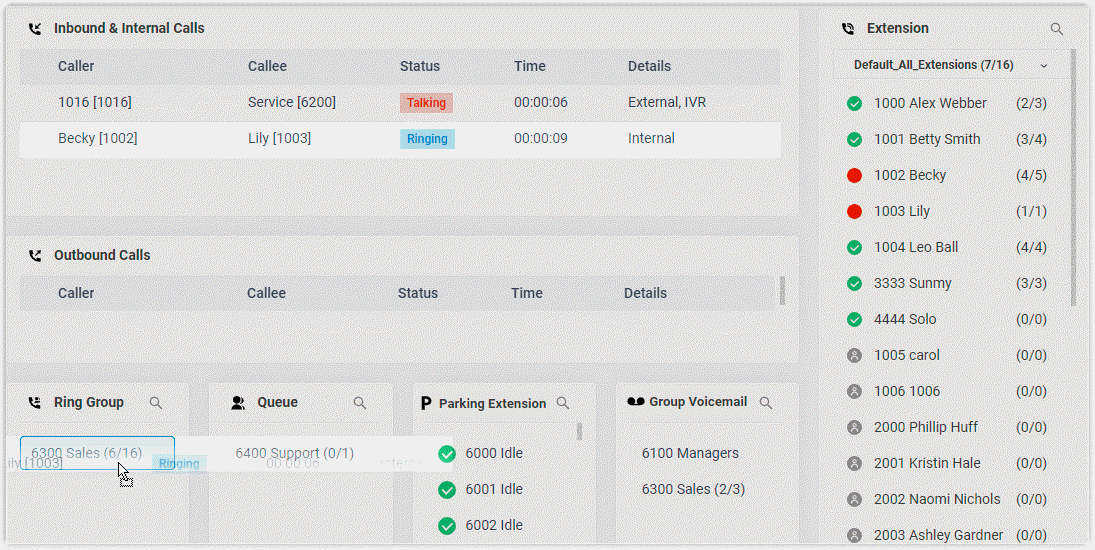
Section titled “Redirect a call to a ring group”- On the Inbound & Internal Calls panel, point to the ringing call.
- Drag the call onto the ring group you want in the Ring Group list and release it.
All members of that ring group start receiving the call.
Redirect a call to a queue
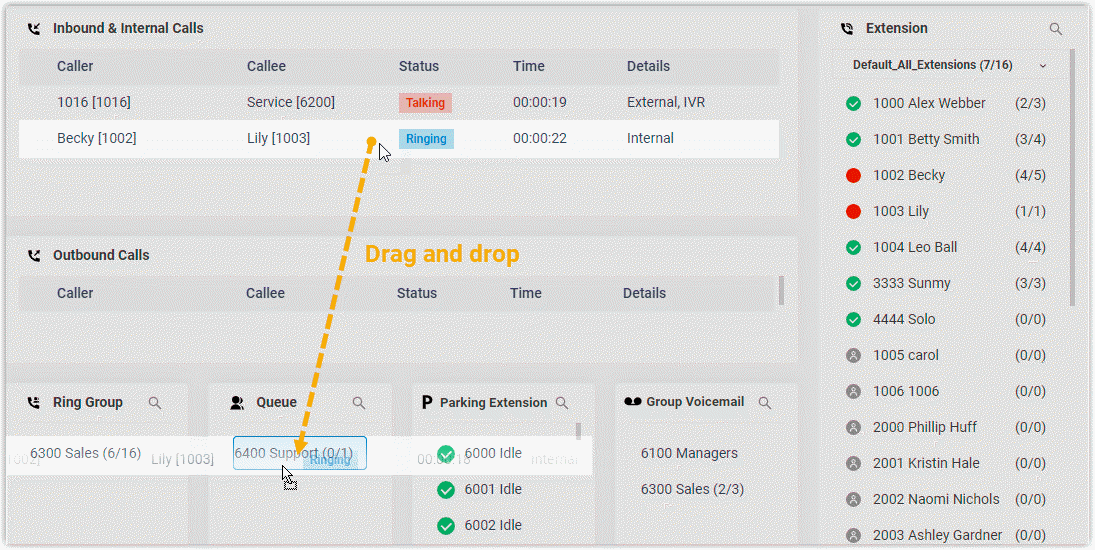
Section titled “Redirect a call to a queue”- On the Inbound & Internal Calls panel, point to the ringing call.
- Drag the call onto the queue you want in the Queue list and release it.
The queue’s agents start receiving the call.
Redirect a call to a group voicemail
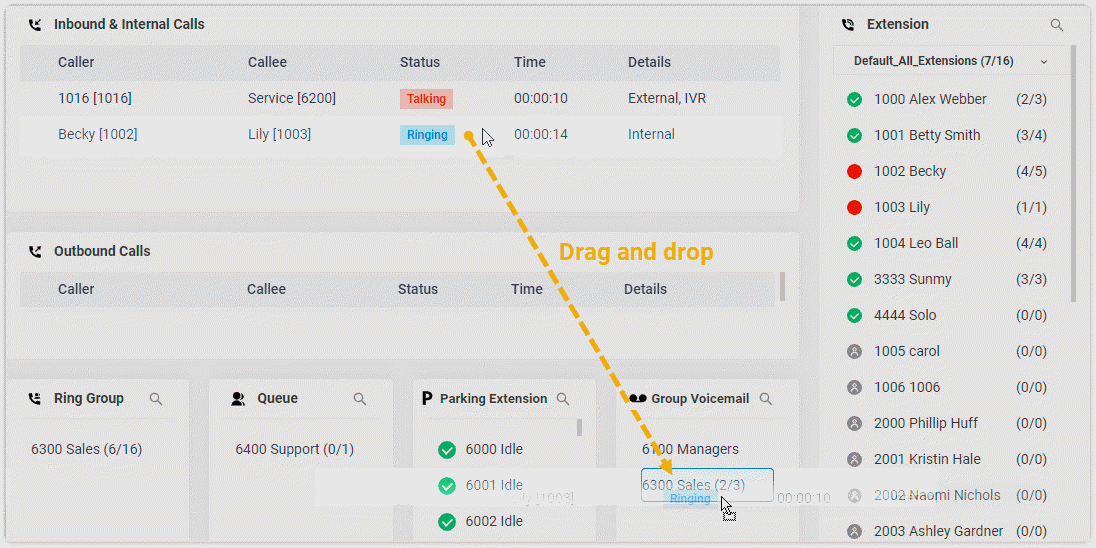
Section titled “Redirect a call to a group voicemail”- On the Inbound & Internal Calls panel, point to the ringing call.
- Drag the call onto the group voicemail you want in the Group list and release it.
The call goes to that group’s voicemail, where the caller can leave a message.
Redirect a call to an extension’s voicemail
Section titled “Redirect a call to an extension’s voicemail”- On the Inbound & Internal Calls panel, point to the ringing call.
- Right-click the call and choose Redirect.
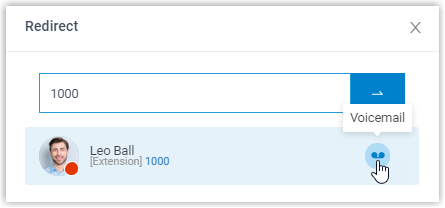
- In the panel that opens, type an extension number to look up the user.
- In the matching results, click the voicemail icon
 to send the call there.
The call is routed to that extension’s voicemail so the caller can leave a message.
Question about this page?
Ask the AI assistant. It starts from this page, then searches the rest of the docs.
Ask Cloud Voice AI
Answers are AI-generated from the docs and may contain mistakes. Verify with the linked pages.