
Business Hours
The Business Hours component sends callers to different destinations depending on when they call. Drop it into a call flow to split traffic between office hours, after-hours, and holidays, and to fine-tune routing for any other time-based scenario your team needs.
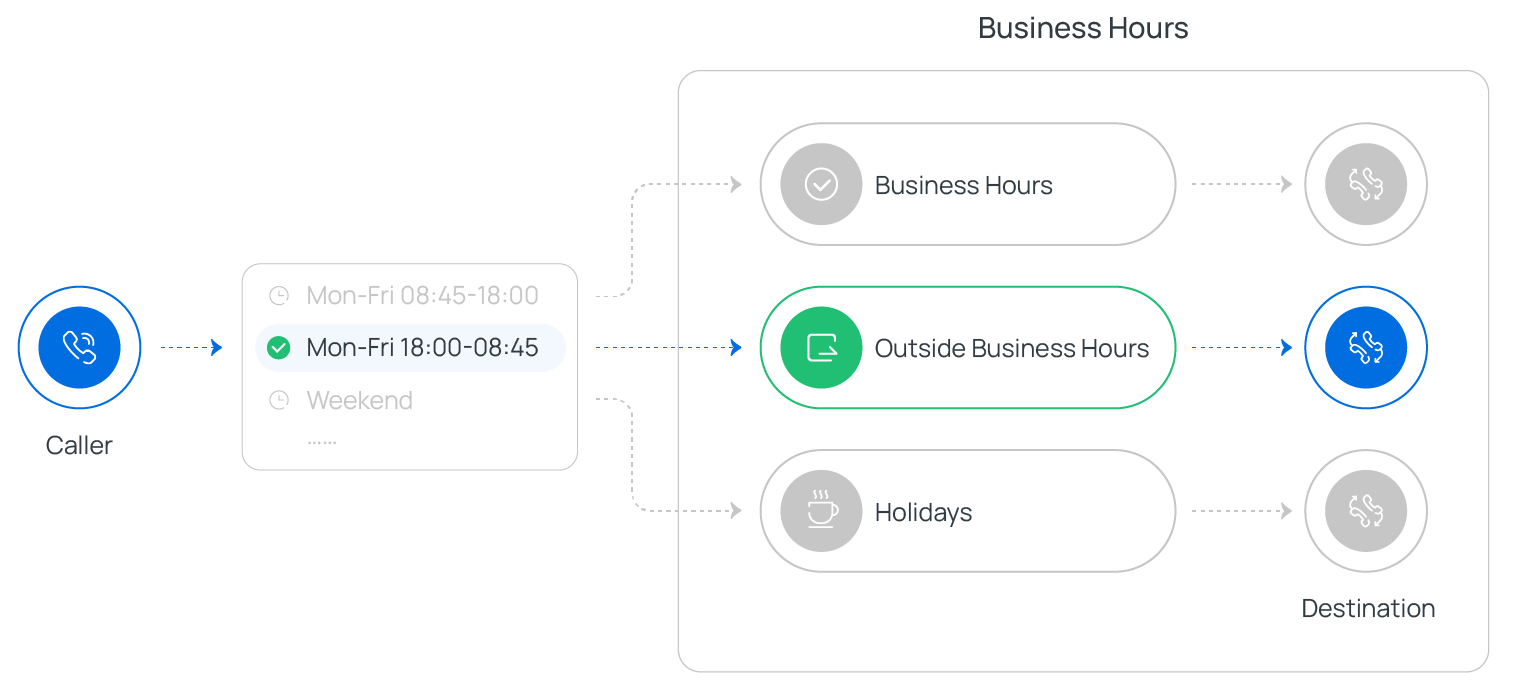
Time-based modes
Section titled “Time-based modes”When you configure the component, you pick one of three modes to decide how time is evaluated.
| Mode | What it does |
|---|---|
| Business Hours Configured for Time Zone | Reuses the office hours you have already saved for a given time zone. |
| Custom Business Hours | Defines schedules on the component itself, the same hours every day, different hours per day, or round-the-clock (24x7). |
| Custom Time Periods | Builds individual time periods when you need more granular control than a standard weekly schedule allows. |
Configure the component
Section titled “Configure the component”-
Add the Business Hours component to your call flow, then click it to open its settings.
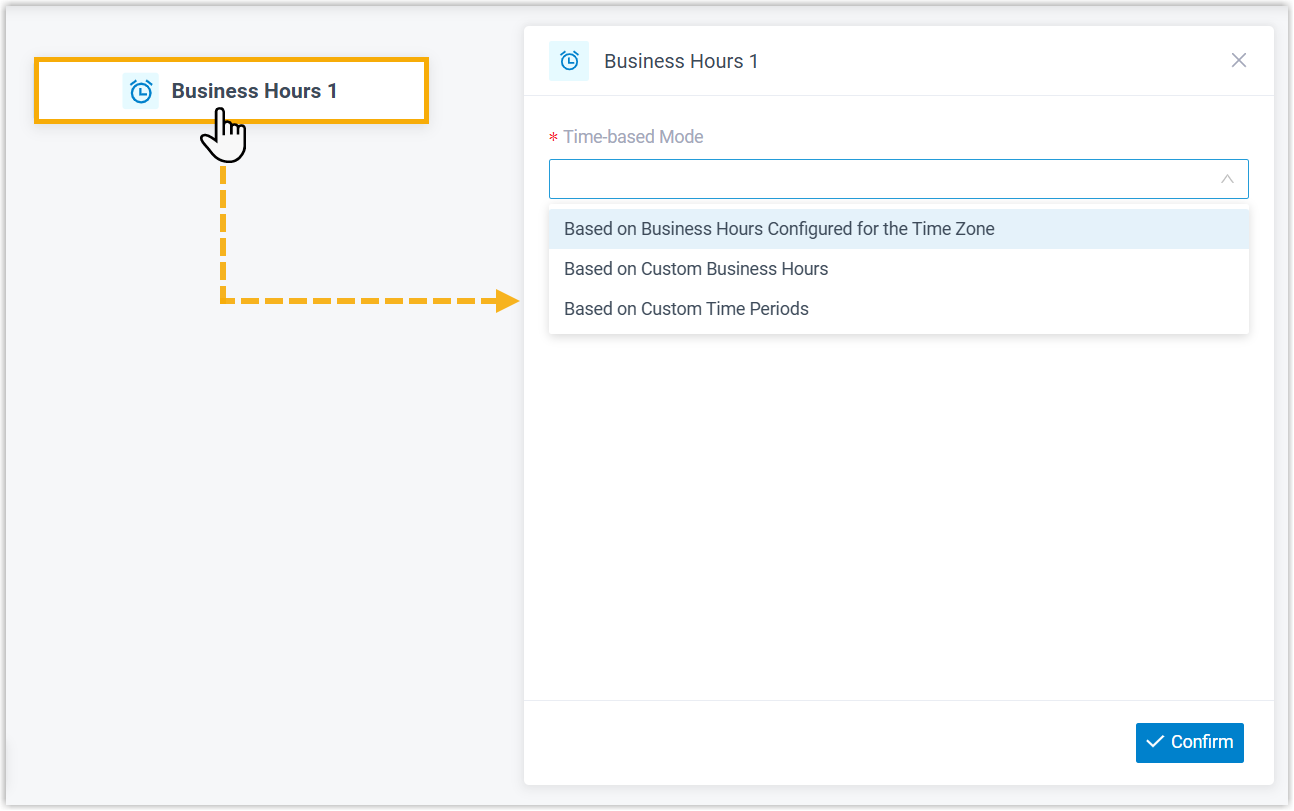
-
Choose the time-based mode that matches your schedule and fill in its settings. The steps differ by mode, follow the relevant section below.
-
Click the add button
 on any branch to attach the next component and continue routing the call.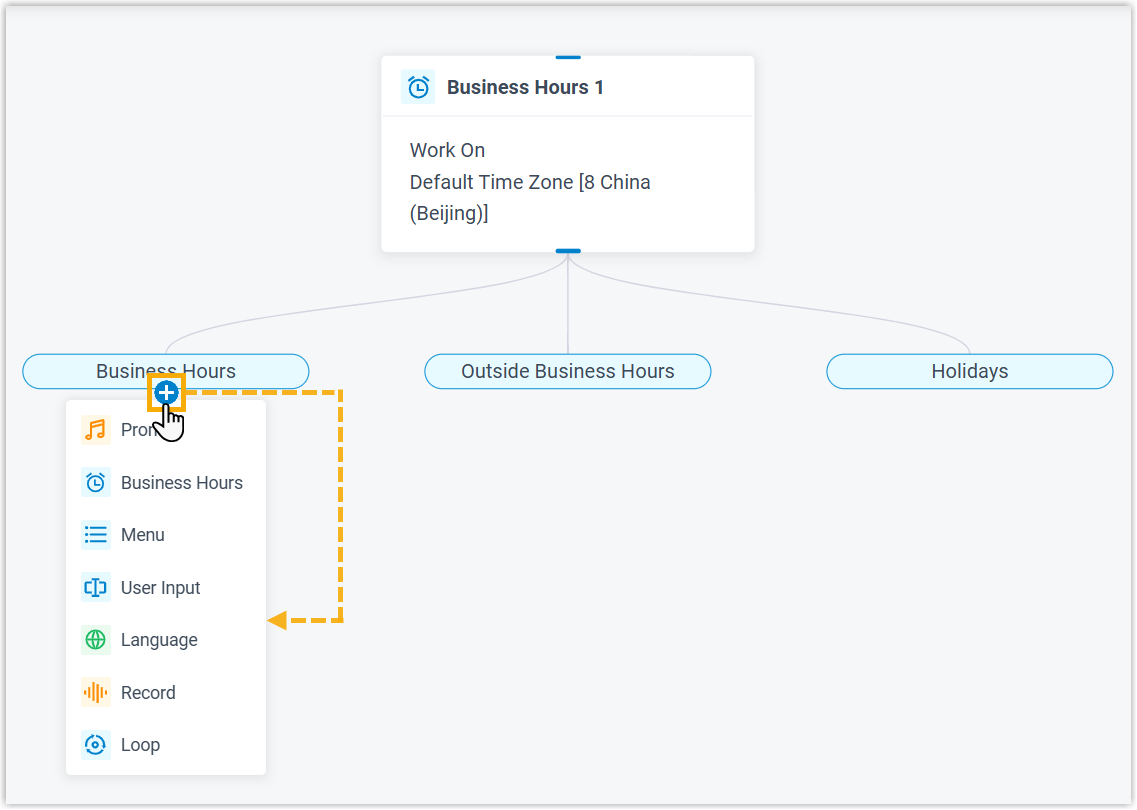
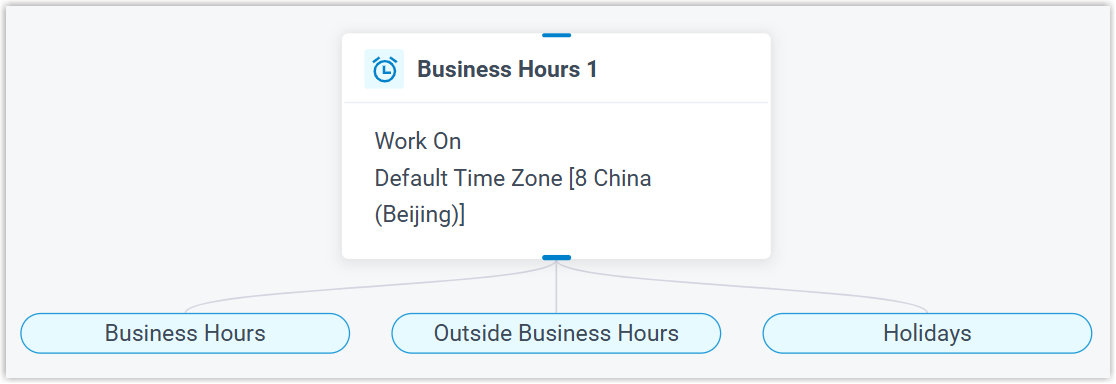
Use hours configured for a time zone
Section titled “Use hours configured for a time zone”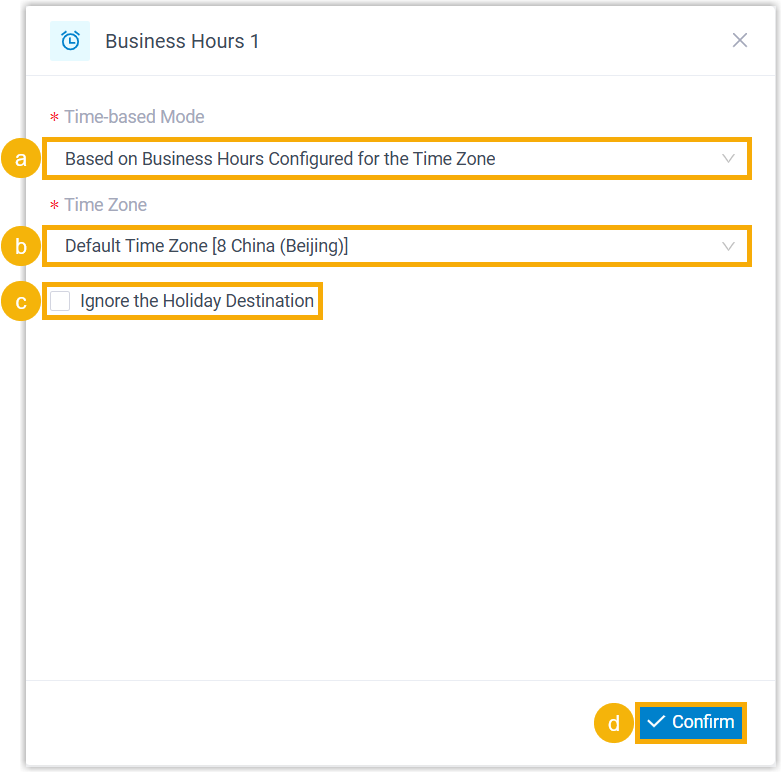
-
In the Time-based Mode list, select Based on Business Hours Configured for the Time Zone.
-
In the Time Zone list, choose the time zone whose saved hours you want to apply.
-
Optional: select Ignore the Holiday Destination to skip holiday routing.
-
Click Confirm in the bottom-right corner. The chosen time zone and its time branches appear on the component.
Use custom business hours
Section titled “Use custom business hours”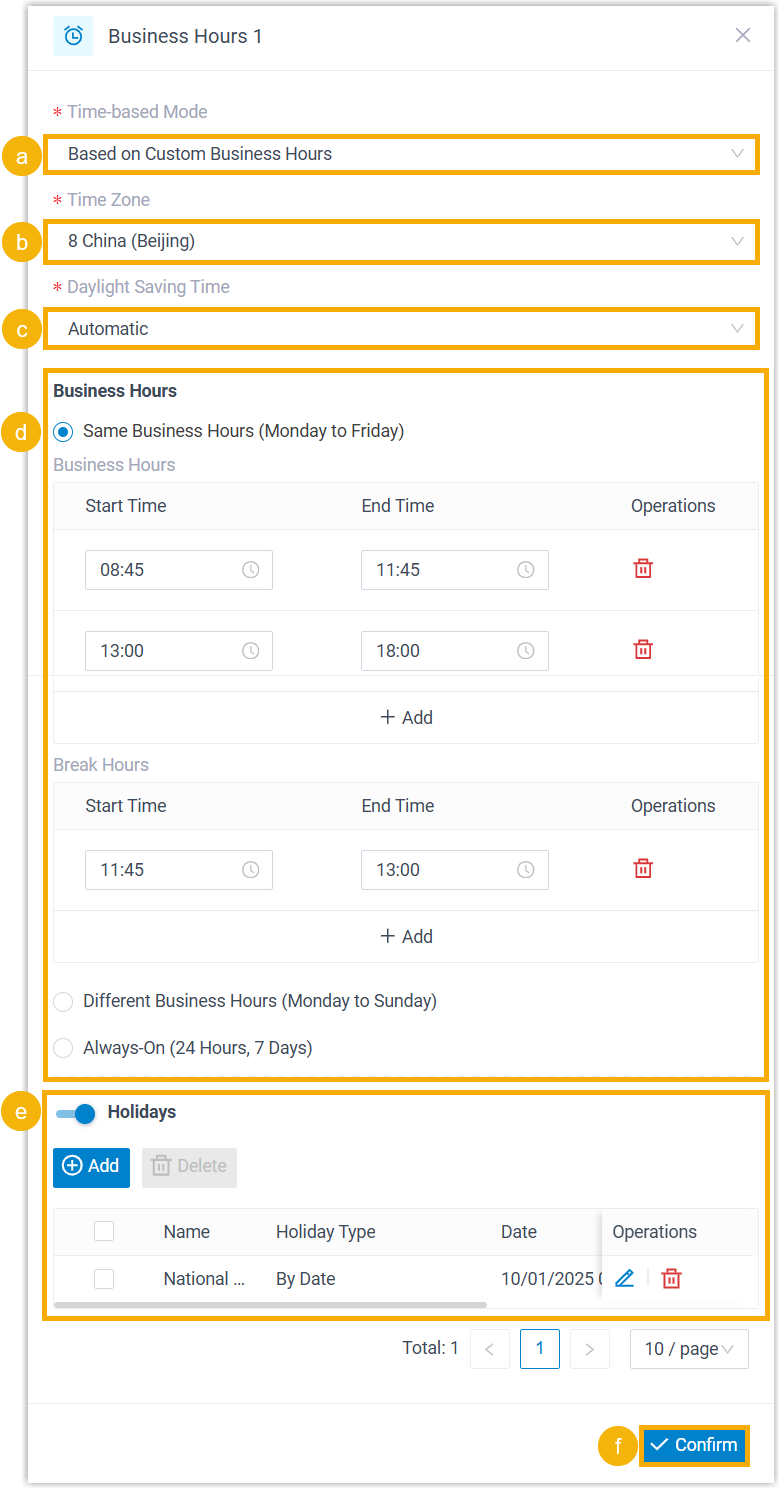
-
In the Time-based Mode list, select Based on Custom Business Hours.
-
In the Time Zone list, choose a time zone.
-
In the Daylight Saving Time list, turn the feature on or off.
-
Pick a business-hour type and enter its schedule to define your hours.
-
Optional: switch Holidays on and add the dates you want to treat as holidays.
-
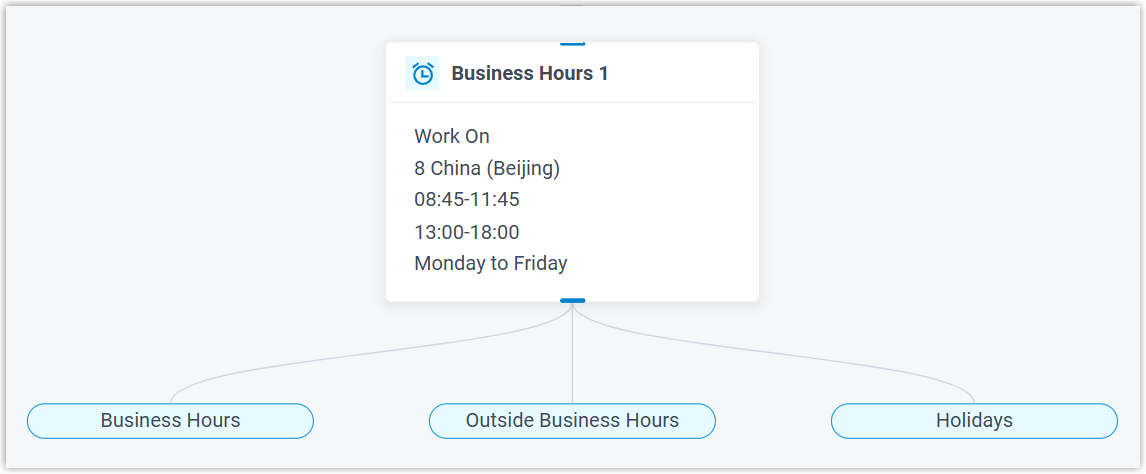
Click Confirm in the bottom-right corner. Your custom hours and their time branches appear on the component.
Use custom time periods
Section titled “Use custom time periods”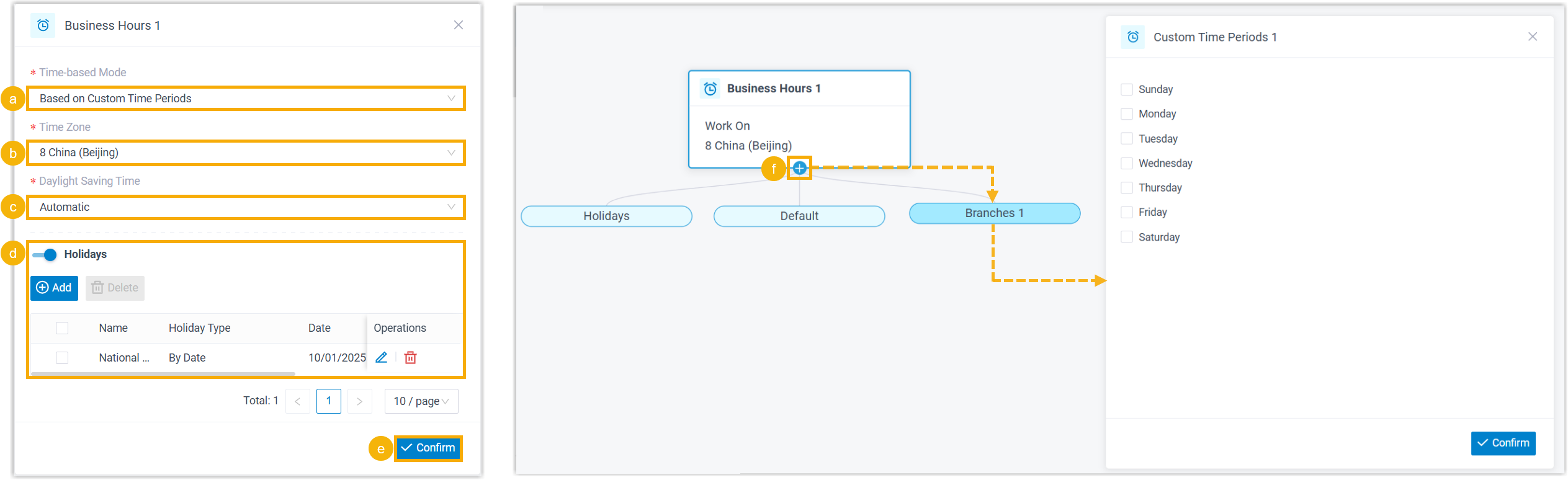
-
In the Time-based Mode list, select Based on Custom Time Periods.
-
In the Time Zone list, choose a time zone.
-
In the Daylight Saving Time list, turn the feature on or off.
-
Optional: switch Holidays on and add your holiday dates.
-
Click Confirm in the bottom-right corner.
-
Click the add button
on the component to create and configure each custom time period.The time zone and its branches appear on the component.
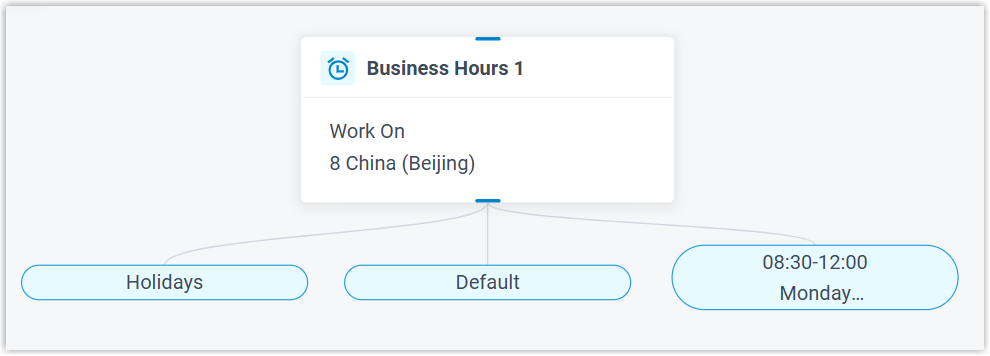
Connect the branches
Section titled “Connect the branches”The component ships with built-in time branches such as Business Hours, Outside Business Hours, and Holidays. Each branch connects to exactly one downstream component, which handles the call whenever that branch is matched. You can connect any of the components below.
| Component | What it does |
|---|---|
| Prompt | Plays an audio prompt or a text-to-speech message to the caller. |
| Business Hours | Adds another layer of time-based routing. |
| Menu | Offers callers a set of options and routes the call on the DTMF digit they press. DTMF (Dual-Tone Multi-Frequency) is the touch-tone signal a phone sends when the caller presses a key. |
| User Input | Collects DTMF digits from the caller, usually paired with Condition to route on what was entered. |
| Language | Switches the system-prompt language for the components that follow. |
| Record | Starts recording once the caller connects to another party, with optional notice prompts, or disables recording for a call that would otherwise be recorded. |
| Dial by Number | Lets callers dial a number directly to reach their destination. |
| Dial by Name | An end component that lets callers reach a user by typing the first three letters of their name. |
| Transfer | An end component that hands the caller to a set destination, with an optional prompt announcing the transfer. |
| Hang Up Call | An end component that disconnects the caller. |
| Condition | Routes calls according to logical expressions. |
| Loop | Repeats a group of components a set number of times or until a condition is met. |
| Internal Data Ops | Reads from and writes to the phone system’s built-in database (PBX, short for Private Branch Exchange). See Get Extension Presence Status, Set Extension Presence Status, Get Queue Agent, Get Queue Info, Get Agent Status, Set Agent Status, Get System Info, Get System Capacity, Get Extension Info, and Get Company Contact Info. |
| Email Sender | Sends email for real-time notifications, alerts, or user-specific information. |
| Database Access | Runs SQL (Structured Query Language, used to query and update databases) against a database mid-call to read or update data. |
| HTTP Request | Sends HTTP requests to external servers to exchange data with third-party services. |
Question about this page?
Ask the AI assistant. It starts from this page, then searches the rest of the docs.
Ask Cloud Voice AI
Answers are AI-generated from the docs and may contain mistakes. Verify with the linked pages.